
Admin panels › Registration
Registration
Entering a licence key, starting a trial, moving a licence between sites and renewing one that has lapsed. 5 parts.
Quick links
Where to find it:WP Admin › EasyCart › Registration
Getting a licence
The screen, and the three ways in
Why the page looks different on different stores, and how to start a trial, enter a key or buy one.
The screen changes with your licence
Four versions, and you only ever see the one that applies
no stored settingsRegistration is not one page. It picks a version based on what your store currently holds, so what you see is only ever the situation you are actually in.
With no licence it shows the three ways to get one. On a trial it shows the trial and how to turn it into a licence. With an active licence it shows the licence details and the tools to manage it. When support has expired it leads with renewal.
The heading is the same throughout: Registration & activation. If the page looks nothing like what a colleague described, it is because their store is in a different state, not because something is wrong.
Starting out
Trial, an existing key, or buying one
no stored settingsOn the free edition the page offers three routes, each stated once.
The 14-day trial installs and activates the PRO plugin in one click, with no card required. Every Pro feature is unlocked, and if you let it lapse the Pro panels simply lock again with nothing lost. It is one trial per site, and it uses the email on your WordPress account.
If you already have a key, the PRO plugin has to be installed and active before the licence form appears. The page notices where you are and offers the right next step: install it, activate it, or paste the key.
Buying a licence links out to plans and pricing. The key arrives by email and is entered back on this page.
Entering a key takes your full name, email address and the key itself. The email is worth getting right: renewal receipts and notices go to it.
💡 Note: The licence form only appears once the WP EasyCart PRO plugin is installed and active. If you cannot see somewhere to paste your key, that is why.
Managing it
Sites, details and endings
Moving a licence between sites, reading the details panel, and what happens when a trial or licence runs out.
One key, one site
How moving a licence works
no stored settingsA licence covers one WordPress site. That is the rule behind most of the confusion on this screen, and it is simpler than people expect.
Entering your key on a new site moves the licence there automatically. There is no need to free it up first, and no ticket to raise. This is what makes moving from staging to production straightforward: activate on the new site and the old one drops off.
You can also deactivate deliberately, which is the tidy thing to do when you are retiring a site. Deactivation asks you to confirm the key, then releases it for use elsewhere. Your data stays exactly where it is; only the entitlement moves.
Every key you have bought is listed in your account on the WP EasyCart site, with its support end date and the site it is currently on. That is the place to look when you cannot remember where a key went.
💡 Note: A licence covers one site, and entering the key on a new site moves it there automatically. Nothing needs to be released first, which is what makes a staging to production move painless.
An active licence
What the details panel tells you
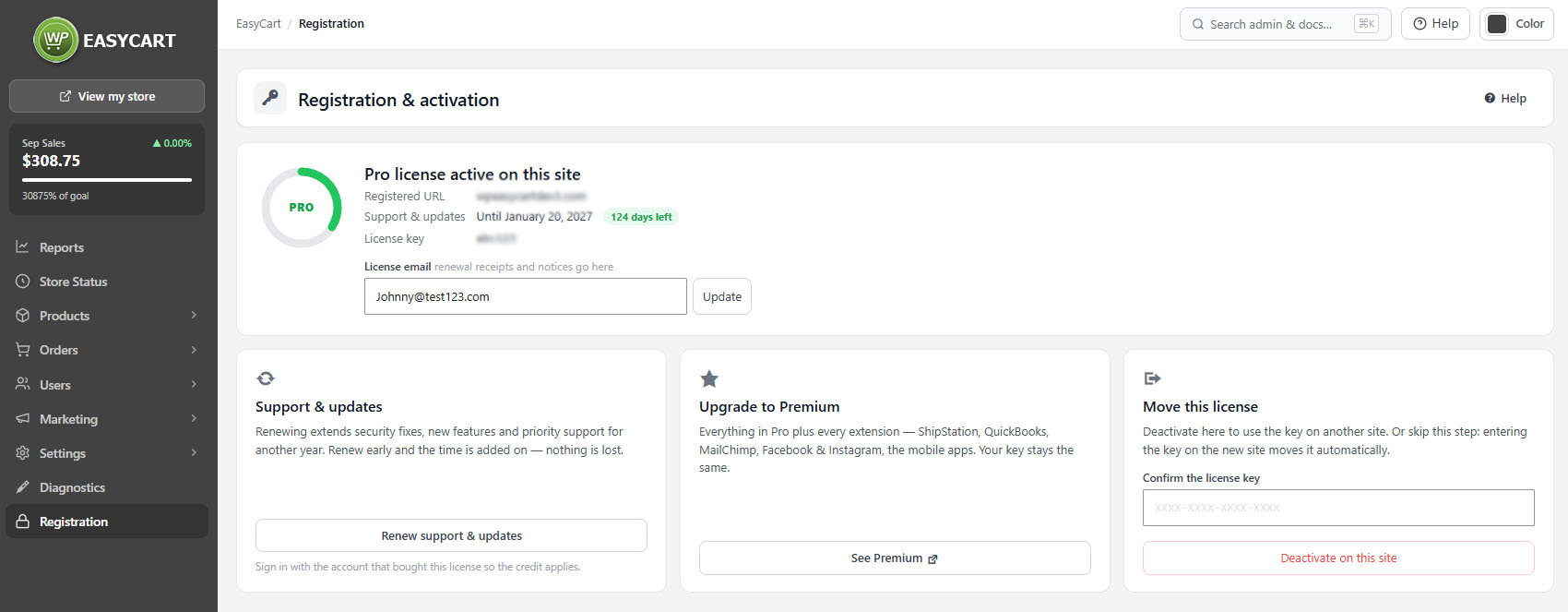
no stored settingsWith a licence in place the page confirms whether it is Pro or Premium and is active on this site, then lists the details: the registered URL, when it was registered, the licence version, the support and updates end date, the key itself and the licence email.
The registered URL is worth checking. A licence registered to a different address than the one you are working on is the usual explanation for features that will not unlock after a site move.
Inside the last stretch before expiry the page starts prompting to renew and spells out what lapses. Renewing early adds a full year on top of what remains, so there is no reason to wait until the last day.
If the licensing server cannot be reached, the page says so and states clearly that your store keeps working; only activation and licence checks are affected. It is worth trying again in a few minutes rather than re-entering anything.
💡 Note: Check the registered URL if features will not unlock after moving the site. The current state is also summarised on Store Status.
When a trial or licence ends
What locks, what stays, and how to pick it up
no stored settingsThe message is consistent across both endings, and it is the reassuring one: your products, orders and settings are untouched. The store keeps selling. Only the paid panels lock.
When a trial ends, upgrading turns the trial key into a licence. Nothing is reinstalled and nothing is re-entered, and the site stays exactly as you configured it.
When a licence lapses, renewing reopens every paid panel on the site within a few minutes, using the same key on the same site. Sign in with the account that bought the licence. If you have bought a new key instead, enter it and it replaces the expired one.
Choosing not to renew is offered as a real option rather than hidden. The page explains how to switch back to the free edition and is explicit that your data is kept either way. Note the practical effect: the paid panels close and the two per cent gateway fee on the free edition returns.
⚠️ Careful: Letting a licence lapse locks the paid panels and brings back the two per cent gateway fee on card payments. Your products, orders and settings are kept untouched either way.
Keep going
Related panels
Your licence state and what each edition unlocks.
Health checks, when a feature is open but not working.
Gateway replies, including the fee behaviour on the free edition.
Payment setup, where the gateway fee applies.
Admin options across the store.
Store statistics, beside the licence screen.
Try the PRO features free for 14 days
Anything marked PRO comes with WP EasyCart PRO or Premium. Take the whole thing for a run on your own store before you decide.
