
Navigation

Admin panels › Product details

Organization

Where this product sits in your catalogue and where it is deliberately placed on the storefront. 2 parts.

Several categories at onceBrand assignmentHand-placed menu positions

Before you start

Where it lives, and how the panel works

From your WordPress dashboard open EasyCart › Products, open a product, then choose Organization.

WP Admin EasyCart Products open a product Organization

Search instead of hunting

The search box at the top of the page filters it as you type, and it matches hidden keywords as well as names. The same box on the Settings home searches every panel at once.

Jump between sections

A section list sits beside the page and follows you down it, so you can move straight to the part you came for without scrolling through everything between.

Advanced settings are folded away

Each section hides its rarely-changed settings behind a Show N advanced settings link, naming the first few so you know whether it is worth opening. 0 of the 0 settings on this page start folded.

Dependent settings appear as needed

Settings shown indented here only exist once the setting above them is switched on. Sections of the editor reveal their fields as you switch a feature on, and hide them again when you switch it off.

Saving

Switches and dropdowns save the moment you change them. Anything you type collects in a save bar at the foot of the page that counts your unsaved changes and warns you before you navigate away.

Locked settings

Rows marked with a padlock need WP EasyCart PRO or Premium. They stay visible so you can see what the upgrade adds. Nothing on this page is locked.

On default is enabledOff default is disabledValue factory defaultPRO needs PRO or PremiumAdvanced behind the fold

Placing the product

Categories, brand and menus

What the product is, and where you have decided it should be seen.

Categories and manufacturer

Where the product sits in your catalogue

no stored settings

A product can belong to several categories, added by typing to search, with the option to create a new one without leaving the editor. Being in more than one category is normal and useful: a product can be both a gift idea and a kitchen item.

Bear in mind that rule-based categories fill themselves. If a category is defined by a rule the product matches, it will join on its own, and adding it by hand as well is harmless but unnecessary.

The manufacturer is the brand, chosen from your existing list or created here. Setting it puts the product on that brand’s page and makes it findable by brand in search, which only matters if your shoppers think in brands.
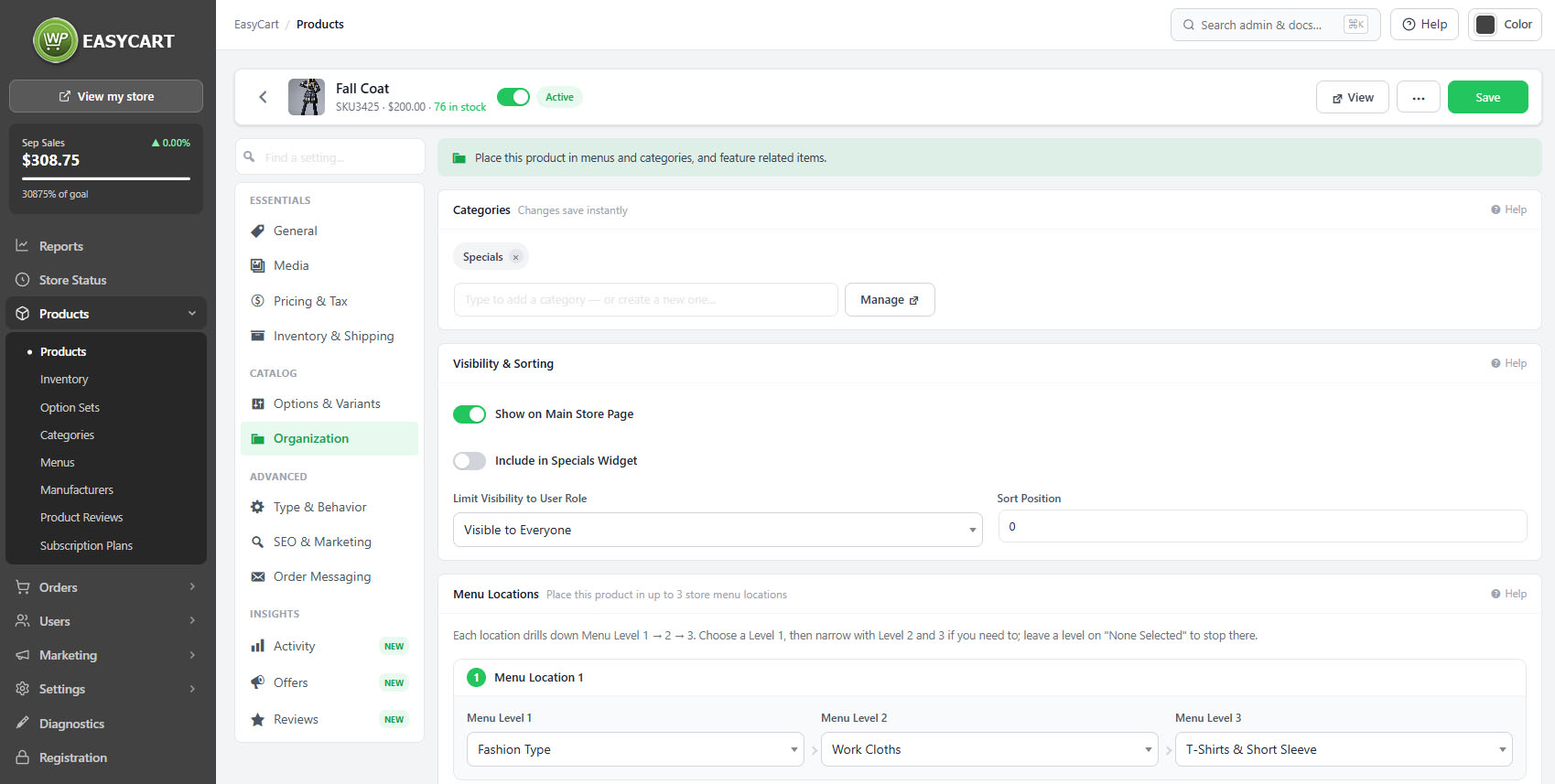
The product editor, Organization tab, showing categories, manufacturer and menu locations.

💡 Note: Rule-based categories add products automatically when they match. Check how a category is filled under Categories before adding a product to it by hand.

Menus and featured products

Hand-placed positions on the storefront

no stored settings

Menu locations place the product into the hand-built navigation menus. Unlike categories, menus do not fill themselves, so this is where you put a product into a seasonal or promotional route through the store.

Featured products are the hand-picked selections shown in featured blocks around the storefront. Both of these are deliberate placements: they say this product should be seen, rather than describing what it is.

Neither will maintain itself. A product placed in a Christmas menu stays there until somebody removes it, which is worth a diary note rather than a discovery in February.

💡 Note: Menu placements and featured selections are permanent until changed. Unlike a rule-based category they will not clear themselves when a season ends.

Keep going

Related panels

Categories

The category tree and how categories are filled.

Manufacturers

Brands and their pages.

Menus

Storefront navigation and its click counts.

SEO & Marketing

How the product is found in search.

Products

Featured categories and sidebar filters.

Products

The catalogue list and its filters.

Try the PRO features free for 14 days

Anything marked PRO comes with WP EasyCart PRO or Premium. Take the whole thing for a run on your own store before you decide.

Updated on September 18, 2026