
Admin panels › Product details
Order Messaging
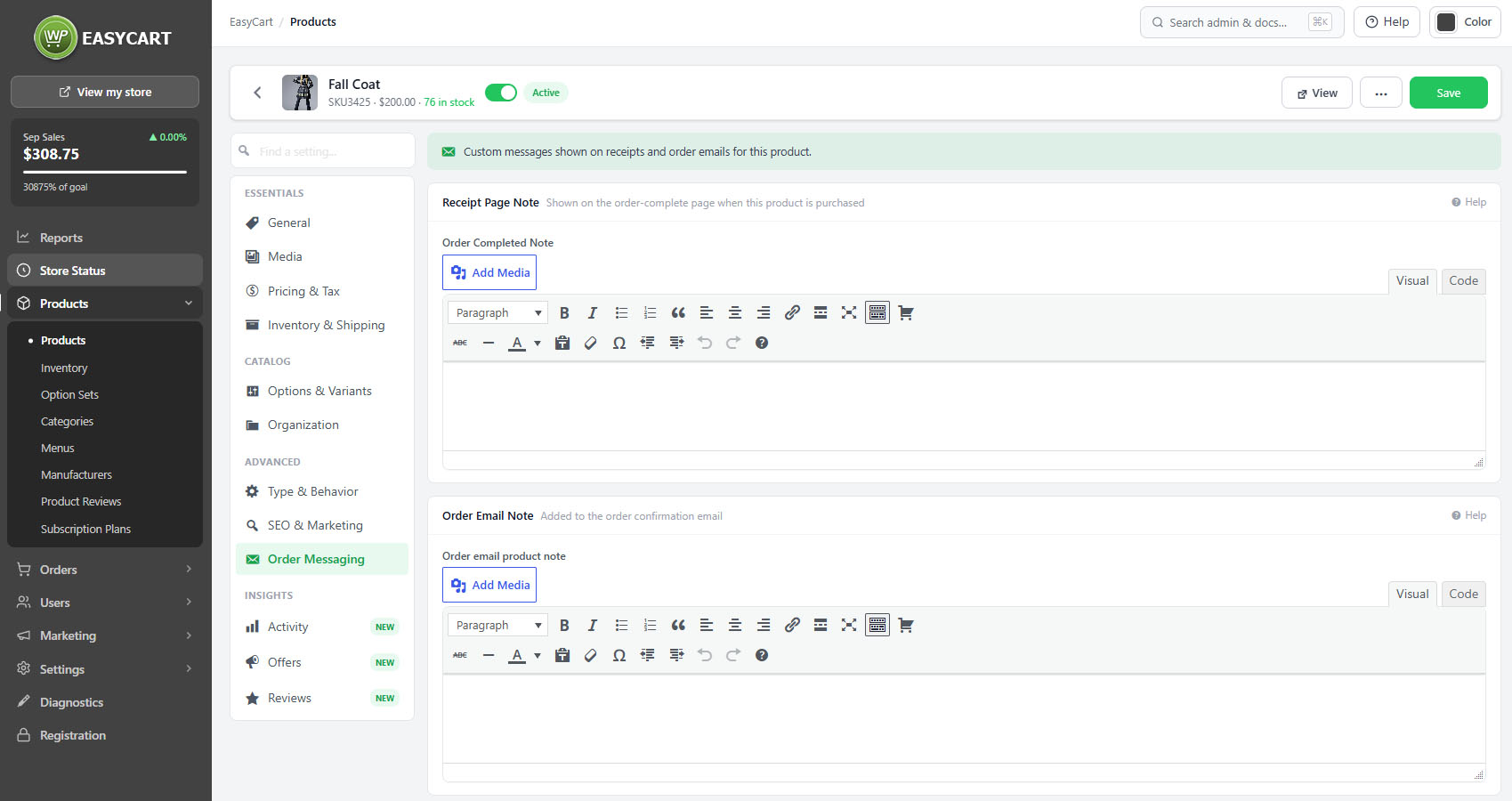
Three pieces of text that travel with this product after somebody buys it, each landing somewhere different. 2 parts.
Before you start
Where it lives, and how the panel works
From your WordPress dashboard open EasyCart › Products, open a product, then choose Order Messaging.
WP Admin › EasyCart › Products › open a product › Order Messaging
Search instead of hunting
The search box at the top of the page filters it as you type, and it matches hidden keywords as well as names. The same box on the Settings home searches every panel at once.
Jump between sections
A section list sits beside the page and follows you down it, so you can move straight to the part you came for without scrolling through everything between.
Advanced settings are folded away
Each section hides its rarely-changed settings behind a Show N advanced settings link, naming the first few so you know whether it is worth opening. 0 of the 0 settings on this page start folded.
Dependent settings appear as needed
Settings shown indented here only exist once the setting above them is switched on. Sections of the editor reveal their fields as you switch a feature on, and hide them again when you switch it off.
Saving
Switches and dropdowns save the moment you change them. Anything you type collects in a save bar at the foot of the page that counts your unsaved changes and warns you before you navigate away.
Locked settings
Rows marked with a padlock need WP EasyCart PRO or Premium. They stay visible so you can see what the upgrade adds. Nothing on this page is locked.
After the purchase
The notes and their uses
Where each note appears, and what is worth putting in one.
The three notes
Text that travels with this product when somebody buys it
no stored settingsA product can carry three pieces of text that appear after purchase rather than before it. Each lands in a different place, and the difference is worth getting right.
The order email note is added to the order confirmation email. This is the one people actually read, and the one they keep, so it is where anything they need later belongs.
The order details note appears against the product on the order record, which is what you and your staff see when handling it.
The receipt page note shows on the order-complete page immediately after checkout, which is the moment of highest attention and the shortest memory.
💡 Note: Only the order email note reaches the customer somewhere they can find it again. The receipt page note is seen once, and the order details note is for your staff.
What to put in them
The cases where a per-product note saves a support message
no stored settingsThese notes exist for the things that are true of one product and not the rest of your catalogue, where putting the information in a global email template would confuse everybody who bought something else.
Typical uses: care or assembly instructions, a licence key or activation step, a warning that a made-to-order item takes three weeks, collection instructions for something too large to post, allergen or safety information, or what to do next on a service or booking.
The test for whether a note is worth writing is simple. If buying this product reliably produces the same question a few days later, the answer belongs in the order email note and you will stop receiving the question.
💡 Note: Wording that applies to every order belongs in the email templates under Settings › Email rather than being repeated on each product.
Keep going
Related panels
Order email templates, senders and PDF receipts.
The order record where one of these notes appears.
Downloads and subscriptions, which often need a note.
Language
The receipt wording these notes sit alongside.
The product description, which is read before buying.
Checkout
Customer order notes, which travel the other way.
Try the PRO features free for 14 days
Anything marked PRO comes with WP EasyCart PRO or Premium. Take the whole thing for a run on your own store before you decide.
