
Admin panels › Product details
Offers
Every discount that applies to this product, whether it was built for this product or not, and what each one has actually earned. 2 parts.
Before you start
Where it lives, and how the panel works
From your WordPress dashboard open EasyCart › Products, open a product, then choose Offers.
WP Admin › EasyCart › Products › open a product › Offers
Search instead of hunting
The search box at the top of the page filters it as you type, and it matches hidden keywords as well as names. The same box on the Settings home searches every panel at once.
Jump between sections
A section list sits beside the page and follows you down it, so you can move straight to the part you came for without scrolling through everything between.
Advanced settings are folded away
Each section hides its rarely-changed settings behind a Show N advanced settings link, naming the first few so you know whether it is worth opening. 0 of the 0 settings on this page start folded.
Dependent settings appear as needed
Settings shown indented here only exist once the setting above them is switched on. Sections of the editor reveal their fields as you switch a feature on, and hide them again when you switch it off.
Saving
Switches and dropdowns save the moment you change them. Anything you type collects in a save bar at the foot of the page that counts your unsaved changes and warns you before you navigate away.
Locked settings
Rows marked with a padlock need WP EasyCart PRO or Premium. They stay visible so you can see what the upgrade adds. Nothing on this page is locked.
Discounts on this product
What applies and what it earned
The offers touching this product, and whether they were worth it.
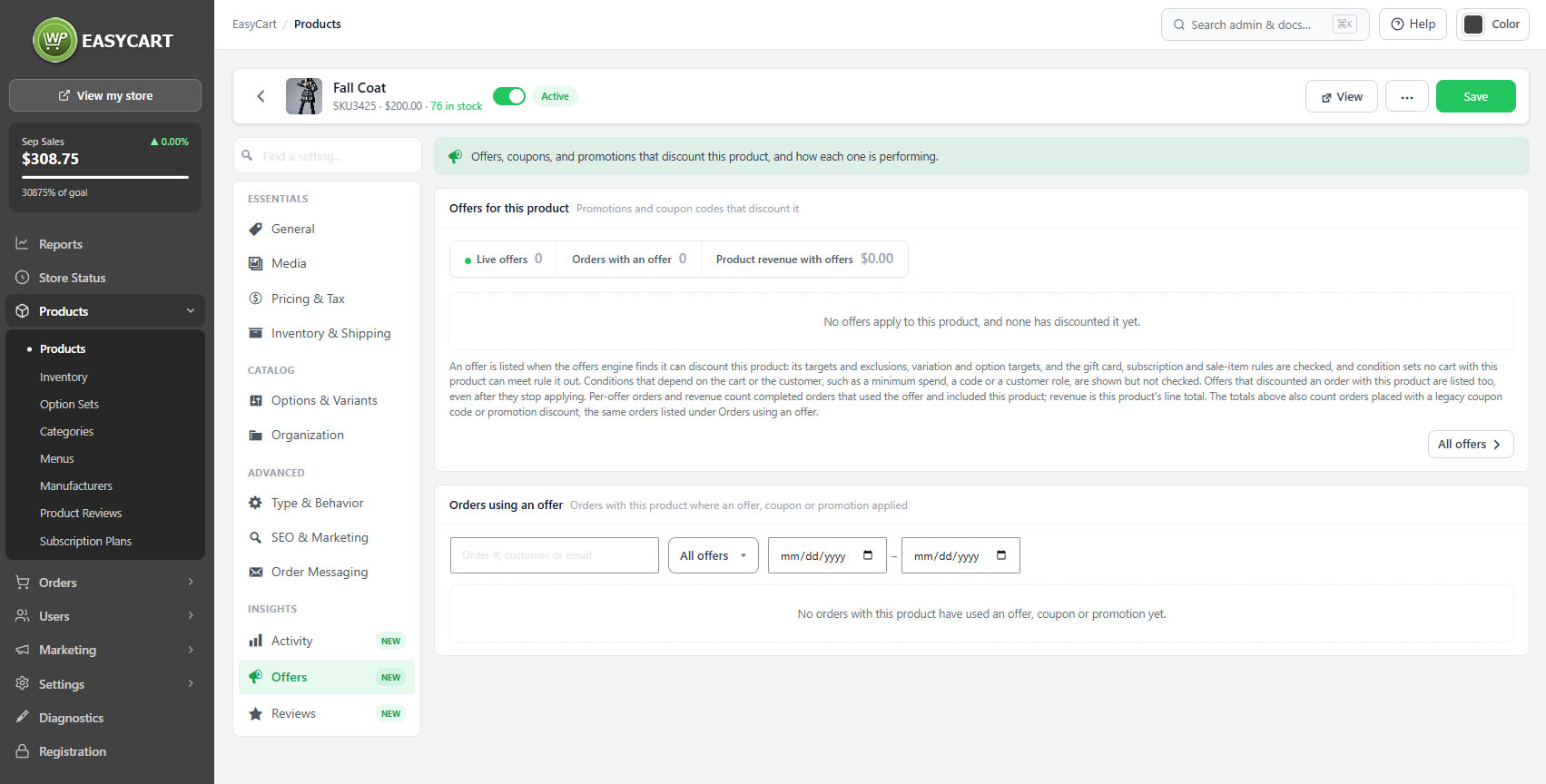
Offers on this product
Every discount that touches it, in one list
no stored settingsA product is rarely touched by only one offer. A storewide percentage sale, a category promotion, a coupon code and a free shipping threshold can all apply to the same item, and none of them are configured on the product itself.
This tab gathers them. Every offer that discounts the product is listed with its status, so you can see what is live now, what is scheduled and what has ended, without working backwards from the offers screen.
Quick filters narrow the list to everything, live offers, the ones specifically targeting this product, and the ones that have actually been used. That last filter is the interesting one: an offer that applies but has never been redeemed against this product is not doing anything for it.
💡 Note: Offers are built in Offers and can target a product, a category, a manufacturer or the whole store. This tab shows the result of all of them against this one product.
What the discounting earned
Uses, orders and revenue per offer
no stored settingsEach offer shows its uses, the orders it appeared on and the revenue those orders produced, and the orders themselves can be listed with search, offer and date filters.
This is the view that answers whether discounting a product was worth it. Volume alone never does: an offer can move a great deal of stock and still lose money, particularly where it stacks with another. Seeing revenue beside uses, for this product specifically, is what makes the judgement possible.
It also shows which offer is doing the work when several apply. Frequently one is carrying the sales and the others are simply reducing the margin on orders that would have happened anyway.
⚠️ Careful: Read revenue alongside uses. A heavily used offer can still be losing money, especially where it stacks with another. The stacking rules are set on the offer itself.
Keep going
Related panels
Building offers and their stacking rules.
The prices these offers discount.
Sales and customers for this product.
Discount totals across the whole store.
Gift cards, which are not discounts.
Showing coupon and promotion savings on each line.
Try the PRO features free for 14 days
Anything marked PRO comes with WP EasyCart PRO or Premium. Take the whole thing for a run on your own store before you decide.
