
Admin panels › Orders
Subscriptions
Every recurring agreement your store holds, what state it is in, what has been charged against it, and what you can change from here rather than at the payment provider. 4 parts.
Before you start
Where it lives, and how the panel works
From your WordPress dashboard open EasyCart › Orders, then Subscriptions.
WP Admin › EasyCart › Orders › Subscriptions
Search instead of hunting
The search box at the top of the page filters it as you type, and it matches hidden keywords as well as names. The same box on the Settings home searches every panel at once.
Jump between sections
A section list sits beside the page and follows you down it, so you can move straight to the part you came for without scrolling through everything between.
Advanced settings are folded away
Each section hides its rarely-changed settings behind a Show N advanced settings link, naming the first few so you know whether it is worth opening. 0 of the 0 settings on this page start folded.
Dependent settings appear as needed
Settings shown indented here only exist once the setting above them is switched on. A Stripe subscription shows the card on file and its invoices; a PayPal one shows the subscriber ID and points you to PayPal instead.
Saving
Switches and dropdowns save the moment you change them. Anything you type collects in a save bar at the foot of the page that counts your unsaved changes and warns you before you navigate away.
Locked settings
Rows marked with a padlock need WP EasyCart PRO or Premium. They stay visible so you can see what the upgrade adds. Nothing on this page is locked.
On this page
Jump to a section
The agreements
List and record
What is running, what is in trouble, and what sits inside an individual subscription.
The subscription list
Every recurring agreement, and which ones need attention
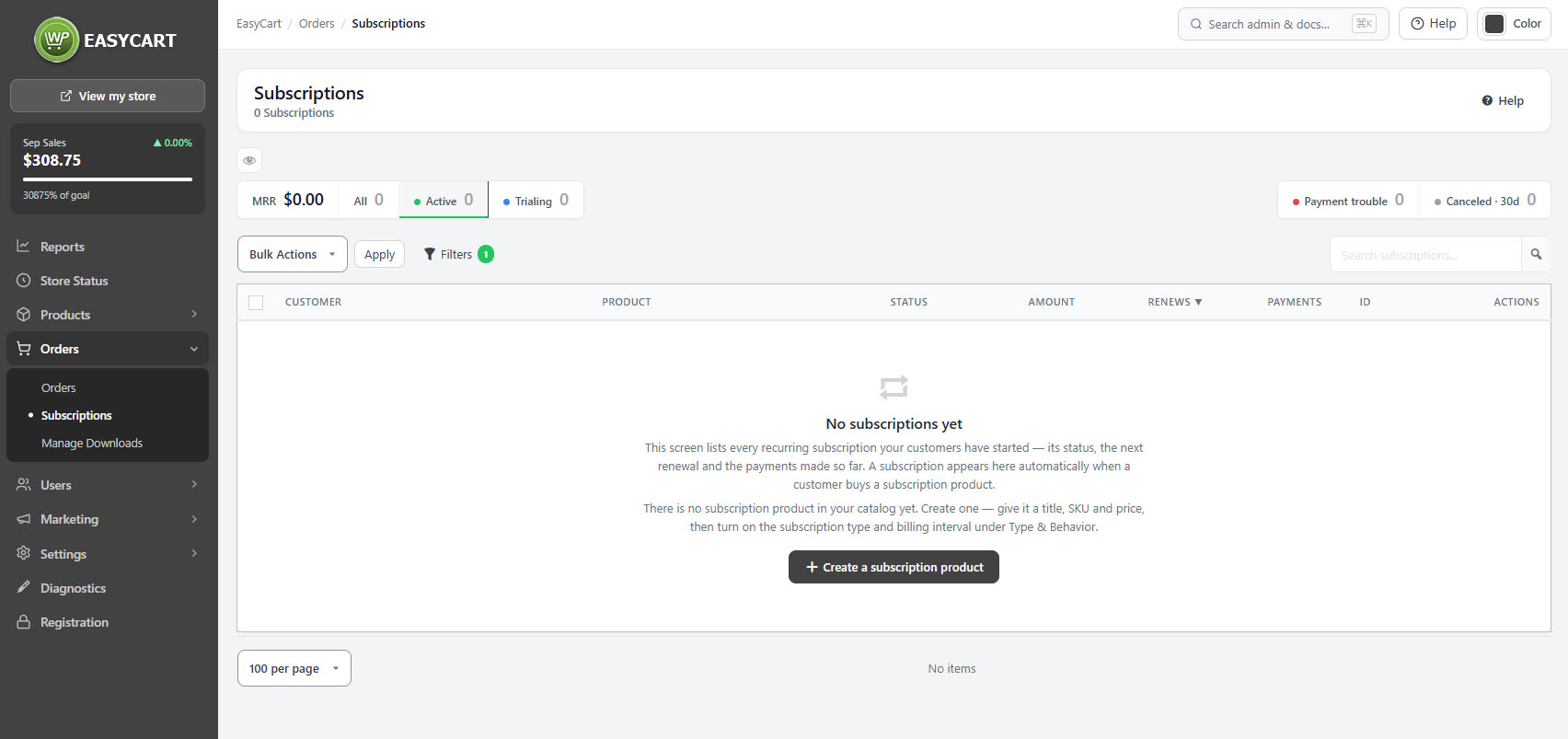
no stored settingsOne row per subscription, showing the customer, the product, the amount, when it renews and its current state. The states are worth knowing apart, because they call for different responses.
Active is billing normally. Past due and Payment failed mean money did not arrive and somebody should act. Paused is deliberate and either has a resume date or waits for you. Incomplete never got off the ground. Expired and Canceled have ended.
A health indicator flags the ones in trouble, including how many times an invoice has been retried and whether any retries remain. A subscription whose last retry has passed is not going to fix itself.
Inside a subscription
What was bought, who by, and what has been charged so far
no stored settingsThe overview carries the customer details, the product with the options, variants and any sign-up fee from the original purchase, the quantity, the price and the duration. Where nothing extra was chosen, it says so rather than leaving you wondering whether the record is incomplete.
The billing history lists every payment taken, with dates and amounts, and each payment creates a normal order in your store, so the money is visible in reports and the customer gets a receipt like any other purchase. Refunds against those payments are recorded here too.
If the same customer holds more than one subscription, the others are linked from the record, which saves hunting when somebody asks you to change all of them.
💡 Note: Each payment creates a normal order, so subscription revenue appears in Reports and in Order Management alongside one-off sales rather than being counted separately.
Managing them
Providers and actions
Where the billing really lives, and the difference between pausing, cancelling and deleting.
Stripe and PayPal
Where the billing actually lives, and what that means for what you can change
no stored settingsThe subscription record in your store mirrors an agreement held at the payment provider, and which provider it is decides what you can do from here.
For Stripe, the screen reads across: the card on file, the invoices, and whether your record is in sync. Stripe invoices can be loaded on demand, and an active Stripe subscription can have its product changed. If there is no default payment method on file, the screen says so plainly, because that is the single most common reason a renewal fails.
For PayPal, the billing agreement is managed at PayPal, not here. Cancelling in WP EasyCart marks the record cancelled and tells you in as many words to cancel the agreement at PayPal as well. Miss that step and the customer keeps being charged by a subscription your store believes is over.
⚠️ Careful: Cancelling a PayPal subscription here marks your record cancelled but does not stop PayPal billing the customer. The billing agreement has to be cancelled at PayPal as well. Stripe subscriptions do carry the cancellation through.
Pausing, cancelling and deleting
Three different things, only one of which is reversible
no stored settingsPausing stops billing without ending the agreement, either until a date you set or until you resume it manually. This is the right answer for a customer going away, a seasonal break, or a delivery problem you need time to fix.
Cancelling ends the agreement. On Stripe it is carried through to the provider; on PayPal it is not, and you must finish the job there.
Deleting removes the record from your store entirely. It sits in a danger zone on the screen for good reason: it destroys your copy of the history without touching anything at the payment provider, so it is almost never what you want. Cancel instead, and keep the record.
⚠️ Careful: Deleting removes your record and leaves the agreement untouched at the provider. If you want billing to stop, cancel. Delete only when you are certain the agreement is already dead at the provider and you no longer want the history.
Keep going
Related panels
The plans that define durations and pricing.
The orders each subscription payment creates.
Accounts
Letting shoppers manage their own subscriptions.
Trial, renewal and payment failure emails.
The Stripe and PayPal connections behind the billing.
The customers holding these subscriptions.
Try the PRO features free for 14 days
Anything marked PRO comes with WP EasyCart PRO or Premium. Take the whole thing for a run on your own store before you decide.
