
Financial Settings
Stripe Buy Now & Pay Later Gateways
Stripe offers a huge array of payment methods beyond simple credit card processing. Buy Now & Pay Later payments such as Affirm, AfterPay & Klarna have become increasingly popular finance options that let customers break larger purchases into payments. Increase your customer conversions by offering available on-site payment plans through these popular processors.
Before You Enable a Pay-Later Gateway
Pay-later buttons are smart — they only appear when the order actually qualifies.
Special Note
These special payment options are heavily dependent on the country your Stripe account is established in, as well as the customer and currencies involved. They will only show as options if the shopping cart also meets certain specifications — a good example is Affirm only working on $50–$30,000 dollar orders.
Helpful Quick Links
Jump straight to the Stripe topic you need — on this page or in the companion gateway guides.
- Stripe Setup: Connecting Stripe in Free Edition · Pro & Premium One-Click Connect · Adding Your Webhook · Enabling 3D Secure & SCA · Testing Payments
- Wallet & Quick Payments: Setup Guide · Apple Pay/Google Pay/Microsoft Pay · AliPay · GrabPay · WeChat Pay · Link Payments
- Buy Now & Pay Later (this page): Affirm · AfterPay · Klarna
- Bank Redirects: Setup Guide · Bancontact · BLIK · EPS · GiroPay · iDeal · Przelewy24
- Real-Time Payments: Setup Guide · Pix · PayNow · PromptPay
- Bank Debits: Setup Guide · BECS Direct Debit in Australia
Enabling Affirm
With the latest Stripe API + EasyCart, you can offer Affirm easily and effectively — giving your customers the ability to make payments on larger purchases over $50 and under $30,000. Special considerations: be sure you meet the criteria below before enabling this gateway.
- Available Countries: United States
- Available Currencies: USD
- Country & Currency Restrictions: Your Stripe account and EasyCart must all be established and set up for United States and USD currency.
- Seller Restrictions: Affirm will only operate for customers within the US. Affirm will only show for orders of $50 to $30,000 in total.
Enable Affirm in EasyCart
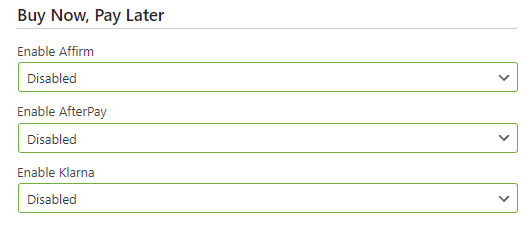
Go to WP EasyCart › Settings › Payments › Stripe setup in EasyCart and turn on Affirm. This is all that is required to enable Affirm in the EasyCart checkout process.
WP EasyCart — Buy Now & Pay Later Settings
Enable Affirm on Stripe
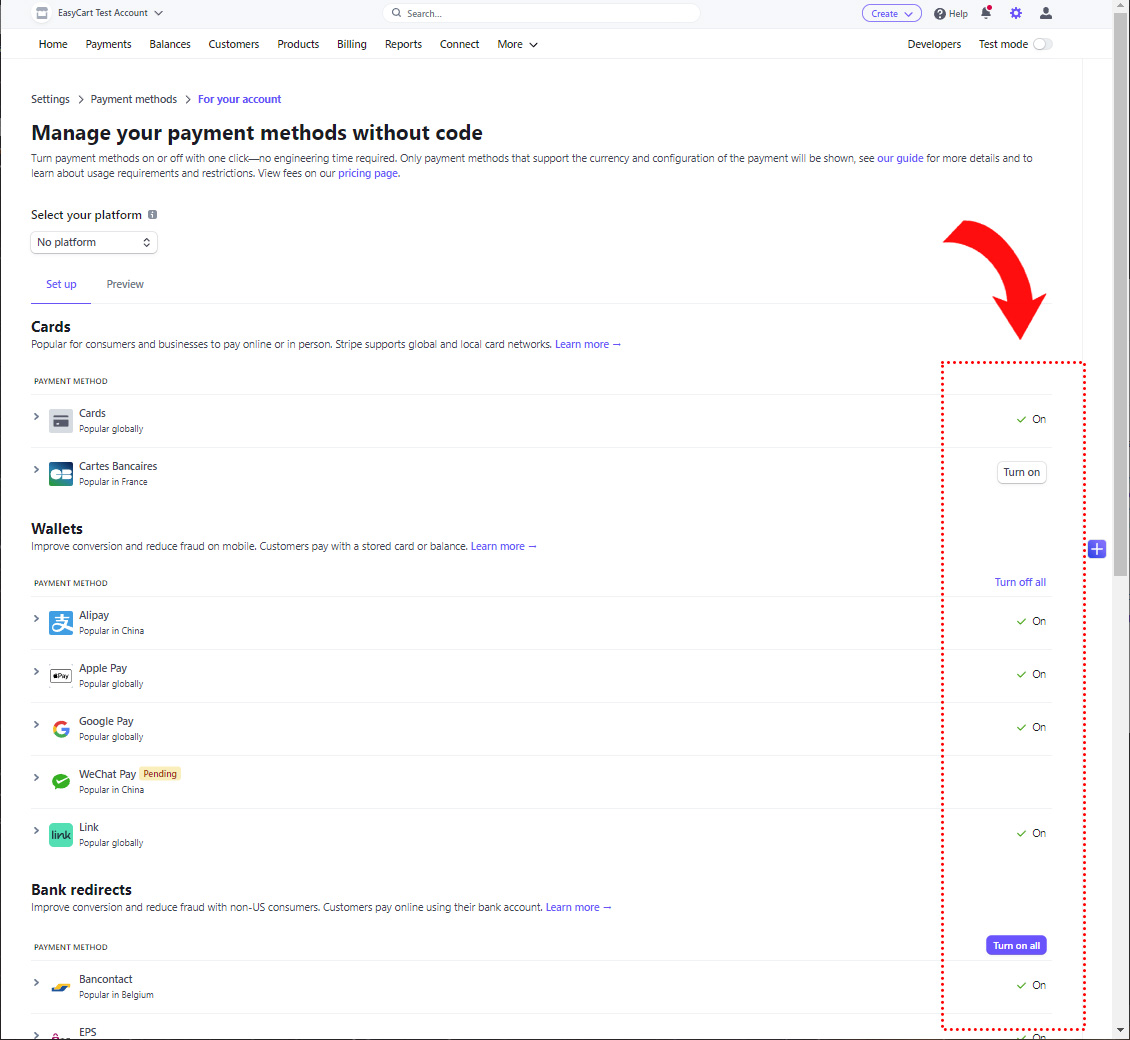
Next, enable Affirm over in your Stripe account. Visit Stripe › Settings › Payment Methods › Affirm — here you can enable the payment system within your Stripe account.
Stripe — Enable Payment Methods
Now when customers go to checkout, they are given the choice to use Stripe for credit card processing — or they’ll also see the Affirm option if the order and parameters meet the requirements.
WP EasyCart — Affirm at Checkout

Enabling AfterPay
With the latest Stripe API + EasyCart, you can offer AfterPay easily and effectively. Special considerations: be sure you meet the country and currency criteria below before enabling this gateway.
- Available Countries: Austria, Belgium, Denmark, Finland, France, Germany, Ireland, Italy, Netherlands, Norway, Spain, Sweden, United Kingdom, and the United States
- Available Currencies: EUR, USD, GBP, DKK, SEK, or NOK
- Country & Currency Restrictions: It is important that your Stripe account country and currency are one of the above, and that your WP EasyCart › Initial Settings also have one of these currencies as well. Your Stripe setup is critical here to insure that AfterPay operates.
- Seller Restrictions: AfterPay will only operate for customers from the same country as the seller country!
Enable AfterPay in EasyCart
Go to WP EasyCart › Settings › Payments › Stripe setup in EasyCart and turn on AfterPay. This is all that is required to enable AfterPay in the EasyCart checkout process.
WP EasyCart — Buy Now & Pay Later Settings
Enable AfterPay on Stripe
Next, enable AfterPay over in your Stripe account. Visit Stripe › Settings › Payment Methods › AfterPay — here you can enable the payment system within your Stripe account.
Stripe — Enable Payment Methods
Now when customers go to checkout, they are given the choice to use Stripe for credit card processing — or they’ll also see the AfterPay option if the order and parameters meet the requirements.
WP EasyCart — AfterPay at Checkout

Enabling Klarna
With the latest Stripe API + EasyCart, you can offer Klarna easily and effectively. Special considerations: be sure you meet the country and currency criteria below before enabling this gateway.
- Available Countries: United States, Canada, United Kingdom, Australia, New Zealand, France, Spain
- Available Currencies: USD, CAD, GBP, AUD, NZD, or EUR
- Country & Currency Restrictions: It is important that your Stripe account country and currency are one of the above, and that your WP EasyCart › Initial Settings also have one of these currencies as well. Your Stripe setup is critical here to insure that Klarna operates.
Enable Klarna in EasyCart
Go to WP EasyCart › Settings › Payments › Stripe setup in EasyCart and turn on Klarna. This is all that is required to enable Klarna in the EasyCart checkout process.
WP EasyCart — Buy Now & Pay Later Settings
Enable Klarna on Stripe
Next, enable Klarna over in your Stripe account. Visit Stripe › Settings › Payment Methods › Klarna — here you can enable the payment system within your Stripe account.
Stripe — Enable Payment Methods
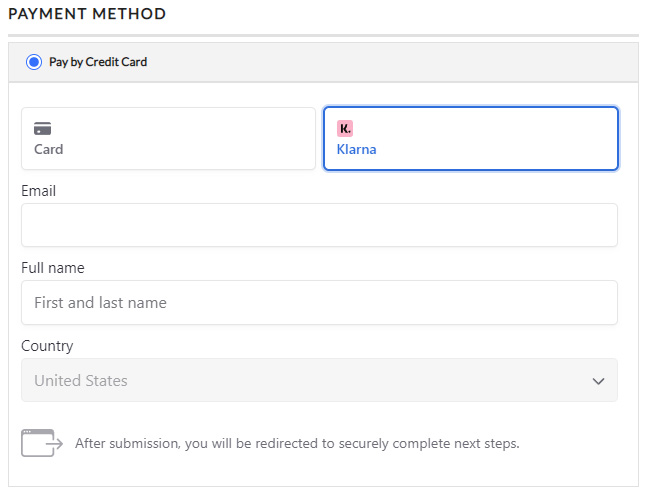
Now when customers go to checkout, they are given the choice to use Stripe for credit card processing — or they’ll also see the Klarna option if the order and parameters meet the requirements.
WP EasyCart — Klarna at Checkout
Turn Big Purchases into Easy Payments
Affirm, AfterPay, and Klarna can lift conversions on larger orders. If a pay-later option isn’t appearing at checkout, our support team will help you check the requirements.