Financial Settings
Stripe Wallet & Quick Payment Setup
Stripe offers a huge array of payment methods beyond simple credit card processing. Wallet and quick payments are optional extras that add real value for your customers — a shopper with Apple Pay or Google Pay can skip your entire shopping cart process and simply pay from a device where their card information is already stored. WP EasyCart lets you enable several of these popular wallet and quick payment types.
Smart Buttons. Smart Testing.
These payment types are ‘smart’ buttons and processes that detect whether a user has them set up on their device — and they only show in those special circumstances.
Special Note on Testing
Testing for Apple Pay requires you have an Apple device with Apple Pay set up. Google Pay requires you to have Android with Google Pay set up and/or a Chrome browser with Google Pay established.
Helpful Quick Links
Jump straight to the Stripe topic you need — on this page or in the companion gateway guides.
- Stripe Setup: Connecting Stripe in Free Edition · Pro & Premium One-Click Connect · Adding Your Webhook · Enabling 3D Secure & SCA · Testing Payments
- Wallet & Quick Payments (this page): Apple Pay/Google Pay/Microsoft Pay · AliPay · GrabPay · WeChat Pay · Link Payments
- Buy Now & Pay Later: Setup Guide · Affirm · AfterPay · Klarna
- Bank Redirects: Setup Guide · Bancontact · BLIK · EPS · GiroPay · iDeal · Przelewy24
- Real-Time Payments: Setup Guide · Pix · PayNow · PromptPay
- Bank Debits: Setup Guide · BECS Direct Debit in Australia
Enabling Apple Pay, Google Pay & Microsoft Pay
With the latest Stripe API + EasyCart, you can offer Apple Pay, Google Pay, and Microsoft Pay easily and effectively. Shoppers quickly one-click confirm and pay with the stored information on their devices — whether it’s an iPhone or a Google Chrome browser.
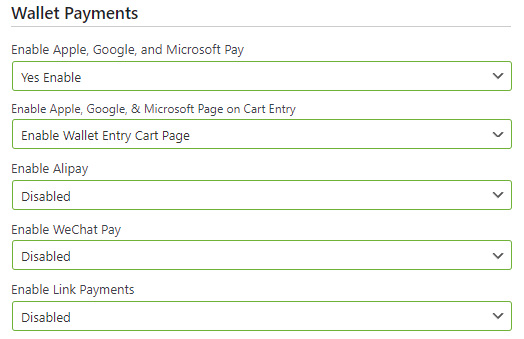
Enable Wallet Payments in EasyCart
Go to WP EasyCart › Settings › Payments › Stripe setup in EasyCart and turn on wallet payments. This is all that is required to enable Google Pay and Microsoft Pay — Apple Pay requires one extra verification step, covered next.
WP EasyCart — Stripe Wallet Payment Settings
Configure Apple Pay on Stripe
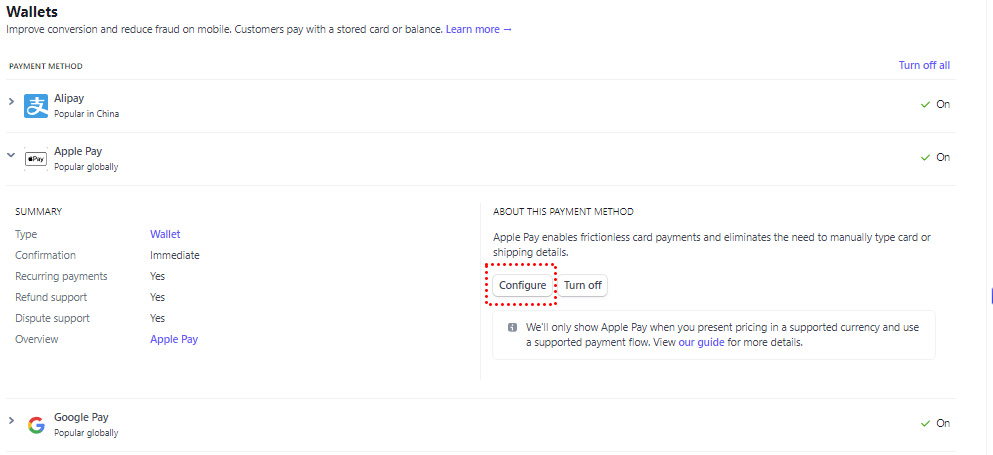
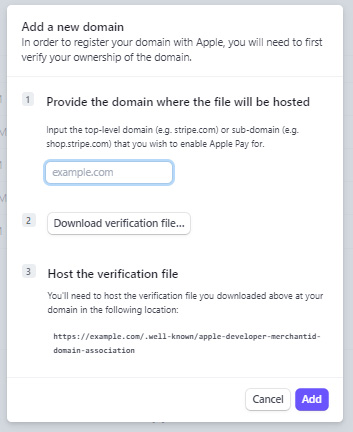
Apple Pay requires special verification: you upload a verification file to your server and verify it on Stripe. Visit Stripe › Settings › Payment Methods › Apple Pay › Configure. Stripe has made it a fairly painless 3-step process — simply enter your domain, download their verification file, then upload it via FTP to their location. You must upload the file before you click the blue ‘Add’ button.
Stripe — Configure Apple Pay Verification
You’ll Need File System Access
This step requires access to your file system. Most hosts allow you cPanel or FTP access to upload files and create folders. You must create a new folder called /.well-known/ and put the verification file inside that folder as the URL states — or Stripe will not find it.
Add & Verify
Once you add the verification file to your website, you may click ‘Add’ and Stripe will verify it.
Stripe — Apple Pay Verification Steps
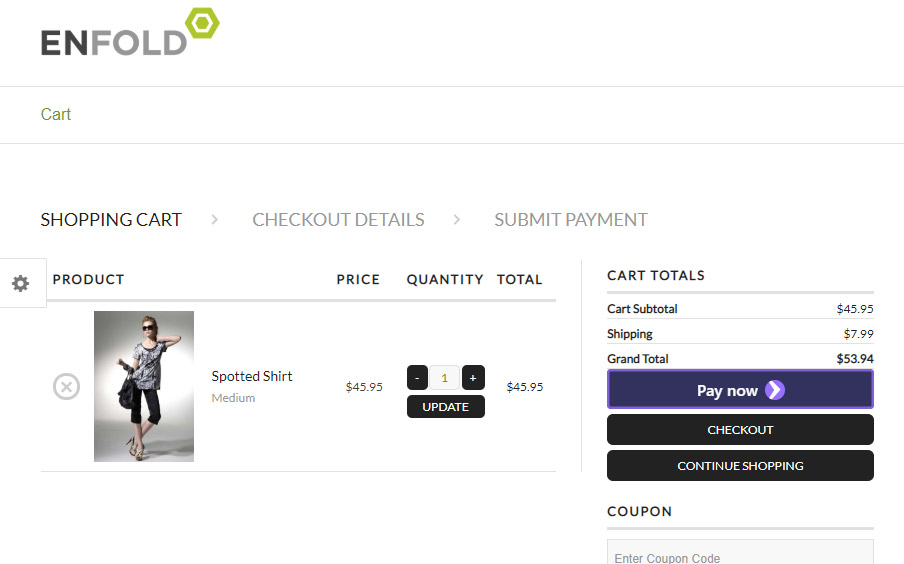
Once you have verified and enabled Apple Pay through Stripe and EasyCart, users are greeted with extra checkout buttons if they come from select devices. In this example, Chrome shows an extra purple ‘Pay Now’ button — users on Apple devices with Apple Pay see their specific button, and checkout becomes a one-click process!
WP EasyCart — Wallet Pay Button at Checkout
Enabling AliPay
With the latest Stripe API + EasyCart, you can offer AliPay easily and effectively. Special considerations: be sure you meet the country and currency criteria below before enabling this gateway.
- Available Countries: CNY, AUD, CAD, EUR, GBP, HKD, JPY, SGD, MYR, NZD, and USD (depending on business locations)
- Available Currencies: Currency must be specific to country + CYN
Enable AliPay in EasyCart
Go to WP EasyCart › Settings › Payments › Stripe setup in EasyCart and turn on AliPay.
WP EasyCart — Stripe Wallet Payment Settings

Enable AliPay on Stripe
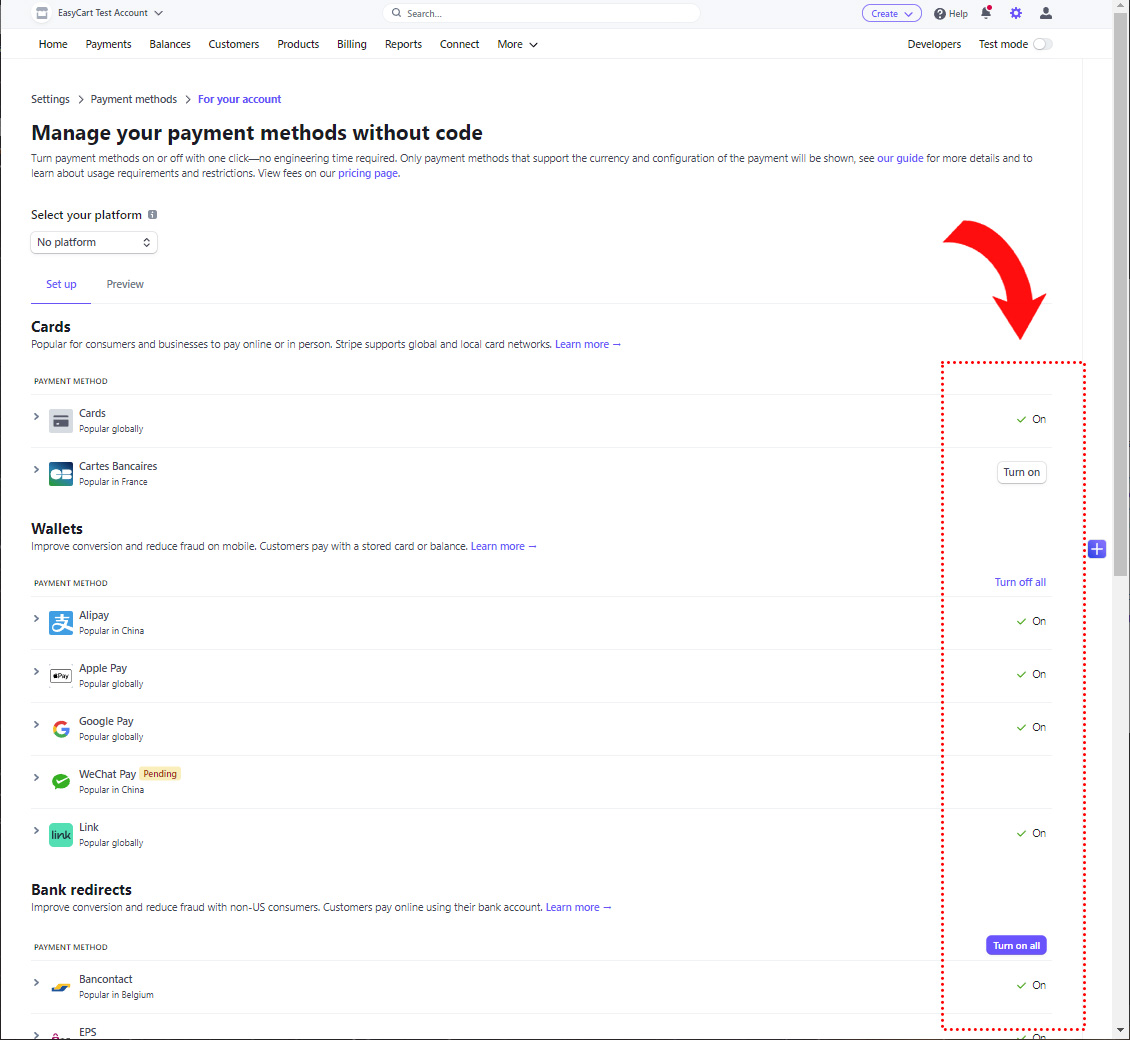
Visit Stripe › Settings › Payment Methods and enable AliPay.
Stripe — Enable Payment Methods

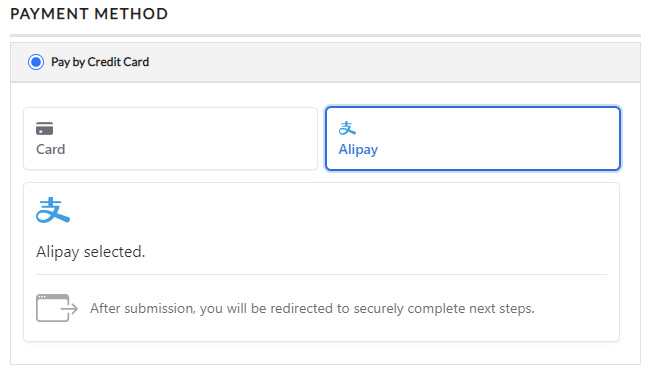
At checkout, your customers will then have access to pay with AliPay along with regular credit card processing.
WP EasyCart — AliPay at Checkout

Enabling GrabPay
With the latest Stripe API + EasyCart, you can offer GrabPay easily and effectively. Special considerations: be sure you meet the country and currency criteria below before enabling this gateway.
- Available Countries: Malaysia, Singapore
- Available Currencies: SGD, MYR
- Seller Restrictions: Malaysia businesses must use MYR and Singapore businesses must use SGD for currency
Enable GrabPay in EasyCart
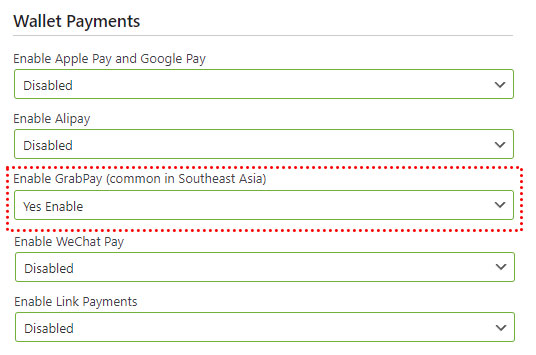
Go to WP EasyCart › Settings › Payments › Stripe setup in EasyCart and turn on GrabPay.
WP EasyCart — GrabPay Setting

Enable GrabPay on Stripe
Visit Stripe › Settings › Payment Methods and enable GrabPay.
Stripe — Enable Payment Methods

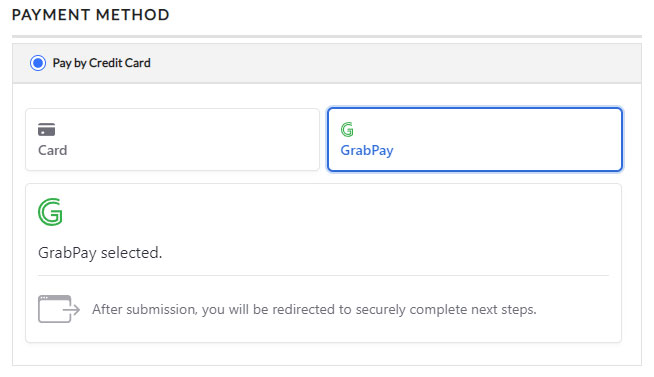
At checkout, your customers will then have access to pay with GrabPay along with regular credit card processing.
WP EasyCart — GrabPay at Checkout

Enabling WeChat Pay
With the latest Stripe API + EasyCart, you can offer WeChat Pay easily and effectively. Special considerations: be sure you meet the country and currency criteria below before enabling this gateway.
- Available Countries: CNY, AUD, CAD, EUR, GBP, HKD, JPY, SGD, USD, DKK, NOK, SEK, and CHF (depending on business locations)
- Available Currencies: Currency must be specific to country + CYN. DK, SE, NO, CH each have EUR + local currency + CYN
Enable WeChat Pay in EasyCart
Go to WP EasyCart › Settings › Payments › Stripe setup in EasyCart and turn on WeChat Pay.
WP EasyCart — Stripe Wallet Payment Settings

Enable WeChat on Stripe
Visit Stripe › Settings › Payment Methods and enable WeChat.
Stripe — Enable Payment Methods

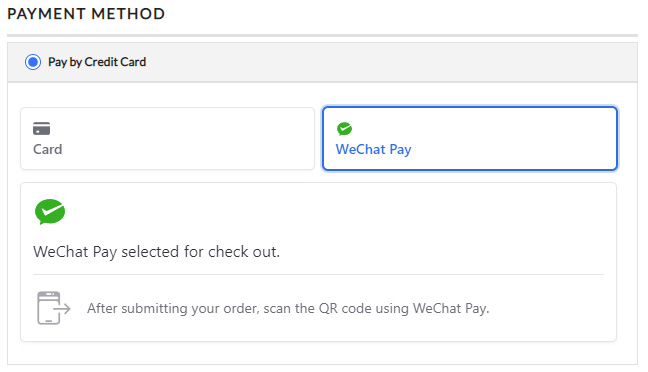
At checkout, your customers will then have access to pay with WeChat along with regular credit card processing.
WP EasyCart — WeChat Pay at Checkout

Enabling Link Payments
With the latest Stripe API + EasyCart, you can offer Link Payments easily and effectively.
Enable Link Payments in EasyCart
Go to WP EasyCart › Settings › Payments › Stripe setup in EasyCart and turn on Link Payments.
WP EasyCart — Stripe Wallet Payment Settings

Enable Link Payments on Stripe
Visit Stripe › Settings › Payment Methods and enable Link Payments.
Stripe — Enable Payment Methods

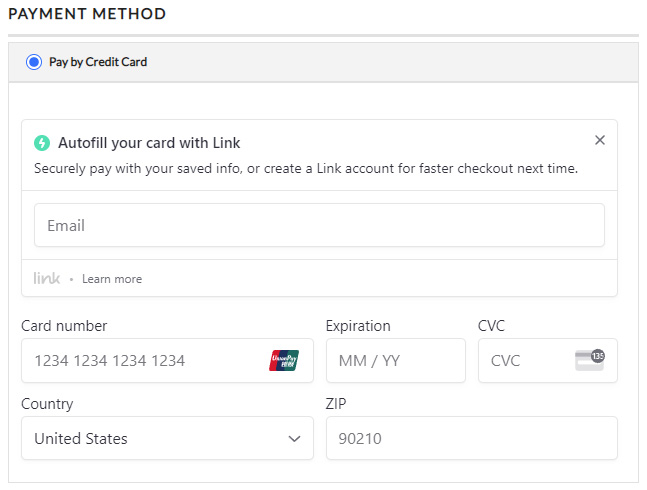
At checkout, your customers will then have access to pay with Link Payments along with regular credit card processing.
WP EasyCart — Link Payments at Checkout
Give Shoppers a One-Click Checkout
Wallet and quick payments turn stored device cards into instant sales. If a wallet button isn’t appearing, our support team will help you track it down.