
WordPress — Add New User with Store Manager Role
WordPress — Store Manager’s Limited Menu View
WordPress.org — User Role Editor Plugin
WordPress — User Role Editor
WordPress — Limited Admin with Custom Capabilities
3 min read
User Management
Let a store manager into your WordPress admin — without handing over the keys to everything. WP EasyCart’s user role ties directly into the WordPress Users system, so a manager sees the EasyCart panels they need and nothing else.
These are two different systems, and the difference matters. WordPress users access your back-end system within WordPress and carry roles like Editor, Administrator, Subscriber — and now, WP EasyCart Store Manager. WP EasyCart users are the actual shoppers of your eCommerce store. This page is all about the first kind.
A real-world example
Traditionally, letting someone manage your EasyCart orders, products, users, or marketing meant giving them full ‘administrator’ privileges. Now you can limit that account to see only the WP EasyCart panels. Web developer turning a site over to a client who just needs to run their store? This role system was designed for you.
One new user. One role selection. That’s the whole setup.
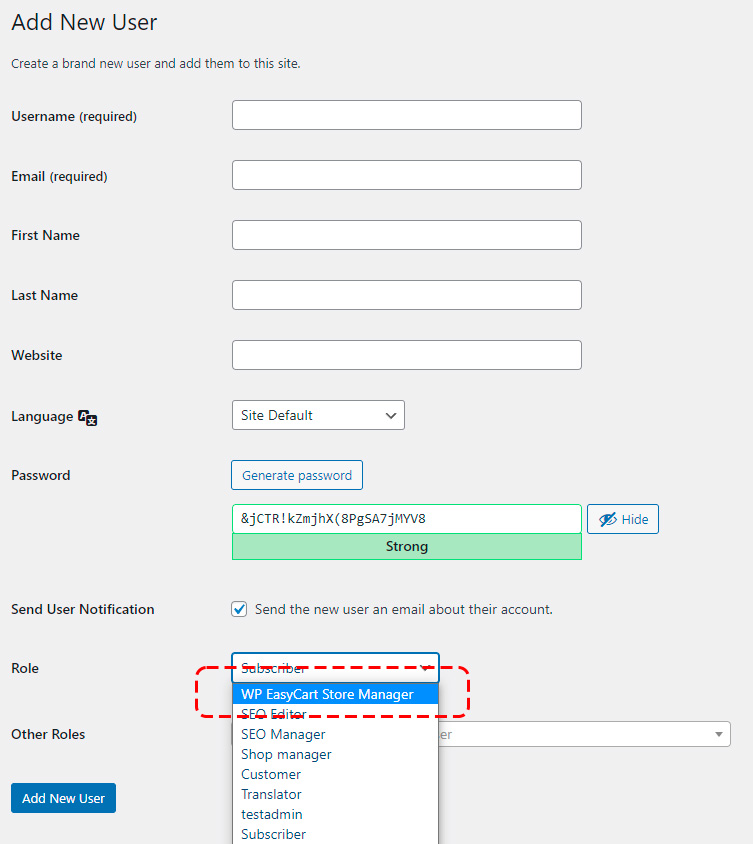
Go to WordPress › Users › Add New and create the account. In the Role menu, choose ‘WP EasyCart Store Manager’. Don’t see it? Make sure your plugin is up to date and you’re logged in as an administrator yourself — then refresh or log out and back in.
WordPress — Add New User with Store Manager Role
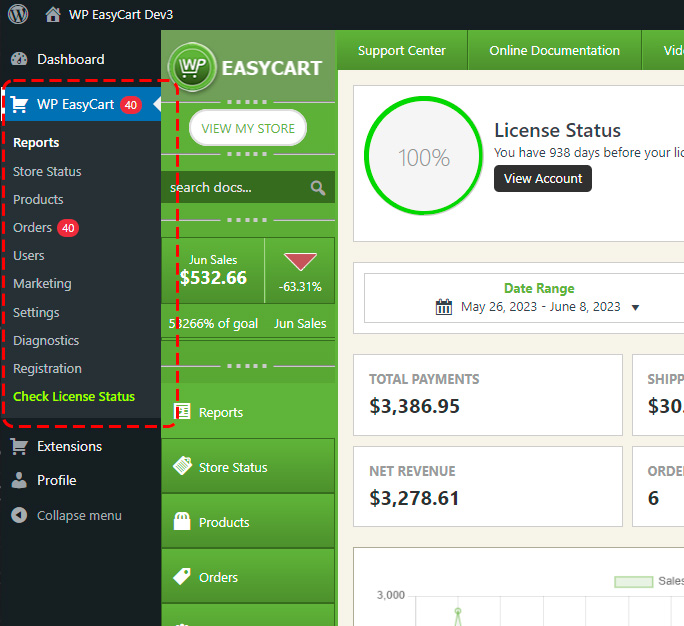
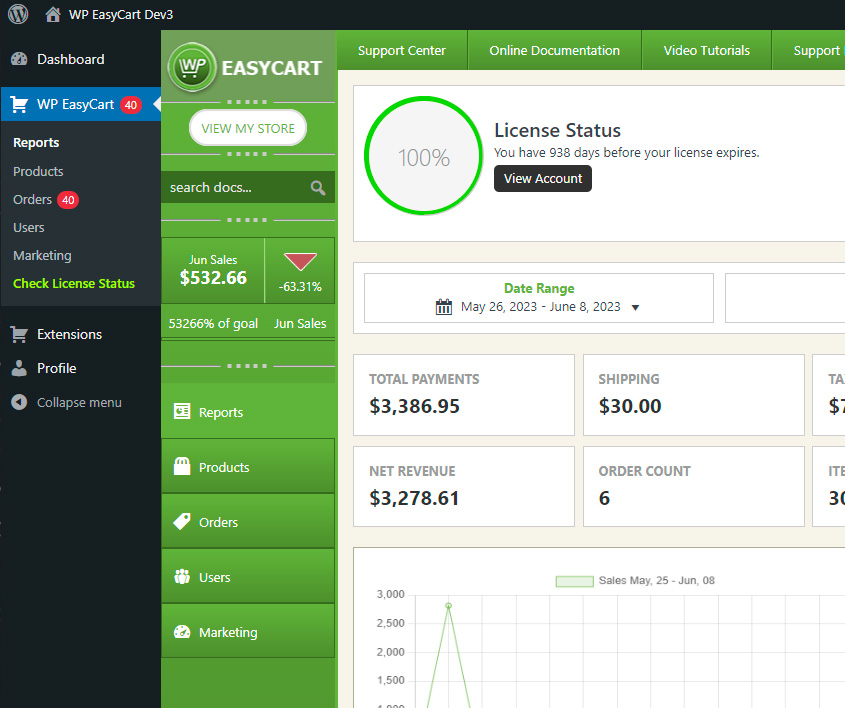
That’s all it takes. This user now sees only the WP EasyCart menu on the left — notice in this example, we’re logged into WordPress and the entire admin is just WP EasyCart and its submenus.
WordPress — Store Manager’s Limited Menu View
Power Feature
Limiting access to the WP EasyCart panels may be all you need — but you can go further. We’ve integrated with the User Role Editor plugin to break this role down into 10 distinct capabilities. Give a user access to just Orders, or just Products — and keep Registration, Diagnostics, and everything else out of reach.
A free plugin unlocks per-capability control.
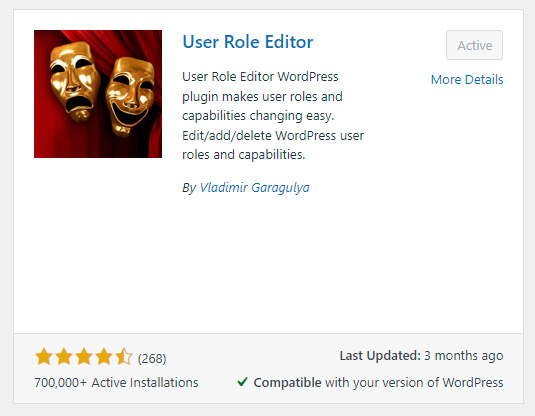
Search for ‘User Role’ in WordPress › Plugins › Add New, or download it directly from wordpress.org/plugins/user-role-editor. Install and activate.
WordPress.org — User Role Editor Plugin
The editor lives right inside your Users menu.
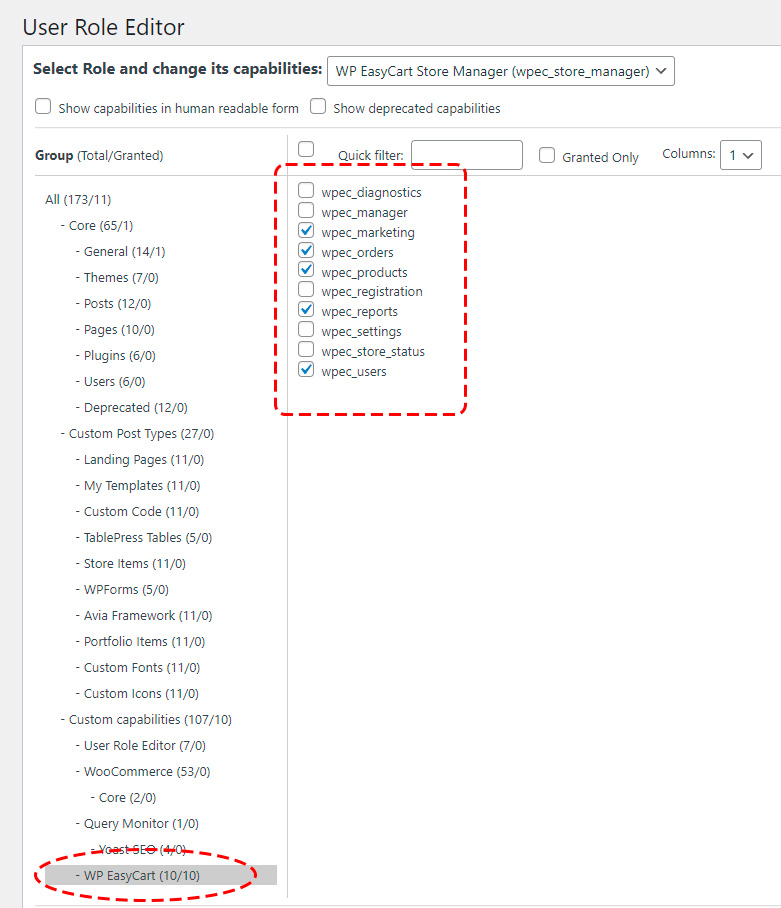
Visit WordPress › Users › User Role Editor — now in your menu — and select the role you want to fine-tune.
WordPress — User Role Editor
Ten switches. Total control over what each manager can touch.
Look toward the bottom for the 10 WP EasyCart capabilities we’ve integrated. Turn each panel or menu item on or off per your needs — Reports, Products, Orders, Users, Marketing, whatever combination fits the job.
💡 Bonus: The wpec_manager capability controls Manager access itself — disable it and even an ‘Administrator’ level account can have WP EasyCart turned off completely.
WordPress — Limited Admin with Custom Capabilities
Enable store managers, then use the User Role Editor plugin to shape exactly which WP EasyCart submenus they see. Need a hand setting it up? We’re here.