
Panel Settings
Product Settings
Your product and product details pages have plenty of dials to turn. Tune display, store defaults, pricing, reviews, and inventory to match exactly how you sell.
Product Display
Toggle how products behave across your entire storefront.
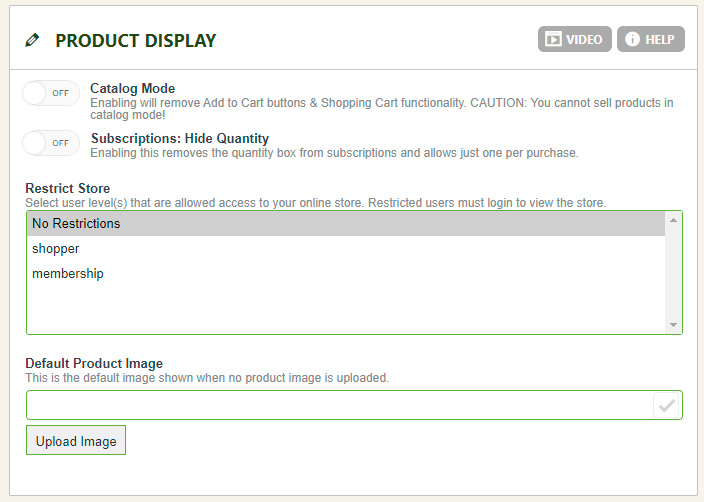
- Catalog Mode: Removes the ‘Add to Cart’ button from products and the cart system entirely — products stay viewable but can’t be purchased.
- Hide Quantity from Subscription Purchase: Subscriptions are a sign-up, not a retail purchase, so there’s often no need for a quantity field — hide it here.
- Restrict Store to User Level: Shopper is the default status with no restrictions. Restrict the store to a user level instead and customers must sign in before viewing it.
- Default Product Image: Represents any product missing its own image. Upload a company logo or generic box graphic to keep branding consistent — every product does require an image, so this is the easy fallback.
WP EasyCart — Product Display
Store Defaults
Give your storefront its own sidebar, filters, and pagination — independent of what your theme provides.
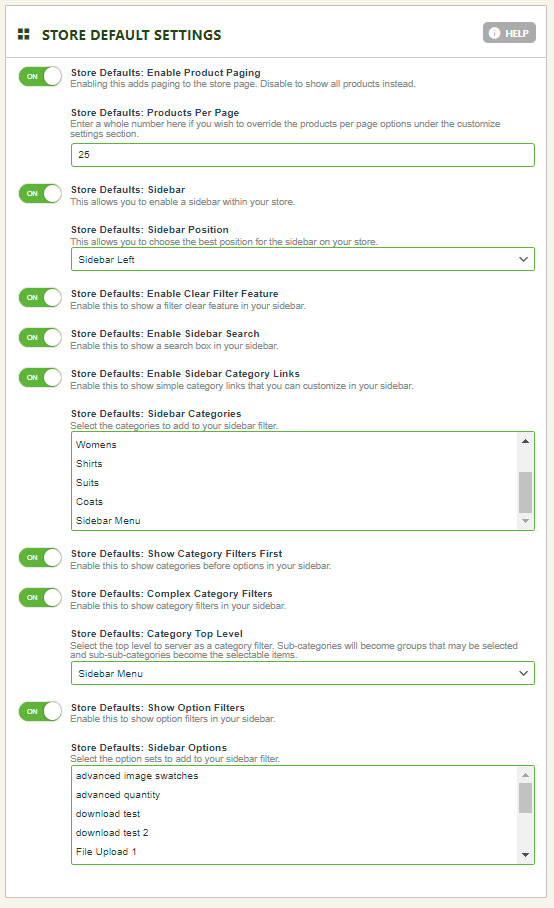
- Enable Product Paging: Turn store paging on or off.
- Products Per Page: Set the default products per page as an override — use it without paging to cap the first x items shown.
- Sidebar: Adds a built-in EasyCart sidebar to your store — handy when a theme’s own sidebar is hard to work with, and it comes packed with features that go beyond a typical theme sidebar.
- Sidebar Position: Choose a static sidebar on the left or right, or a slide-out sidebar from either side.
- Enable Clear Filter Feature: Gives shoppers a one-click way to clear category and option filters.
- Enable Sidebar Search: Adds a search bar to the top of the sidebar.
- Enable Sidebar Category Filters: Lets categories appear in the sidebar — choose exactly which categories show, all or some.
- Sidebar Categories: Select the categories to show in your sidebar. Use control+click or command+click to add or remove items from the list.
- Show Category Filters First: Show categories above options, or disable to put options on top instead.
- Complex Category Filters: A three-tier filter structure you build yourself, letting shoppers filter by every level you create. Read our full docs here.
- Category Top Level: The single top-level category that represents your entire filter system. Read our full docs here on implementing the full system.
- Show Option Filters: Show option filters in the sidebar.
- Sidebar Options: Select the option sets to show in your sidebar — lets customers filter by things like size or color. Use control+click or command+click to add or remove items.
WP EasyCart — Store Defaults
Product Details
Control exactly what shows on every product’s detail page.
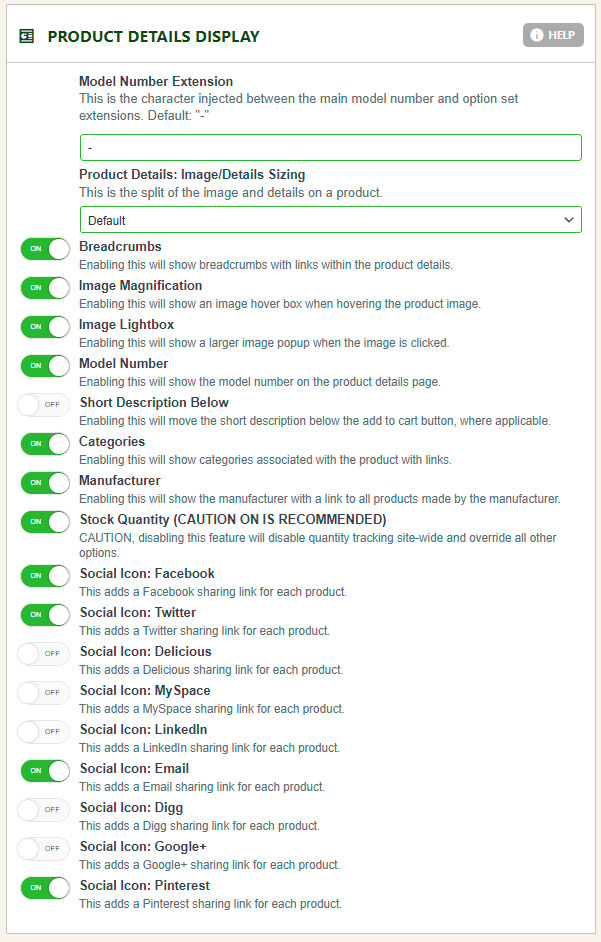
- Model Number Extension: Adjusts the separator used with option-set model number variables — a dash, for example, turns a SKU into
tshirt123-medium. Default: – (dash). - Image/Details Sizing: By default the product image takes 50% of the layout and the title/model/add-to-cart area takes the other 50%. Change those proportions with any combination of percentages.
- Show Breadcrumbs: Turn the breadcrumb trail on or off for the details page.
- Show Magnification Box: Turn the roll-over magnification effect on product images on or off.
- Show Large Image Popup: Turn the large image popup, triggered on image click, on or off.
- Show Model Number: Turn the model number display on or off on the details page.
- Show Categories: Turn off/on the categories a product belongs to — often good for SEO.
- Show Manufacturer: Turn the manufacturer display on or off on the details page.
- Show Stock Quantity: Turn stock quantity display on or off. Turning it off disables stock quantity tracking sitewide.
- Social Icons: Turn social sharing icons on or off for each product details page.
WP EasyCart — Product Details
Customer Review Display
Decide who can review, how it’s shown, and who gets notified.
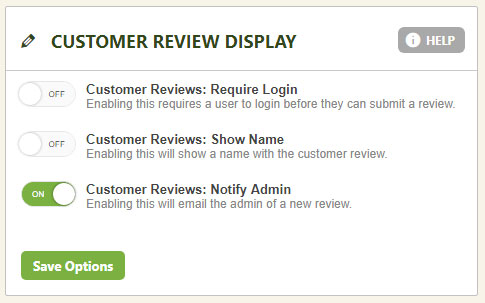
- User Must be Logged in to Review: Require a logged-in EasyCart account before a shopper can leave a review — a good call if spam becomes an issue.
- Show Users Name on Review: Show the reviewer’s name, or leave every review anonymous.
- Notify Admin on New Review: Send your admin users an email whenever a new review comes in. The admin email address is set in Settings › Email Setup.
WP EasyCart — Customer Review Display
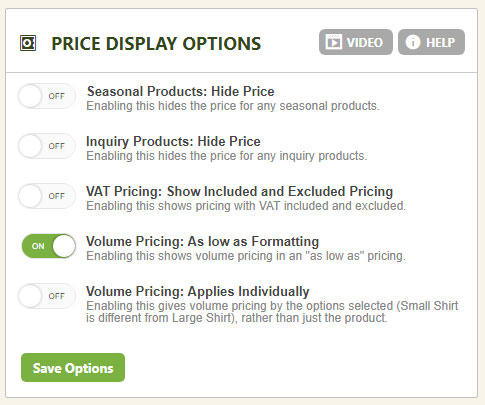
Price Display Options
Fine-tune how pricing appears for seasonal items, inquiry products, VAT, and volume discounts.
- Hide Price for Seasonal Products: Hide the price on products marked seasonal.
- Hide Price for Inquiry Products: Hide the price on products marked as inquiry items.
- Show BOTH VAT Included and VAT Excluded Prices: Display both VAT-inclusive and VAT-exclusive pricing on the product details view.
- Volume Pricing Format: Shows ‘As Low As’ next to pricing, signaling that alternative pricing is available.
- Volume Pricing Applies Individually: Choose whether volume pricing applies globally to the product, or individually per selected option.
WP EasyCart — Price Display Options
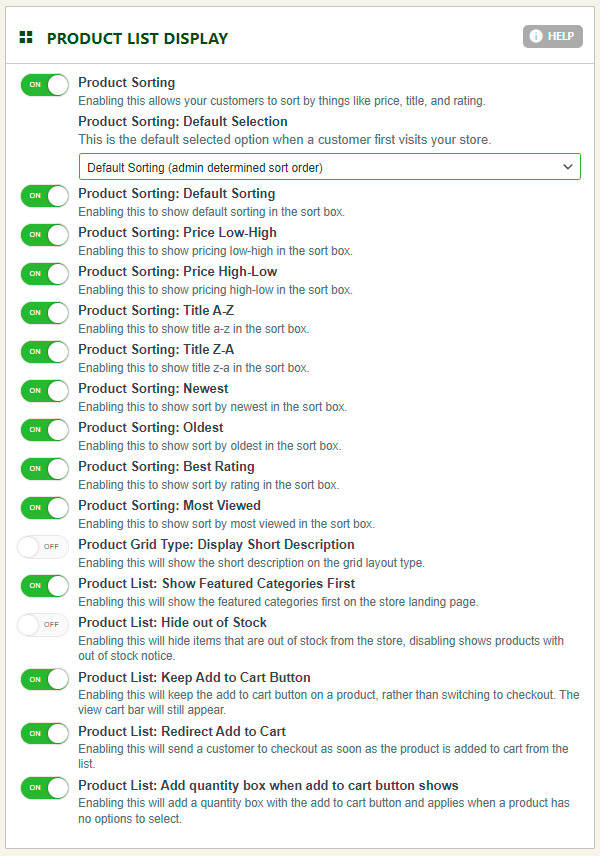
Product List Display
Control sorting, descriptions, and add-to-cart behavior on the storefront grid.
- Product Sorting: Show or hide the product sort feature on the product page.
- Default Product Sort: Set a default sort order. Choose anything other than ‘Default Sorting’ and manual front-end sorting is ignored.
- Product Sort Box Options: The predefined sortable options customers can pick from — enable or disable each individually, though leaving them all on is usually best.
- Show Product Short Descriptions on Grid Layout: Display each product’s short description, set on the product, in grid view.
- Show Featured Categories First: List featured categories at the top of the product page.
- Hide Out of Stock: Hide out-of-stock, quantity-tracked items entirely. Leave it off and shoppers still see the product — either backordering (set in Product › Shipping) or a plain ‘Out of Stock’ label.
- Keep Add to Cart Button: Keep the button reading ‘Add to Cart’ after an item’s added, instead of switching to ‘Checkout’.
- Redirect Add to Cart: Send shoppers straight to the cart page when they add an item. Turn it off and the item adds quietly while they stay put.
- Add Quantity Box When Add to Cart Button Shows: EasyCart shows ‘Add to Cart’ when a product has no options or variants. This adds a quantity box in that case — not valid when the button reads ‘Select Options’, since customers must configure the product first.
WP EasyCart — Product List Display
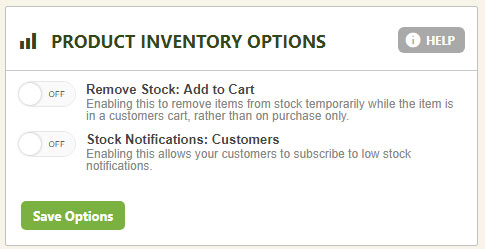
Product Inventory
Decide exactly when stock gets removed from inventory.
- Remove Stock When Added to Cart: With Overall or Option Item Quantity Tracking on, stock normally drops when an order is placed. Enable this and EasyCart temporarily reserves inventory the moment a shopper adds to cart instead.
- Time Before Returning Cart Stock: Sets how many hours before reserved stock returns to the public if the setting above is enabled.
- Stock Notifications: Gives shoppers an email field and submit button on out-of-stock products. Restock the item and EasyCart automatically emails everyone who signed up.
WP EasyCart — Product Inventory
Dial In Every Product Detail
From catalog mode to volume pricing, these settings shape how customers browse, buy, and review. Need a hand deciding what to flip on?