
Financial Settings
PayPal Payment Settings
WP EasyCart offers a variety of PayPal connections in our FREE, Professional, & Premium editions. PayPal Express, PayPal Payments Pro, and PayPal Payflow all provide unique experiences with their own unique properties — pick the one that fits how you want customers to pay.
Watch the Walkthrough
Prefer to watch? See the full PayPal connection process from start to finish.
PayPal Payment Setup
Setup the most popular payment gateway PayPal within EasyCart so you can collect payments on your WordPress website with ease.
Choose Your PayPal Connection
Three connections, three experiences. Here’s what each one offers.
- PayPal Express (recommended on all EasyCart sites): Offered in our FREE, Pro, and Premium editions. The FREE edition has a 2% application fee, while the Pro and Premium editions have 0% application fees. We recommend enabling PayPal Express in all versions of our store as this provides better conversions with customers. This new standard payment gateway from PayPal allows customers to stay on your website, pop open a nice window, login, and pay — all while securely done through PayPal.
- PayPal Payments Pro: Offered in our Pro and Premium editions. PayPal Payments Pro is a more comprehensive merchant solution from PayPal and lets you accept credit cards directly on your site. This is the most professional look, as the fields are all integrated into your website checkout system — customers never leave your website, nor are they directed into a popup window. It requires an SSL on your website for security and gives customers the option to pay directly on your site with a credit card.
- PayPal Payflow: Offered in our Pro and Premium editions. PayPal Payflow lets you accept credit cards directly on your site with the same fully integrated, most professional look — customers never leave your website, nor are they directed into a popup window. It requires an SSL on your website for security and gives customers the option to pay directly on your site with a credit card.
💡 Not sure which fits? If you have any questions, please contact us to determine your needs. We can assist you in the right direction as to what payment gateway solution best fits your store.
Example of PayPal Express
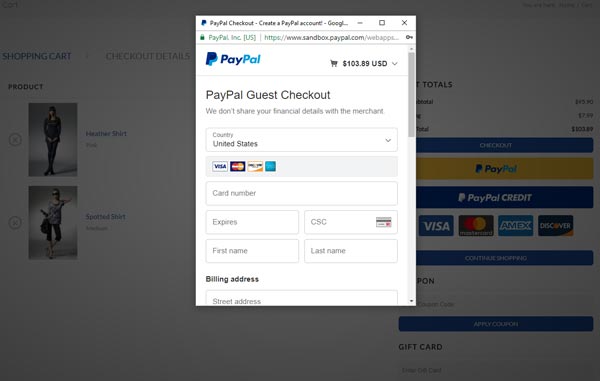
Customers are presented with the PayPal checkout buttons at the beginning of the order checkout process or the end, depending on version and other variables the store uses. PayPal allows customers to pay with credit cards, credit, or their PayPal account — all from a popup window.
Checkout — PayPal Express Buttons
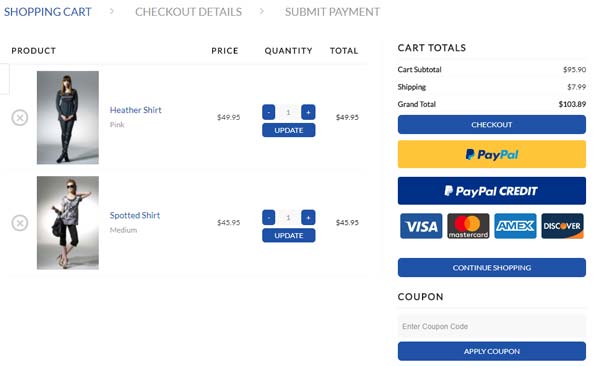
This simple checkout process with PayPal Express allows for more conversions and a quicker checkout experience for customers.
Checkout — PayPal Express Popup Window
How to Enable PayPal Express
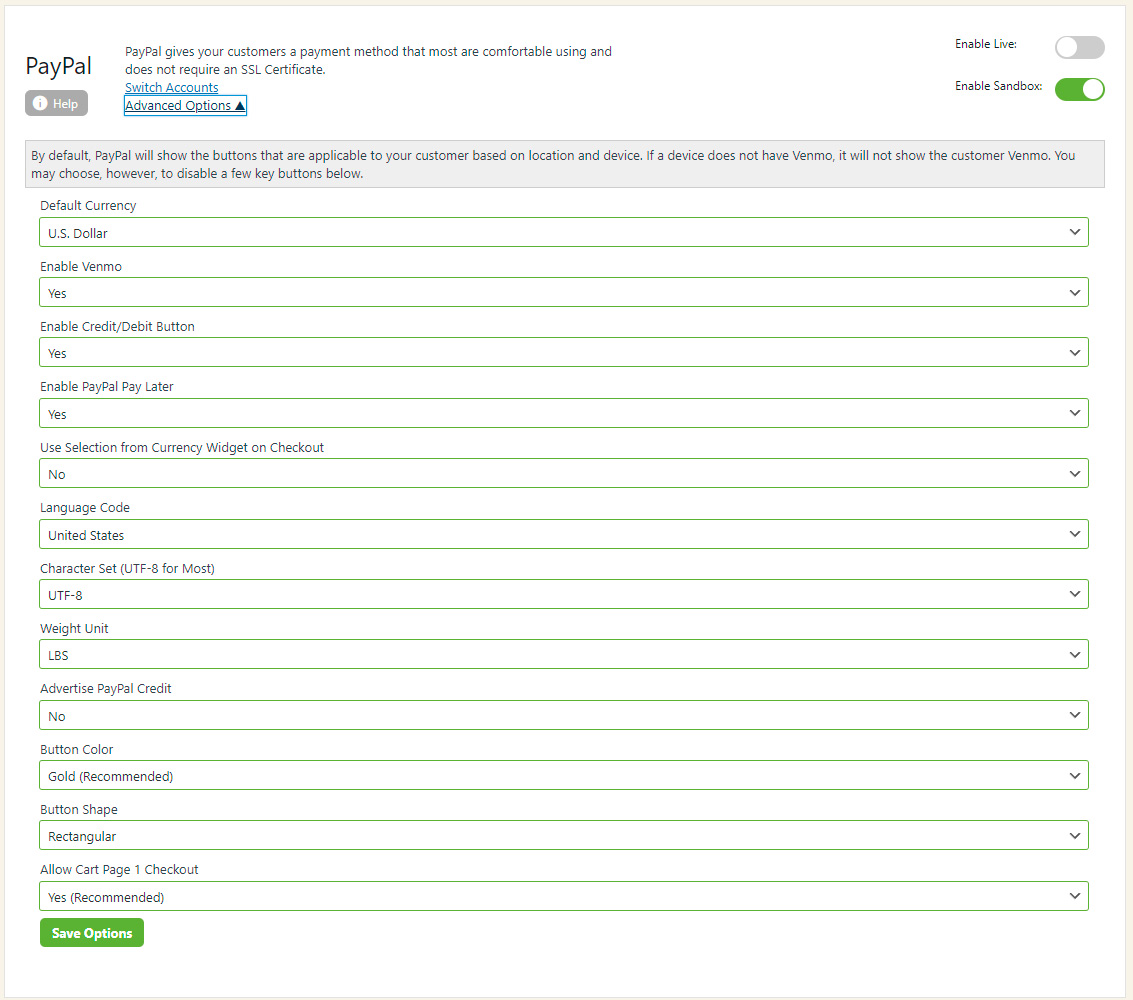
Enabling PayPal Express is as simple as turning on the slider and logging into your PayPal account to connect. Choose ‘Enable Live’.
Under the ‘Advanced Options’ you may adjust things such as currency, Venmo, PayPal Credit, language, and even button shape/color. You can even turn off PayPal Express from showing in the cart page — beneficial if you wish to have customers flow through your entire checkout experience and use PayPal at the end of your checkout rather than the beginning.
Important Note
The Currency and Language setting should match what your PayPal account is setup in.
WP EasyCart — PayPal Express Settings
Connecting with PayPal Express
You need to connect your PayPal account to your shopping cart. Clicking the connect button takes you to a PayPal sign-in page — or, if you do not have a PayPal account, you will be asked to create one.
Enter Your PayPal Email
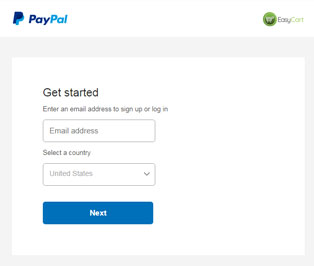
The first form you see wants to make that decision — enter your PayPal email address to continue (or your preferred email address if creating an account).
PayPal — Enter Your Email
Sign In or Create an Account
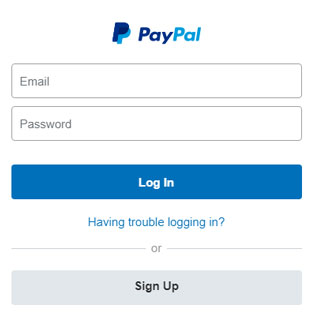
Next you’ll be asked to sign in to your PayPal account — or create a new one if you don’t have one yet.
PayPal — Sign In
Return to EasyCart
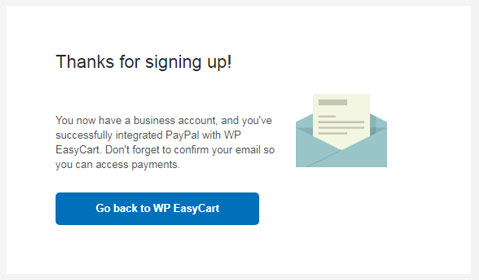
Finally, just click the button to return to the EasyCart with your PayPal credentials — the EasyCart will do the rest for you! That is it, you are connected. We offer a disconnect and switch account option on the screen if you wish to change accounts.
PayPal — Accept & Return to EasyCart
PayPal Express Checkouts
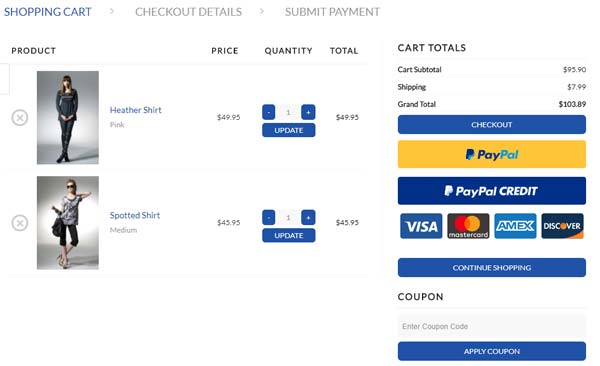
Once you use PayPal Express, you will see the ability to have PayPal offered at the cart level AND at the end of the checkout process. PayPal has designed it this way so customers experience a faster checkout. You may adjust this in the advanced settings.
Checkout — PayPal Offered at the Cart Level
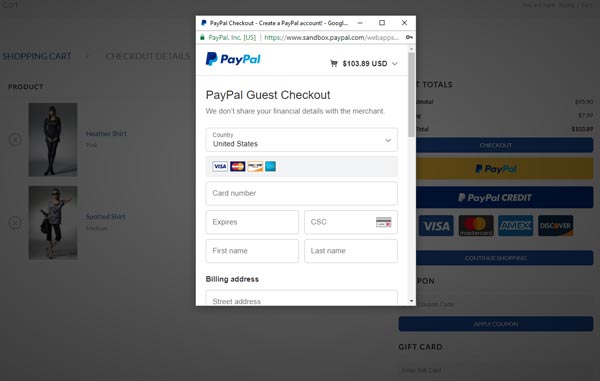
PayPal is a third party processor, so this means that they handle all of the payment panels for you. You should see a popup similar to this when you use PayPal Express.
Customers must still click ‘submit order’
Customers will return to your site and MUST click ‘submit order’ to actually process the payment. This is part of the PayPal designed flow. If you feel you want a more ‘On Site’ experience for your users, you should consider a live payment gateway alongside PayPal such as Stripe or Square.
Checkout — PayPal Express Payment Popup
How Do You Enable the PayPal Credit Option?
To allow PayPal Credit in your account, visit https://www.paypal.com/us/webapps/mpp/promotional-financing and choose to ‘start promoting financing’, which requires you to ‘accept and continue’, agreeing to their terms. Once you do this, simply choose to advertise PayPal Credit in the payment setup for EasyCart.
Developer Feature
PayPal IPN Listener
PayPal will automatically communicate back to your site during PayPal refunds and other calls, as the IPN listener URL is already sent and connected during setup. If you ever need to test this URL, simply use the URL below and make sure it’s not blocked by any security plugins.
https://www.yourwebsiteURL.com/?wpeasycarthook=paypal-webhook
Start Collecting PayPal Payments
Express for conversions, Pro or Payflow for on-site cards — and if you’re unsure which gateway best fits your store, our support team will point you in the right direction.