Options, Variations, & Modifiers

8 min read

Product Details

Options, Variations, & Modifiers

Same product, endless combinations. Build simple size-and-color variants with Basic Option Sets, or go unlimited with Modifiers — combos, swatches, text fields, file uploads, even conditional logic that shows and hides options on the fly.

Watch the Walkthrough

Prefer to watch? This video covers the basics of building option sets and variants for your products.

Creating a Product Option Set

Looking to add options and variants to your products? Just look at our basic and advanced option sets which control everything from combo box dropdowns, text areas, check boxes, file uploads, and many, many more!

Basic Option Sets

Mix and match simple attributes — like size and color — into every variation your product needs.

Basic option sets turn a single product into multiple variations. Combine Small, Medium, and Large with Blue, Green, and Red, for example, and you get nine distinct variations — Small + Blue, Small + Green, Small + Red, and so on. Stack up to 5 option levels, each with unlimited items.

💡 Free Version Limit: Only 1 basic option set is allowed in the free version. Upgrade to unlock up to 5.

Basic option sets also support custom images tied to the first option set. Selling a t-shirt in red, green, and blue? Upload a distinct image for each color so shoppers see exactly what they’re picking.

Using Product Price Change Options

Option sets and variants that need to manipulate a product’s price are easy to do in EasyCart. This video shows you how to change pricing for basic and advanced option sets.

Creating a New Basic Option Set

Build the option set without ever leaving the product page.

1

Click ‘+ Create New Option Set’

Open the button in the top-right corner of the basic product option sets box to start building right from the product editor.

WP EasyCart — Add New Option Set Button

WP EasyCart product editor with Create New Option Set button

💡 Note: Clicking ‘Create New Option Set’ opens a slide-out panel that changes based on whether you’ve selected advanced options. Prefer a dedicated workspace? Manage, edit, and organize every option set from WP EasyCart › Products › Option Sets.

2

Choose Combo Box or Swatches

Decide how shoppers pick an option: a combo box is a simple dropdown, while swatches are clickable icons. Then add option items one at a time — if you’re selling sizes, list out every size you carry. Option sets can be reused across similar products.

Basic Option Set Types

Combo BoxSwatches

Common Examples

SizesColorsMaterialMediumLargeGreenWoodMetal

WP EasyCart — Create a Basic Option Set
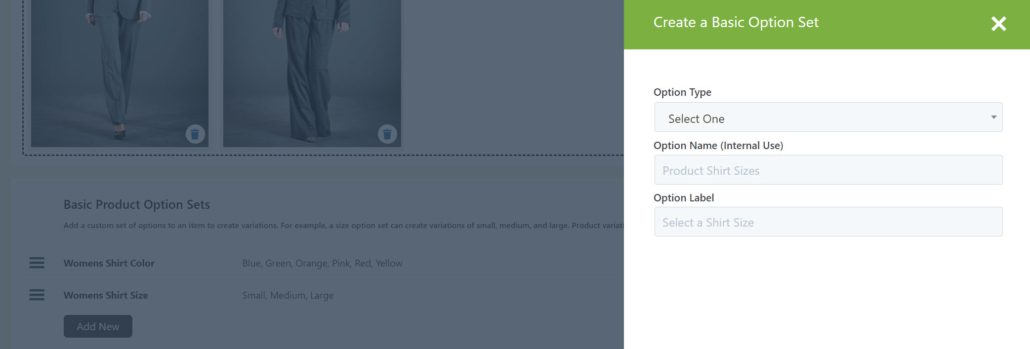
WP EasyCart create a basic option set slide-out panel

Advantages

  • Option Sets track individual variants.
  • Option Set variants can have unique SKUs or model numbers.
  • Option Sets can have individually tracked inventory values.

Disadvantages

  • Capped at 5 option sets total, though each can hold unlimited items.
  • Every combination becomes its own variant — 2 option sets with 50 items each creates 2,500 variants, fast.
  • Limited to combo box or image swatch types only.

Once the option set is created, it’s automatically attached to your product. Add the option items next, along with any price adjustments that should always apply.

WP EasyCart — Add Basic Option Items & Pricing
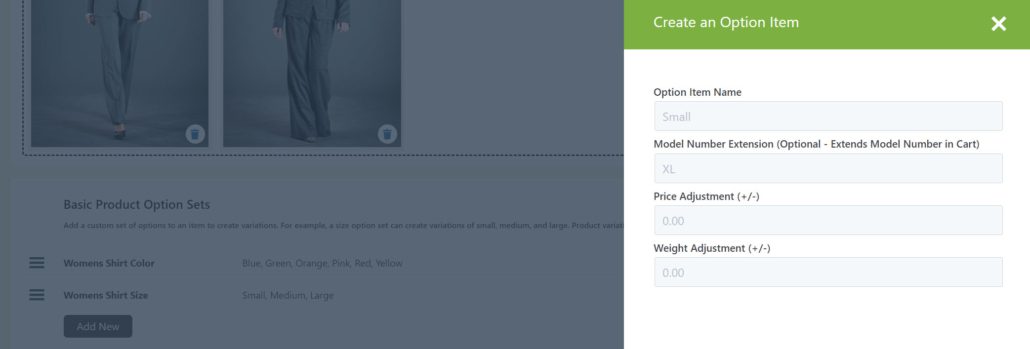
WP EasyCart add basic option items and price adjustments

Reusing & Managing Option Sets

Already built the option set you need? Attach it in seconds.

Add an Existing Option Set

Reuse an option set across multiple products with the ‘Add New’ button — or build it first from WP EasyCart › Products › Option Sets, then select and attach it here.

WP EasyCart — Add an Existing Basic Option Set
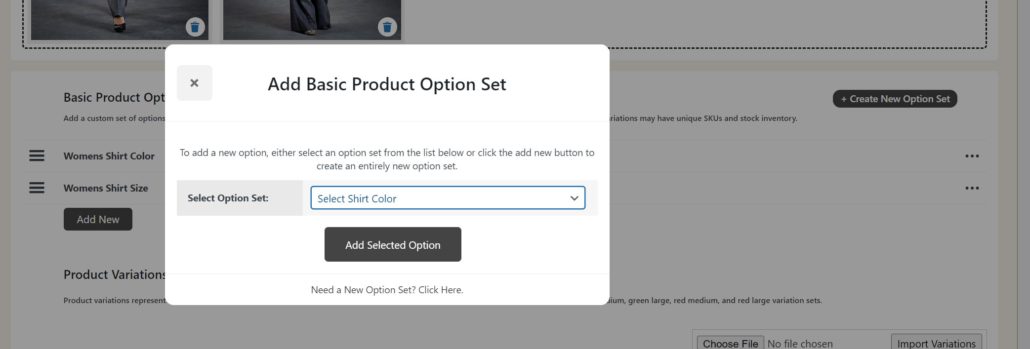
WP EasyCart add an existing basic option set to a product

Edit, Remove, or Manage Option Items

Every option row has a three-dot menu on the right. Click it to edit the option set, manage its items, or remove it from the product entirely.

WP EasyCart — Manage Basic Option Set Items

WP EasyCart manage basic option set items menu

Changing Option Sets Resets Variations

Adding, editing, or removing a basic option set regenerates your variation data every time — because variations are built directly from the option items above. Double-check before you make changes to a live product.

Product Variations

Every combination of your option sets becomes its own trackable line item.

Manage Product Variations

A size-and-color option might generate a blue small, blue medium, green medium, green large, red medium, and red large variation — each one its own item with its own SKU, price, and stock total. Click into any field to edit it; changes save automatically. Tab through the table to move fast.

WP EasyCart — Manage Product Variations
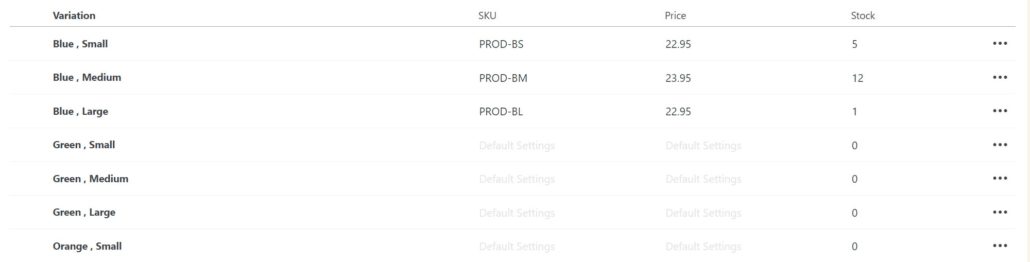
WP EasyCart manage product variations table

Manage Lots of Variation Data

Too many variations to edit by hand? Export the variation set, edit the CSV, and re-upload it through the import variations form — a fast way to mass-update inventory, SKUs, or custom pricing.

WP EasyCart — Import Variation Data

WP EasyCart import variation data form

Enable Variation Inventory Tracking

Click the ‘Tracking Items Disabled’ label to change your preferred stock tracking type, or scroll down and expand the quantity options box to set it there instead.

WP EasyCart — Enable Variation Inventory Tracking
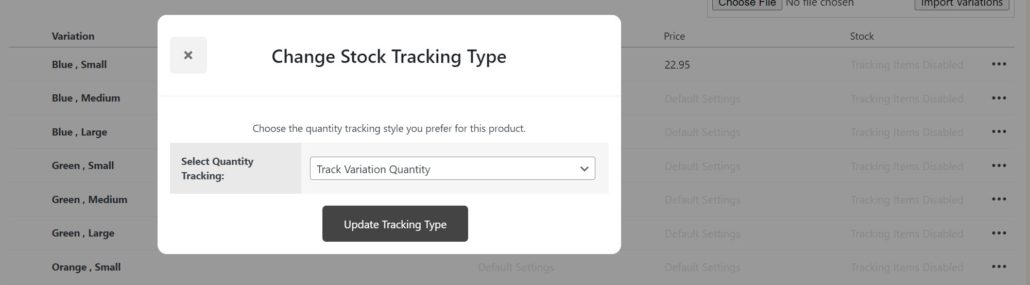
WP EasyCart enable variation inventory tracking

Option Sets & Variant Limitations

Variants multiply fast. Three basic option sets with 20 items each isn’t 60 combinations — it’s 20 × 20 × 20, or 8,000. EasyCart paginates the variant list for you, but at that scale it’ll suggest switching to modifiers instead, since modifiers skip generating an individual line item for every combination. Nobody wants to enter SKUs and quantities for 8,000 rows.

Switching From Basic Option Sets to Modifiers

Outgrown variants? Move to modifiers in five steps.

1

Remove the Old Option Set

Edit your product and remove the basic option set you’re switching away from — use the three-dot menu on the right to remove it.

2

Open the Option Set Manager

Go to Product › Option Sets in the left menu — this is the main option set manager for your whole store.

3

Convert the Option Type

Find and edit your option set. Use the type dropdown to change it — for example, switching a ‘Basic Swatch’ to an ‘Advanced Swatch.’

WP EasyCart — Convert a Basic Option Set to Advanced
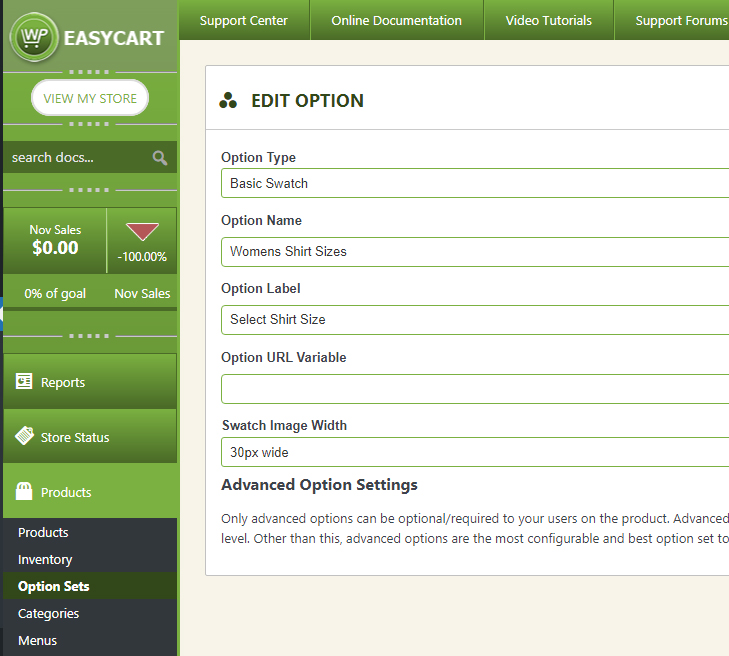
WP EasyCart converting a basic swatch option set to an advanced swatch
4

Save It as an Advanced Option

Save the option set. It’s now a full advanced modifier, ready to attach to any product.

5

Attach It to Your Product

Head back to your product and edit it — the converted set now lives in the Modifier section. Click ‘Add New,’ find it, and attach it. You’ve officially moved from a basic option set to an advanced modifier.

Power Feature

Unlimited Options, Zero Combination Limits

Modifiers are the advanced path: combos, swatches, text boxes, text areas, checkboxes, radio groups, file uploads, dimensional and numeric fields, and more — built for anything from event registrations to reservation date ranges. Unlike basic options, modifiers have no 5-set ceiling, support conditional logic to show or hide fields dynamically, and offer far more flexible price, weight, and file-download configuration.

  1. Unlimited modifiers, unlike the 5-set cap on basic options
  2. Includes combo boxes and swatches, plus text fields, checkboxes, file uploads, and more
  3. Supports conditional logic to show or hide fields based on other selections
  4. Offers flexible price, weight, and file-download configuration

💡 One Trade-off: Modifiers can’t track quantity individually per combination — there’s no clean way to quantify a text box or file upload. Need per-variant inventory? Stick with basic options instead.

WP EasyCart — Add a New Modifier

WP EasyCart add a new product modifier

WP EasyCart — Create a Modifier
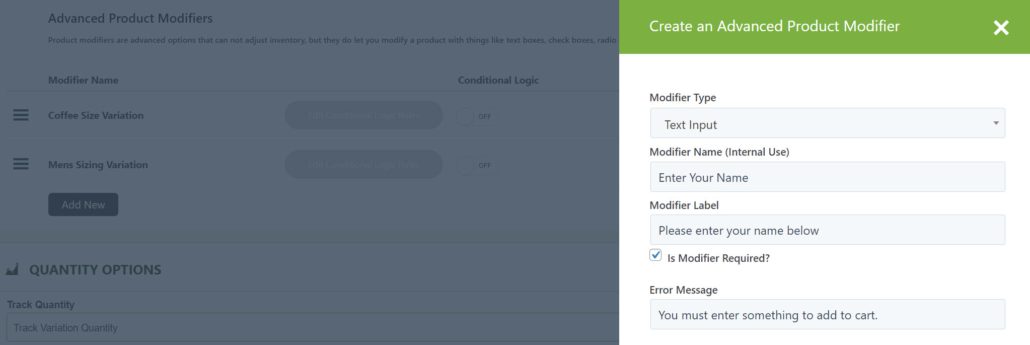
WP EasyCart create a modifier slide-out panel

Sorting & Managing Modifiers

Keep your modifier list organized as your product grows.

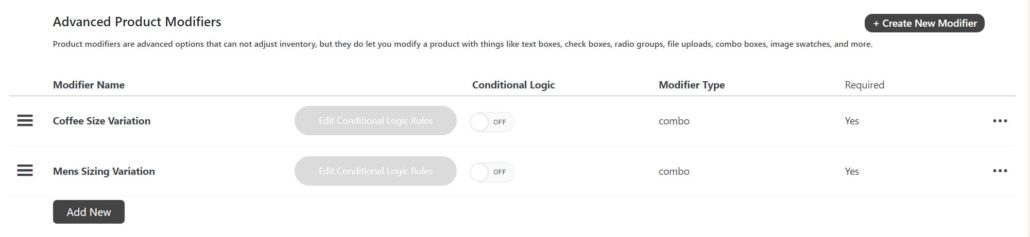
Once created, a modifier is automatically added to your product’s modifier list — and you can add option items right away for things like select boxes, swatches, radio buttons, and checkboxes.

WP EasyCart — Add Modifier Option Items
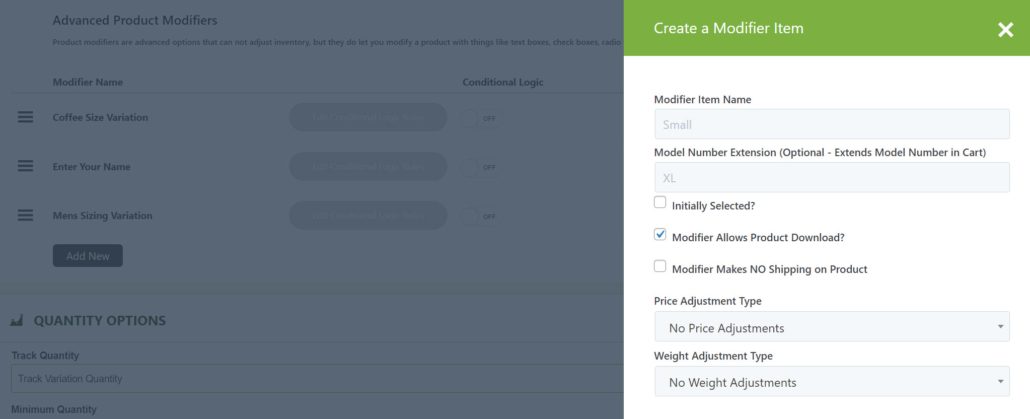
WP EasyCart add modifier option items

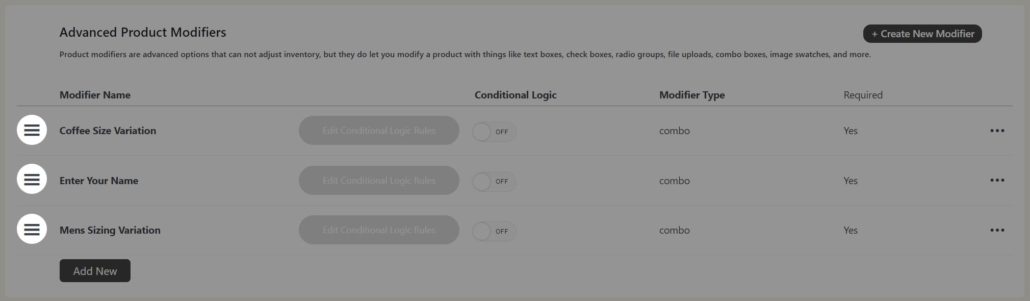
Sort Your Modifiers

Hover over the three-bar icon on the left of any modifier row, then click and drag to reorder it exactly how you want.

WP EasyCart — Sort Product Modifiers

WP EasyCart sort product modifiers by drag and drop

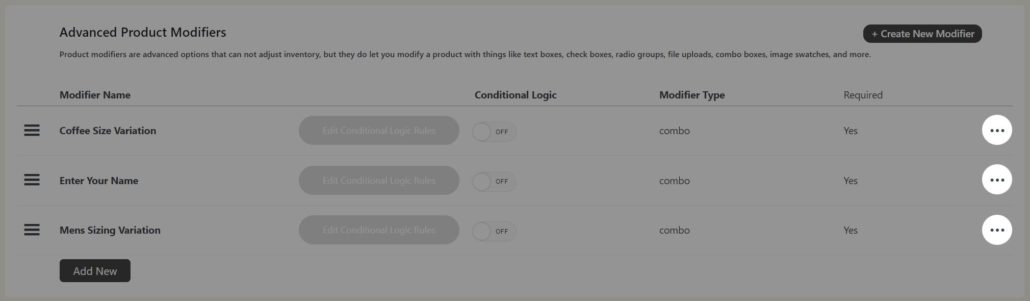
Edit, Remove, or Manage Modifier Items

Use the three-dot icon on the right of any modifier row to edit it, remove it, or manage its items.

WP EasyCart — Manage Modifier Items

WP EasyCart manage modifier items menu

💡 Which Should You Use? Advanced modifiers are the right call for almost everyone. Only reach for basic options when you need to track inventory quantity for each individual variant.

Conditional Logic for Modifiers

Show the right fields at the right time — automatically.

Conditional logic lets one modifier show or hide another based on what a shopper picks. A classic example: ask ‘Would you like to customize your merchandise?’ If they select yes, a text box appears for their custom message. Select no, and it stays hidden.

Using Conditional Logic Option Systems

Advanced option sets sometimes require conditional logic to best display across your EasyCart products. Learn more in this video how to best set up and create conditional logic option sets and variants.

Turn On Conditional Logic

Toggle conditional logic on within the modifier’s line item to get started.

WP EasyCart — Enable Conditional Logic
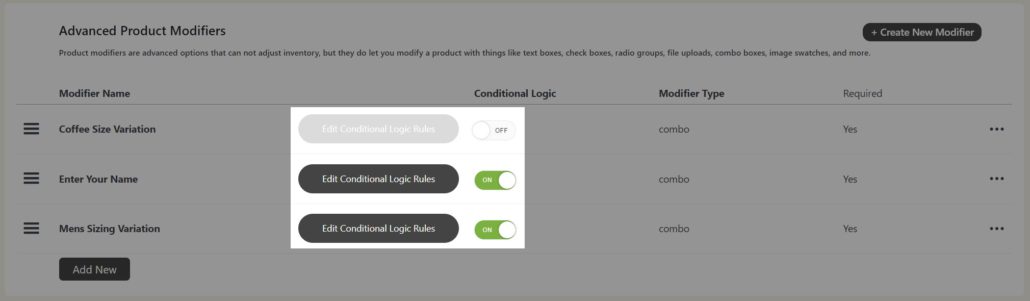
WP EasyCart enable conditional logic toggle on a modifier

Add, Edit, or Delete Rules

Click the edit conditional logic rules button to build your conditions. You can manage rules while they’re disabled and switch them on later. When editing, decide whether you want to hide or show the element WHEN certain conditions are met — most stores only want to show a field once some or all conditions are true.

WP EasyCart — Conditional Logic Rules
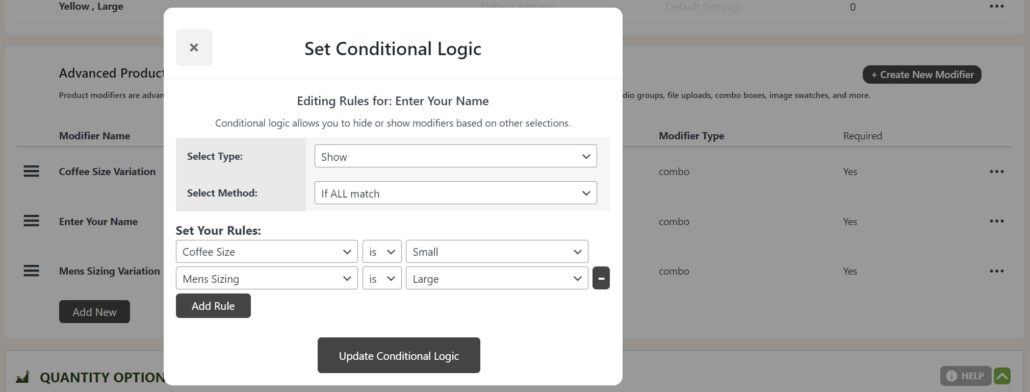
WP EasyCart conditional logic rules editor

Keep Your Logic Simple

You can add as many rules as you need, but there are no guardrails — it’s possible to build a combination of rules where an option set can never show, because the shopper can’t actually create the exact combination required. Simpler rule sets are always safer.

Build the Exact Product Your Customers Need

Whether it’s a five-variant basic option set or a fully conditional modifier stack, WP EasyCart gives you the tools. Need help planning yours?

Updated on July 20, 2026