
Detailed Settings
Additional Settings
Some settings don’t fit neatly in any one section — so we gave them a home of their own. This panel collects the special, global options that shape your whole site: cart icons, popups, logging, search behavior, push notifications, and more.
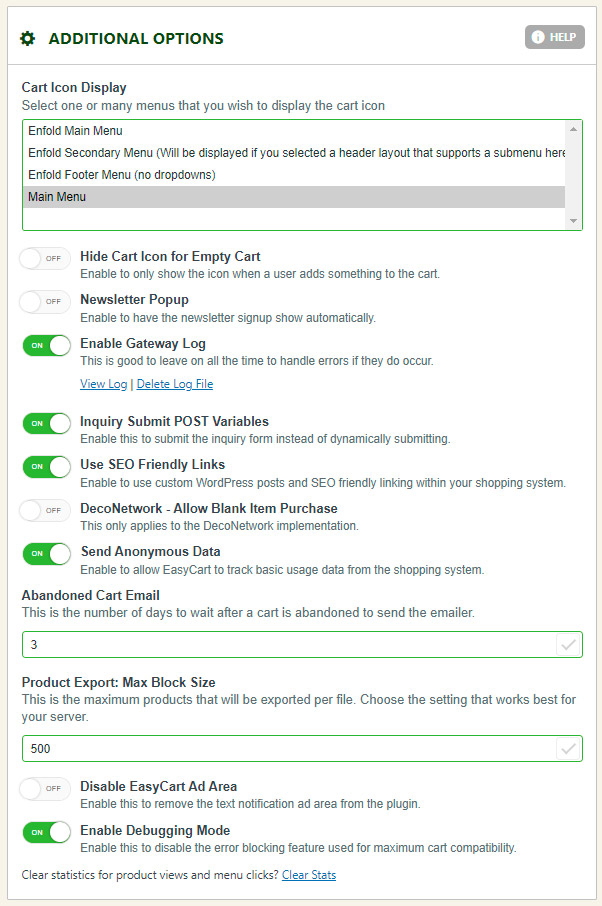
Additional Options
Global toggles that apply across your entire store. Here’s what each one does.
- Cart Icon Display: Appends a cart icon with cart totals to the end of your WordPress menu. It updates dynamically on page-load complete to prevent caching issues. This setting is theme dependent — some themes may need a touch of CSS for best results.
- Hide Cart Icon for Empty Cart: With cart icon display enabled, the icon and totals only show when the cart is not empty.
- Newsletter Popup: Shows a popup inviting users to sign up for your newsletter. If they close the window, the popup hides permanently.
- Enable Gateway Log: Collects information for each transaction sent to a gateway, some shipping systems, and a few third-party connections. A great debugging tool — but once you go live and process real payments, disable it so no sensitive data is collected. View entries via Log Entries in the settings menu.
- Inquiry Submit POST Variables: For products in inquiry mode with a custom inquiry form URL, this POSTs the product’s model_number to your custom form collector — a handy hook for developers.
- Pricing on Packing Slip: Displays pricing on the packing slip.
- Use SEO Friendly Links: Keep this enabled. It creates custom post types for each category, menu, and product — giving every item its own SEO-friendly link. We also recommend setting WordPress permalinks to the /postname/ method. Required for unique per-page product sorting, per-category column spacing, and other page-specific settings.
- DecoNetwork — Allow Blank Item Purchase: When DecoNetwork is in use, customers can purchase the product without customization.
- Send Anonymous Data: Shares completely anonymous usage information with WP EasyCart — never connected to your store — helping us prioritize features, bugs, and fixes. Zero performance impact.
- Abandoned Cart Email: Sets how many days to wait before sending marketing content to a customer who abandoned their cart. Manage carts in the Marketing › Abandoned Cart area.
- Product Export — Max Block Size: Most servers handle our default export block of 500 records, but if your server crashes during an order or product export, try lowering this to 200 or 100. Crashes here usually indicate low server memory or CPU.
- Disable EasyCart Ad Area: Turns off the sidebar ads in EasyCart.
- Enable Debugging Mode: Turns on error debugging so you can spot PHP errors or conflicts during testing.
WP EasyCart — Additional Options Panel
Search Options
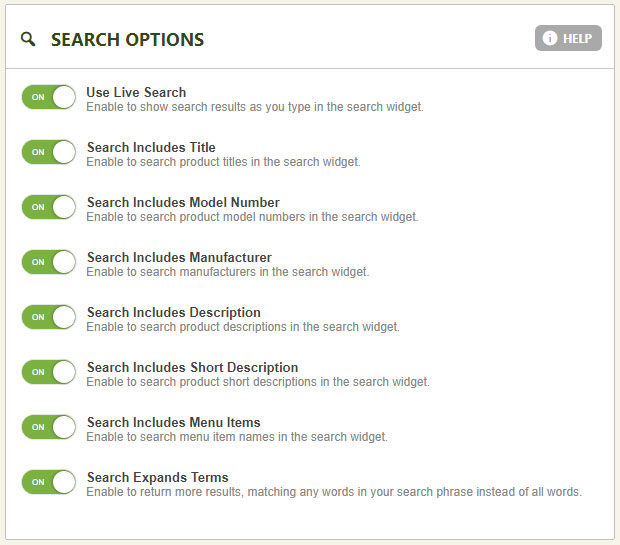
Control exactly how the EasyCart search widget retrieves and indexes your products. These settings power the search widget found in your WordPress › Widgets area.
- Use Live Search: Returns pertinent results as the user types in the search field.
- Search Includes: Choose exactly which fields feed the search — titles, model numbers, manufacturers, descriptions, short descriptions, and menu items can each be toggled on or off.
- Search Expands Terms: Ranks results by which search term appears most often.
💡 Two searches, two looks: WordPress has its own search feature that many themes integrate — it also returns products, but those results look however your theme company designed them. The WP EasyCart Search Widget is ours: built specifically for your store and products, and styled by EasyCart.
WP EasyCart — Search Options
Product Quick Add Options
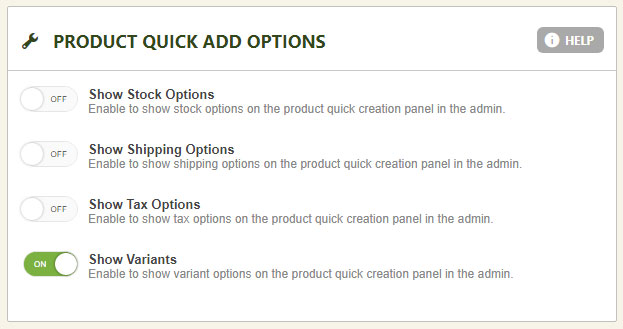
Customize the slider sidebar that appears when you click ‘Add New’ in product management. Add or remove features so you create products faster and only see what fits your workflow — skip what you don’t use and keep the display clean.
WP EasyCart — Product Quick Add Options
Premium Feature
Push Notifications on Every New Order
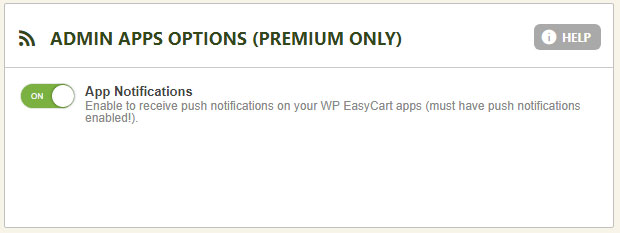
Premium users can pair their store with our phone and tablet apps — and get push notifications the moment a new order is placed. Enable this section, log into your EasyCart app, and alerts arrive on that device for that website. Notifications even stream to connected wearables.
💡 Tip: Check your phone or tablet’s notification settings and make sure the WP EasyCart app is allowed — device-level permissions are the most common reason alerts don’t appear.
WP EasyCart — Push Notification Settings
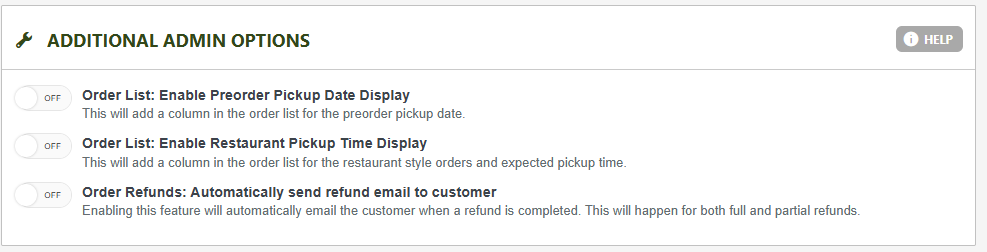
Additional Admin Options
These options enhance the various administration systems EasyCart offers — especially useful with our preorder and restaurant features.
- Order List — Enable Preorder Pickup Date Display: Adds a column to the admin Orders panel for easy visual access to each preorder pickup date.
- Order List — Enable Restaurant Pickup Time Display: Adds a column to the Orders panel showing the restaurant pickup date and time.
- Order Refunds — Automatically Send Refund Email: Sends customers a refund email automatically when a refund is issued. Prefer manual control? Leave it off and send from within the order after refunding.
WP EasyCart — Additional Admin Options
Example — Pick Up Date & Restaurant Time Columns in the Order Manager

Not Sure About a Setting?
Every store is unique. If you’re unsure how a global option affects your setup, our support team can point you in the right direction.