Product Details
Product Images
Free WP EasyCart stores get up to two images per product. Upgrade to Professional or Premium and you unlock unlimited images and video — pulled from the media library, an external URL, YouTube, or Vimeo — plus images that change with every option or modifier a shopper picks.
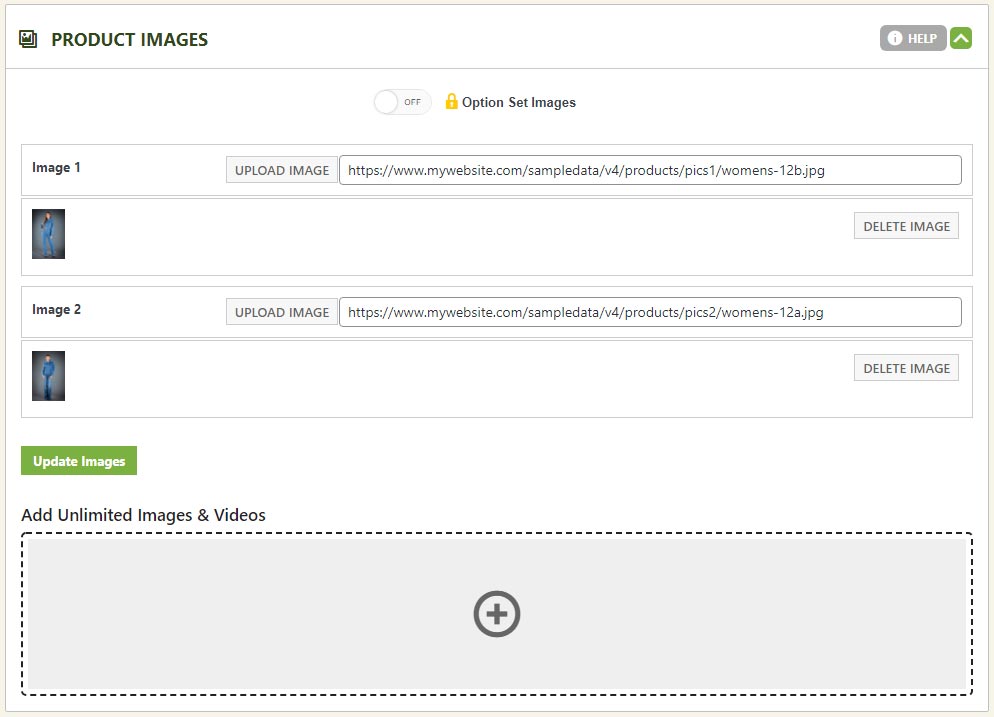
Free Edition — Two Images Per Product
Every free store ships with room for two images of any size or quality, no strings attached.
WP EasyCart — Free Edition Product Images
Professional & Premium — Unlimited Everything
Unlimited images and video, pulled from wherever your assets already live.
Mix and match images and video from your media library, an external URL, YouTube, and Vimeo. Assign them to the product overall, to each item in your first basic option set, or to each item in your first modifier — whatever combination fits how you sell.
Add & Organize Your Images
One + icon controls it all — general images, option images, or modifier images.
Add General Product Images
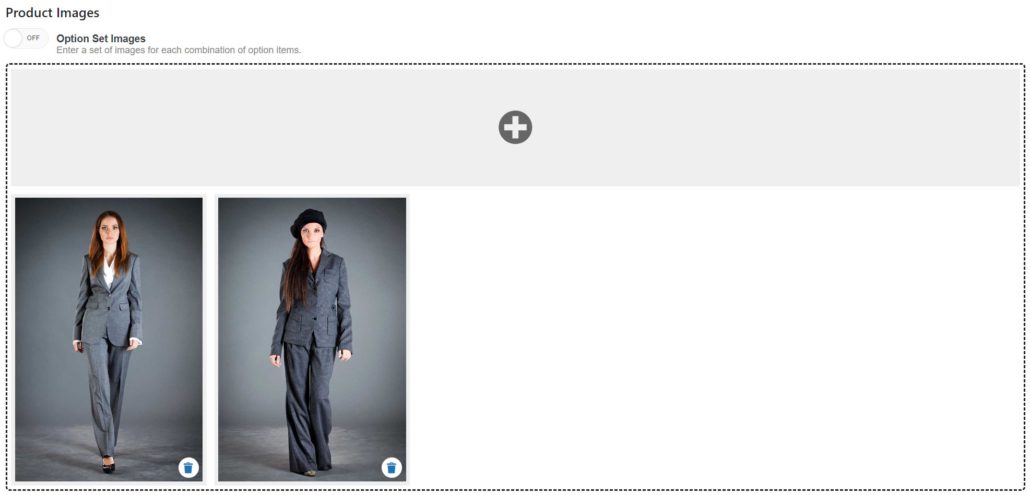
Make sure “Option Set Images” is disabled, then click the + icon and choose the type of image or video you want to add.
WP EasyCart — Add Unlimited Images

Make Images Follow Option Choices
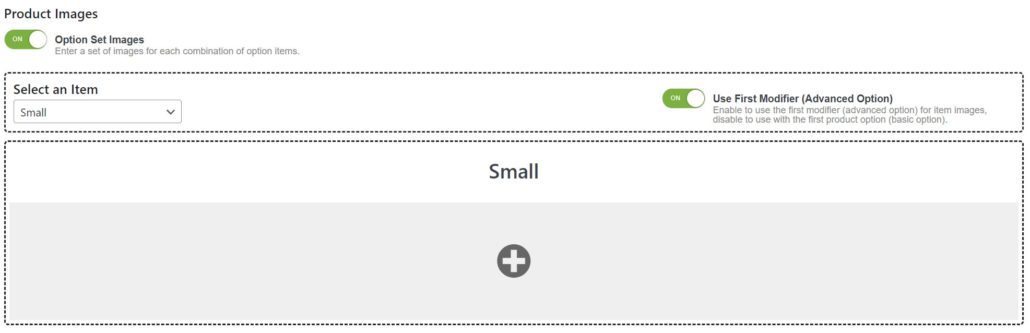
Enable “Option Set Images” and each image now changes based on which option item the shopper selects.
WP EasyCart — Unlimited Option Item Images
Use a Modifier Instead of Basic Options
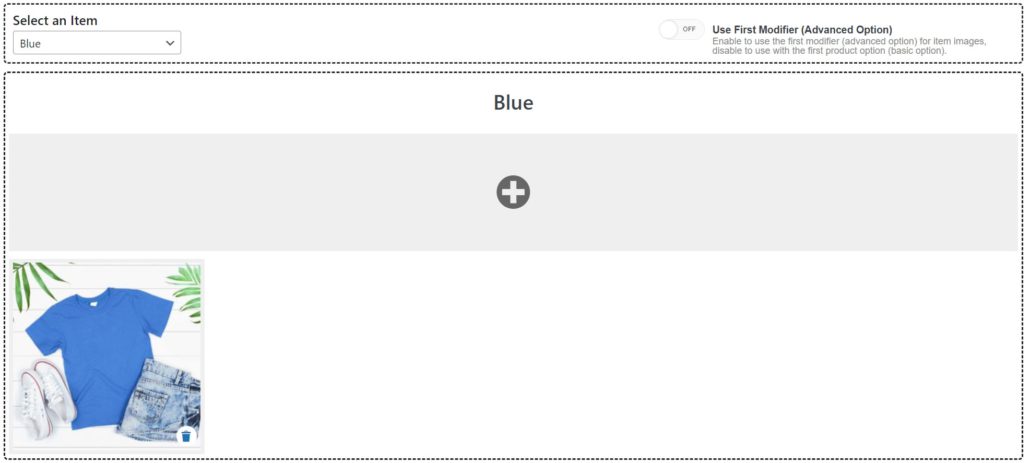
Want a product modifier to control images instead of your first basic option set? Flip the toggle to the right of the option set — the item list on the left switches to match.
WP EasyCart — Images Driven by a Modifier
Manage Large Option Sets Fast
Dozens of option combinations? Handle them all in one spreadsheet pass.
Export, Edit, Re-Import
Export the image set to CSV, edit it in your spreadsheet app, then upload it back using the “import image set” form.
WP EasyCart — Import Image Set

Add Images From Any Source
Media library or straight URL — either way takes seconds.
Add From the Media Library
Click the + icon, then “Media Library.” Select an image (or several) the way you normally would in WordPress — upload new files or pick ones you’ve already added — then click “Use Image” to apply your selection.
WP EasyCart — Media Library Images

Add an Image From a URL
Click the button and paste the full image URL, starting with https://.
WP EasyCart — Image From URL

Embed Video From a URL, YouTube, or Vimeo
Every embedded video needs one more thing: a thumbnail image.
Embed a Direct Video File
Enter the video URL plus an image URL (or pick one from the media library) — that image becomes the video’s thumbnail on your product.
WP EasyCart — Video From URL

Embed a YouTube Video
Enter the YouTube player embed URL along with an image URL or media library pick for the thumbnail.
WP EasyCart — Embedded YouTube Video

Embed a Vimeo Video
Same idea for Vimeo — enter the player embed URL plus a thumbnail image URL or media library selection.
WP EasyCart — Embedded Vimeo Video

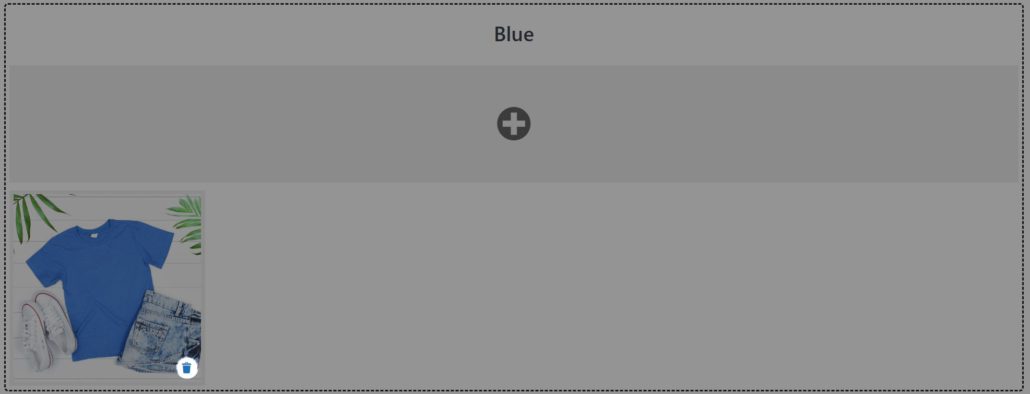
Remove an Image or Video
One click, and it’s gone.
Hover the image or video box and click the trash icon that overlays it to remove it from the product.
WP EasyCart — Remove an Image or Video
Ready for Unlimited Product Images?
From a single photo to a full gallery of images and video, WP EasyCart shows your products at their best. Need a hand setting it up?