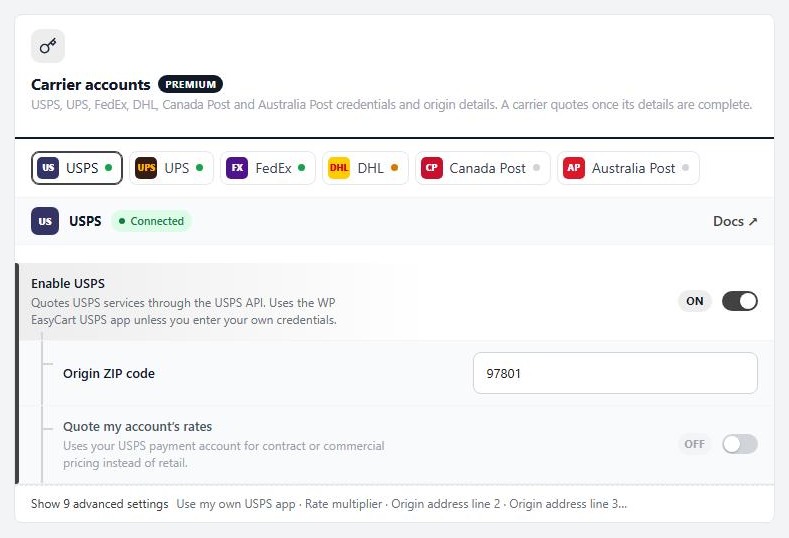
Step 1. Turn on USPS
One switch and your ZIP code, with nothing to sign up for
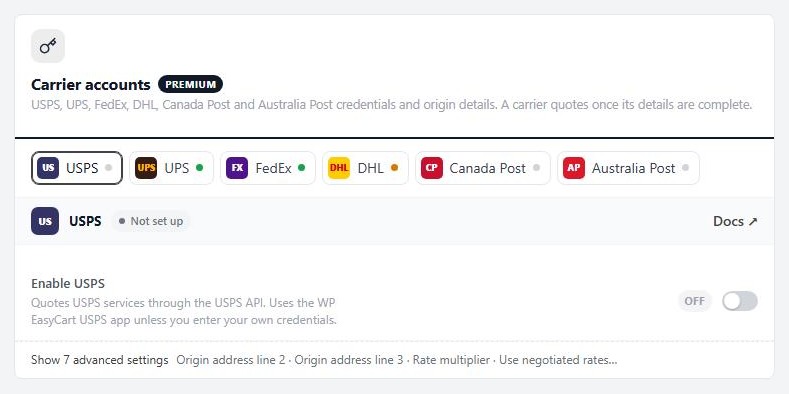
Open EasyCart › Settings › Shipping › Shipping settings and find Carrier accounts. Pick the USPS tab, turn Enable USPS on and type your Origin ZIP code. That is the whole setup.
This uses the WP EasyCart USPS app, so there are no keys to get and no developer account to create. The status line reads Connected when USPS is answering.
Every change saves as you make it, and a small Saving … Saved note shows beside it. The first time you save, WP EasyCart adds the usual USPS services to your live rates for you.
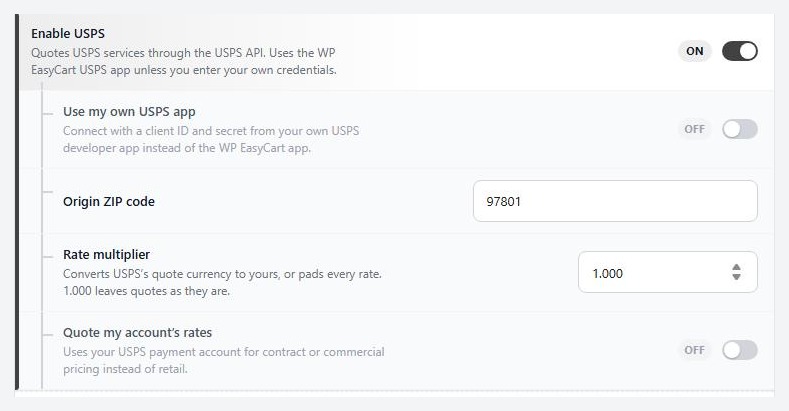
The advanced settings
Your own USPS app, a rate multiplier and your account’s rates
Press Show advanced settings on the USPS tab for:
Use my own USPS app: connect with your own USPS developer app instead of the WP EasyCart one. See the next section.
Rate multiplier: 1.000 leaves USPS’s quote as it is. Enter 1.100 to add 10% to every USPS rate, or use it to convert USPS’s currency to yours.
Quote my account’s rates: quote contract or commercial pricing from your USPS payment account instead of retail prices. See below.
Use your own USPS app
Only if you want your own USPS developer credentials
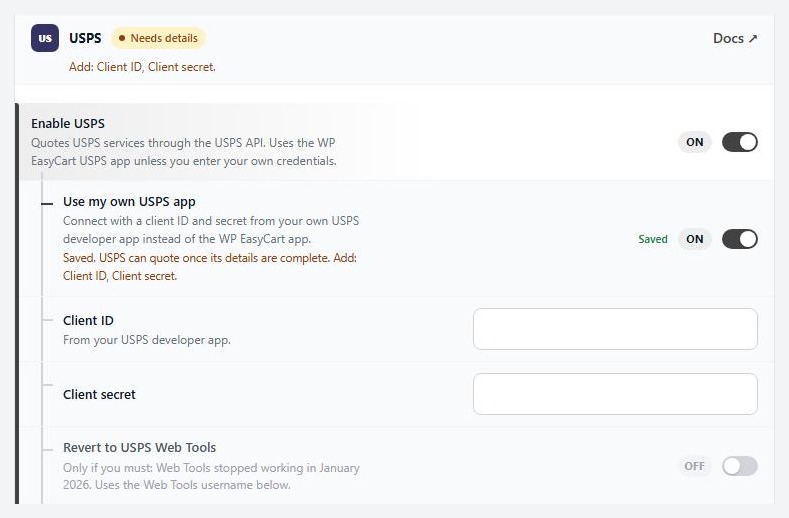
Most stores should leave this off. Turn Use my own USPS app on only if you want rates to come through your own USPS developer app. Two new rows appear:
Client ID and Client secret: from your USPS developer app. Create one at developer.usps.com and follow USPS’s getting-started steps.
Until both are filled in the status reads Needs details and says Add: Client ID, Client secret. Turn the switch off again and USPS goes back to the WP EasyCart app.
Inside it there is also Revert to USPS Web Tools. That is the old USPS system, which stopped working in January 2026, so leave it off unless you have a reason. It asks for a Web Tools username in the form 123ABCD1234.
Quote your own account’s rates
Contract or commercial pricing instead of retail
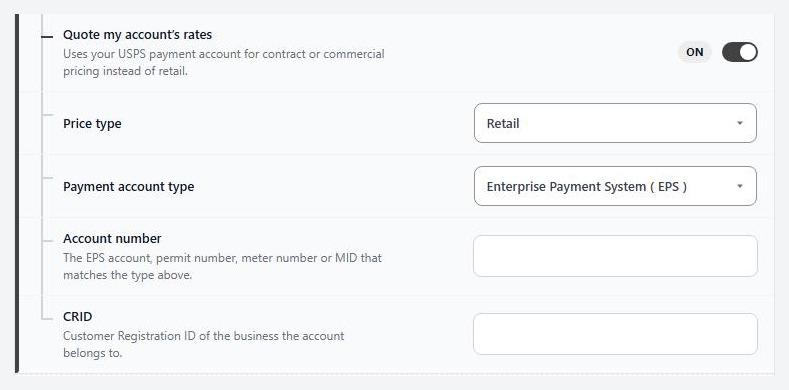
Turn Quote my account’s rates on to use your USPS payment account for contract or commercial pricing instead of retail. Four rows appear:
Price type: Retail, Contract or Commercial.
Payment account type: Enterprise Payment System ( EPS ), Permit, PC Postage meter or Mailer ID ( MID ).
Account number: the EPS account, permit number, meter number or MID that matches the type above.
CRID: the Customer Registration ID of the business the account belongs to.
Turn it off again and the price type and account details go back to their defaults.
Turn USPS on or off
One switch
Turn Enable USPS off and USPS stops quoting at once. The status reads Not set up and the rows under the switch fold away. Your ZIP code is kept, so turning it back on brings USPS straight back to Connected.
Use this to pause USPS without losing your setup, for example while you test another carrier. Turning it off also clears the USPS connection’s saved access and any Web Tools username, which is fine; USPS signs in again by itself when you turn it back on.
Step 2. Switch your store to live rates
USPS does nothing until this is the active method
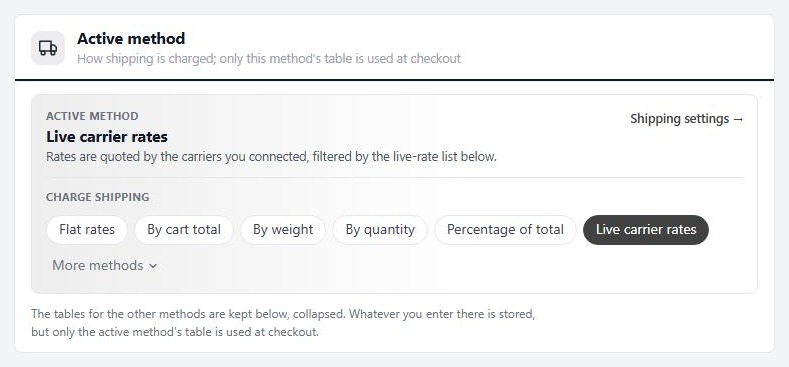
Open EasyCart › Settings › Shipping › Shipping rates. At the top, Active method shows how shipping is charged, and only that method’s table is used at checkout. Under Charge shipping choose Live carrier rates.
The tables for the other methods stay below, folded. Whatever you entered there is kept, but it is not used while live rates are active.
Step 3. Choose the USPS services shoppers see
Each row is one USPS service, in the order shoppers see them
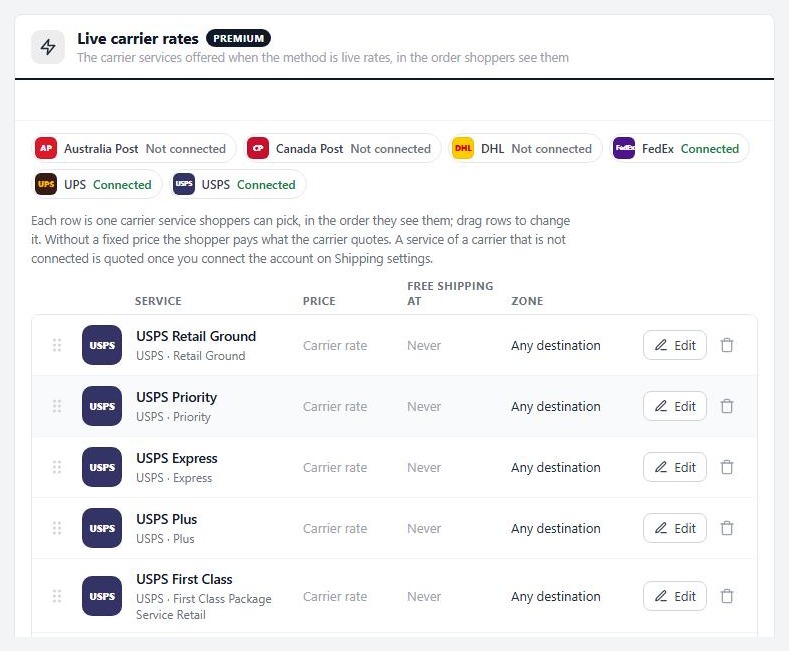
Scroll to Live carrier rates. The first time you save USPS details, WP EasyCart adds the usual USPS services for you if none are listed yet: Retail Ground, Priority, Express, Plus and First Class.
Each row shows the name shoppers see, the USPS service behind it, a fixed Price if you set one ( otherwise Carrier rate ), the Free shipping at amount and the Zone. Drag a row by its handle to change the order shoppers see. Press Edit to change a row, or the bin to remove it.
The status of every carrier shows above the list, so you can see at a glance which ones are connected. A service of a carrier that is not connected is quoted once you connect that carrier.
Add, edit or remove a service
Names, fixed prices, free shipping and zones
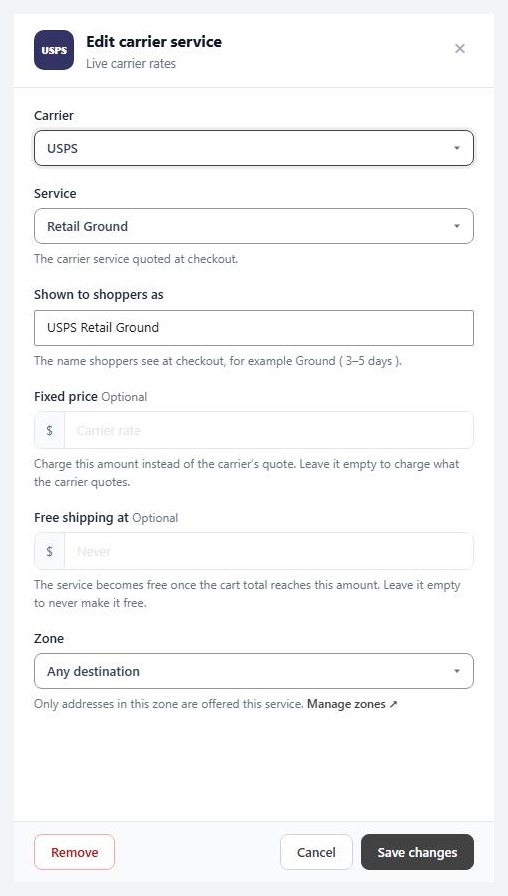
Press Add service under the list, or Edit on a row. A panel opens with:
Carrier and Service: pick USPS, then the service to quote. USPS offers Retail Ground, Priority, Express, Plus, First Class Package Service Retail, First Class Large Envelope, USPS Ground Advantage, USPS Ground Advantage Cubic, Global Express Guaranteed and more, including commercial and cubic variants.
Shown to shoppers as: the name at checkout, for example Priority ( 1–3 days ).
Fixed price: optional. Charge this amount instead of the USPS quote. Leave it empty to charge what USPS quotes.
Free shipping at: optional. The service becomes free once the cart total reaches this amount. Leave it empty to never make it free. This targets one service, so you can offer free Retail Ground over a set order value while the faster services still cost.
Zone: limit the service to a shipping zone.
Press Add service or Save changes to finish, or Remove to delete the row.
Step 4. Get your products ready
A weight and a size, and Enable Shipping on
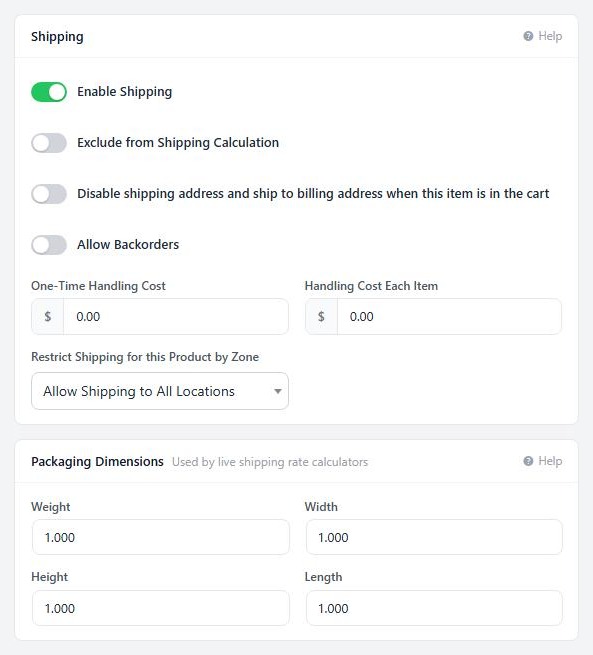
Live rates quote each cart from its products, so edit every product you ship. Open the product, choose Inventory & Shipping, and:
Enable Shipping: on, or the item is left out of the shipping calculation.
Weight, Width, Height and Length under Packaging Dimensions: the package details live rates use. A product with no weight cannot be quoted properly.
One-Time Handling Cost and Handling Cost Each Item: optional extras added on top of the rates.
Dimensions are read in inches or centimetres, set by Dimension units in the advanced settings of the Shipping method card on Settings › Shipping › Shipping settings.
Delivery days and other live-rate options
How quotes are shown
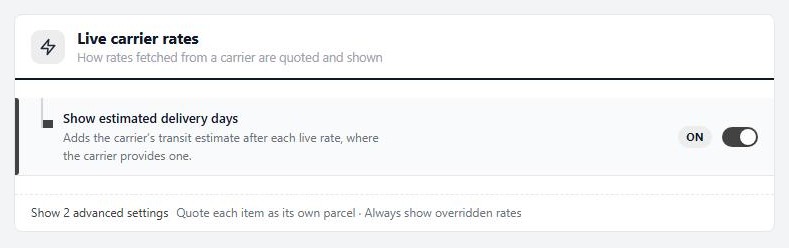
On Settings › Shipping › Shipping settings, the Live carrier rates card covers all carriers:
Show estimated delivery days: adds USPS’s transit estimate after each rate, where USPS provides one. On by default.
Quote each item as its own parcel ( advanced ): asks for a rate per item and adds them up, instead of one combined package. Only for goods that cannot ship together; it usually costs more.
Always show overridden rates ( advanced ): a service you gave a fixed price is shown even when USPS returns no rate for the address.
Ready to run your store on WP EasyCart?
Everything in this guide works with the free plugin. PRO and Premium add subscriptions, memberships, wholesale pricing and more. Try every PRO feature free for 14 days.