
Financial Settings
Square Payment Settings
Square is a preferred & popular payment gateway that offers live, on-site processing with a one-click installation and connection process — plus a product importer that syncs your Square products straight into EasyCart.
Watch the Walkthrough
Prefer to watch? See the full Square setup — digital wallets included — in one short video.
Square Payment Setup
Watch as we setup Square payments, including the Apple Pay & Google Pay mobile wallet payments with the popular gateway.
Why Square + EasyCart
Live on-site processing, a one-click connection, and inventory that stays in sync. Here’s how the editions compare.
- Free edition: Square is offered with a 2% application fee + Square fees.
- Pro or Premium edition licenses: Square is offered with 0% application fees + Square fees.
- Product syncing: Square + EasyCart offer a special product syncing system to keep your inventory up to date.
How to Setup Square Payments
Visit the WP EasyCart › Payments › Live Payments panel and choose to enable Square. The panel may vary by edition — the free edition may include a slider, while Professional/Premium offers more payment choices and a selection in the Live Payment section.
Choose Square
Choose Square as your payment choice.
Slide ‘Enable Live’ ON
Slide the ‘Enable Live’ slider on so that Square enables.
Log In & Accept Permissions
You will be asked to log in to your Square account if you aren’t already, then accept permissions for the app.
Pick a Location & Digital Wallets
Once connected, you return to EasyCart and choose the store location of your choice as well as enable/disable Digital Wallets. Apple Pay requires one extra step to operate — see the Apple Pay section below for those directions.
Add a Merchant Name
If you use wallet payments, simply add a Merchant Name to appear on those wallet payments.
An SSL certificate is required
You must have an https:// secure SSL certificate in order to process live payments. You usually purchase an SSL through your web host provider on a yearly basis. We recommend you use the ‘WordPress HTTPS’ plugin to secure your store, cart, and account pages — or visit Settings › Checkout and force SSL to ON.
WP EasyCart — Square Payment Settings

Square Settings Explained
Three sliders control the connection and how deeply Square and EasyCart stay in sync.
- Enable Live: Slide ON and connect to your Square account by simply logging in and making the connection. This enables credit card entry on your website, and payments process through your Square account.
- Inventory Sync: Slide ON if you wish to have your Square inventory synced automatically and periodically. Inventory syncing will only occur for products which you have synced from Square — Square becomes your master record for product changes and inventory changes.
- Product Sync: Slide ON if you wish to have your Square products synced automatically and periodically. Product syncing pulls any new changes from your Square products down to the WP EasyCart product system — including inventory, variants and modifiers, and other product information. Syncing happens regularly on hourly schedules.
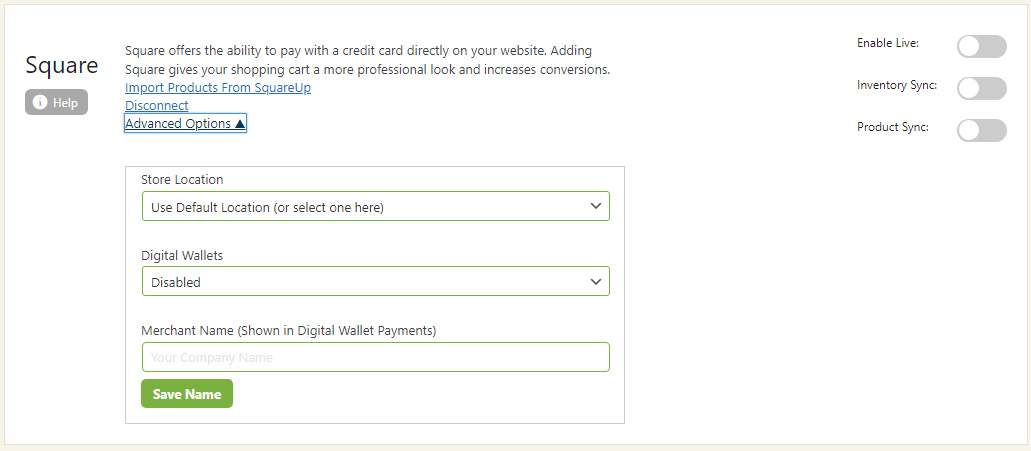
Square Advanced Options
Advanced options include the ability to adjust store locations and enable Digital Wallet payments such as Apple Pay & Google Pay.
WP EasyCart — Square Advanced Options
Power Feature
Setup Required for Apple Pay
Apple Pay requires an extra verification step be taken on all websites. You must upload a certificate file to your website and place it within a specific directory before Square will verify your site and show Apple Pay as an available option.
- Download the certificate file here
- Unzip this file or open it to find the certificate file called “apple-developer-merchantid-domain-association”
- Upload this certificate file to the following location: https://www.yourWebsiteURL.com/.well-known/apple-developer-merchantid-domain-association
You may need to create this .well-known/ folder on your website — and please be aware, the file does require it be exactly in this location.
💡 Special Note: Some users have reported that unzipping this file with certain programs will alter the file, and Square will not verify it. A Windows-based zip tool may be necessary depending on your operating system and unzip tool.
Using the Optional Square Product Importer
Once you have finished connecting the Square payment process, you may use the Square importer as an optional convenience system to bring Square products into EasyCart. Click here to learn more about our Square cart importer.
Ready to Take Square Payments?
One click connects your Square account — and if wallets, syncing, or Apple Pay verification get tricky, our support team is here to help.