Product Importer

5 min read

Product Details

Product Importer

Bulk-add or bulk-update products in minutes, not hours. Export a CSV, edit it in your spreadsheet of choice, then import it back — EasyCart sorts out which rows are new products and which are updates to existing ones.

Watch the Walkthrough

Prefer to watch? This video walks through the entire CSV export and import process from start to finish.

Product Importer Using CSV

Learn to use the bulk EasyCart product CSV exporter/importer and update thousands of products in only a few minutes.

Export. Edit. Import.

The easiest workflow we’ve found for the export/import process, in four steps.

1

Create a Few Products First

Import demo data or create a couple of products manually — real data makes for a much better export template.

2

Export to CSV

Export those products to CSV so you can see exactly how EasyCart formats the data.

3

Add or Edit, Then Save

Add new rows or edit existing ones, then save the file in CSV format.

4

Import Your CSV

Run the import process and EasyCart adds new products or updates existing ones automatically.

💡 New vs. existing: New products should be added with a product_id of zero (0). Existing products already carry a product_id, so the importer simply updates them instead of creating duplicates.

Step One — Export Your Data

Grab real data straight from your own store before you start editing.

1

Export All or Selected Products

Manually create a few products to get data into the system, then run an export. Export only the products you want to bulk-update, or export everything to CSV.

WP EasyCart — Export Products to CSV
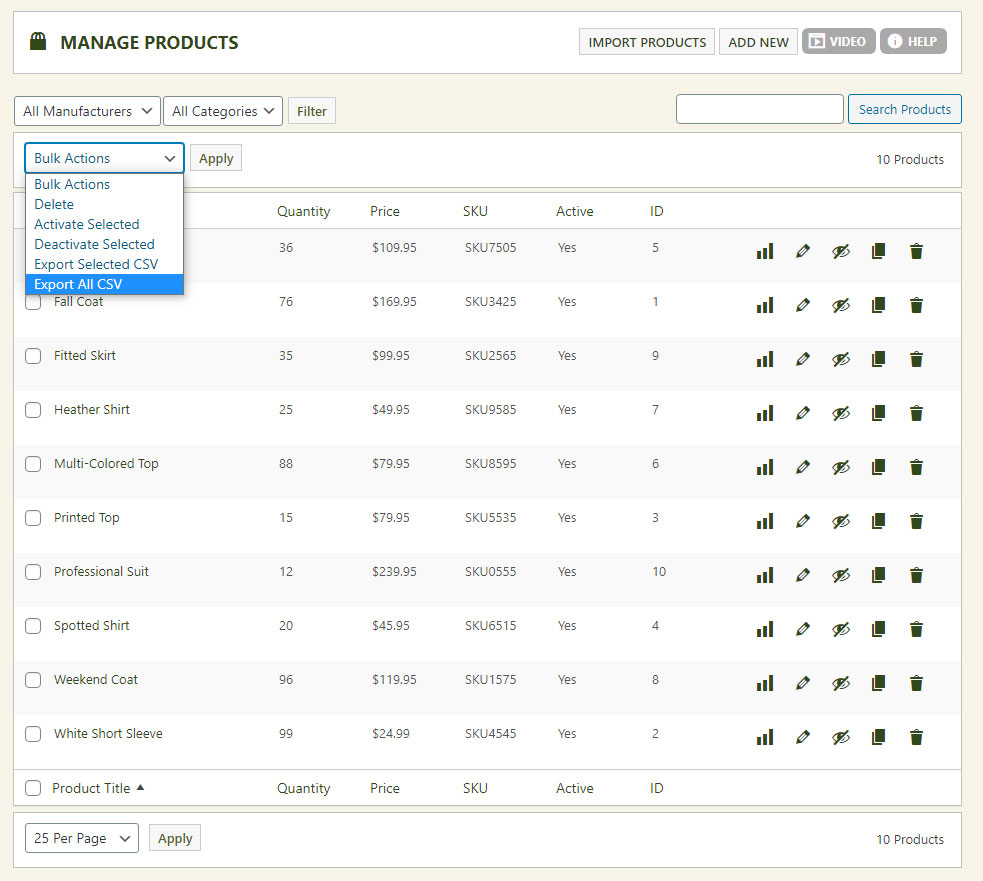
WP EasyCart product export panel exporting products to CSV

Step Two — Open the CSV & Edit Your Data

Every column matters here — mirror the format, don’t reinvent it.

2

Edit in Any Spreadsheet App

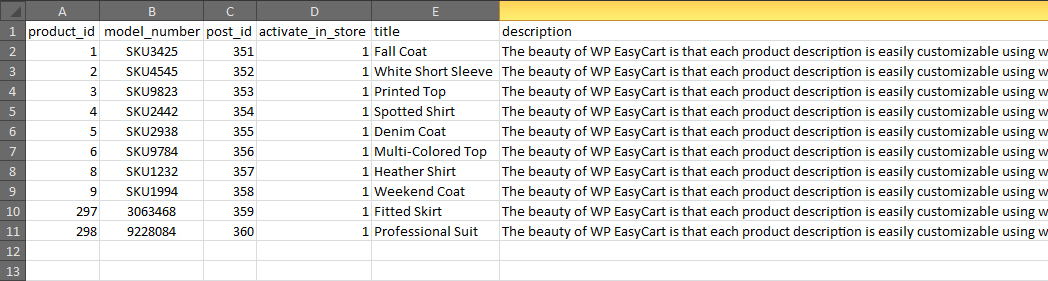
Open the CSV in your spreadsheet program of choice. Every column is required — never rename or remove them. Use your existing products as the format guide for new rows.

Spreadsheet — Exported Product Data

Exported product CSV opened in a spreadsheet application

💡 New product rows: Notice each row’s product_id is already set from your export. To add a brand-new product, add a new row and leave product_id and post_id at zero (0) — the importer creates it fresh.

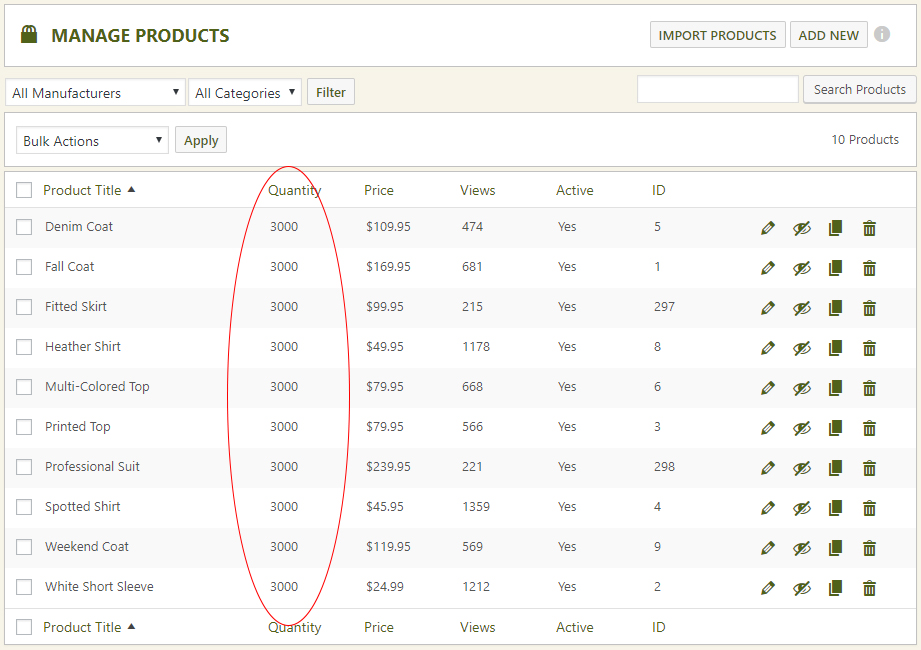
In this example, every product gets updated to a quantity of 3,000 in one pass.

Spreadsheet — Bulk Quantity Update Example
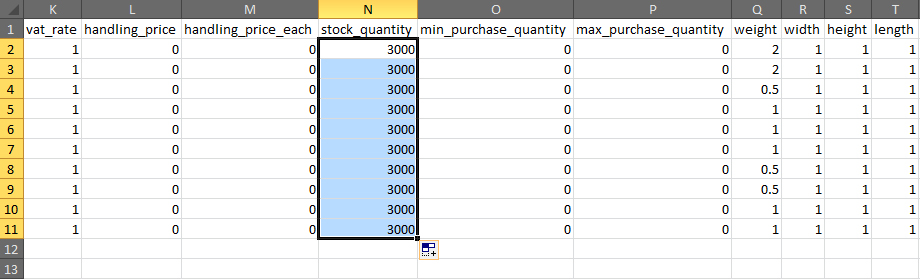
Spreadsheet showing a bulk quantity update across every product row

💡 Adding option sets: You can add basic and advanced option sets right in the CSV. For advanced sets, list comma-separated option set IDs (found on your option set list) in the advanced_option_ids column, and set use_advanced_optionset to 1.

Step Three — Save as CSV

One wrong file type and the importer won’t read a thing.

3

Save as .csv — Not .txt

Save your file in true .csv (Comma Separated Values) format. Some spreadsheet apps default to .txt — that won’t work, so double-check the file type before you upload.

Spreadsheet — Save As CSV

Saving the edited spreadsheet in CSV Comma Delimited format

Step Four — Browse & Import

Three clicks and your CSV is live in EasyCart.

4

Browse & Import

Head back to EasyCart’s Products panel and click Import Products. Browse to your CSV file, upload it to WordPress, then click Import File to kick off the process.

WP EasyCart — Import Products Button

WP EasyCart Import Products button on the products panel

WP EasyCart — Browse for Your CSV File

Browsing for the CSV file to upload to WP EasyCart

WP EasyCart — Click Import File

Clicking Import File to begin processing the uploaded CSV

💡 Keep it under 500: We recommend a maximum of 500 products per CSV file. Go beyond that and some servers can overload and time out mid-import.

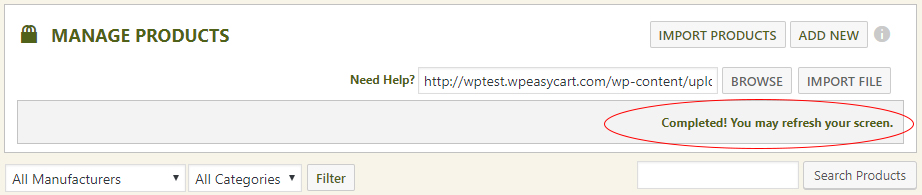
WP EasyCart — Import Completed

WP EasyCart import completed confirmation message

Step Five — Verify Your Results

Trust, but verify — refresh and confirm the update took.

5

Refresh & Check the Products Panel

Refresh your Products panel to confirm the change. In this example, every product now shows the updated quantity of 3,000.

WP EasyCart — Quantities Updated

WP EasyCart products panel showing quantities updated after import

A Special Note on Product Images

Unlimited images and video need a specific format in the CSV — here’s the cheat sheet.

  • Media Library ID (default): Enter the media library ID of a picture and EasyCart automatically chooses the best size for optimization.
  • Legacy image1-image5 Fields: Older or free-edition stores may still see image1 through image5 columns. These map straight to the matching database field’s full URL or EasyCart-stored location — you can still drop 5 direct image URLs into these columns today.

Add Your Own Image or Video

image:URLvideo:URLyoutube:URLvimeo:URL

💡 Comma-separate everything: Mix and match freely in the product_images field. Example: 24,929,34,video:https://www.full-urlsite.net/your-video.mp4,https://www.youtube.com/embed/SOMEID,https://player.vimeo.com/video/SOMEID,image:https://www.fullurl-site.net/image.jpg,image1,44,image4,image2,image3,image5,888,1223. Skip the double quotes.

A Special Note on Data Safety

Bulk importing is powerful — and powerful tools deserve a little caution.

Watch What You Paste

Copying and pasting code from other websites or files into a product description is a common mistake — it can inject scripts and cause errors. Exporting and importing product data saves real time, but stay diligent about exactly what you’re inserting in bulk.

Ready to Update Products in Bulk?

Whether you’re adding a hundred products or updating three thousand, the CSV importer gets it done fast. If your file needs a second set of eyes, we’re here.

Updated on July 20, 2026