
Option Set Manager

8 min read

Products

Option Set Manager

Option sets are the core of a flexible ecommerce system. The option set manager lets you build custom products and control the price and weight changes flexible pricing needs. EasyCart offers a huge array of option types — some track quantity, some display images, and many adjust price in complex ways.

Watch the Option Sets Walkthrough

See how to create basic and advanced option sets and change pricing the way your products need.

Creating Option Sets & Price Changes

Option sets and variants that manipulate a product’s price are easy in EasyCart. This video shows how to change pricing for basic and advanced option sets.

Quick Start

The typical option-set workflow

1

Create an option set

Create the set itself — for example, “Shirt Size.”

2

Create option items

Add the choices within it — for example, Small, Medium, Large.

3

Attach to products

Edit your shirt products and attach the “Shirt Size” set to each one.

Setup

Editing option sets

Select an option type, then give it a name and a label. The name is for your reference in the admin area; the label is what customers see. Advanced option sets let you mark an option as required or optional, and you can set a custom required-message shown if a user tries to add to cart without choosing.

Basic vs. Advanced options

Basic options (Combo and Swatch), also called variants, can track option-level quantities — how many small/red, large/blue, and so on — entered per combination at the product level. Advanced options, also called modifiers, cannot track quantity but are far more flexible for price and weight adjustments. The two types can’t be mixed on a product, so if you don’t need per-option quantity tracking, EasyCart recommends advanced option sets.

Advanced option set setup
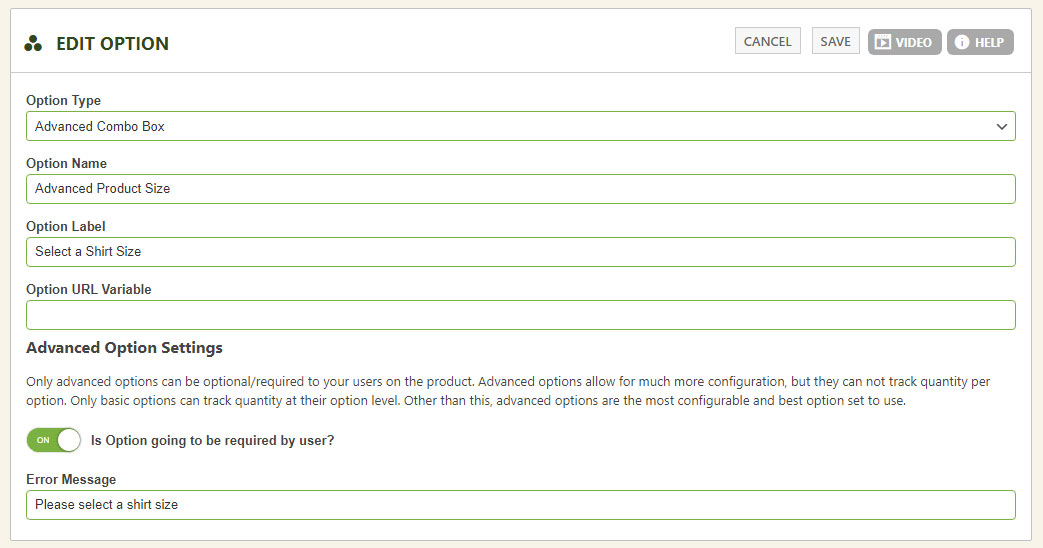
Advanced option set setup

Reference

Option types

  • Basic Combo — a combo box with basic selection and option-quantity tracking.
  • Basic Image Swatch — selectable image with quantity tracking; swatch boxes are auto-generated if you don’t upload an image, and swatch width is adjustable.
  • Advanced Combo — a combo box with price and weight adjustments.
  • Advanced Image Swatch — selectable image with price and weight adjustments; auto swatch boxes and adjustable width.
  • Advanced Text Input — one line of text, with optional per-character pricing plus price and weight adjustments.
  • Advanced Text Area — multiple lines of text with price and weight adjustments.
  • Advanced Number — a numeric entry with price and weight adjustments.
  • Advanced File Upload — upload a photo or file with price and weight adjustments.
  • Advanced Radio Group — choose one option from a group, with price and weight adjustments.
  • Advanced Checkbox Group — select or deselect an option, with price and weight adjustments.
  • Advanced Quantity Grid — replaces the quantity box with a grid for entering bulk quantities per choice.
  • Advanced Date — a date selector with price and weight adjustments.
  • Advanced Dimensions (Whole Inch) — whole-inch measurement with price and weight adjustments.
  • Advanced Dimensions (Sub-Inch) — inch and sub-inch measurement with price and weight adjustments.

Each type has its strengths: basic options track quantities, text inputs can price per character (great for engraving), and image swatches let users visually pick patterns or colors. Option URL variable: you can pre-populate a text option via the URL — e.g. /store/myproduct/?myurlvariable=ABC123 loads the product with “myurlvariable” set to ABC123.

Setup

Editing option items

Once an option set exists, edit the choices within it by clicking the option-item button. In this example we’re managing the items for “Advanced Combo — Shirt Size,” which has three items beneath it.

Editing option items

Editing option items

Advanced combo option item
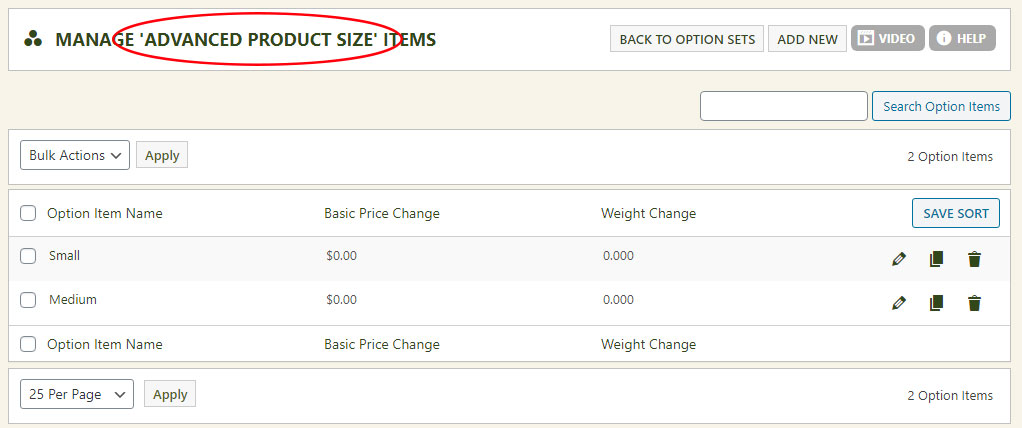
Advanced combo option item

Reference

Option item settings

This is where you customize the item itself — name, sort order, model extensions, custom labels, and price/weight adjustments. Basic options expose fewer settings than advanced modifiers.

Standard settings

  • Option Name — the choice shown to the user (Small, Medium, Large…).
  • Option Sort Order — set by number, or drag and drop items in the list.
  • Model Number Extension — appended to the product model/SKU (e.g. SKUABC becomes SKUABC-Small).
  • Custom Label for Price Adjustments — override the default increase/decrease label.

Advanced settings

  • Initially Selected? — preselect an item in a combo (not applicable to file uploads or dates).
  • Option allows product download? — turn downloading on/off; optionally override the default download file or add an extra file to it.
  • Option allows product shipping? — turn shipping calculation on/off (e.g. “Ship to me” vs. “Local Pickup”).
  • Initial Value — set a starting quantity or value, handy for quantity grids and input fields.

Price options

  • Base Price Adjustment — add or subtract a set amount.
  • One-Time Price Adjustment — adjust once, even if quantity is more than one.
  • Product Price Over-Ride — replace the product price entirely.
  • Product Price Multiplier — multiply the product price by an amount.

Weight options

  • Base Weight Adjustment — add or subtract a set amount.
  • One-Time Weight Adjustment — adjust once regardless of quantity.
  • Product Weight Over-Ride — replace the product weight entirely.
  • Product Weight Multiplier — multiply the product weight by an amount.

Option item editing
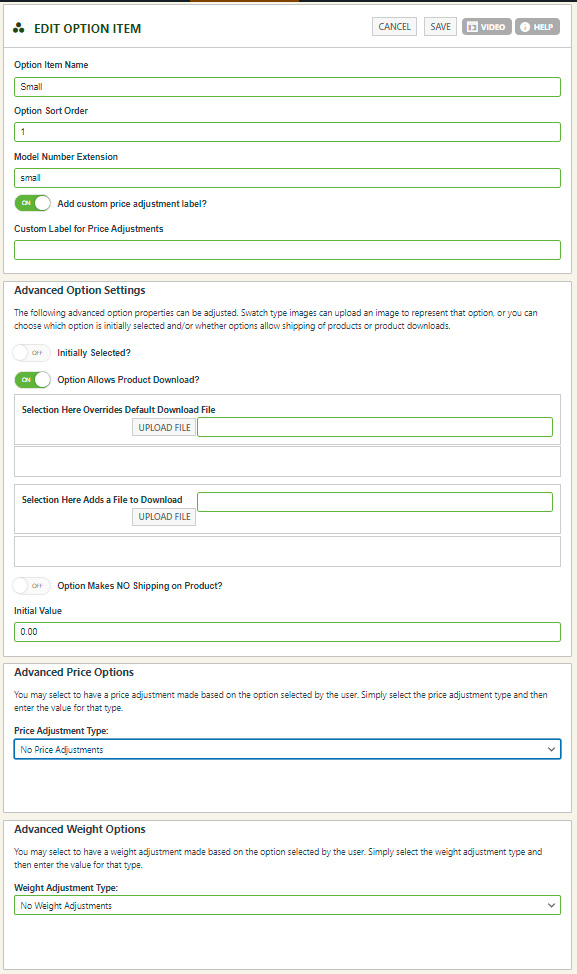
Option item editing screen

Note: once your option sets and items are created, head to the product area to attach the option set to a product.

Build flexible, custom products

Create variants and modifiers that collect custom data and adjust price and weight exactly how your products need.

Updated on June 17, 2026