Financial Settings
WorldPay Payment Settings
WorldPay (formerly SecureNet) requires an account with them, plus two credentials entered into your WP EasyCart setup: your SecureNet ID and your Secret Key. Both live in the Virtual Terminal — here’s exactly where to look.
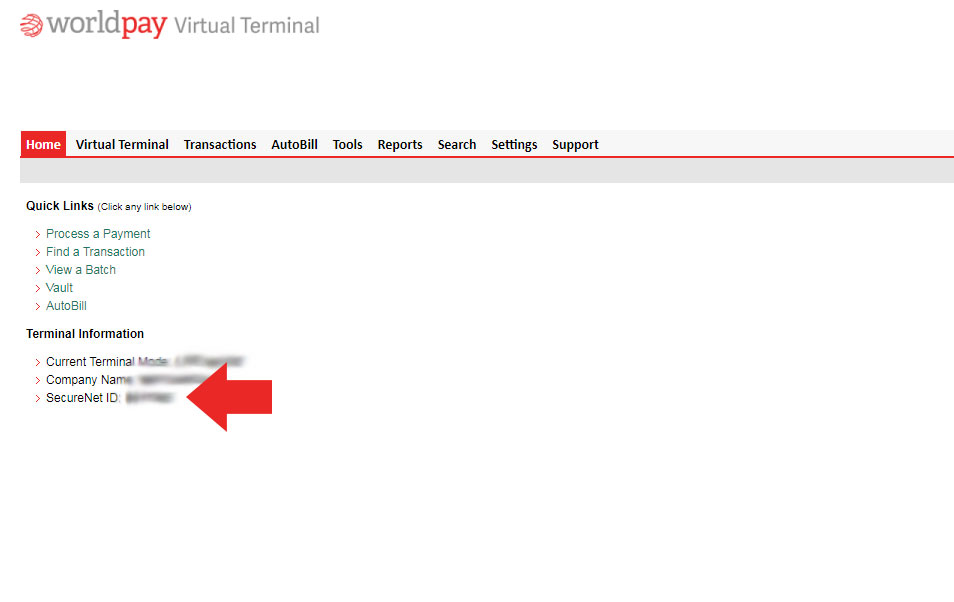
Find Your SecureNet ID
Log into your account via the Virtual Terminal. Your SecureNet ID is listed immediately as you log in.
WorldPay Virtual Terminal — SecureNet ID at Login
Retrieve Your Secret Key
Three quick clicks: the settings tab, then Key Management, then a re-login to reveal the key itself.
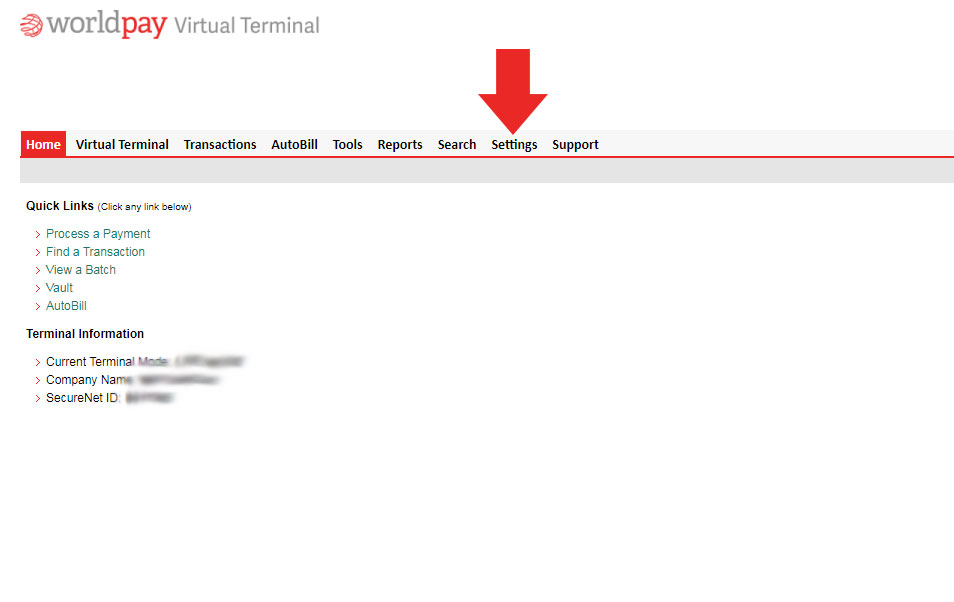
Open the Settings Tab
Navigate via the settings tab in the Virtual Terminal.
WorldPay — Settings Link

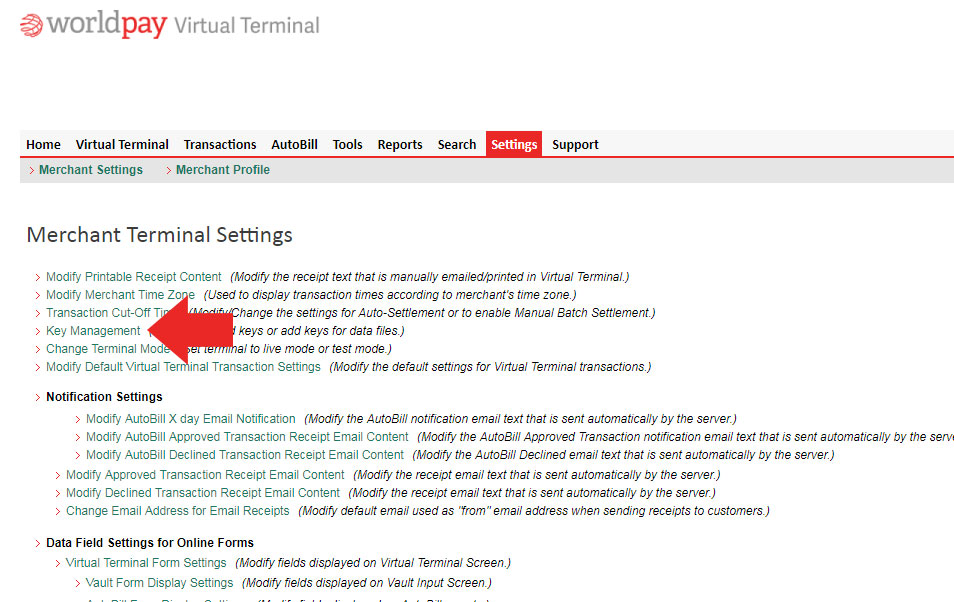
Select Key Management
From the settings area, select Key Management.
WorldPay — Key Management

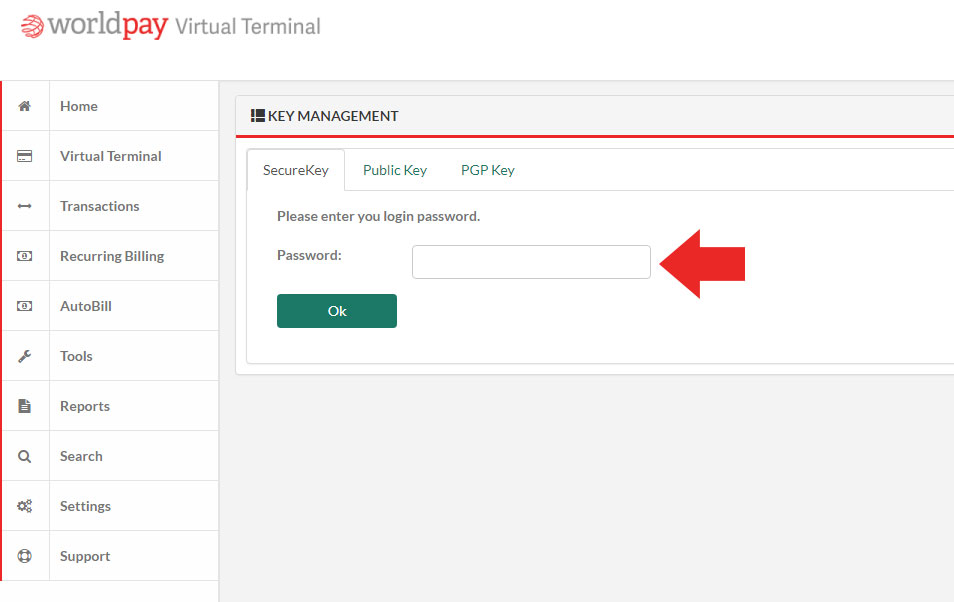
Log In Again & View the Secret Key
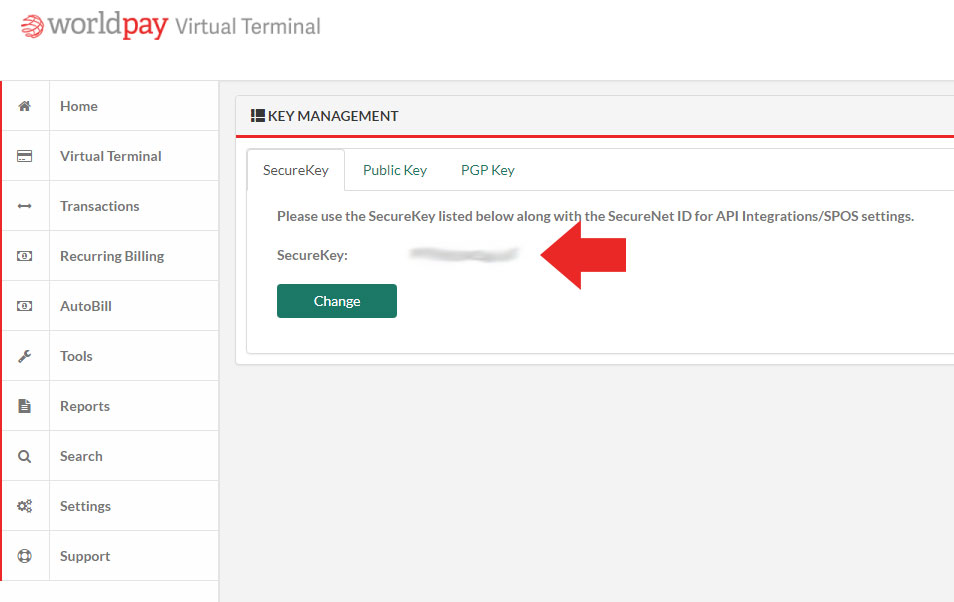
Log into your account once more when prompted, and your Secret Key is displayed.
WorldPay — Enter Your Password

WorldPay — SecureNet Secret Key
Enter Your Credentials in EasyCart
Head to the WordPress Admin › Settings › Payment panel and select WorldPay from the live gateway drop down. Enter your SecureNet ID and Secret Key, and you’re connected.
💡 Running an older cart version? The gateway will be listed as SecureNet instead of WorldPay — this is the same exact gateway!
Need a Hand With WorldPay?
Whether it’s a hidden secret key or a gateway that won’t connect, our support team can walk you through it.