
Product Details
Creating & Updating Products
Retail goods, downloads, gift cards, donations, service-based products, subscriptions, and memberships — WP EasyCart builds them all from the same fast slide-out panel. Create the basics in seconds, then fine-tune everything else from the product edit screen.
Where to Start
Add your first product in seconds — one click opens the slide-out panel.
Open the Add New Panel
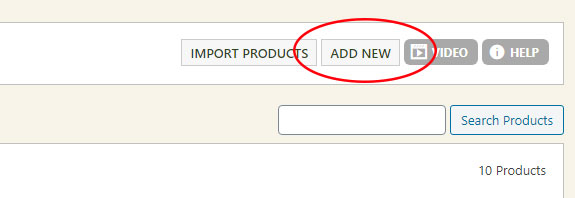
Head to WP EasyCart › Products in your WordPress dashboard and click “Add New” in the top right corner.
WP EasyCart — Add New Product
Creating a New Product
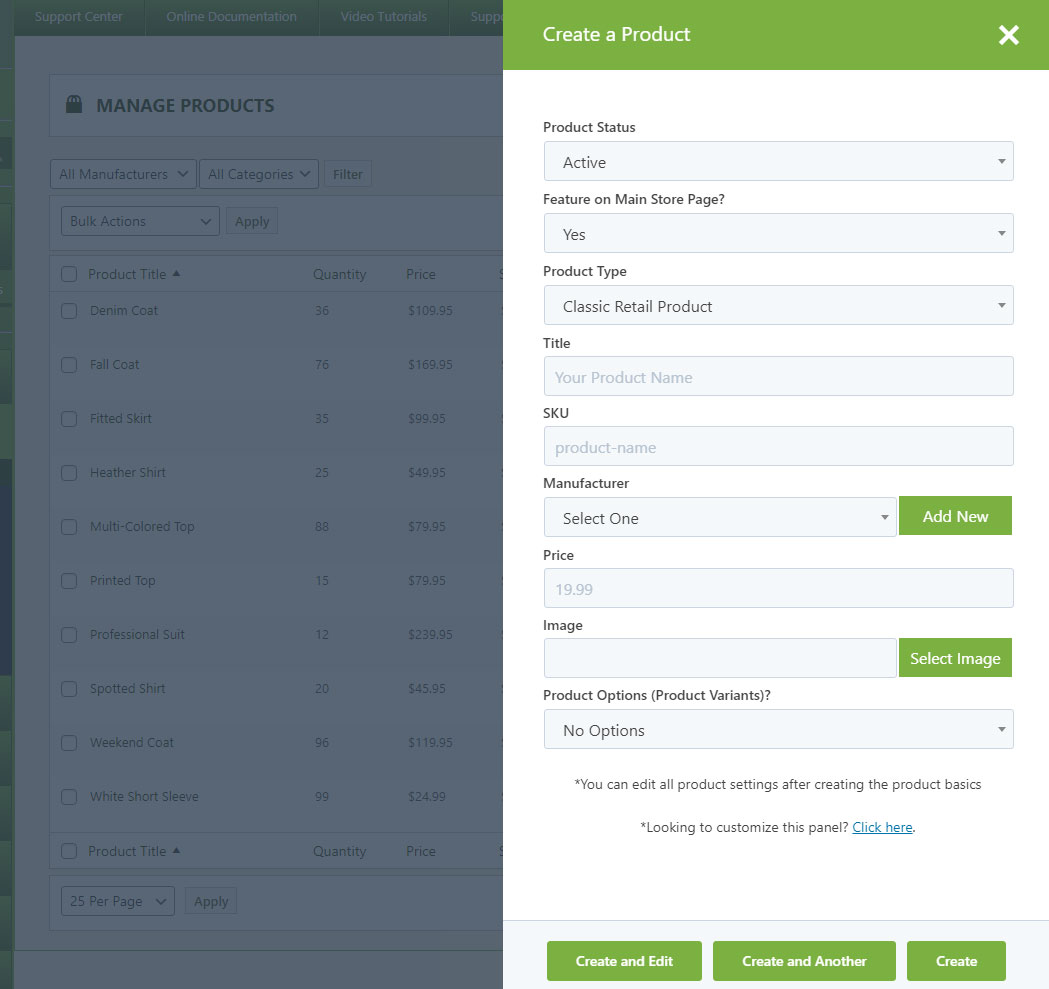
The slide-out panel covers everything you need for a fast first save.
- Active or Inactive: Decide whether shoppers can see the product yet — flip it on whenever you’re ready.
- Feature on Main Store Page?: Show it on your main store page, link to it directly by URL, or tuck it inside categories.
- Product Type: Pick from a variety of default types — retail goods, downloads, gift cards, donations, service-based products, subscriptions, and memberships are all possible. Each type pre-loads sensible shipping, tax, and option settings, and you’re never locked in — change it anytime from the product itself.
- Title: Powers your link slug (e.g. yoursite.com/store/my-new-product) and shows up throughout your store.
- SKU: Required for linking and tracking inventory. No use for it yet? Enter something random for now.
- Manufacturer: Choose an existing one, or click add new to create one on the spot in a slide-out panel.
- Price: Your base price. Add volume pricing, B2B pricing, and more once the product exists.
- Image: Start with a single image — add up to 5 images or option-item images later.
- Options: Free users see none or basic option sets; licensed users also see advanced options. At creation you can only choose or create basic options — advanced options get added on the next screen.
- Create and…?: Create and edit, create and add another, or just create and close. Build one product or a dozen without breaking stride.
WP EasyCart — New Product Slide-Out Panel
Editing an Existing Product
Once it’s saved, everything opens up.
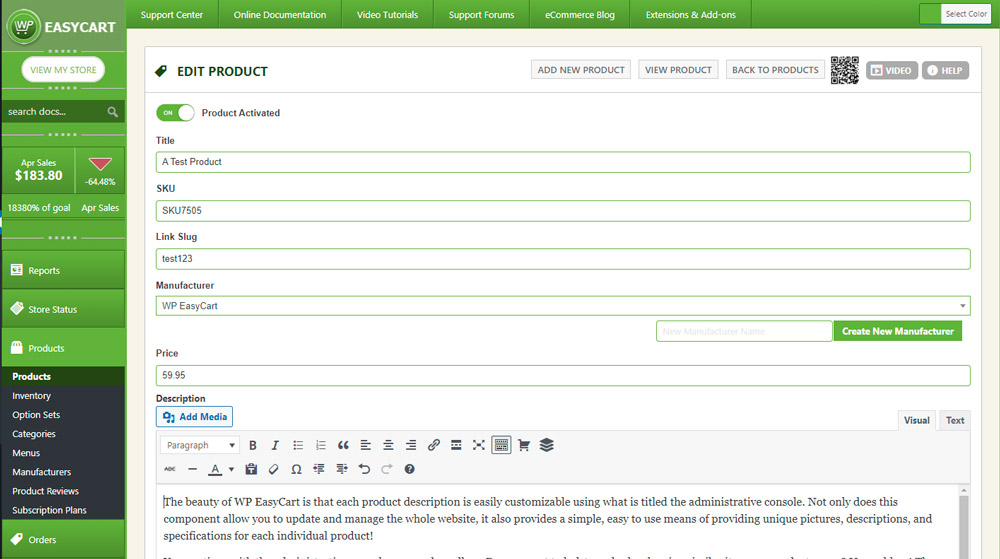
Once a product is saved, you can edit every setting — link slug, advanced options, images, downloads, and much more. Need to double-check the live page? Click “View Product” at the top of the screen.
Leave Link Slugs Alone Once Set
We recommend you don’t edit or change link slugs frequently. Doing so adjusts your SEO links and can hinder your search rankings.
WP EasyCart — Edit Product Panel
Your Built-In QR Code
Every product gets a free, ready-to-use QR code for print and email marketing.
WP EasyCart generates a custom QR code for every product automatically. QR codes are the black-and-white square images a phone camera can scan to jump straight to a URL — perfect for flyers, packaging, or email campaigns. Click the QR code icon at the top of your product screen and save the larger image for your marketing materials.
💡 Give it a try: Scan the QR code below with your phone’s camera and see where it takes you.
WP EasyCart — Sample Product QR Code

Ready to Add Your First Product?
From a single retail item to a full catalog of subscriptions and downloads, WP EasyCart gets your products live fast. Need a hand along the way?