
Detailed Settings
Store Schedule Settings
Store schedules power our restaurant, preorder, and pickup delivery systems. Seven default days let you set day-to-day open, close, and delivery availability times — and custom schedules handle the holidays.
Manage Schedules
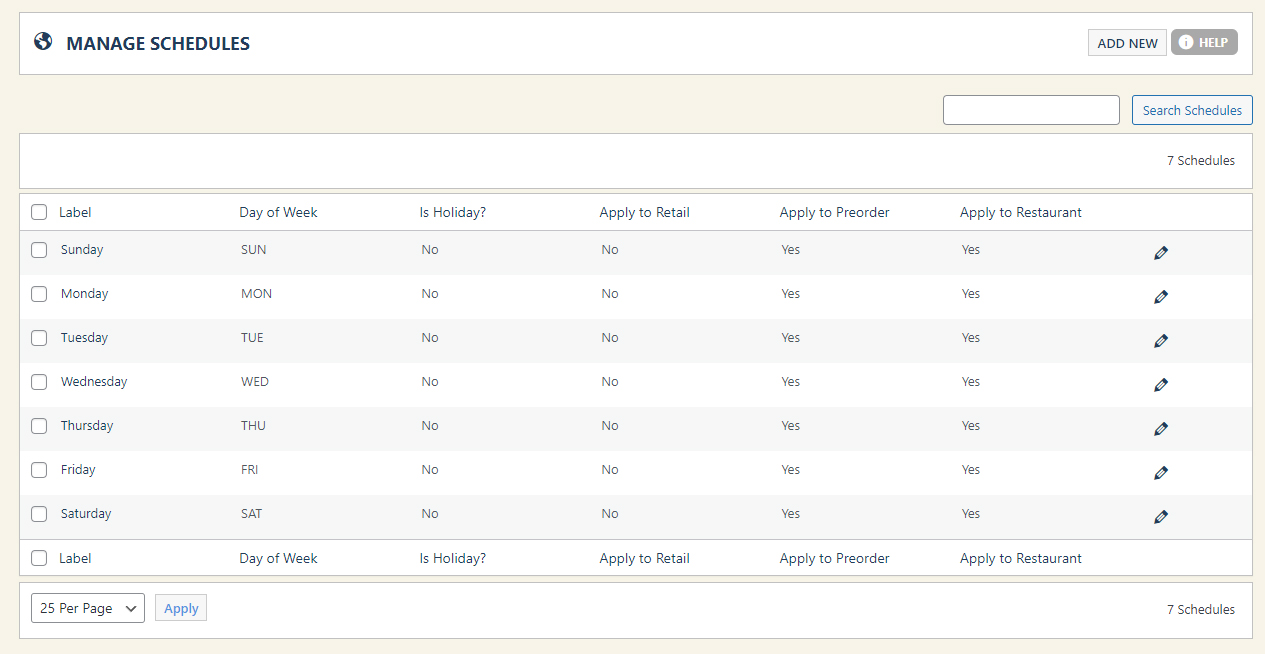
Click the Store Schedule menu within Settings to see your base schedule. The core 7 days can’t be removed — only edited. Need something special for a holiday or other period? Click Add New and design a custom schedule; otherwise the system falls back to the predefined 7 days.
WP EasyCart — Store Schedules
Schedule Details
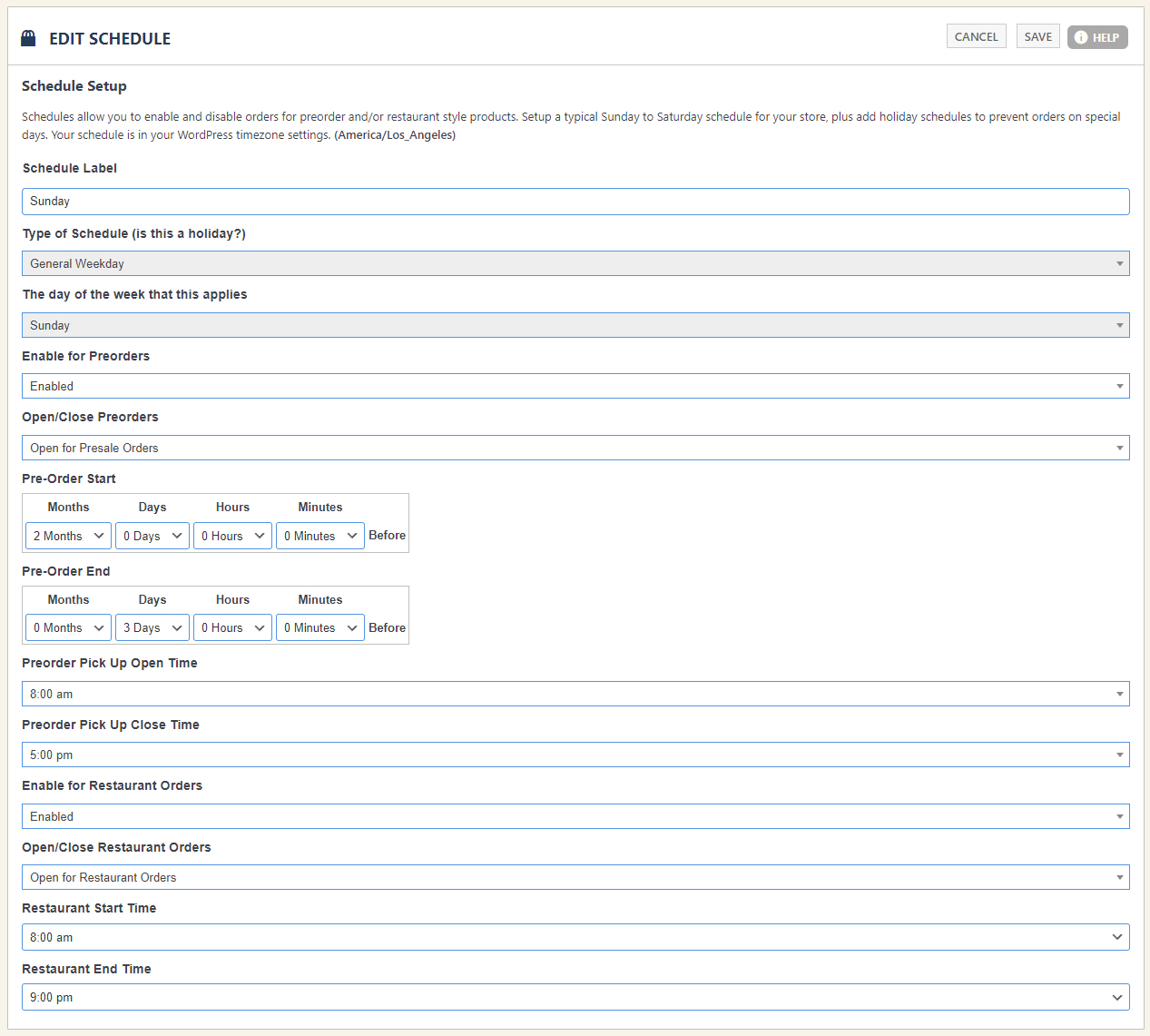
Every schedule — core day or custom — has two core sections: Preorders and Restaurant Orders.
Preorders — Scheduled Pickup Beyond Today
Preorders are items scheduled for pickup outside the current day. Enable or disable preorders for this schedule, set the time range pickup is available, and define how far in advance users may preorder. Example: open an item for preorder 2 weeks in advance with pickup limited to morning hours.
Restaurant Orders — Same-Day, ASAP or Scheduled
Restaurant orders happen the day of the order — picked up ASAP or scheduled for later that same day. Enable or disable them per schedule and set the daily start and closing times. Example: close ordering an hour before closing so your kitchen has time to finish every order.
WP EasyCart — Schedule Details
💡 Coming soon: A full walkthrough of the entire Store Scheduling system will be posted here as soon as it’s available.
Run Your Kitchen on Your Schedule
From daily hours to holiday exceptions, store schedules keep preorders and restaurant pickups flowing exactly when you want them. Questions? We’re here.