
How-to › Marketing and growth
How to Create Cart Links and Buy Buttons
Send customers to a cart that is already filled, or put a buy button on any page. You create a link, choose where it lands, use it in your campaign and test it. 10 parts.
Quick links
Where to find it:WP Admin › EasyCart › Marketing › Cart Links
Before you start
What you are building
What a cart link and a buy button do, and what needs PRO.
How cart links and buy buttons work
What you need, and when to use a link or a button
no stored settingsWhat you need. A cart link for one product is in the free plugin. Several products in one link, preselected product modifiers, coupon codes, an expiry date, a use limit and QR codes are PRO or Premium. You can try them with the free trial.
A cart link is a web address. When someone opens it, their cart is filled for them, with the product, quantity and options already chosen, and they land on the cart or straight on checkout. Use it in emails, social posts, a text message, or a QR code on packaging.
A buy button is a button you put on any page. It adds a product to the cart. Use it on a landing page or blog post where you do not want a whole product listing.
The steps: create a link, choose where it lands, use it in your campaign, then test it.
Set it up
Three steps
Create a link, choose where it lands, use it and test it. Then the button and the PRO extras.
Step 1. Create a cart link
Marketing › Cart Links › New Cart Link
no stored settingsGo to EasyCart › Marketing › Cart Links and press New Cart Link. A panel opens.
Name: for you only. Customers never see it. Use something you will recognise in six months, such as Holiday pie special.
Product: search by name or SKU, pick the product, then set the quantity. If the product has options, such as a size or colour, choose the ones the link should preselect.
A link cannot hold a subscription, a donation or a DecoNetwork product. Those products are skipped when the link opens.
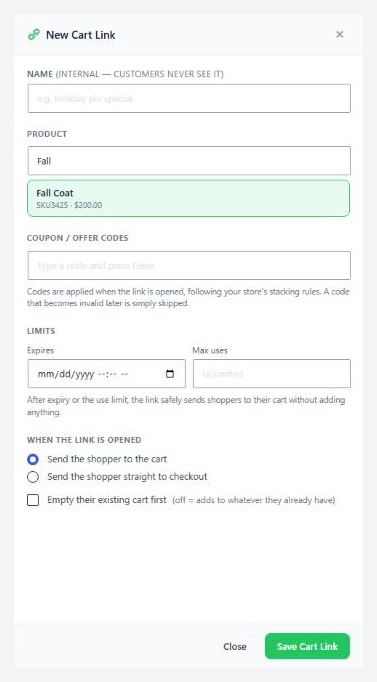
Step 2. Choose where the link lands
Cart or checkout, and what happens to what is already there
no stored settingsUnder When the link is opened choose:
Send the shopper to the cart: they can review, add more or change quantities. This is the safe choice.
Send the shopper straight to checkout: the shortest path, and right for one known purchase.
Empty their existing cart first is off by default, so the link adds to whatever they already have. Turn it on only when the link is a complete order by itself.
Press Save Cart Link. A banner confirms it and gives you Copy link. The link is your store page address with ?ec_cart_apply= and a ten character code on the end.
⚠️ Careful: Empty their existing cart first discards whatever the shopper had already added. Turn it on only when the link is a complete order.
Your list of links
Uses, status and the row menu
no stored settingsEach row shows the link, its contents, where it sends the shopper, how many times it has been used, and its status. The switch in Status turns a link off without deleting it. The row menu can Edit, Copy link or Delete it.
A use is counted when the link adds something to a cart. A visit that adds nothing is not counted.
Deleting a link breaks it wherever you have already shared or printed it, so the panel asks first. Turn it off instead if you might want it again.
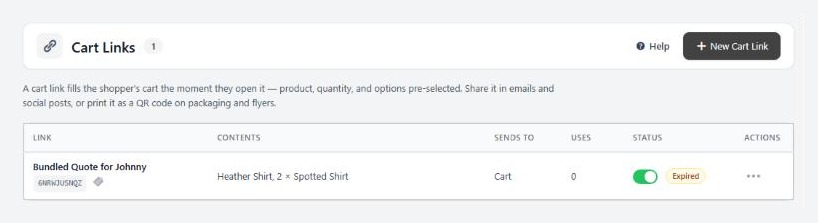
💡 Note: Deleting a link breaks it everywhere it has been shared or printed. Turn it off with the Status switch if you may want it back.
Make a link from a product
The Cart Links card on the product editor
no stored settingsOpen a saved product and choose its SEO & Marketing tab. The Cart Links card lists links that already contain this product. Press Create cart link for this product, give it a name, set the quantity and any options, and press Create Link. It sends shoppers to their cart. Copy copies the address.
For several products, codes or limits, press Manage in Marketing to build it on the Cart Links page.
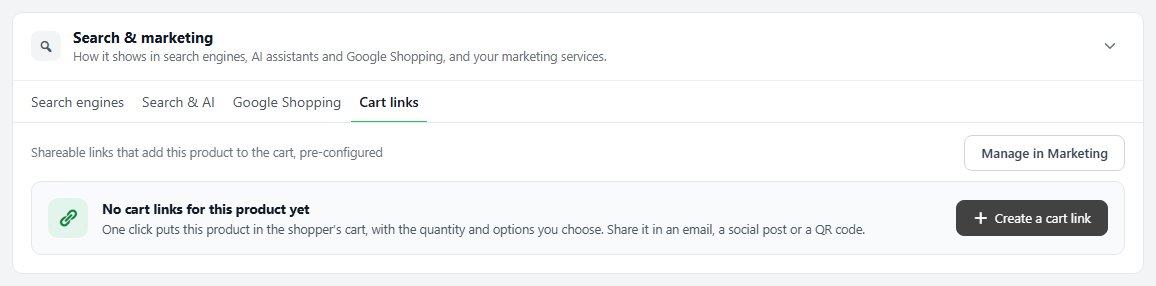
PRO: several products, codes, limits and QR codes
What Pro adds to the panel
no stored settingsAdd another product puts more than one product in the same link. Use it for a starter kit or a seasonal bundle. Preselect modifiers, such as a text field or an add-on, on each product line.
Coupon / offer codes: type a code and press Enter. The code is applied when the link is opened, following your store’s stacking rules. A code that becomes invalid later is skipped. This is how to send one link that fills the cart and discounts it, with nothing for the customer to type.
Limits: Expires sets a date and time, and Max uses sets a number. Leave Max uses empty for unlimited. After either, the link sends the shopper to their cart and adds nothing. The list flags it Expired or Limit reached.
QR code: download it from a row for a print-resolution PNG of the link. Put it on packaging, flyers or a shop window.
Conversion. Each row shows how many orders were placed from the link, next to the uses. Uses are clicks that added something. Orders are customers who went on to buy. The gap between them is your drop-off.
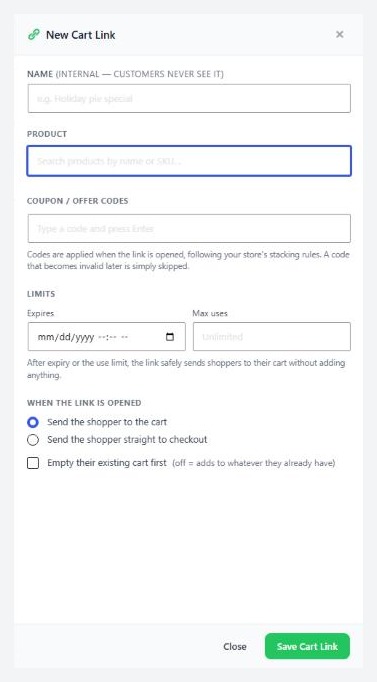
💡 Note: Cart links keep working if a PRO license lapses. Links you have already shared still fill the cart. What you cannot do without PRO is build links with the extras above.
Put a buy button on any page
The Add to Cart Button block and the ec_addtocart shortcode
no stored settingsIn the block editor. Add the WP EasyCart block, choose Add to Cart Button as the shortcode type, and pick the product. Background Add has two choices: No, Redirect to Cart sends the customer to the cart, and Yes, Add in Background adds the item without leaving the page.
With a shortcode. In any Shortcode block or builder widget:[ec_addtocart productid="12"][ec_addtocart model_number="SKU-100" enable_quantity="0" background_add="1"]
The number is the product ID, the number at the end of the product editor address, product_id=12. You can use the model number instead. The button also takes button_width, button_font, button_bg_color and button_text_color. It shows the product’s options and quantity box, so a customer can choose before they add it.
In Elementor. Use the Add to Cart widget from the product widgets.
A plain buy link. A product with no options can also be added with a link like https://yourstore.com/?ec_add_to_cart=SKU-100, using its model number. It adds the product and opens the cart. Add &ec_coupon=YOURCODE to apply a code. For anything with options, use a cart link.
Use links in email and social
Tag them, and send the right link to the right place
no stored settingsTag the link. Add campaign tags such as utm_source and utm_medium to the end of the address. They are kept when the link redirects, so the order’s source is recorded as your campaign and not as Direct. Ad click IDs are kept too. Use the copied link with a question mark before the first tag, or an ampersand if the address already has one.
In an email. Put the link behind a button, with a line that says what is in the cart. A link that fills the cart and applies a code takes the customer one step from paying. Use single-use codes for email. The coupons guide shows how to make thousands.
On social. Post the link, or a QR code, with a picture of the product. A link to the cart suits a general audience. A link straight to checkout suits a single product you have already sold them on.
Long links. The address is short enough for most posts. If you need a shorter one, run it through a link shortener and test the result.
Step 3. Test the link
Open it in a private window
no stored settingsCopy the link and open it in a private window that is not logged in as an admin.
1. The right product and quantity should be in the cart, with the options you chose.
2. If the link has a code, it should show as applied.
3. Check where it landed, the cart or checkout.
4. Back on the Cart Links page, the Uses count should have gone up by one.
Test again on a phone, since most email and social clicks happen there.
Keep it running
When a link lands wrong
The usual reasons a link lands on an empty cart, and how to fix each one.
If it does not work
The usual reasons a link lands on an empty cart
no stored settingsThe cart is empty. A link that adds nothing sends the shopper to the cart without an error. Check the product is active in the store, is not a subscription, donation or DecoNetwork product, and that the options on the link still exist. A link whose product has since gained a required option skips that product, so edit the link and choose the option again.
It lands on the cart, not checkout. The link is set to send them to the cart, or it has expired or hit its use limit and no longer adds anything.
The code did not apply. Check the code is live in Offers. Codes on a link follow the stacking rules, and a code that cannot apply is skipped. The cart holds only one classic coupon, so a second is ignored.
A store shown as a catalog. If your store is set to display as a catalog, a plain buy link opens the product page and adds nothing.
A different cart from the one you built. If Empty their existing cart first is off, the link adds to what is there. Turn it on for a complete order.
Keep going
Related panels
Every panel and setting on the Cart Links page.
The codes you can attach to a link.
The products a link is built from.
The cart and checkout a link lands on.
Ready to run your store on WP EasyCart?
Everything in this guide works with the free plugin. PRO and Premium add subscriptions, memberships, wholesale pricing and more. Try every PRO feature free for 14 days.



