
How-to › Design your store › Shortcodes
Design Your Store with Shortcodes
Put the store, cart, account, products and buttons on any page with a line of text. You learn the shortcodes that matter, their attributes and where to paste them. 11 parts.
Quick links
Where to find it:WP Admin › Pages › Add New
Before you start
How shortcodes work
What they are, how attributes work and how to find IDs.
How shortcodes work
Text in square brackets that WP EasyCart turns into a store
What you need. WP EasyCart, free. Every shortcode in this guide is in the free plugin.
A shortcode is a name in square brackets, sometimes followed by attributes: [ec_store groupid="5" cols_desktop="4"]. Put it on a page and WP EasyCart draws the store there. Attributes change what it draws. Leave them out and you get the default, which comes from your settings.
Use straight quotes. Curly quotes from a word processor break attributes. Several IDs go in one attribute with commas and no spaces, such as productid="12,15".
Finding IDs. The classic editor menu and the WP EasyCart block let you pick a category, menu, manufacturer or product by name and write the ID for you. Use them once, then read the result and copy the pattern. A product’s ID is the number at the end of its editor address, product_id=12.
Use them
The shortcodes, by job
Where to paste, then the store, products, categories and cart shortcodes.
Step 1. Choose where to paste
Any place that runs shortcodes
Classic editor. Press the small cart icon in the toolbar. The Insert EasyCart Shortcodes window lists Store, Categories, Category Display, Store Table, Product Menu, Product Category, Manufacturer Group, Product Details, Cart, Account, Single Item, Select Items, Add to Cart Button, Cart Display and Membership Content. Pick one and it writes the shortcode into the page. It shows for administrators and store managers.
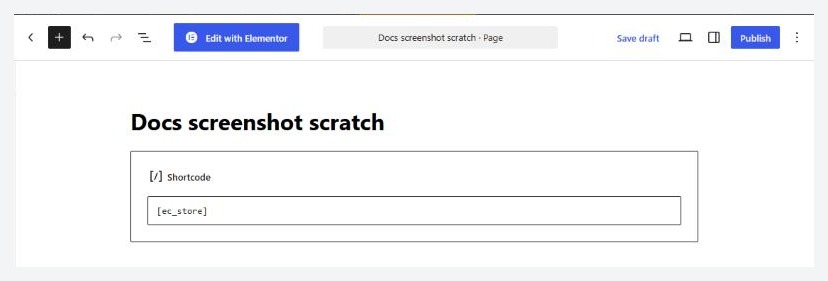
Block editor. Add a Shortcode block and type the shortcode, or use the WP EasyCart block, which writes the same shortcodes for you.
Page builders and widgets. Put the shortcode in the builder’s shortcode, text or code module. Widget areas that run shortcodes work too.
Step 2. The store, cart and account pages
The three pages every store needs
[ec_store] is your catalog. [ec_cart] runs the whole cart and checkout. [ec_account] is sign in, register and order history. Each must sit on the page chosen for it under EasyCart › Settings › Store details.
language works on all three, for a multilingual site, such as [ec_cart language="ES"].
redirect on [ec_account] sends customers to an address after they sign in: [ec_account redirect="https://example.com/members/"].
To place only one form, use [ec_account_login], [ec_account_forgot] or [ec_account_register]. All three accept redirect and language. The login form also accepts form_only to show the form without the surrounding page.
Step 3. Show products with ec_store
The main store shortcode and its filters
Filter the store with one of these, each an ID:
groupid: a category.
menuid, submenuid, subsubmenuid: the three levels of your menus.
manufacturerid: a manufacturer.
modelnumber: one product by model number, which shows that product’s full page inside your own.
Then shape the layout. cols_desktop, cols_tablet, cols_mobile and cols_mobile_small set columns per screen size, and spacing the gap in pixels. paging, per_page and sorting control page size and the sort menu. product_style picks a product card style, product_align is left, center or right, and product_visible_options lists the parts to show: title, category, price, rating, cart, quickview, desc.
Add the filter sidebar with sidebar="1" and choose its side with sidebar_position: left, right, slide-left or slide-right. Every attribute you leave out falls back to Settings › Design and Settings › Products.
Example. [ec_store groupid="5" cols_desktop="4" cols_mobile="2" sidebar="1" sidebar_position="left"]
💡 Note: The store shortcode marks its page as not cacheable, so shoppers see live stock and carts. Leave that alone.
Step 4. Tiles, buttons and tables
ec_product, ec_addtocart and ec_store_table
ec_product shows product tiles anywhere, without paging or a sort menu. Choose products with productid, category, manufacturer or model_number. Add status set to featured, on_sale or in_stock, orderby (title, price, product_id, added_to_db_date, rand, views or rating) with order ASC or DESC, and per_page to limit the count. style 1 or 2 uses the store card, and any other value shows a simple image, title and price. layout_mode set to slider makes a carousel.[ec_product category="5" status="on_sale" orderby="price" per_page="4" cols_desktop="4"]ec_addtocart is a button with the product’s options: [ec_addtocart productid="12"]. Set background_add="1" to add without leaving the page, or enable_quantity="0" to hide the quantity box.
ec_store_table lists products in a table. Set columns from product_id, model_number, title, price, details_link, description, specifications, stock_quantity, weight, width, height and length, labels for the headings, view_details for the link text, and filter with productid, menuid, submenuid, subsubmenuid or categoryid.
A link instead of a shortcode. A page address ending in ?ec_add_to_cart=MODELNUMBER adds that product and opens the cart. If the product has options, the shopper lands on its page to choose them.
Step 5. Categories and search
ec_categories, ec_category_view and ec_search
ec_categories shows categories as tiles that lead to their products, limited with groupid.
ec_category_view shows a grid of categories with their image, short description and sub-categories. columns sets the grid width. parentid chooses which: 0 shows your featured categories, -1 the top-level categories, and a category ID shows that category’s children. [ec_category_view parentid="-1" columns="3"]ec_search adds a search box. label is the button text and postid is the page that shows results, which is your store page if left out.[ec_search label="Find"]
Step 6. Cart count, icon and contents
For headers and sidebars
[ec_cart_count] prints the number of items in the cart, as plain text.[ec_cart_icon] prints a linked icon with a count badge. Set cart_link_url to your cart page, cart_icon to an icon class (the default is fas fa-shopping-cart), show_quantity to 0 to hide the count, and cart_link_external or cart_link_nofollow to 1 if you need those.[ec_cartdisplay] shows the cart contents on any page.
Want the icon in a menu without a shortcode? Settings › Design › Cart icon adds it to the menus you choose.
Build a product layout from pieces
The ec_product_details_ set
Each piece draws one part of a product. Give it a product with product_id or model_number, for example [ec_product_details_price product_id="12"]. On a product’s own page, use_post_id="1" reads the product for that page.
The pieces are: images, price, title, breadcrumbs, rating, stock, description, specifications, customer_reviews, short_description, social, manufacturer, category, meta, featured_products, addtocart, tabs and sku. Each is named ec_product_details_ followed by the piece.
They are what the Elementor widgets are made from. Elementor gives you a visual editor for them, and outside Elementor you need CSS and patience. Most stores are better off with the standard product page.
Members-only content
ec_membership and ec_membership_alt
Wrap content in [ec_membership productid="12"]...[/ec_membership] for members, and [ec_membership_alt productid="12"]...[/ec_membership_alt] for everyone else. The membership guide covers it in full.
Find your order, withdrawals and pricing tables
ec_order_lookup, ec_withdrawal and ec_plan_table
[ec_order_lookup] shows the Find your order form, where a guest types the order number and email and gets the order’s link by email. heading="0" leaves out its heading. The same form opens from the link under the account sign-in form, so you only need the shortcode to place it somewhere else.[ec_withdrawal] is the EU withdrawal page, and [ec_withdrawal_button] the button on its own, for a footer or a menu area. The button shows only while the withdrawal button is on in Settings › Checkout. How to Add the EU Withdrawal Button covers both.[ec_plan_table id="3"] shows the pricing table of a plan group from Products › Subscription Plans (PRO). interval m or y opens it on monthly or yearly, layout is cards or table, and head="0" hides its heading. Without PRO, store managers see a note and visitors see nothing.
Good to know
If something goes wrong
The usual snags with shortcodes.
If it does not work
The usual snags
The shortcode shows as text. The block or module does not run shortcodes, or the quotes are curly. Use straight quotes.
Product not found. Store managers see this when the ID is wrong or the product is switched off in the store. Visitors see nothing.
A filter is ignored. Use the filters listed for each shortcode. For a list by status, category or manufacturer, use ec_product.
Nothing shows for visitors. If Settings › Products › Who can view the store limits the store to some customer roles, product shortcodes show nothing to everyone else.
The cart count is old. ec_cart_count prints the number when the page is built, so a page cache can show a stale one. ec_cart_icon updates its badge by script.
Two carts on one page. Keep one cart shortcode on the cart page.
⚠️ Careful: A typo in an attribute name is ignored without a message. If a change does nothing, check the spelling first.
Keep going
Related panels
Where the store, cart and account pages are chosen.
The store design settings that fill in every default.
Settings that change how store pages behave.
Create the categories your shortcodes show.
Ready to run your store on WP EasyCart?
Everything in this guide works with the free plugin. PRO and Premium add subscriptions, memberships, wholesale pricing and more. Try every PRO feature free for 14 days.
