
How-to › Tracking and data
How to Find Your Best Products, Customers and Sources
Find what sells, who buys again and where they came from. You set a range, read the Overview, open the tabs, save your views, export and turn on the summary email. 9 parts.
Quick links
Where to find it:WP Admin › EasyCart › Reports
Before you start
What Reports shows you
What is free, what needs Pro, and how a sale is counted.
What Reports shows you
What is free, what needs Pro, and how a sale is counted
no stored settingsWhat you need. Nothing, to start. The free plugin gives you the Overview and Taxes tabs, date ranges, comparison, filters, CSV export and a weekly summary email. WP EasyCart PRO or Premium adds nine more tabs: Products, Customers, Codes, Carts, Sources, Profit, Fulfillment, Searches and Subscriptions, plus saved views. A free store sees the locked tabs with a preview from its own orders. The free trial opens them.
How a sale is counted. A sale is an order whose status counts as paid, or a refunded order. Sales belong to the day the order was placed, refunds to the day the refund was given, and money received to the day the payment was taken. Days are your store’s local days, and a range never runs past today. That is why Sales, Refunds and Received can differ for the same dates.
The steps: choose a range, read the Overview, narrow it down, open the tabs that answer your question, save the views you use, export what you need, and turn on the summary email.
Use it
Seven steps
Choose a range, read the Overview, narrow it down, open the tabs, save views, export and get the summary email.
Step 1. Choose a date range and compare
EasyCart › Reports
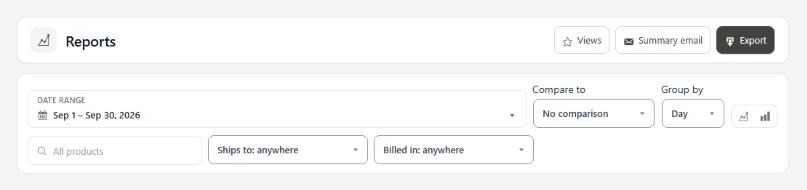
no stored settingsOpen EasyCart › Reports. Everything on the page answers to the toolbar across the top, so set it first.
Date range has presets for Today, Yesterday, Last 7 days, Last 30 days, Last 90 days, This month, Last month, This quarter, Last quarter, This year, Last year and Last 12 months, plus a Custom range.
Compare to can be No comparison, Previous period, or Same dates last year. The last one takes seasonality out, which is usually the fairer question. A comparison adds a second line to the chart and a change figure to each number.
Group by buckets the chart by Day, Week, Month or Year. Match it to the range. Two years of daily points is noise.
The two chart buttons switch between lines and bars.
Step 2. Read the Overview
Sales, net sales, orders, customers and money in and out
no stored settingsThe Overview tab is the store in one screen:
Sales is order totals on the day each order was placed. Net sales is sales less refunds given in the range. Received is payments taken in the range, whenever the order was placed. Use Net sales to judge performance, and Received to reconcile with your payment provider.
Orders, Average order and Items sold are the volume figures. Customers counts people, and notes how many ordered for the first time.
Refunds, Shipping, Taxes and Discounts show the parts between total and net. Fees and Tips appear only when you have them.
Visits and Abandoned carts appear when they are being counted. Visits also shows how many became an order.
Under the figures, three charts cover Sales, Orders and Items sold, and a few plain-language insights, such as sales being up or down against your comparison.
💡 Note: Sales and Received are different numbers on purpose. Sales follow the day an order was placed. Received follows the day the money arrived.
Step 3. Narrow it down
One product, one ship-to country, one billing country
no stored settingsThree filters sit next to the range and change the whole page. Use All products to pick a single product. Ships to filters by the shipping country, and Billed in by the billing country. They differ more than you expect, on gift and business orders, so use Billed in for anything tax-related and Ships to for anything about logistics.
With a product picked, the page shows that product’s own lines. Shipping, taxes, discounts, fees and refunds belong to whole orders, so they are not shown for a product.
The Taxes tab is free. It shows the tax collected, by type (sales tax, VAT, GST, PST, HST and duty) and by country and region, plus tax refunded. Pair it with the Billed in filter when you file in more than one place.
Step 4. Answer bigger questions with the Pro tabs
Nine tabs, each built for one question
no stored settingsProducts: views, add to cart, units, sales and stock cover for each product, including products that have not sold in 60 days.
Customers: new against returning customers, repeat rate, lifetime value and cohorts, with each customer’s first source.
Codes: uses, discount given and sales for every coupon and offer code.
Carts: the checkout funnel from cart to order, abandoned carts, and what reminders brought back.
Sources: visits, orders, sales and conversion by where shoppers came from, and by device.
Profit: sales less product cost and discounts, for each product. It needs a cost on your products.
Fulfillment: how long orders take from payment to shipping, and what is waiting.
Searches: what shoppers search for, and the searches that find nothing.
Subscriptions: monthly recurring revenue, new subscriptions and churn.
Tables show ten rows first, then a Show all button, and every table has a CSV button to download it. Views, funnel steps, visits and searches come from your store activity counts (step 7), and Sources also needs order sources recorded in Settings › Integrations › Order sources.

Step 5. Save the views you use
PRO. One click back to a range, comparison and filters
no stored settingsSet up a report you will want again, such as Last month against the same dates last year, billed in one country, on the Products tab. Open Views at the top right and press Save this view. Name it, such as Monthly UK review. The view remembers the tab, range, comparison, grouping and filters.
Choose a saved view from the same menu to jump straight back to it. Press the cross beside a view to delete it. Views belong to your own login. A view saved with a preset such as Last month moves with the calendar.
Step 6. Export your numbers
CSV files for your accountant or a spreadsheet
no stored settingsPress Export at the top right. The menu has two choices:
Orders and taxes prepares CSV files for the range and filters on screen: the Main report (every order in the range, with totals, fees and taxes), the Compare range report when a comparison is on, and the Tax report (tax collected for each order, grouped as filings ask for it). Long exports run in stages, so keep the tab open until the download window appears.
Research export (PRO) creates orders, order lines, payments, refunds, customers and daily store activity as separate CSV files for a spreadsheet or analysis tool. Customers are identified by a code, not by email, and the files are deleted a day later.
Set the page up the way you want before you export. The files follow the range and filters you see.
💡 Note: Exports respect the range and filters on screen. Set the page first, then export.
Step 7. Get the numbers by email, and count your store activity
The summary email and the Store activity setting
no stored settingsSummary email. Press Summary email at the top of Reports. Tick Email me a summary, choose How often and add addresses under Send to, separated by commas. Leave it empty to use the site admin address. Press Send a test to see the email before you save. The free plugin sends a weekly summary of sales, orders, refunds and new customers, compared with the week before. PRO adds Daily and Monthly and an Also include list: Top products, Top codes, Carts brought back, Top sources and Low stock. Until you turn it on, Reports offers it in a banner with Turn on and No thanks. The email is sent at 8:00 by WordPress’s scheduled tasks.
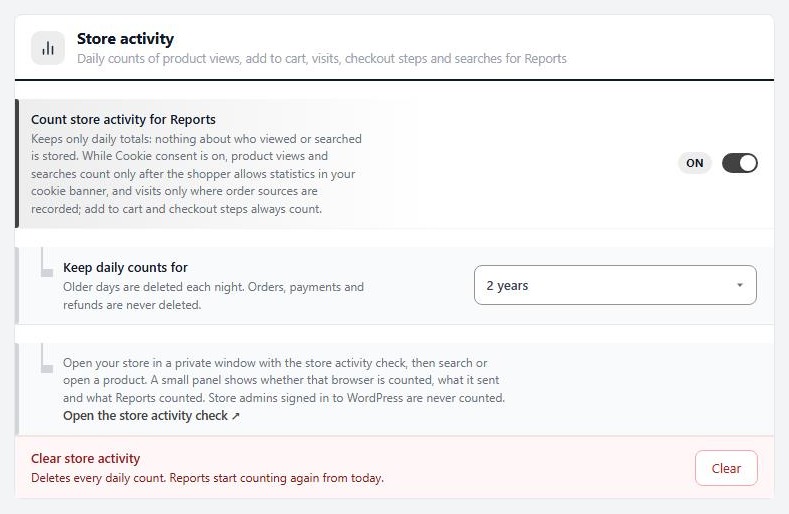
Store activity. Views, add to cart, visits, checkout steps and searches come from daily counts your store keeps for Reports. Open EasyCart › Settings › Integrations and find the Store activity card. Count store activity for Reports is on by default. It keeps only daily totals, and nothing about who viewed or searched. Keep daily counts for is 90 days, 1 year, 2 years or 5 years, and older days are deleted each night. Orders, payments and refunds are never deleted. Clear deletes every daily count.
When your Cookie consent setting asks for permission, product views and searches count only after the shopper allows statistics, and visits only where order sources are recorded. Add to cart and checkout steps always count. Store admins signed in to WordPress are never counted.
Keep it running
When a number looks wrong
The usual reasons a report looks wrong or a tab is empty.
If it does not work
The usual reasons a number looks wrong or a tab is empty
no stored settingsA message says numbers are still being worked out. After an update, Reports reads your order history in stages, and older refunds and payments can be missing for a few minutes. Reload the page. If the message stays, make sure the WP EasyCart database update has finished.
Visits, views or searches are empty. Check that Count store activity for Reports is on, and use the store activity check under it: open your store in a private window, search and open a product, and the panel shows what was counted. If Cookie consent is set to a choice that nothing on your site can answer, these are never counted. Reports says so and links to the fix.
A tab is locked or says Update. Locked means the tab needs PRO or Premium. Update means PRO is installed but out of date. Update the plugin from your Plugins page.
Reports do not match my payment provider. Compare Received, not Sales. Received follows the day the payment was taken, and provider payouts add their own delay and fees.
The summary email does not arrive. Press Send a test. If it says no answer came back, check your inbox, then Settings › Email for how your store sends mail. The scheduled email depends on WordPress scheduled tasks running, so a site with almost no visitors may send it late.
Profit looks empty. It uses the cost you enter on each product. Add costs and the report fills in.
Still stuck? Open a ticket from your account at wpeasycart.com/my-account.
Keep going
Related panels
Every control on the Reports page.
The orders behind these figures, one by one.
The abandoned carts counted on the Carts tab.
The codes shown on the Codes tab.
Tax setup, behind the Taxes tab.
Ready to run your store on WP EasyCart?
Everything in this guide works with the free plugin. PRO and Premium add subscriptions, memberships, wholesale pricing and more. Try every PRO feature free for 14 days.



