
How-to › Selling special products
How to Sell Membership Video Content
Put lessons, courses or a video library behind a membership. You choose where the video lives, protect the page, add a preview for non-members and test. 11 parts.
Quick links
Where to find it:WP Admin › Pages › Add New
Before you start
What you are building
What you need, what the store protects and what it does not.
How video membership works
What you need and what the store protects
What you need. WP EasyCart PRO or Premium, Stripe, and a membership product. If you do not have one yet, follow How to Sell Membership Content on WordPress first. This guide picks up where that one ends and covers what is different when the content is video.
The idea. Your videos sit on ordinary WordPress pages. You protect those pages, or the part of a page that holds the video, so only people who hold your membership product see them. Everyone else sees a preview and a way to join.
What the store protects. WP EasyCart controls who sees a page, and who sees the content wrapped in a membership shortcode. It does not control the video file or the video host. That is why the first decision is where the video lives.
The steps: choose where the video lives, build the members page, protect it, add a preview for people who have not joined, give members a way back, and test with a real purchase.
Set it up
Five steps
Choose the host, build the page, protect it, add a preview, give members a way back and test.
Step 1. Choose where the video lives
YouTube or Vimeo unlisted, your media library, or another host
YouTube or Vimeo, set to unlisted. The easiest choice. The host serves the video and carries the bandwidth. Unlisted means it is not in search or on your channel, but anyone who has the address can watch it. Keep that address off any public page.
Your WordPress media library. Upload the file and it plays from your own site. Fine for a few short clips. Large files load slowly and use your hosting bandwidth. The file has its own web address in your uploads folder, and anyone who has that address can open it, whatever you lock.
A video host with private embeds. If a video must not be shared at all, use a host that lets you restrict where a video can play, and check its own settings. That protection lives at the host. WP EasyCart does not add it.
For most stores, unlisted YouTube or Vimeo videos on a locked page is the right balance. Decide now what a leaked link would cost you, and pick the host to match.
⚠️ Careful: A membership lock protects the page, not the video. Anyone with an unlisted video address, or the address of a file in your media library, can watch it without logging in.
Step 2. Build the members page
An ordinary page with the video and your text
Go to Pages › Add New and create a page such as Video Library. Add the video the way you normally would. In the block editor, paste a YouTube or Vimeo address on its own line, or add a Video block for a file from your media library. In Elementor use its Video widget. Add a heading, notes and downloads for that lesson around it.
Publish the page. Do not link it from a public page yet, and do not worry that it is public. The next step protects it.
One page per video, or one page per lesson, works best. Each page can then be locked, linked and shared with members by itself.
Step 3, method A. Limit the whole page
The WP EasyCart Limit Access switch
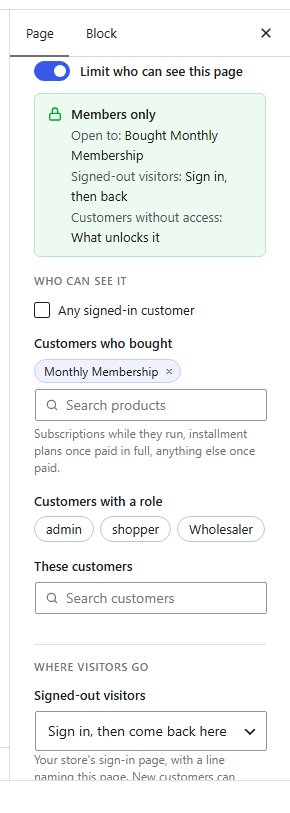
Use this when the whole page is for members. It is the simplest method, and the safest for video, because a visitor who is not allowed never receives the page at all.
Edit the page. The WP EasyCart Limit Access box sits in the editor sidebar. Turn on Limit who can see this page and, under Customers who bought, pick your membership product by name. Update the page.
No address is needed. A signed-out visitor is sent to sign in and comes straight back. A signed-in customer without access sees what unlocks the page, with a Subscribe or Buy button. To send them to your own sales page instead, choose A page on this site under Signed-in customers without access.
You always see the page yourself. To check it, open the published page and use Members only in the admin bar: Preview as a signed-out visitor, Preview as a customer without access or Preview as a customer who can see it. EasyCart › Users › Limit Access lists every limited page.
Every video page can use the same membership product. To sell separate courses, make one product per course and lock each course’s pages to its product. Pick more than one product on a page and a customer needs to hold only one of them.
Step 3, method B. Show a preview clip to non-members
One page, two versions: the clip for everyone, the full video for members
Use this when you want a free taste on the same page. The trailer is normal page content and stays public. The full video goes inside a membership shortcode, so it is never printed for anyone who does not hold the product.
In the block editor, put the trailer first, a normal video or embed. Below it add a Shortcode block holding both shortcodes:[ec_membership productid="12"][/ec_membership][ec_membership_alt productid="12"]Join to watch the full lesson.[/ec_membership_alt]
The number is your membership product’s ID, the number at the end of the product editor’s address, product_id=12. Several IDs go in one attribute with commas and no spaces. The first shortcode holds what members see. The second holds what everyone else sees. Put your join link there, such as a button to the membership product page.
Anything WordPress can turn into a video works between the tags, because the store runs the content through WordPress shortcodes when a member opens the page. The example uses WordPress’s own shortcode. An embed code from your video host works too. In Elementor, put the whole pair in a Shortcode widget.
What each visitor sees. A member sees the trailer and the full video. A visitor who is not logged in sees the trailer, the store’s login and register form, and your join message. A logged-in customer who is not a member sees the trailer and your join message. Members who log in from that form land back on the same page.
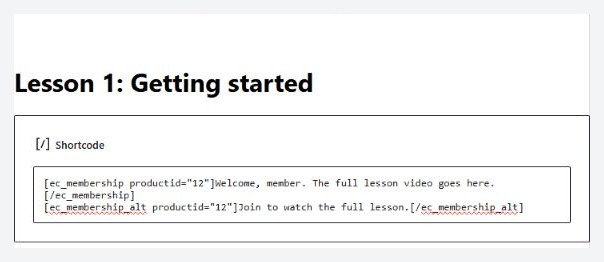
💡 Note: Put the trailer outside the membership shortcode and the full video inside it. Nothing inside the shortcode is printed for a visitor who is not a member.
What you see as the store owner
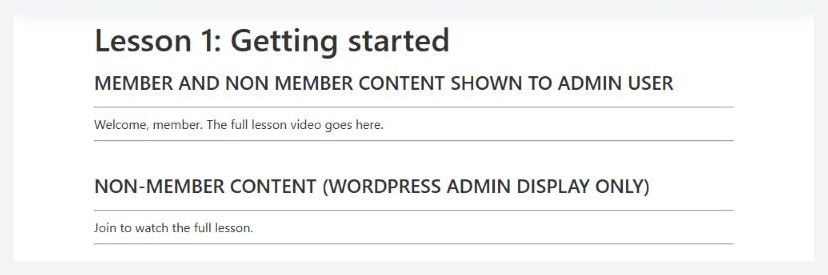
Administrators see both versions, labelled
Preview a page with these shortcodes while you are logged in as an administrator and you see the member content and the non-member content together, each under a heading that says which is which. Members never see that. To see the real thing, test with a customer account in a private window.
Step 4. Give members a way back
Membership URL, menu and email
On your membership product, open Type settings and, in the Subscription card, set Membership URL to your main video page. After they buy, members get a link to it on the order confirmation page and on their subscription in My Account. The link disappears from My Account once the subscription has ended.
A page limited with the Limit Access switch is also listed on the order confirmation page under Your order opens:, and on the My Account dashboard under Pages you can open.
Add the page to your site menu as well. A visitor who is not a member and clicks it lands on your join message, which is the best place to sell the membership.
Step 5. Test it with a real purchase
Stripe test mode and a private window
Switch Stripe to sandbox in Settings › Payment and register the webhook in your Stripe test dashboard. Then, in a private window that is not logged in as an admin:
1. Open the video page. With method A you should land on your login or join page. With method B you should see the preview and the login form, but no full video.
2. View the page source and search for the full video address. It should not be there.
3. Buy the membership with Stripe’s test card 4242 4242 4242 4242.
4. Press the membership link on the confirmation page. The full video should play.
5. In your admin, open Orders › Subscriptions. The subscription should read Active.
When it works, turn test mode off.
Good to know
Where protection stops
What stays public, the caching problem, and the usual reasons a member cannot watch.
What stays public
Where protection stops
The video address. An unlisted YouTube or Vimeo link works for anyone who has it. A member can share it. A media library file works the same way. Tell members the videos are for them, and choose a private host if a leak would hurt.
Your preview. Whatever sits outside the membership shortcode is public, so it can be read by anyone, including search engines.
Other pages. A lock protects the page it is on. If you paste a video address on another page, a post or an email, that copy is not protected.
A former member. The lock and the shortcodes check the same thing every time the page loads. A member in a free trial, or one who cancelled but paid through to the end of the period, keeps access. When the subscription ends or a payment fails, access stops. The membership guide has the details.
The caching gotcha
A cache can show one visitor’s version to everyone
Pages that change with the visitor must skip your page cache. Limited pages and pages with the membership shortcodes ask cache plugins and browsers not to keep them. A cache that ignores that request can still store the page once for a member and show the full video to a visitor, or show a paying member the join message.
Exclude your video pages from page caching in your cache plugin or with your host. Then test again in a private window, logged out and logged in.
⚠️ Careful: Test in a private window, logged out and then logged in as a member, after every change to caching. A page cache can undo a lock without any error.
If it does not work
The usual reasons a member still cannot watch
A locked page opens for everyone. Check the switch is on and a product is picked, and that Pause every Limit Access rule in Settings › Accounts is off. You see every page as staff, so use Preview as or a private window.
A member sees the join message. Check the product ID in the shortcode, or the product picked in the Limit Access box. Open Orders › Subscriptions and confirm the subscription is Active.
Text shows where the video should be. The shortcode is not inside a Shortcode block, or the video tag is typed wrongly. Put the pair in a Shortcode block, or in Elementor’s Shortcode widget, and check the closing tags.
The video shows for the wrong people. See the caching section. Clear the cache after you change the page.
The membership link is missing after a cancellation. It is hidden on purpose once a subscription has ended. The subscriptions guide covers what happens to a subscription when a payment fails.
Selling video files members download instead? See How to Sell Downloads on WordPress.
Keep going
Related panels
Setting up the membership product in Type settings.
Manage your members’ subscriptions.
Sell several membership levels and let members switch.
Create the roles the userroles option checks.
Ready to run your store on WP EasyCart?
Everything in this guide works with the free plugin. PRO and Premium add subscriptions, memberships, wholesale pricing and more. Try every PRO feature free for 14 days.



