
Step 1. The Products widget
A grid of the products you choose
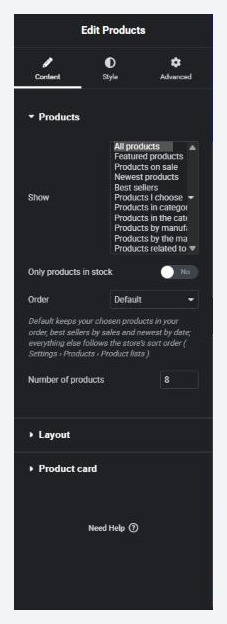
no stored settingsDrag Products onto a page. In the Products section of the panel, the Show choice decides which products the grid holds:
All products, Featured products, Products on sale, Newest products and Best sellers. Best sellers are the products sold most in paid orders with refunds taken off, worked out again every few hours.
Products I choose: pick products by name. They show in the order you add them.
Products in categories I choose and Products by manufacturers I choose: pick from the list.
Products in the category of the page it is on and Products by the manufacturer of the page it is on: see step 5.
Products related to the product of the page it is on: the product’s own featured products first, then other products from its categories. Use it on product pages and product templates.
Then tune the list. Only products in stock hides sold-out products. Order offers Default, Store order, Name A to Z or Z to A, Price low to high or high to low, Newest first, Oldest first, Best rated, Most viewed and Random. Default keeps your chosen products in your order, best sellers by sales and newest by date, and follows the store’s sort order for everything else. Number of products starts at 8.
The Layout section sets columns and the gaps between products and rows. More products can be None, Page numbers or a Load more button (with its own text). Message when there are no products is what shows if nothing matches; leave it empty and visitors see nothing at all. A random order shows one page only.
The Product card section switches each part of a card on or off: Image, Second image on hover, Quick view, Badges (sale, sold out, product tag), Category, Name, Rating, Price, Colour swatches, Short description and Add to cart button. Products with options link to their page so the shopper can choose; other products are added without leaving the page.
Step 3. The Shop widget
The whole store page in one widget
no stored settingsPut Shop on your store page. It draws the product grid with a toolbar and a filter column, and it updates as shoppers search, sort and filter.
In the Products section, Show starts on What the page is (store, category or manufacturer): on the store page it lists every product, on a category page or category template that category, on a manufacturer page that manufacturer. Change it to A category I choose, A manufacturer I choose or All products to pin it. Products shown can narrow it to Featured products (until the shopper searches or filters), Only products on sale or Only products in stock. Products per page follows Settings › Per page when left empty.
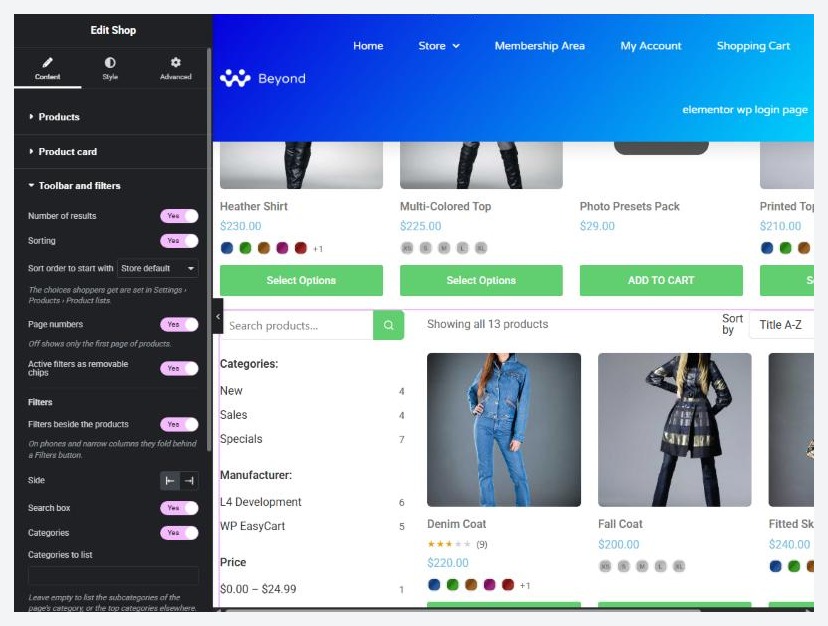
The Toolbar and filters section has a switch for each piece: Number of results, Sorting, Page numbers and Active filters as removable chips. Sort order to start with picks the first sort. The sort choices shoppers get are set in Settings › Products › Product lists.
Filters beside the products turns the filter column on, on the left or right. On phones and narrow columns it folds behind a Filters button. Choose which groups show: Search box, Categories (with Categories to list, which by default lists the subcategories of the page’s category or the top categories elsewhere), Manufacturers, Price ranges (the ranges you set in Settings › Price points) and Filter by options. Pick option sets such as colour or size and each becomes a filter group.
Step 5. Give categories their own layout
Settings › Elementor › Category pages
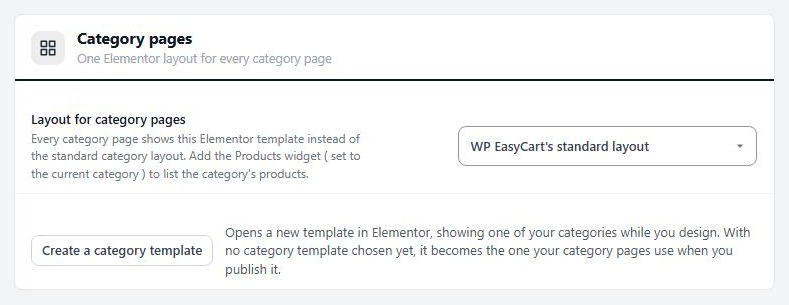
no stored settingsCategories can share one Elementor layout. Go to EasyCart › Settings › Elementor and find Category pages, which says One Elementor layout for every category page. Press Create a category template.
Elementor opens with a draft called Category page. It starts with Category Title, Category Description, Subcategories and a Products widget already set to Products in the category of the page it is on. That last setting is what makes one layout work for every category: the widget shows the products of whichever category the shopper opened. On a product page the same setting shows the product’s first category and leaves that product out, and while you edit a page that is not a category, a sample category is shown.
Publish it in Elementor, then check Layout for category pages in Settings › Elementor. A draft is labelled so and category pages keep the standard layout until you publish. When it is live the page says In use on every category page and offers View a category page. The next guide in this series builds the whole template, including the category and manufacturer widgets.
Store-wide rules the lists follow
Set once in the store, not per widget
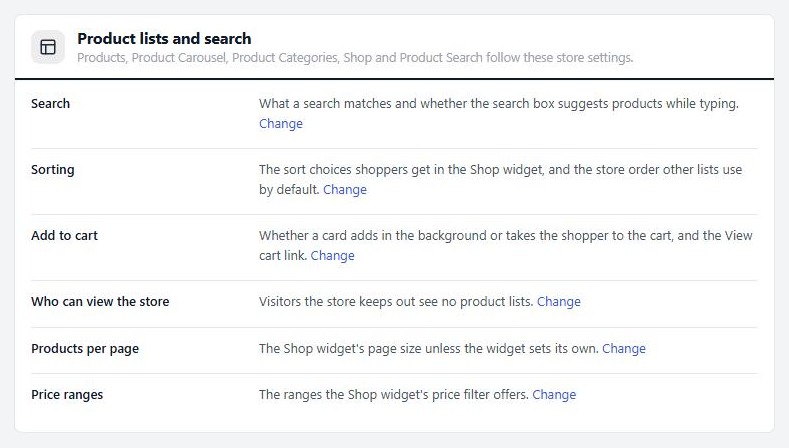
no stored settingsSettings › Elementor has a card called Product lists and search. It lists the rules every shop widget follows, each with a Change link to the setting:
Search: what a search matches and whether the box suggests products while typing.
Sorting: the sort choices in the Shop widget, and the store order other lists use.
Add to cart: whether a card adds in the background or takes the shopper to the cart, and the View cart link.
Who can view the store: visitors the store keeps out see no product lists.
Products per page: the Shop widget’s page size unless the widget sets its own.
Price ranges: the ranges the Shop widget’s price filter offers.
Ready to run your store on WP EasyCart?
Everything in this guide works with the free plugin. PRO and Premium add subscriptions, memberships, wholesale pricing and more. Try every PRO feature free for 14 days.
