How-to › Selling special products
How to Offer Upgrade and Downgrade Plans
Sell Basic, Plus and Pro levels and let customers move between them without cancelling. You create a product for each level, group them in a plan, set the proration and test. 11 parts.
Quick links
Where to find it:WP Admin › EasyCart › Products › Subscription Plans
Before you start
What you are building
What a plan is, what you need and what happens when a customer changes level.
How plan changes work
What you need and what a plan really is
no stored settingsWhat you need. WP EasyCart PRO or Premium, and Stripe, because subscriptions bill through Stripe. Products › Subscription Plans is a PRO screen. If you have not sold a subscription yet, start with How to Sell Subscriptions on WordPress, then come back.
What a plan is. A plan is a ladder, not a price. Every level is its own subscription product with its own price and billing interval. The plan only groups those products so the store knows which ones a customer may move between. It bills nothing. Customers never see the plan name. They see your product names.
What happens on a change. The customer picks another level. Your store tells Stripe to switch the same subscription to the new product. Stripe works out any credit or extra charge, and your store updates the subscription’s product, price and interval. Nobody cancels, so nobody has to start over.
The steps: create a product for each level, group them in a plan, decide who can move down, choose whether Stripe prorates, let customers use the change in My Account, then test.
Set it up
Six steps
Create the levels, group them in a plan, choose who can move down, set proration, open the change to customers and test.
Step 1. Create a product for each level
Basic, Plus and Pro are three subscription products
no stored settingsGo to EasyCart › Products › Products and press Add New. Choose Subscription as the Product type and set the price for one billing period. Repeat for each level. Open Type & Behavior and fill in the Subscription section for every one, including Subscription Interval. The subscriptions guide walks through each field.
Levels can bill on different intervals, for example a monthly Basic and a yearly Pro. The plan screen flags mixed intervals and reminds you that Stripe prorates when customers switch.
Two limits from the product editor. The Subscription Plan list is labelled not compatible with price adjustments or recurring shipping, so keep level products simple. And a product can belong to only one plan.
Step 2. Create the plan
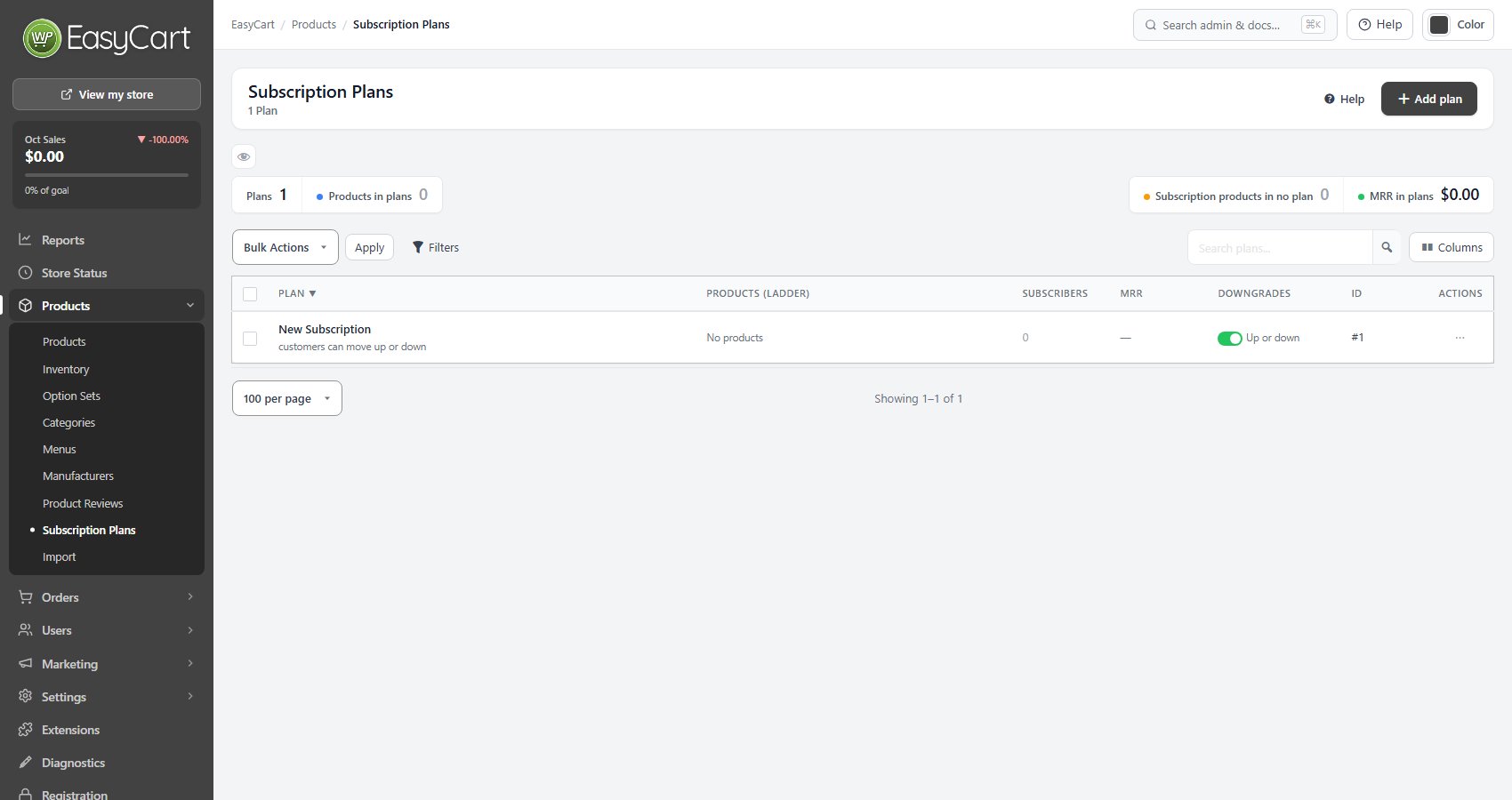
Products › Subscription Plans › Add plan
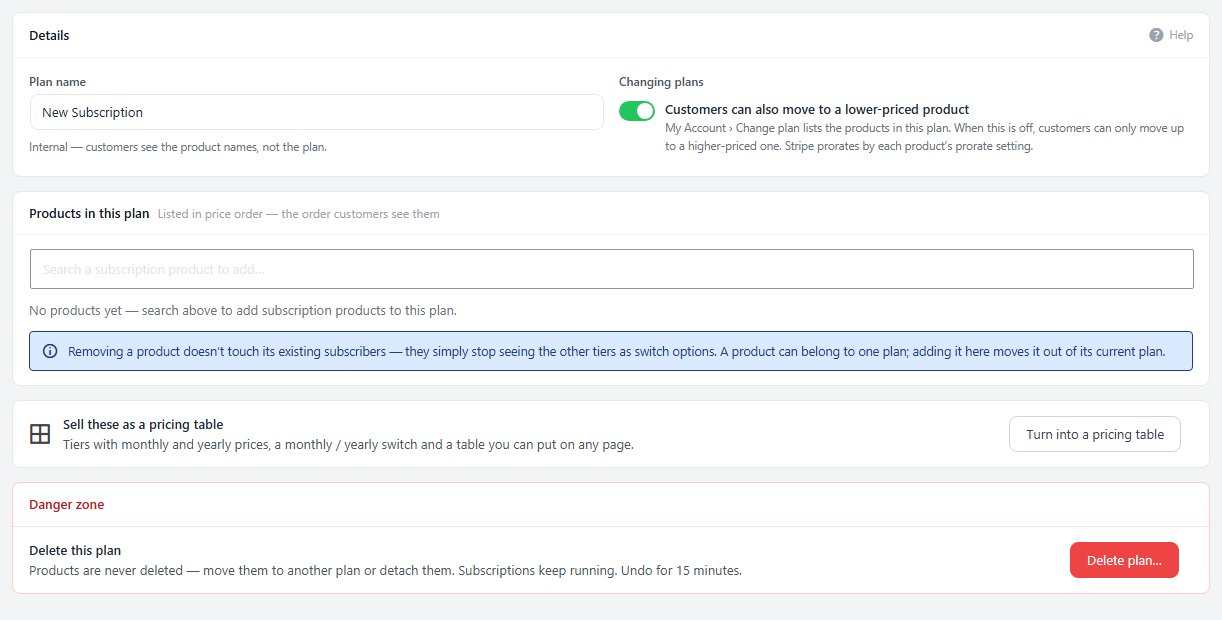
no stored settingsGo to EasyCart › Products › Subscription Plans and press Add plan. The New subscription plan window asks for a Plan name and has a switching toggle, on by default. Name it for yourself, such as Coffee Club. Plan names must be unique. Press create and the plan opens in its editor.
In the Products in this plan card, search for a subscription product by name and add it. Only products marked as subscriptions appear. Add every level. They are listed in price order, cheapest first, and that is the order customers see. Each row shows the price, the interval and how many subscribers the product has.
If a product already belongs to another plan, adding it asks you to confirm and moves it. You can also pick a plan from the product itself, in the Subscription Plan list on Type & Behavior.
The side panel shows Plan health: how many tiers there are to switch between, any product that is inactive in the store, mixed billing intervals, and how many active subscribers the plan has. Fix anything marked as a warning before you go live.
💡 Note: A product can belong to only one plan. Adding it to a second plan moves it, so a product you use in two ladders has to be duplicated.
The plan editor
Details, Products in this plan and the Danger zone
no stored settingsThis is the screen you land on after Step 2. The Details card holds the plan name and the Switching toggle. The Products in this plan card is your ladder. The Danger zone deletes the plan.
Removing a product from a plan does not touch its existing subscribers. They simply stop seeing the other levels as choices. Deleting a plan never deletes products. The window asks whether to move its products to another plan or detach them, and detaching turns switching off for them. Subscriptions keep running, and you have 15 minutes to undo.
Step 3. Decide who can move down
The Switching toggle
no stored settingsThe toggle reads Customers can upgrade / downgrade between products in this plan. It is the rule for moves in both directions.
On. A customer sees every level in the plan and can go up or down.
Off. A customer sees their current level and the levels priced above it. They can upgrade but not downgrade. Someone who wants a cheaper level has to cancel, or ask you to move them.
Leaving it on is usually right. A customer who can downgrade stays a customer. One who has to cancel to spend less often does not come back. The plan screen warns you when switching is on but the plan holds only one product, because there is nothing to switch to.
Step 4. Choose whether Stripe prorates
Prorate on Upgrade/Downgrade, on each product
no stored settingsOpen a level’s product, go to Type & Behavior and find Prorate on Upgrade/Downgrade in the Subscription section.
On. Your store asks Stripe to create prorations. Stripe credits the customer for the unused time on the old level and charges for the new one, and it adds those lines to the subscription’s invoice.
Off. Your store asks Stripe for no prorations. The new price simply applies from the next billing date.
Which product counts. The setting on the product the customer is moving to is the one used. Set it the same on every level unless you want, for example, upgrades to prorate but moves down to Basic not to.
The exact amounts are Stripe’s calculation. If you change the billing interval when you change level, Stripe applies its own rules for the billing date, so check a test change before you promise customers a number.
⚠️ Careful: Prorated amounts are Stripe’s. Run a test change in Stripe’s sandbox and read the invoice before you tell customers what an upgrade will cost.
Step 5. Let customers change plan in My Account
Settings › Accounts, then what the customer sees
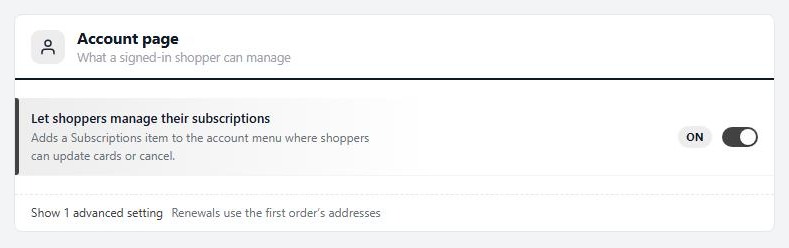
no stored settingsUnder Settings › Accounts, in the Account page card, switch on Let shoppers manage their subscriptions. That adds Subscriptions to My Account.
What the customer does. They open My Account, then Subscriptions, and press VIEW DETAILS on a subscription. In the Manage subscription card they press Change Your Plan. A panel lists each level they may move to, with its price and period, and marks the one they are on as Current plan. They choose one, read the notice and press SAVE CHANGES. The subscription then shows the new product and price.
Who sees the button. Only customers whose Stripe subscription is Active or in a trial. A subscription that is past due, paused or ended, and any PayPal subscription, cannot be changed from My Account. The button also needs something to change: the product belongs to a plan, or quantity changes are allowed, which means One subscription per purchase is switched off in Settings › Products.
The notice. The panel shows a short notice. Its default text says changes take effect in the next billing cycle, and that price changes are prorated immediately. Read it against your own Prorate setting and edit the wording in Settings › Language, in the entry called Account, Subscription Details, User Notice, so it matches what you actually do.
Change a customer’s plan yourself
Orders › Subscriptions › Change product
no stored settingsOpen EasyCart › Orders › Subscriptions, open the subscription and press Change product…. The window offers the other products in the same plan, cheapest first. A subscription whose product has no plan is offered any active subscription product, up to 50.
Choose a product and your store asks Stripe for a preview. The window shows the lines Stripe would create, then Charged now or Credited, and the next renewal date. The button reads Change and charge with the amount when there is a charge, and Change product otherwise. If the product has no Stripe price yet, the window says Stripe cannot preview it, and the change still applies when you save.
This works only on a Stripe subscription that has not ended. The same proration rule applies: the setting on the product you are moving to. When it succeeds you see Switched to and the new product name. Use this to move a customer down when the plan has switching off.
Step 6. Test it with a real change
Stripe test mode, one account, two levels
no stored settingsSwitch Stripe to sandbox in Settings › Payment and add the webhook in your Stripe test dashboard. Then, in a private window that is not logged in as an admin:
1. Sign up for your cheapest level with Stripe’s test card 4242 4242 4242 4242.
2. Open My Account › Subscriptions › VIEW DETAILS › Change Your Plan. You should see your other levels.
3. Choose a higher level and save. The details page should show the new product and price.
4. In your admin, open Orders › Subscriptions. The subscription should show the new product and still read Active.
5. Open the subscription in your Stripe dashboard and look at the upcoming invoice for the proration lines.
6. Turn Switching off, open the plan again as a customer on the higher level, and check that lower levels are gone from the list.
When it all works, turn test mode off.
Good to know
Access and problems
What a change does to member content, and the usual reasons a customer cannot change level.
If your levels unlock content
Access follows the subscription’s current product
no stored settingsA plan change replaces the product on the subscription. Anything you locked to the old product no longer recognises the customer. A page locked to Basic only, and a member on Pro, is a locked-out member.
Fix it when you protect the content. In the Limit Access box, choose every level in Option 1: Restrict by Product. In a membership shortcode, list every product ID with commas and no spaces, such as productid="12,15,18". To give the top level more than the others, lock the extra pages to the higher levels only. The membership guide covers both methods.
The Membership URL comes from the product, so a customer who moves level follows the link on the new product.
⚠️ Careful: If levels unlock content, lock that content to every level that should see it. A customer who upgrades stops matching the product they first bought.
If it does not work
The usual reasons a customer cannot change level
no stored settingsThere is no Change Your Plan button. Check, in order: Let shoppers manage their subscriptions is on, the subscription is a Stripe subscription, its status is Active or a trial, and its product is in a plan. With Switching off, a customer on the top level has nothing higher to choose, so the panel lists only their own level.
A level is missing from the list. The product is not in the plan, or Switching is off and the level costs less than the current one.
The customer sees a subscription update error. Stripe refused the change or the product could not be prepared in Stripe. Check Settings › Log entries for the Stripe response, and confirm Stripe is connected.
No proration lines appear in Stripe. The product the customer moved to has Prorate on Upgrade/Downgrade switched off.
A product will not add to the plan. It is not marked as a subscription. Open it and set its Product type to Subscription.
For anything else, contact support through your account.
Keep going
Related panels
Subscription Plans in full.
Change, pause or cancel a subscription in the admin.
Every option on the Type & Behavior tab, including Prorate.
Letting customers manage their subscriptions.
Ready to run your store on WP EasyCart?
Everything in this guide works with the free plugin. PRO and Premium add subscriptions, memberships, wholesale pricing and more. Try every PRO feature free for 14 days.