
Four ways to sell without a normal Add to Cart
What you need and which one fits
What you need. WP EasyCart PRO or Premium. All four are PRO product types and show as locked without it. Preorder and restaurant pickup also need a store schedule, which is set in Settings › Schedule & Locations, also PRO.
Inquiry or quote request. The shopper sends you a request instead of buying. For quotes, made-to-order items and anything you price by hand.
Seasonal. The product stays on display but cannot be bought yet. Shoppers see your phrase, such as Coming in November, in place of Add to Cart.
Preorder for Pickup. Customers order now and choose a pickup date at checkout. Think holiday pies.
Restaurant for Pickup. Customers order for pickup as soon as possible, or at a later time. Think pizza.
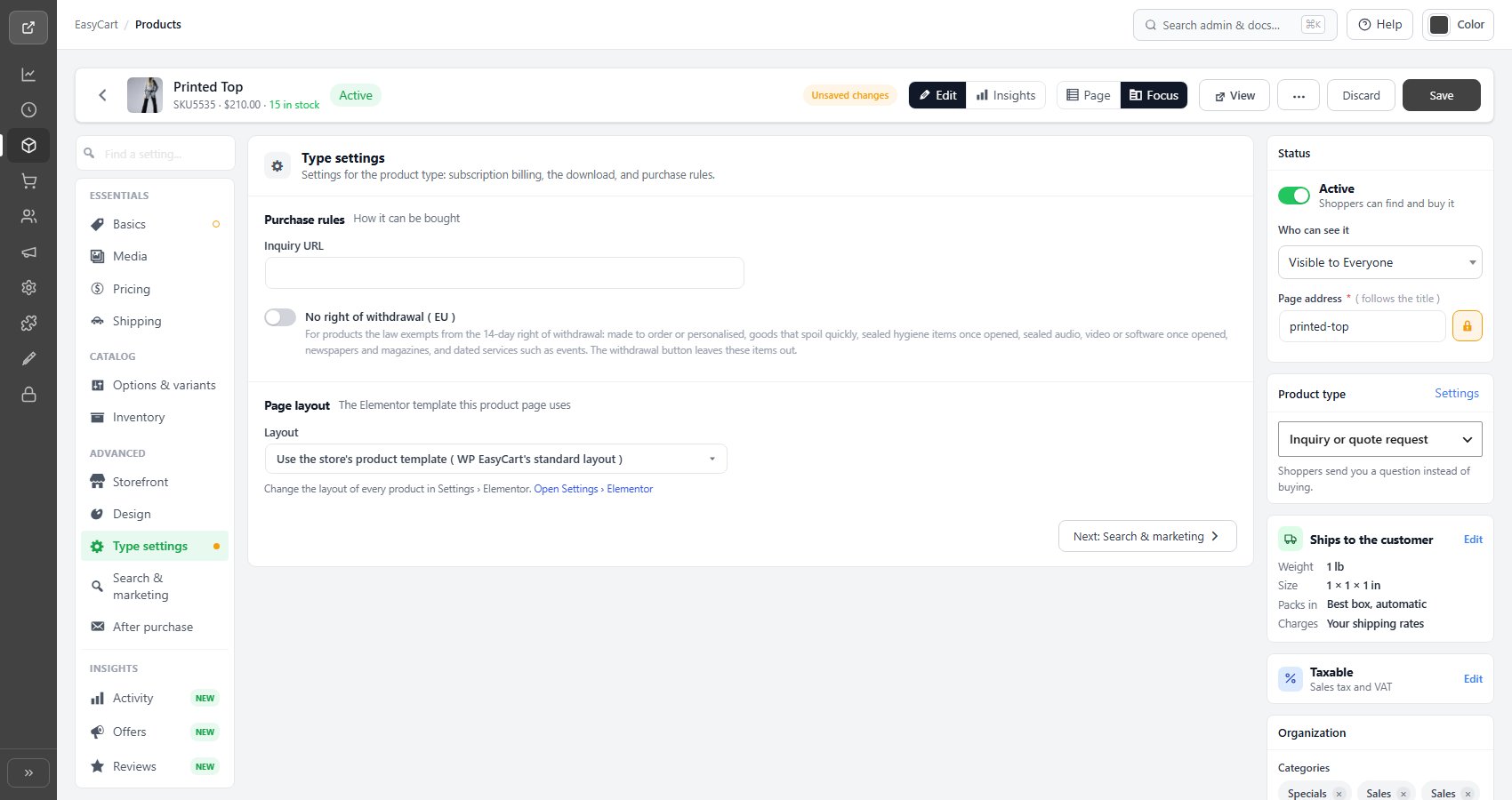
Each one is a Product type. On an existing product, pick it in the Product type card of the editor’s summary column: Inquiry or quote request, Seasonal ( not for sale now ), Preorder for pickup or Restaurant item, then press Save. Its own settings show in the Type settings section. For a new product, Add product on the products list has the same types: Inquiry / request a quote, Seasonal / coming soon, Preorder for pickup and Restaurant item. To combine two, choose Custom: every type switch, and the old switches show in Type settings.
What the customer sees and what you get
The form, the emails and the spam protection
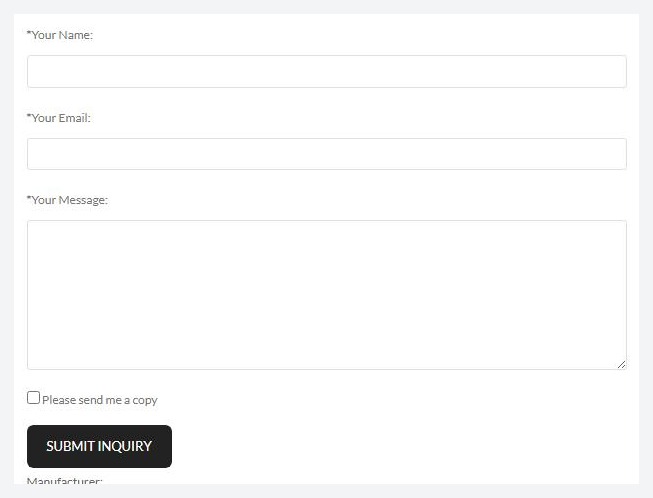
The shopper fills in the three starred fields, ticks the copy box if they want one, and presses the button. They see Thank you for submitting a product inquiry and we will get back to you as soon as possible. You can edit every label and message in Settings › Language.
Your email. It goes to your Store notification addresses, set in Settings › Email, in the Sender card. If that is empty it goes to the site’s admin email. It carries the product name and SKU, and any options the shopper chose. The Reply-To is the shopper’s address, so you answer with Reply. The subject is Submit Product Inquiry.
Their copy. Sent only if they ticked the box.
Spam. Settings › Products has an Inquiry form protection card. A hidden trap field, a minimum time to write the message (4 seconds by default) and a limit of 10 inquiries an hour from one internet address are on by default. You can also require shoppers to be signed in, set limits on message length and links, and block words. With a reCAPTCHA key set, the form uses it too. Turn on Log refused inquiries to see why one was refused under Settings › Log entries.
Part 2. Show a product before you can sell it
The Seasonal type and its Seasonal Phrase
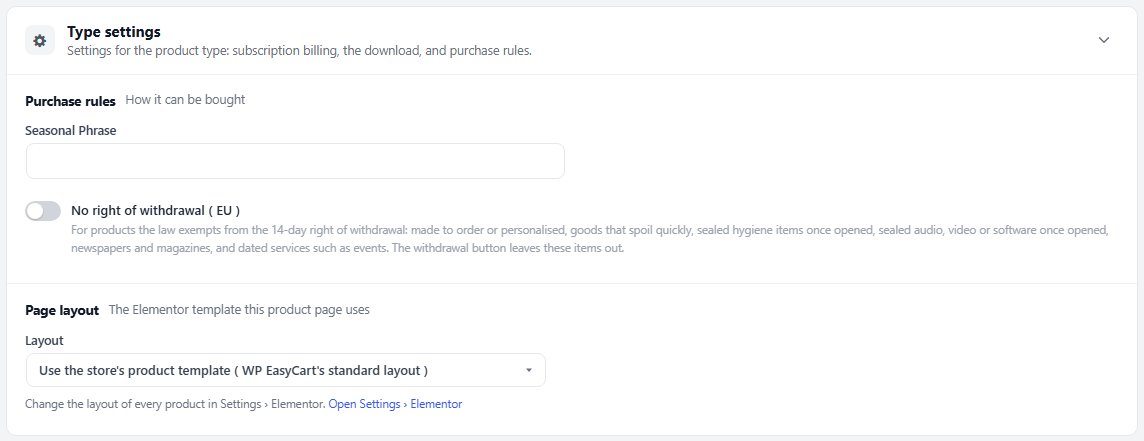
Open the product and set Product type to Seasonal ( not for sale now ). A Seasonal Phrase box appears in Type settings. Type what shoppers should see, such as Coming in November. Save.
The product stays on display in the store, but it cannot be bought. On the product page your phrase appears where Add to Cart was. To hide the price as well, switch on Hide prices on seasonal (catalog-only) products in Settings › Products, in the Pricing display card.
When you are ready to sell, set the Product type back to Physical product and save. The store’s own Catalog mode is different: it removes Add to Cart from every product at once, for a holiday or a showcase.
Part 3. Preorder for pickup
The product type, then the schedule that controls the calendar
The product. Set Product type to Preorder for pickup: Ordered ahead and picked up at your store. Customers pick the date at checkout from your pickup schedule.
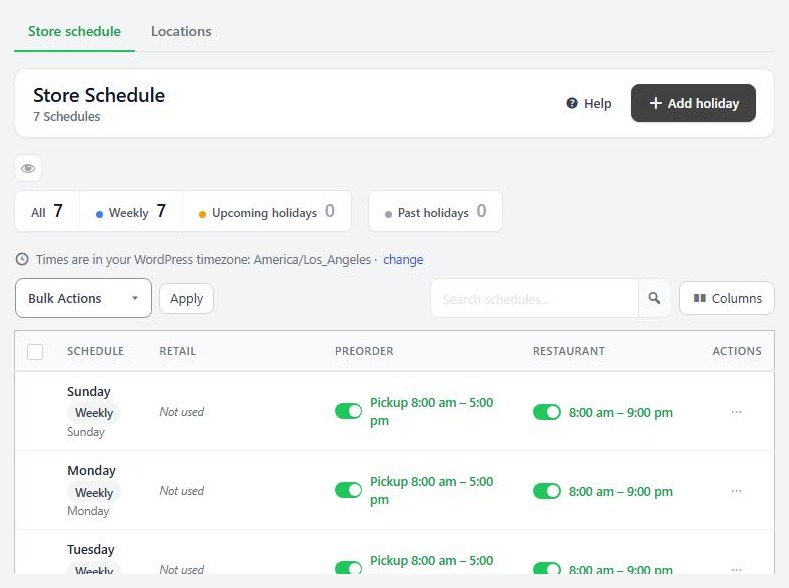
The schedule. Go to EasyCart › Settings › Schedule & Locations. The store schedule has one row for each day of the week, plus dated holidays that override a day. Open a day and use its Preorder card:
Open or Closed: whether pickups happen that day.
Preorder window: Opens and Closes in months, days, hours and minutes. They count back from the pickup day: how far ahead ordering starts, and how close to the day it stops. A pickup day outside the window cannot be chosen.
Pickup opens and Pickup closes: the pickup hours for that day.
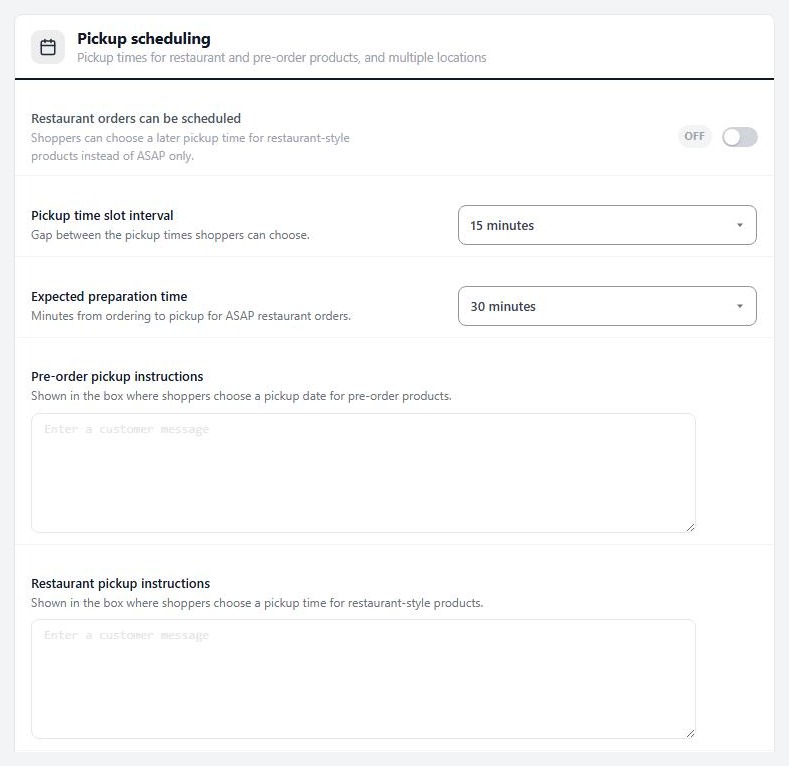
What the customer sees. At checkout a box called This is a Preorder for Pick Up lists the preorder items. It asks them to Select Pickup Date and Select Pickup Time. The calendar greys out closed days, holidays marked closed and days outside the window. The time list only offers your pickup hours. If they skip it, checkout says the order requires a pickup date and time. To add your own instructions to that box, fill in Pre-order pickup instructions in Settings › Checkout, in the Pickup scheduling card.
Part 4. Restaurant pickup
ASAP or a chosen time, inside your hours
The product. Set Product type to Restaurant item. Customers choose a ready time, as soon as possible or later today, based on your pickup schedule and hours.
Your hours. In Settings › Schedule & Locations, open a day and use its Restaurant card. Set Opens at and Closes at. Leave both blank to accept orders all day. When the restaurant is closed, checkout says The restaurant is currently closed!.
How pickup times work. In Settings › Checkout, in the Pickup scheduling card:
Restaurant orders can be scheduled is off by default. Off, customers get ASAP only. On, they can also choose a later time.
Pickup time slot interval is the gap between times they can choose. The default is 15 minutes.
Expected preparation time is how many minutes an ASAP order takes. The default is 30.
Restaurant pickup instructions shows your own text in the pickup box.
Checkout shows This is a Pickup Order, the items, and the choice of time. In the last hour before closing it also shows a countdown. Several stores? The same card has Multiple pickup locations (an advanced setting), so customers also choose where to collect. Locations are added on the Store locations tab.
Ready to run your store on WP EasyCart?
Everything in this guide works with the free plugin. PRO and Premium add subscriptions, memberships, wholesale pricing and more. Try every PRO feature free for 14 days.
