How-to › Marketing and growth
How to Collect and Show Product Reviews
Earn reviews from real buyers and put the stars where they sell. You allow reviews, ask customers after an order ships, moderate them and show them on your store and in search. 11 parts.
Quick links
Where to find it:WP Admin › EasyCart › Products › Product Reviews
Before you start
What you are building
What you need, and how a review reaches a product page.
How reviews work
What you need, and how a review reaches a product page
no stored settingsWhat you need. Reviews are in the free plugin, including review requests. WP EasyCart PRO or Premium adds a reminder email, moderation rules and public replies.
The flow. A customer writes a rating from 1 to 5 stars, a title and a message on the product page. The review arrives as Pending and is hidden. You approve it and it shows on the product. Only approved reviews count towards the star rating.
Getting them. Almost nobody reviews unprompted, so the biggest step is asking. WP EasyCart can email a request after an order ships.
The steps: allow reviews on your products, set the store rules, turn on review requests, moderate, then show the stars and reviews where they help.
Set it up
Six steps
Allow reviews, set the store rules, ask for reviews, moderate them, share the rating with search and show reviews on your pages.
Step 1. Allow reviews on each product
The Reviews tab on the product editor
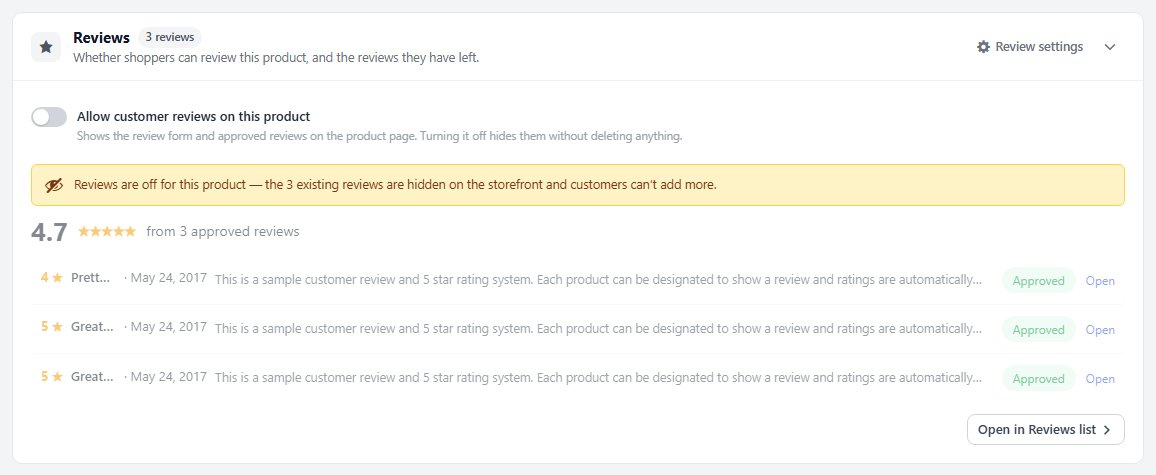
no stored settingsOpen a saved product and choose its Reviews tab. The Customer reviews card has a switch, Allow customer reviews on this product. It shows the review form and the approved reviews on the product page. It saves the moment you change it.
Turning it off hides the form and the reviews without deleting anything. Turn it off for a gift card or a made-to-order item where a review would be about the process, not the product.
The same card shows the average rating, the count of approved and pending reviews, and the five newest, with a link to the full list.
Step 2. Set the store rules
Settings › Products › Reviews
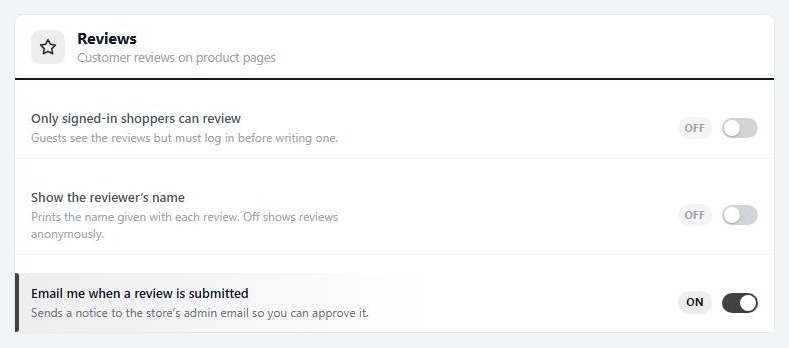
no stored settingsOpen EasyCart › Settings › Products and find the Reviews card. It has three switches:
Only signed-in shoppers can review: guests can read reviews but must log in to write one. Turn this on if you get spam.
Show the reviewer’s name: prints the name given with each review. Off shows reviews anonymously. This also decides whether individual reviews are shared with search engines, in step 5.
Email me when a review is submitted: a notice to your store admin address so you can approve it. It is on by default.
Step 3. Ask customers for reviews
Products › Product Reviews › Requests & rules
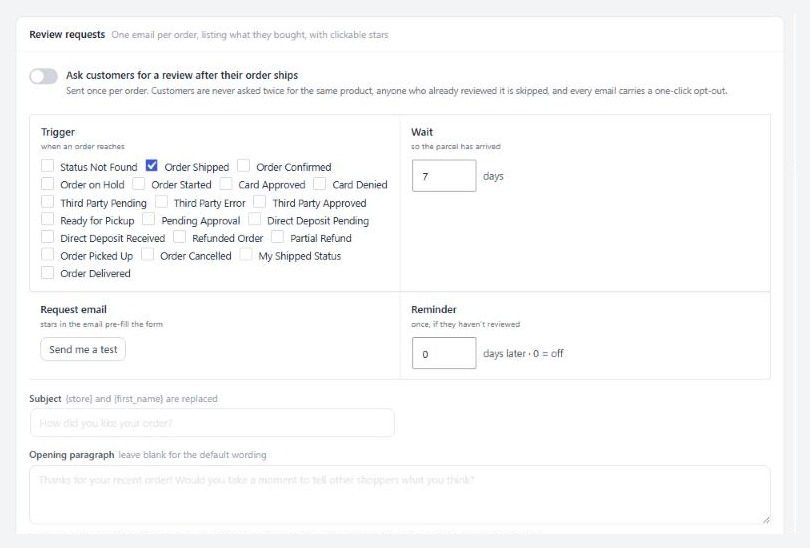
no stored settingsGo to EasyCart › Products › Product Reviews and open the Requests & rules tab. Turn on Ask customers for a review after their order ships. It is off until you do, so nobody gets a surprise email.
Trigger: the order statuses that start a request. Order Shipped is ticked to begin with.
Wait: days to wait after the order reaches that status, so the parcel has arrived. It starts at 7, and can be 0 to 90.
Request email: set a Subject and an Opening paragraph. You can use {store} and {first_name}. Leave the paragraph blank for the default wording. Press Send me a test to see it.
Reminder (PRO): one follow-up, a number of days later, if they have not reviewed. 0 is off.
The email lists what the customer bought, with clickable stars that pre-fill the form. It goes once per order. A customer is never asked twice for the same product, anyone who already reviewed it is skipped, and every email has a one-click opt-out. It sends through your Order email settings in Settings › Email, and is queued when the status changes and sent by the WordPress scheduler.
At the bottom, the last 30 days show how many requests were queued, sent, opened and turned into reviews, and the average rating they produced. Watch that average. It shows what customers think when you ask them.
💡 Note: Requests go out after an order ships, not when it is placed, because a request that arrives before the parcel gets a review about your delivery.
Step 4. Moderate reviews
Approve, deny and filter the queue
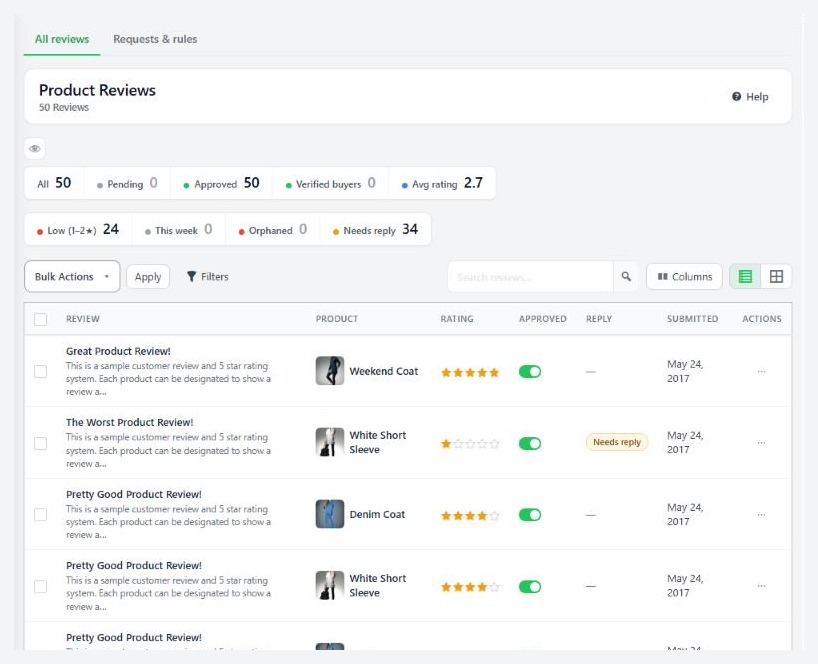
no stored settingsOpen EasyCart › Products › Product Reviews. New reviews are Pending. Switch a review’s Approved toggle on to show it in the store, or off to hide it. Select several and choose Approve, Deny (hide) or Delete.
The tiles count All, Pending, Approved, the average rating and low ratings. Filter by Status, Rating, Product and date, and by Verified buyers or unverified. Open a review with Edit review to change it.
Held reviews. A review from the same customer on a product they already reviewed is held as a duplicate. A held review says why: Duplicate, Contains a link, Blocked word or Not a verified buyer.
PRO moderation rules on the Requests & rules tab:
Auto-approve verified buyers who rate 3, 4 or 5 stars or more, at the level you choose.
Hold anything containing a link or email address. It is on by default.
Hold reviews from people with no order for that product.
Hold anything containing words you list.
Notify me immediately for reviews rated 1, 2 or 3 stars or fewer, at the level you choose, by email to your admin address.
Read the low ratings. Three reviews saying the same thing is a real problem you can fix.
⚠️ Careful: Auto-approve trusts a rating. Use it only for verified buyers, and keep Hold for links on. Do not approve open reviews on a public store without a check.
Verified buyers
The badge that tells shoppers the reviewer bought it
no stored settingsA review gets a Verified badge when the reviewer has an order for that product. WP EasyCart matches by the customer’s account or by the email on the order, and the order status must be an approved one. A review that comes from a review request is matched to that order. This is always on.
To fix badges for reviews you already have, press Recompute verified badges for existing reviews on the Requests & rules tab.
The product page shows a Verified buyer badge on a review. In Elementor the Product Reviews widget has a Verified buyer badge switch.
Reply in public (PRO)
How replies are signed, and who hears about them
no stored settingsWith PRO, open a review and post a public reply. On the Requests & rules tab, the Replies card has Sign replies as, which shows your site name if empty, and Email the reviewer when you post a reply. That is the default for the checkbox in the review editor, and you can change it on each reply.
The list flags approved reviews of 3 stars or fewer as Needs reply. Write the reply for the people who will read it later, not only the reviewer.
Step 5. Star ratings in search results
Settings › Search & AI
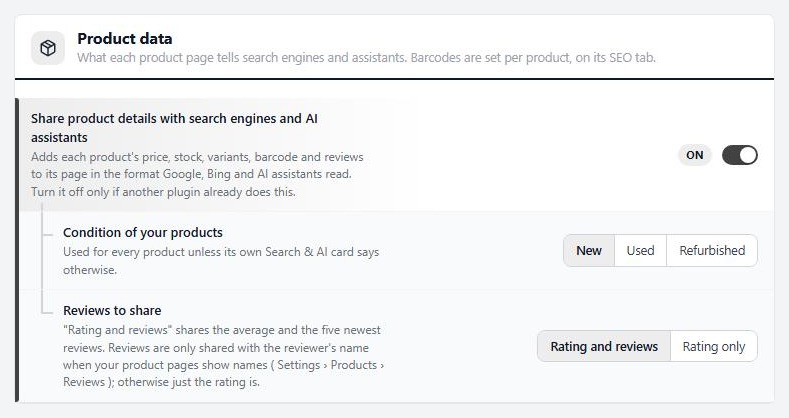
no stored settingsWP EasyCart adds each product’s price, stock and reviews to its page in the format Google, Bing and AI assistants read. That is how stars can appear next to your listing. It is on by default.
Open EasyCart › Settings › Search & AI and the Product data card. Share product details with search engines and AI assistants is the master switch. Leave it on unless another plugin already does this.
Reviews to share has two choices. Rating and reviews shares the average rating and the five newest reviews. Rating only shares just the average.
The rating is the exact average of your approved reviews. Individual reviews are shared only when you show reviewer names, in step 2, because Google needs an author for each. Otherwise only the rating is shared.
Google decides whether to show stars, so they may not appear at once.
💡 Note: Only approved reviews count. A pending or denied review is not in the average that search engines read.
Step 6. Show stars and reviews on your pages
Product lists, product pages, shortcodes and Elementor
no stored settingsProduct lists. In Settings › Design under Product listings, Parts shown on each product includes Star rating. It is on by default. In Settings › Products, the “Best rated” sort option puts the highest rating first in the sort menu.
Product pages. The standard product page shows the stars, the reviews and the form when reviews are on for the product.
Anywhere, with a shortcode. Put reviews on a landing page with [ec_product_details_customer_reviews model_number="SKU-100"]. It takes enable_review_list, enable_review_form, enable_review_item_user_name and others, each set to 1 or 0. Use product_id="12" instead of the model number if you prefer.
In Elementor. The Product Reviews widget has Rating summary, Reviews and Review form switches, a Reviews and form layout of Side by side or Form below the reviews, a Reviewer name choice, Verified buyer badge and Your replies. The Product Rating widget shows just the stars. Both follow each product’s own switch. See the Elementor product template guide.
Test it
Write a review as a customer, then approve it
no stored settings1. In a private window, open a product with reviews on and write a review.
2. It should say it was saved. It will not show yet.
3. Check your admin email for the notice, then open Products › Product Reviews. The review is Pending.
4. Switch its Approved toggle on. Reload the product page. It should show.
5. For requests, press Send me a test on the Requests & rules tab.
Keep it running
When something goes wrong
The usual reasons reviews are missing or requests do not go out.
If it does not work
The usual reasons reviews are missing or requests do not go
no stored settingsA review does not show. New reviews are Pending until approved. Approve it, and check the product’s reviews switch is on.
A customer cannot write one. If Only signed-in shoppers can review is on, they must log in first.
No notice email. Check Email me when a review is submitted, and your store email in Settings › Email.
Requests are not going out. Check the switch is on, and that orders reach a ticked status. Requests wait for the Wait days, and go by the WordPress scheduler, which runs when the site is visited. The Recent requests list shows what is queued and what was sent, opened, reminded or reviewed.
No stars in search results. The master switch under Search & AI must be on, the product must have approved reviews, and Google decides when to show them.
A duplicate review is held. The same customer already reviewed that product. Approve it yourself if it is genuine.
The Requests & rules tab says a database update is pending. Load any EasyCart admin page after updating, so it runs, then come back.
Keep going
Related panels
Moderation, replies and review requests in full.
The Reviews tab on the product editor.
The store-wide review switches.
The order statuses that trigger a request.
Ready to run your store on WP EasyCart?
Everything in this guide works with the free plugin. PRO and Premium add subscriptions, memberships, wholesale pricing and more. Try every PRO feature free for 14 days.