
How-to › Wholesale and B2B

How to Set Volume Pricing and Quantity Discounts

Reward bigger orders with automatic price breaks. You add quantity tiers to a product, set minimums and check how the cart counts them. 9 parts.

Quick links

Where to find it:WP Admin › EasyCart › Products › Products › Pricing & Tax

Before you start

What you are building

What you need and what customers see.

How volume pricing works

What you need, and what the customer sees

no stored settings

What you need. WP EasyCart PRO or Premium. Volume Pricing and B2B Pricing are PRO features, and a free store shows them locked. There is a free trial if you want to try them first.

The idea. You set price breaks on a product: buy 10 or more and each costs less, buy 50 or more and it costs less again. The cart works out the right price on its own as the customer changes the quantity. There is no coupon to enter.

What customers see. The product page lists your breaks as short lines, for example Buy 10-49 at $9.99 each and Buy 50 or more at $8.49 each. In product lists the price shows as As low as your best price.

Two related tools. Volume pricing gives the same breaks to everyone. B2B Pricing gives one role a flat price, which is what the wholesale guide builds on. Both live in the same card of the product editor. Which wins when they meet is covered below.

Set it up

Four steps

Add the breaks, decide how the cart counts, add role prices, set quantity limits and choose how breaks show.

Step 1. Add the price breaks

Pricing & Tax tab, Advanced Pricing, Volume Pricing

no stored settings

Open a product in EasyCart › Products › Products. A new product has to be saved once before its Pricing & Tax tab opens. Go to that tab and find the Advanced Pricing card, then Volume Pricing.

The row at the top reads as a sentence: Buy a number or more for a price each. The first box is the quantity and must be 2 or more. The second is the price for one item at that quantity. Press Add Tier. Add as many breaks as you like.

Tiers save the moment you add or change them, and you can edit a quantity or price in place. Remove a break with the small x on its row. You do not need to press the product’s Save button for tiers, though it does no harm.

The price you enter is the price for each item, not for the whole quantity. The product’s normal price, set on the General tab, applies below your first break.

A faster way in. On the products list, the price cell has an Advanced pricing panel with Volume Pricing and B2B Role Pricing buttons and a count of what each holds. To fill many products, use the CSV. Its price_tiers column takes quantity,price pairs, and an import replaces the product’s existing tiers. See the product import guide.
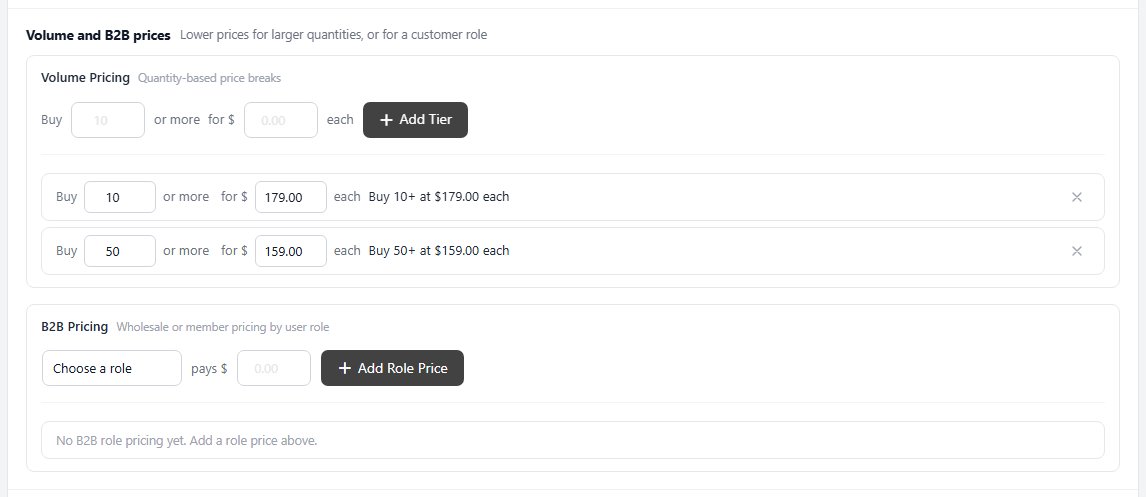
The Advanced Pricing card on a product’s Pricing & Tax tab, with Volume Pricing and B2B Pricing.

💡 Note: Enter the price for one item, not the total. A break of 10 for 8.49 means each of the 10 costs 8.49.

How the cart counts

Which quantity earns which price

no stored settings

Highest matching break wins. The cart finds the biggest quantity you set that the customer has reached, and charges that price for every unit. With breaks at 10 and 50, an order of 12 pays the 10 price on all 12.

Quantities add up across the cart. By default the count is every unit of that product in the cart, so 6 small and 6 large shirts count as 12. A store setting can change this for variations. See Step 4.

Options still add on top. The break replaces the base price only. Option prices, such as a larger size that costs more, are added to the tier price.

The product page updates as they type. The price shown follows the quantity box, so customers see the saving before they add to cart.

Step 2. Add role prices (optional)

B2B Pricing, right below Volume Pricing

no stored settings

The B2B Pricing block sits under Volume Pricing. It reads: a role pays a price. Choose the role, enter the price and press Add Role Price. Every role you have made is in the list, and each role can have one price per product.

A role price is one flat price for that role, at any quantity. Customers who are not in a role, and roles with no price on this product, get the normal price and the volume breaks. To create roles and put customers in them, follow the wholesale guide.

Step 3. Set minimum and maximum quantities

Inventory & Shipping tab, Stock & Purchase Limits

no stored settings

Breaks are more useful when the smallest order makes sense. On the Inventory & Shipping tab, Stock & Purchase Limits holds Minimum Quantity and Maximum Quantity. A minimum of 6 sells by the half dozen, and the quantity box starts at 6. A maximum caps how many of the product a customer can buy in one order, so one customer cannot take every unit you have.

Leave both at 0 for no limit.

The Stock & Purchase Limits card on the Inventory & Shipping tab.

Step 4. Choose how breaks show

Settings › Products › Pricing display

no stored settings

Two store-wide switches change how breaks appear. Open EasyCart › Settings › Products and find the Pricing display card.

Show volume pricing as “as low as” is on by default. Product lists then show As low as followed by the price of your highest quantity break. Turn it off to show the normal price in lists.

Count each option combination separately for volume pricing is off by default, and is an Advanced setting. Off adds every variation of a product together toward a break. On makes each combination reach the break on its own, so small shirts and large shirts are counted separately. Choose it when each size is really its own item.
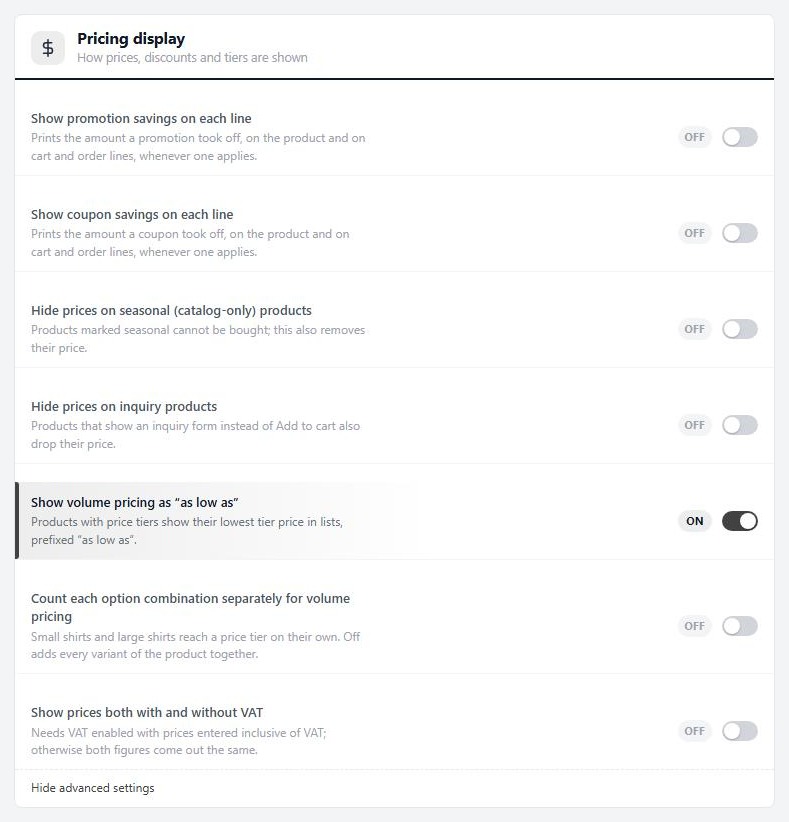
Settings › Products › Pricing display, with the volume pricing switches.

Check it and keep it running

Good to know

How breaks meet role prices and offers, how to test and what to check.

When breaks meet role prices and offers

Which price wins

no stored settings

A role price beats volume breaks. If a customer is in a role that has a price on this product, the cart charges the role price at any quantity, and the product page hides the list of breaks for that customer. The role price is flat. If you want trade customers to earn breaks too, do not give that role a price on the product. They then get the same breaks as everyone else.

Offers and coupons come after. Promotions, coupons and other offers are worked out after the product price, so they can take more off. Test any offer you plan to run on a product that also has breaks, in the cart, before you promote it.

Minimums are separate. A minimum quantity applies to everyone, including customers with a role price.

⚠️ Careful: A role price hides volume breaks for that role. If you price a product for a role and also want quantity breaks for that role, you cannot have both. Choose one.

Test it in the cart

Check three quantities and one option

no stored settings

In a private window, open the product page.

1. You should see one line per break under the price.
2. Raise the quantity box past the first break. The price shown should drop.
3. Add to cart, then open the cart. The line should show the break price. Change the quantity in the cart and watch it move between breaks.
4. If the product has options, pick one that adds to the price. It should be added to the break price.

Then check the product list. It should read As low as with your top price.

If it does not work

The usual reasons a break is not applied

no stored settings

The card is locked, or the buttons say Pro. Volume Pricing and B2B Pricing need WP EasyCart PRO or Premium, active and licensed. The card explains what it needs.

No breaks show on the product page. Check you added tiers to the right product. If you are signed in as a customer with a role price on it, breaks are hidden on purpose. Preview signed out.

The cart charges the normal price. The quantity has not reached the first break. Or the customer is in a role with a price on this product, which wins. Or a variation product counts each combination separately and none of them has reached the break on its own.

The list price says As low as but the page price is higher. That is expected. As low as is your best price and applies at your top quantity.

I cannot add a break at quantity 1. Breaks start at 2. The normal price is your quantity 1 price.

Still stuck? Open a ticket at wpeasycart.com/my-account.

Keep going

Related panels

Pricing & Tax

Every option on the Pricing & Tax tab.

Products

The Pricing display settings.

User Roles

Roles and role prices across the catalogue.

Offers

Offers, coupons and promotions.

Inventory & Shipping

Minimum and maximum quantity, and stock.

Ready to run your store on WP EasyCart?

Everything in this guide works with the free plugin. PRO and Premium add subscriptions, memberships, wholesale pricing and more. Try every PRO feature free for 14 days.

The WP EasyCart admin: orders and offers
Updated on September 30, 2026
