
What’s newFind any order, customer, product or setting with one admin search. See all features

How-to › Start here

How to sell online with Square

Already selling with Square? Connect it to WP EasyCart, bring your Square items in, keep stock in step with your register and take cards online. 12 parts.

Quick links

Where to find it:WP Admin › EasyCart › Settings › Payments

Before you start

What you need

A Square account, a supported country, https, and what PRO adds.

What you need

A Square account, a supported country, https, and which parts are PRO

What you need. A WP EasyCart store, a Square account, and your site on https. Square’s card form needs a security certificate to take live payments.

Where Square works. Square is offered to stores in the US, Canada, the UK, Australia, Japan, Ireland, France and Spain. That follows your store country in Settings › Store details. Anywhere else, Settings › Payments says Square isn’t offered to stores in your country. Square charges in the currency of your Square location, so sell in the same currency.

Free or PRO. The Free edition takes cards through Square and brings your Square items into your store once. With PRO or Premium you also get stock and products that follow Square every hour, Square gift cards, and Apple Pay and Google Pay. There is a 14-day free trial if you want to try PRO first.

The fee. On the Free plan, WP EasyCart adds a 2% fee to each Square sale, on top of Square’s own fees. PRO and Premium have no WP EasyCart fee. See the pricing page for the plans.

Set it up

Seven steps

Connect, follow the steps, choose a location, import, sync, test and go live.

Step 1. Connect Square

Sign in to Square, allow the app, come back

Open EasyCart › Settings › Payments. Under How do you take payments?, Square has its own card beside Stripe and PayPal.

Press or connect a sandbox account under Connect Square to start with a Square sandbox, a separate test account where no real money moves. Or press Connect Square to go straight to your live account. On the Free edition you accept the EasyCart Connect terms the first time.

Square’s own page opens. Sign in, and allow the permissions it asks for. You come back to Settings › Payments with a note: Square is connected and takes your card payments. The note offers Bring your Square items into your store.

Already taking cards with Stripe or another gateway? Press Change payment gateway on its card to see Square.
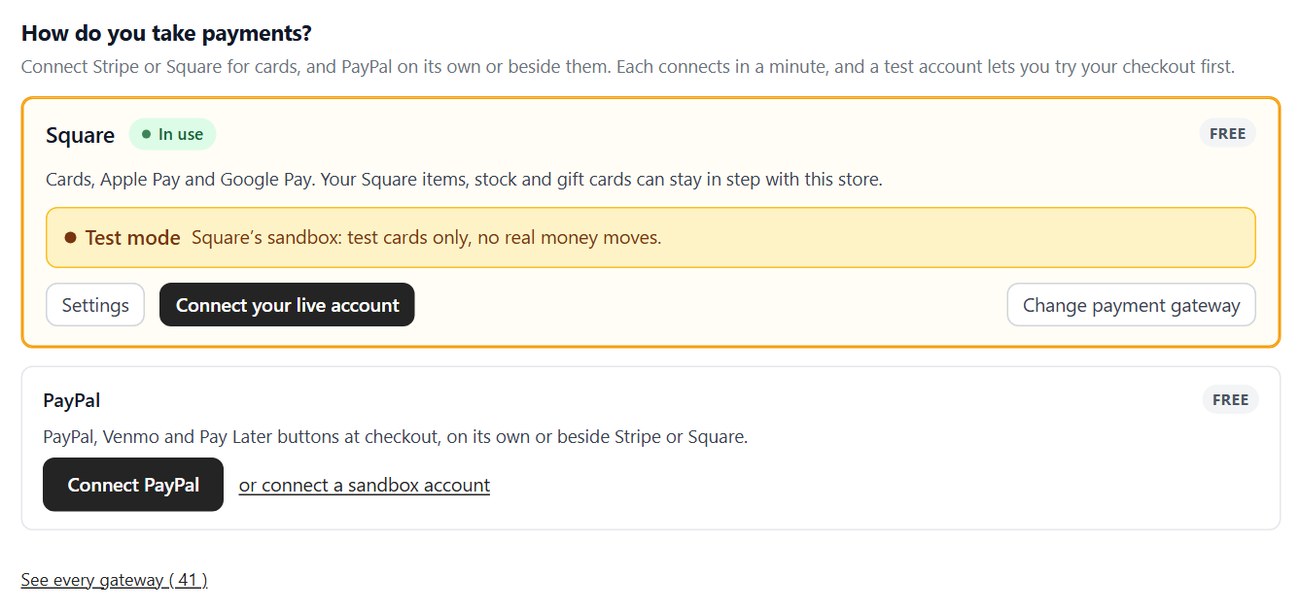
Settings › Payments with Square in use and its sandbox connected: the Test mode banner, Settings and Change payment gateway.

💡 Note: Start in the sandbox. You can test the whole checkout, and the import, without touching your real Square account.

Step 2. Follow Steps for Square

A checklist that ticks itself as you go

Under the card, Steps for Square lists what is left, in order:

Will you sell subscriptions? Subscriptions bill through Stripe only. Answer No to carry on with Square; Yes offers Take cards with Stripe instead.
The connection. In the sandbox it says Square is in test mode, with Connect your live account or Take live payments.
Your Square location, with Choose the location.
Do you keep your items in Square?, with Import from Square.
Stock follows Square and Do you sell Square gift cards? ( PRO; the Free edition shows them together as Stock and Square gift cards ).
Apple Pay and Google Pay ( PRO ).

Settings on Square’s card opens its settings in a side panel, in groups: Payments, Sync with Square ( PRO ), Checkout and Gift cards. Every setting is explained in Square Payment Settings.
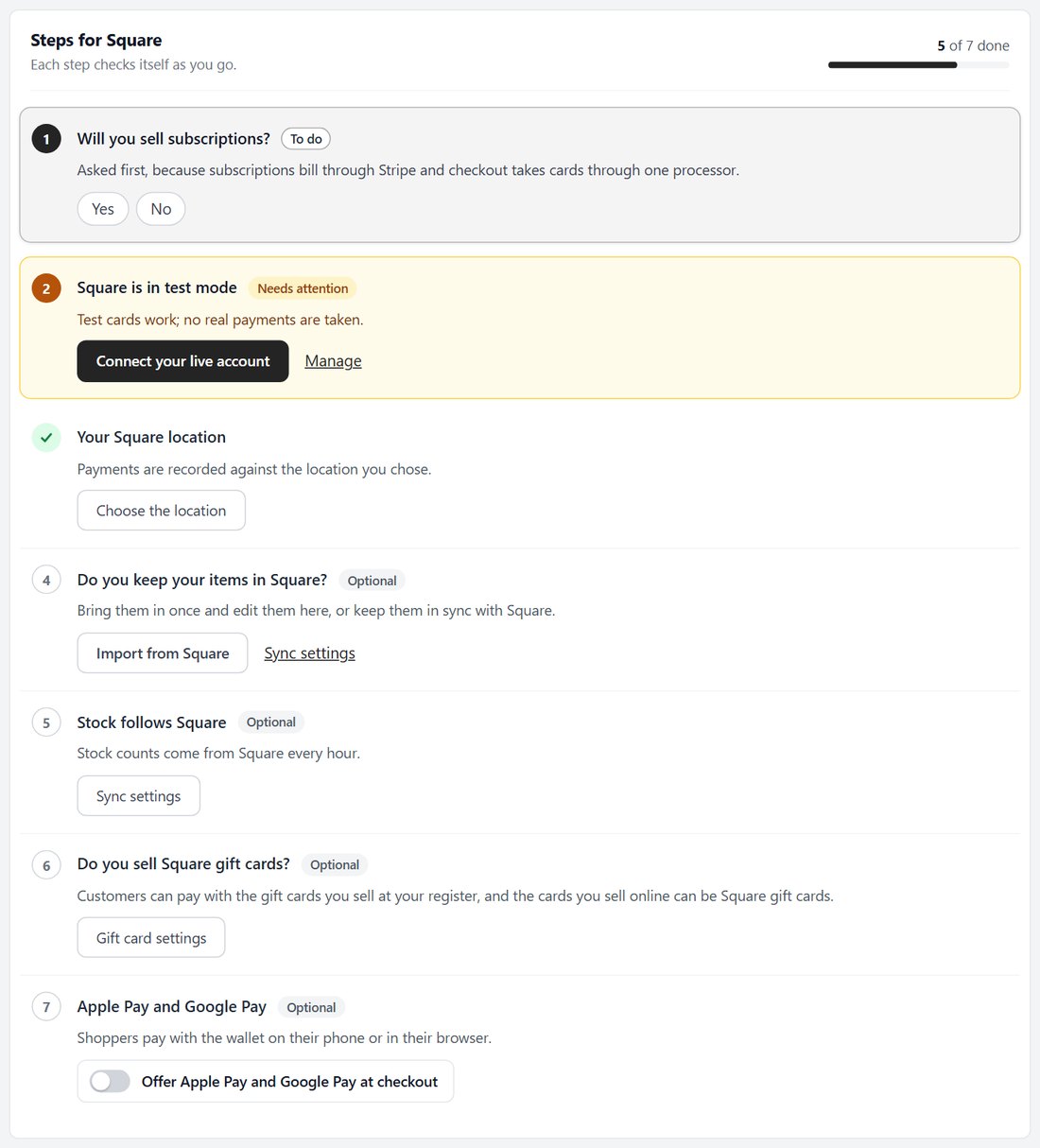
Steps for Square on a store with PRO and the sandbox connected.

Step 3. Choose your Square location

Where payments and stock are recorded

Press Choose the location in the steps, or open Square’s settings at Checkout. Pick the location in Store location. Payments and stock are recorded against it in Square. Your first location is used until you choose.

Pick the location whose items and stock you want online. The import only brings in items sold at this location, and web sales come off its stock counts.

Merchant name, below it, is the business name shoppers see in the Apple Pay and Google Pay sheet. Press Save at the foot of the panel.
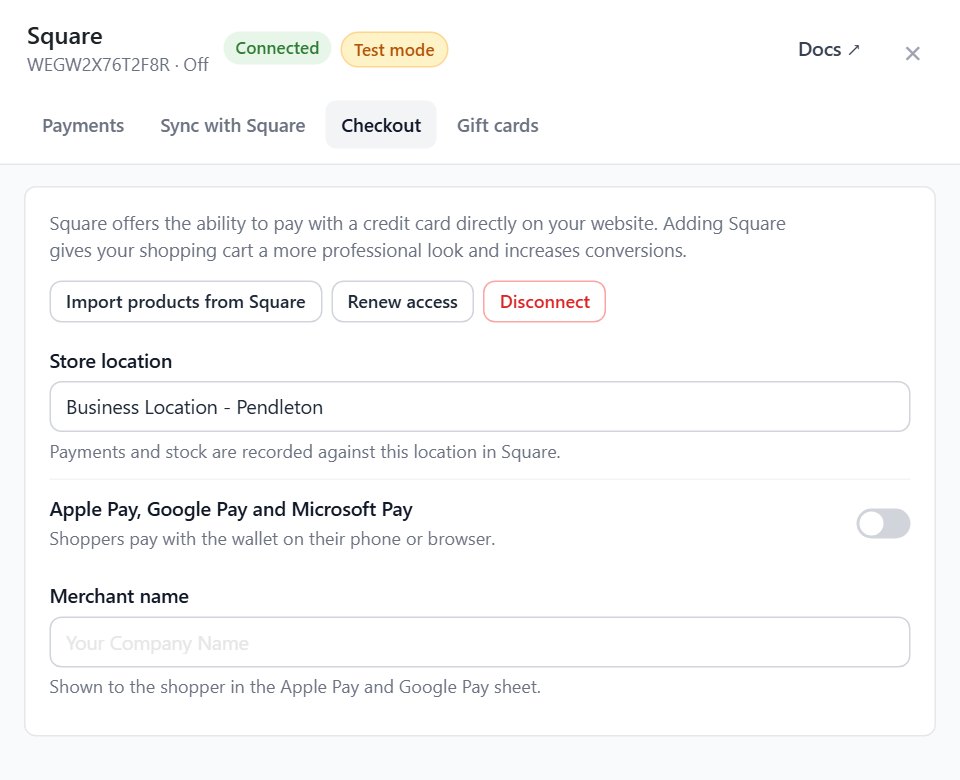
Square’s settings, Checkout: Store location, the Apple Pay, Google Pay and Microsoft Pay switch and Merchant name.

Step 4. Bring your Square items in

Try ten first, then the rest, with an undo

Press Import from Square in the steps. It opens Products › Import with Square chosen. What we found shows the location and what came up, such as Different currency if Square’s prices are in another currency than your store.

Items brings items and variations, with their modifiers, categories, images and stock. Customers and orders are marked as coming in the next update. Then set the options:

Products already in your store: Update them from Square or Leave them as they are. This counts items imported from Square before.
Stock: Copy Square’s stock counts or Leave stock as it is.
Services, events and donations: Leave them out or Bring them in too.

Press Try 10 products first. Ten products land in your store so you can open and check them. Looks good: import everything carries on. Remove these and change the options takes them out and goes back. Nothing is emailed, charged or taken from stock while products come in.

The report lists every note. Kitchen categories, and items not sold at your location, are left out. An item priced at the register comes in at 0, so set its price. Remove everything this import added undoes the whole import.

The import reads the Square account in use now. In the sandbox that is your sandbox items, so import your real catalog once Square is live.
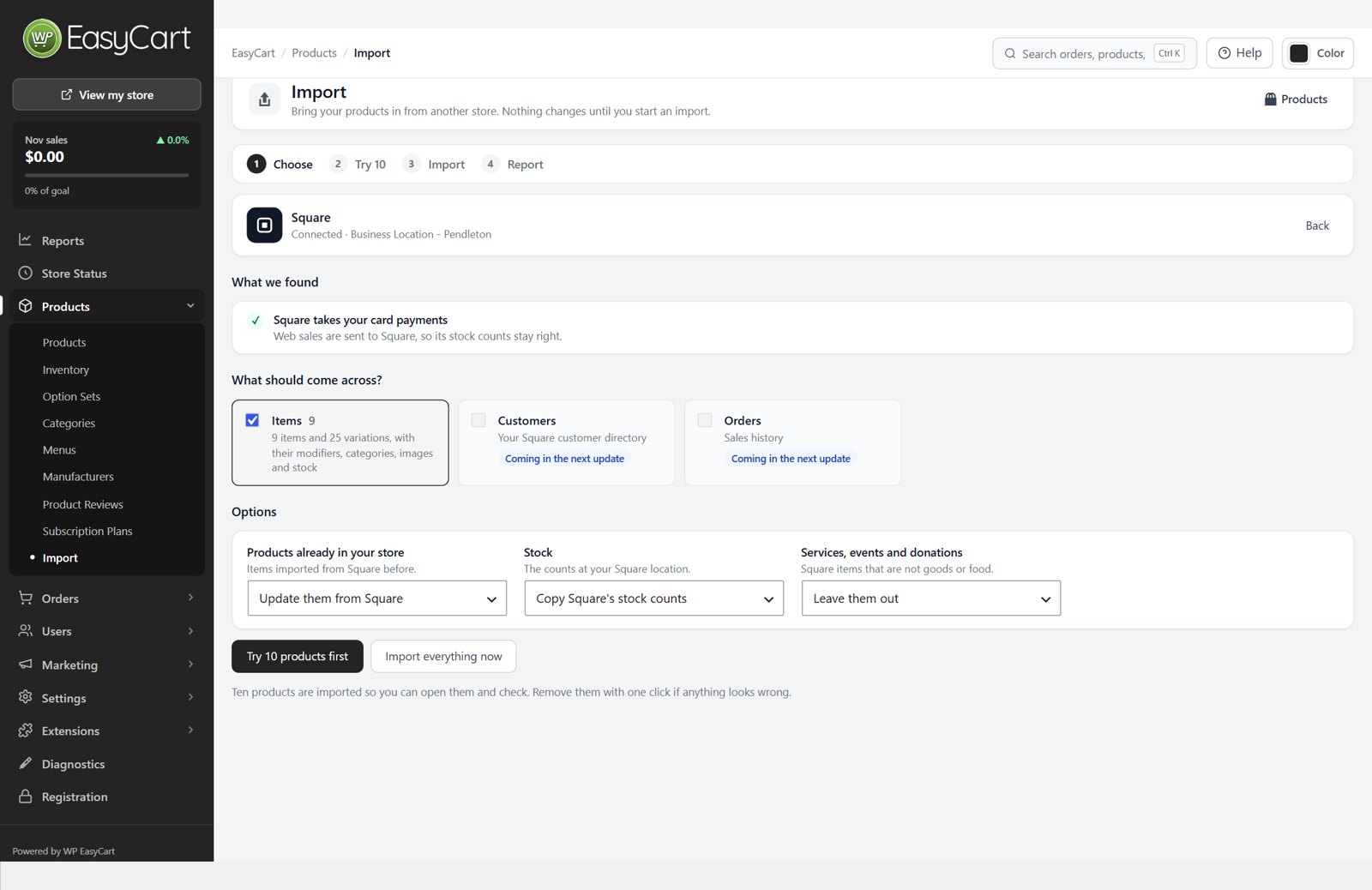
Products › Import with Square chosen: what was found in the connected account and the choices before anything is imported.

💡 Note: Try ten first. Open a few of them and check prices, choices and pictures before you import the rest.

Step 5. Keep stock and products in step ( PRO )

Square stays the record; your store follows it

On every edition, a web sale of a product that came from Square is sent to Square, so the counts at your location stay right. Stock put back after a refund or cancelled order goes back into Square too.

With PRO, open Square’s settings at Sync with Square:

Inventory sync: stock follows Square every hour, so a sale at your register lowers the count online.
Webhook sync: Square tells your store the moment stock or an item changes, instead of waiting for the hourly check. If it says Notifications are not signed yet, press Secure notifications.
Product sync: titles, prices and variations follow the items in your Square catalog, every hour.
Keep products you switch off: a product or variation you deactivate on your site stays off when Square syncs.

Sync only touches products that came from Square. Make catalog changes in Square, not here.
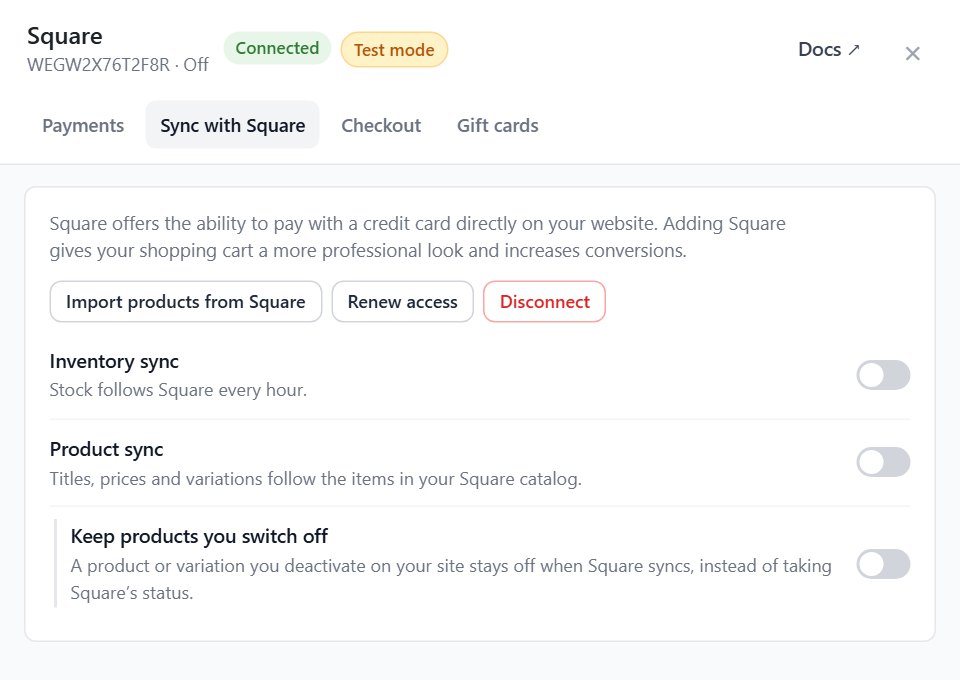
Square’s settings, Sync with Square: Inventory sync, Product sync and Keep products you switch off.

⚠️ Careful: With Product sync on, Square is the master record. A title or price you change here is replaced by Square’s at the next sync.

Step 6. Test it

An order through the sandbox, with Square’s test cards

While Square is in the sandbox, its card shows Test mode: Square’s sandbox, test cards only, no real money moves.

In a private window, so you are not signed in as an admin, add a product to the cart and check out. Pay with one of the sandbox test card numbers in Square’s developer documentation.

Then check three places. Orders: the order is there with the right total. Your Square sandbox dashboard: the payment is there, at the location you chose. Stock: a product that came from Square went down by one in Square as well.

Refund the test order from its order screen to see a refund go back through Square.

Step 7. Go live

Connect your live account, then switch

A store that started in the sandbox connects its real account with Connect your live account on Square’s card, and signs in to Square again. Once both are connected, the Live / Test switch on the card moves Square between them. In Square’s settings the same choice is the Take live payments and Sandbox ( test payments ) switches.

Press Live. You are asked first: Take live payments? Real cards are charged from now on. The card’s banner then says Live, with the business name on your Square account.

Check your Store location again: the live account has its own locations. Then place one real order for a small amount, see it in Orders and in your Square dashboard, and refund it.
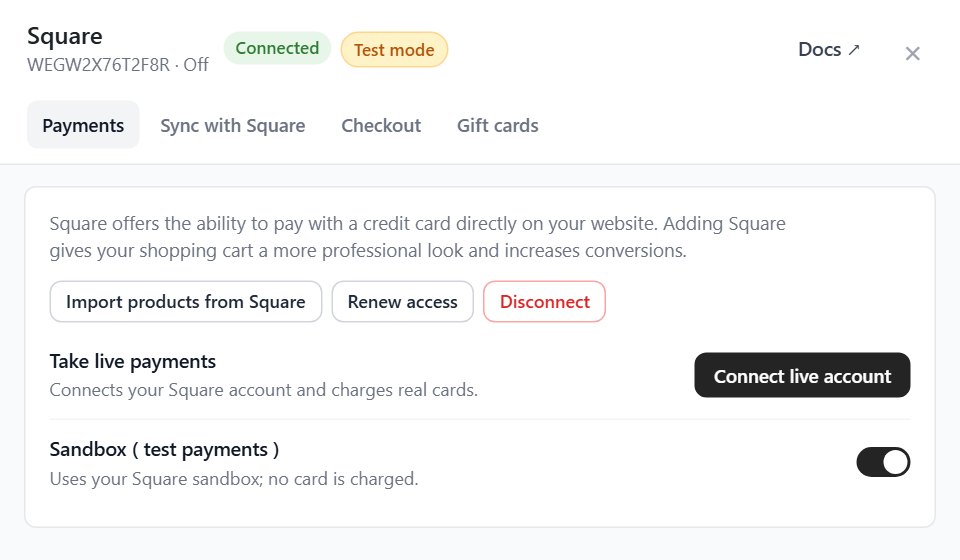
Square’s settings, Payments: Take live payments and Sandbox ( test payments ).

⚠️ Careful: Taking live payments charges real cards from that moment on. Place one small real order before you promote the store.

Good to know

Gift cards, wallets, refunds and problems

The PRO extras, how refunds work, and what to check when something fails.

Square gift cards ( PRO )

One balance at your register and online

With PRO, the Gift cards group in Square’s settings has two switches. Customers pay with Square gift cards takes the cards you sell at your register at checkout. Gift cards you sell are Square gift cards makes each gift card you sell online in your Square account, so it works at your register too.

The full setup, a test and what to check are in How to sell and accept Square gift cards.

Apple Pay and Google Pay ( PRO )

Wallet payments through Square, set up for you

With PRO, turn on Offer Apple Pay and Google Pay at checkout in the steps, or Apple Pay, Google Pay and Microsoft Pay in Square’s settings at Checkout. Apple Pay shows in Safari on Apple devices, Google Pay in Chrome and on Android. Fill in Merchant name so shoppers see your business name.

Apple Pay needs your domain registered with Square. Once Square takes live payments with the switch on, WP EasyCart puts Square’s file on your site and registers the domain for you. Square’s settings say Apple Pay is ready, that it is waiting for Apple to confirm ( usually a few minutes ), or what still needs doing, with Check again.

It happens on your live domain only. In the sandbox, or on a test copy of your store, Apple Pay is not set up.

Refunds go back through Square

Refund from the order, not from Square

Refund a Square order from its order screen in WP EasyCart: Refund in the order’s Payment area. The money goes back to the card through Square, and items you restock go back into your Square inventory.

If Square refuses, the refund panel shows Square’s own reason. If Square cannot be reached, you are told nothing was refunded, so you can try again. The full refund panel is covered in How to Handle Refunds, Order Edits and Credit Notes.

If it does not work

What each Square message means, and the fix

Square did not finish connecting. The sign-in on Square’s side was not completed. Press Connect Square again and allow every permission Square asks for.

Square isn’t offered to stores in your country. Square only serves the eight countries above. Check your store country in Settings › Store details.

Your Square connection has expired. The connection renews itself daily. If this notice shows, press Renew access in Square’s settings. If it says the connection is no longer active, connect Square again.

Square needs one more permission. The import, stock counts or gift cards need a permission your connection does not have yet. Press Connect Square again, allow it, then press Resume on the import.

No location, or Could not load your Square locations. The import says Connected, no location chosen yet: choose one in Store location. When Square does not answer, the list keeps the location already saved; open the settings again later.

Square has no items for this location. Your items are set to sell at another location. Pick that one in Store location, or make the items available at this one in Square.

Sync switched itself off. Disconnecting Square turns Inventory sync and Product sync off, and so does an hourly run that finds no connected account and location. Turn them on again after you reconnect. Both need an active PRO license.

The card form does not load on a live store. Square needs your site on https. Check that your certificate works on the checkout page.

A payment failed and you cannot see why. Open Settings › Advanced › Log entries. Square’s replies are recorded there with the order they belong to.

Still stuck? Open a ticket at wpeasycart.com/my-account.

💡 Note: Every Square switch is explained in Square Payment Settings, and every part of the Payments page in Settings › Payments & Taxes › Payments.

Keep going

Related panels

Payments

Every part of the Payments page, and every gateway.

Product Importer

Products › Import in full, Square included.

Gift Cards

Marketing › Gift Cards, and Square gift cards.

Log entries

Square’s replies, recorded with each order.

Ready to run your store on WP EasyCart?

Everything in this guide works with the free plugin. PRO and Premium add subscriptions, memberships, wholesale pricing and more. Try every PRO feature free for 14 days.
The WP EasyCart admin: orders and offers
Updated on November 12, 2026