
How My Account works
One account area, free in every store
Where it lives. Your account page holds the [ec_account] shortcode. Customers sign in there, and everything below opens on that page. It is all in the free plugin.
What customers get. A dashboard, their orders as cards with pictures and a status, ten a page with a search, each order on its own page with a printable receipt, their addresses, details and password, a Downloads page listing every download they bought and, if you allow it, their subscriptions and the cards that pay for them. Guests who ordered without an account can still reach their order.
This look applies to the standard account page, on any theme, and to the Elementor account widgets unless one is set to the Classic look (see the last part).
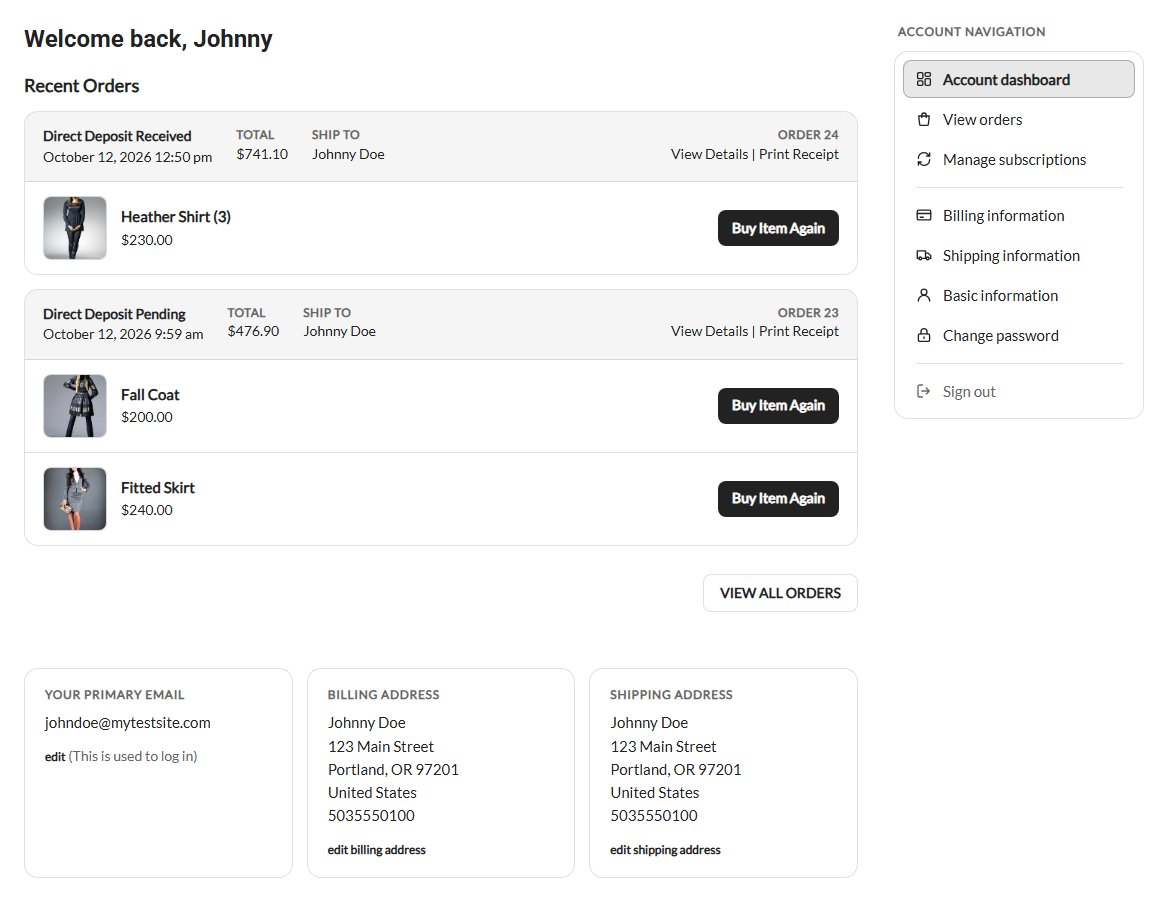
The menu and breadcrumbs
Beside every page, tabs on a phone
One menu sits beside every signed-in page: Account dashboard, View orders, Downloads (when your store sells downloads or the customer bought one), Manage subscriptions (when you allow it), Payment methods (for a customer with a Stripe subscription, when you allow it), Billing information, Shipping information (when your store ships), Basic information, Change password and Sign out. Each item has an icon and the page shown is marked. Links other plugins add to the account menu join it.
When the account area is narrow the menu becomes a row of tabs above the page, and on a phone one row that scrolls sideways, with the current tab brought into view.
Breadcrumbs above each page lead back: My account / Orders / Order #1024. On a phone they shrink to one link back to the page above. An order’s and a subscription’s own page leave the menu out and use the whole width, with the breadcrumbs as the way back.
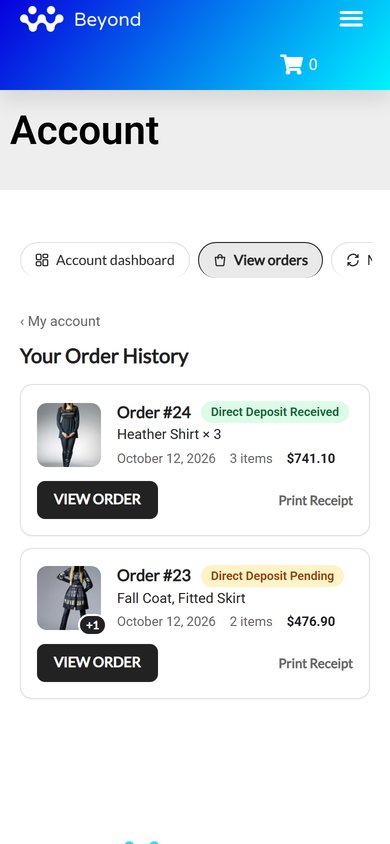
Orders as cards
View orders
Your Order History lists the orders as cards, newest first: the first item’s picture (with +2 and so on for more items), Order #1024, the first two item names, the date, the item count and the total, with VIEW ORDER and a Print Receipt link.
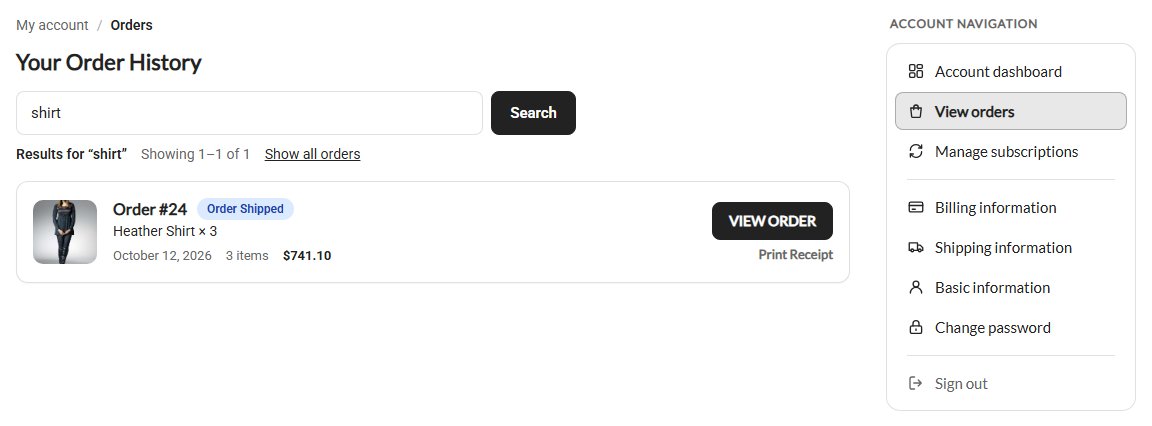
Ten a page, with a search. A customer with more than ten orders gets page links under the list, with Showing 11–20 of 32, and a Search your orders box above it. They can type an order number (with or without the #), a product’s name or SKU, or a tracking number. The results say Results for “shirt” with Show all orders to go back, or No orders match your search. A customer with ten orders or fewer sees just the list.
A badge shows the order’s status, coloured by where it stands: waiting for payment, paid, done (shipped, delivered or picked up), refunded (in full or in part) or closed (card denied, payment error or cancelled). A customer with no orders sees No Orders Have Been Placed and a Continue Shopping button.
A store that keeps its own copy of the order line template (ec_account_order_line.php in the wp-easycart-data folder) keeps the older order table.
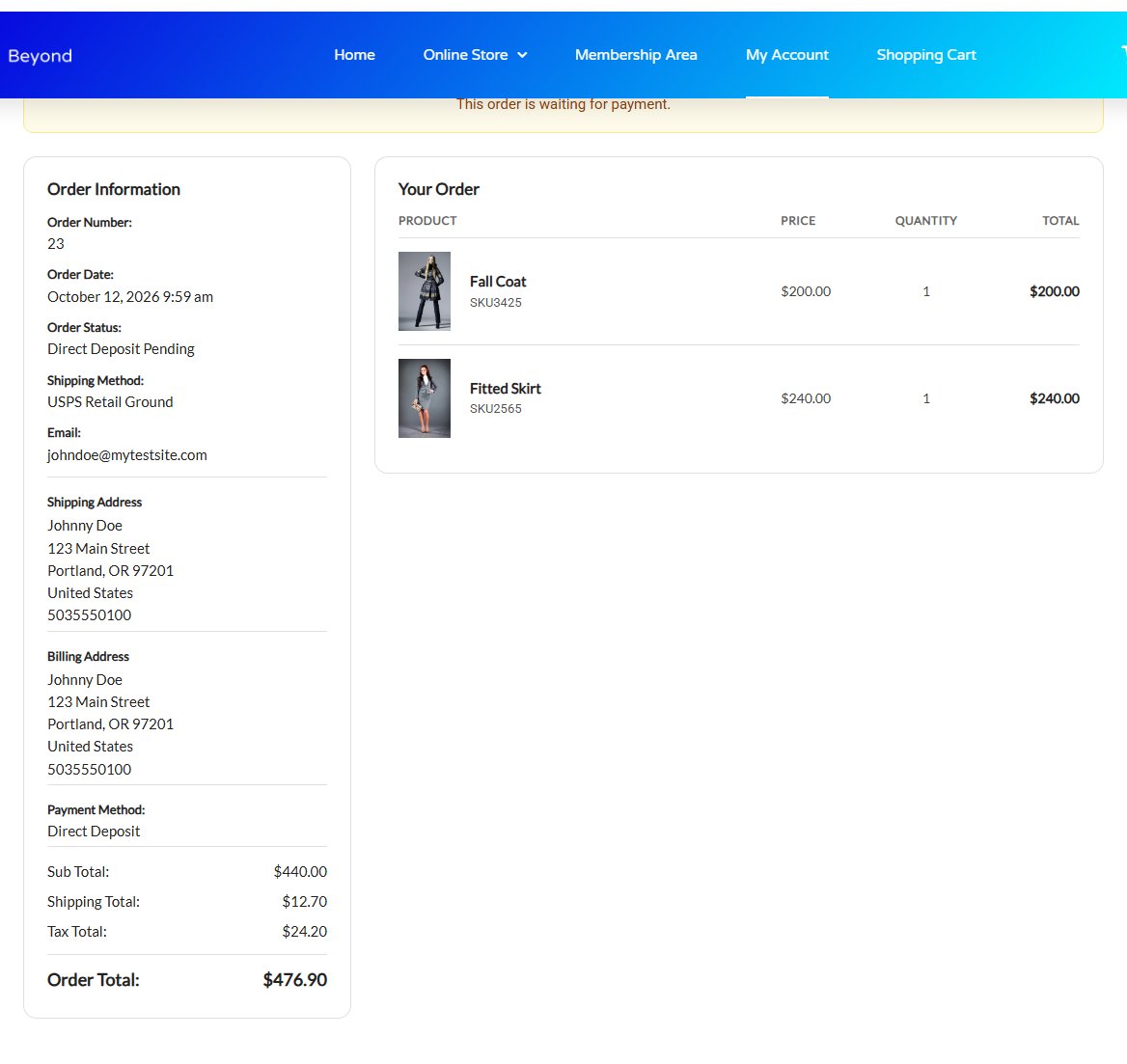
An order’s page
The order confirmation page’s look
Opening an order shows it across the page, in the look of the order confirmation page. Beside the breadcrumbs sit its actions: Pay now for an unpaid order that can be paid online (with pay links on), Print Receipt, and the EU withdrawal button while the order can still be withdrawn from.
A notice above the order says when it is waiting for payment, when a payment is still processing (unless you turned the Payment pending notice off in Settings › Email), or when it was refunded or its payment failed. Then come the order information (number, date, status, tracking, shipping method, payment, coupon, email), the items with their choices, downloads and gift card codes, the totals and the addresses.
Subscriptions
When customers manage their own
With Stripe as your card gateway and Let shoppers manage their subscriptions and payment methods on in Settings › Accounts › Account page, the menu gets Manage subscriptions. It lists Your Active Subscriptions as cards with VIEW DETAILS, ten a page. Once any have ended, an Active / Canceled switch with the count of each sits above the list, and Canceled shows Your Canceled Subscriptions.
One subscription’s page. Current Billing Method shows the card this subscription bills, with its brand, last four digits and expiry ( or Expired ), not just the account’s last card. Past Payments lists the latest ten, newest first, each with its date, amount and VIEW ORDER; Load more shows the next ten, with View all orders beside it.
A new card. A customer with other subscriptions chooses Use this card for: This subscription only, All my subscriptions or, with two or more others, This subscription and others I choose, which lists them with the card each uses. Other subscriptions keep their card unless chosen.
Changing how much. A subscription sold from a pricing table with a usage bar gets a button named for its unit, such as Change subscribers. It opens Change Your Plan on the other amounts with their prices: more Starts now, fewer starts at the renewal. Priced per seat, the customer changes the Quantity there. See Sell Usage-Based Plans with a Pricing Table.
The full set of options is in How to Sell Subscriptions on WordPress.

Sign in, create account and passwords
What visitors see
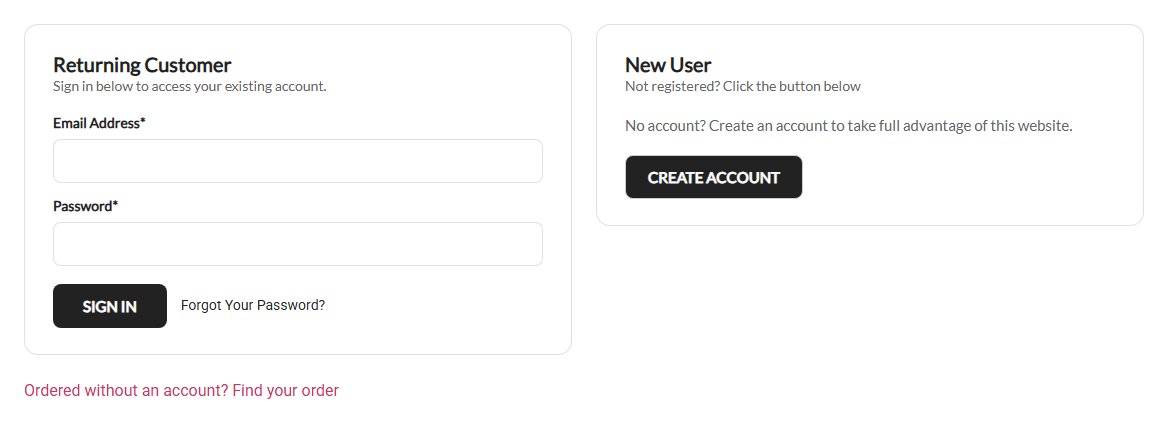
A visitor sees Returning Customer with email, password, Forgot Your Password? and SIGN IN, and a New User box with CREATE ACCOUNT. Under them sits Ordered without an account? Find your order.
Create an Account, Retrieve Your Password and Choose a New Password are cards in the same look. While a form works the page says so: Signing you in…, Creating your account…, Sending… or Saving….
Find your order
Guests get their order link by email
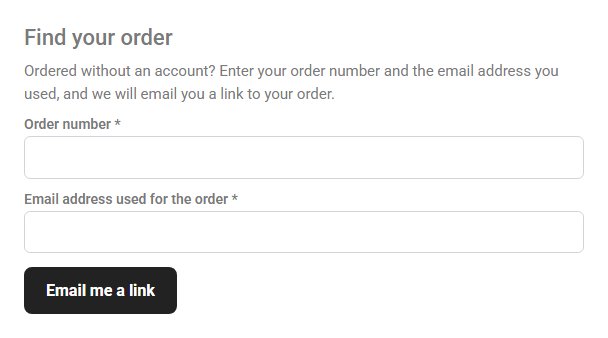
A guest who lost the email opens Find your order, types the Order number and the Email address used for the order, and presses Email me a link. When both match, the order’s own link goes to the email address on the order, never to a typed one. The page always answers If that matches an order, we have emailed a link to it., so it never reveals whether an order exists. It is always on, with nothing to set up.
Limits. One order gets at most 3 of these emails a day. One visitor gets 5 tries in 15 minutes and 20 a day, and after 2 tries the robot check from Settings › Checkout protection shows when you have one set up.
Where it shows. The link under the sign-in form opens it on your account page, or on your withdrawal page when the EU withdrawal button is on. To put the form on any page, use the [ec_order_lookup] shortcode (heading="0" leaves out its heading) or the WP EasyCart block set to Find your order ( guests ).
Ready to run your store on WP EasyCart?
Everything in this guide works with the free plugin. PRO and Premium add subscriptions, memberships, wholesale pricing and more. Try every PRO feature free for 14 days.
