How-to › Checkout, orders and customers
How to Keep Shipping Receipts for Chargebacks
Keep the receipt number, amount, date and a photo of what you paid to ship each order or package, ready when a customer disputes a payment or a parcel goes missing. 8 parts.
Quick links
Where to find it:WP Admin › EasyCart › Orders › Orders
Before you start
What you are keeping
What a shipping receipt is for, and what you need.
What a shipping receipt is for
Proof of what you paid to send an order, and what you need
A customer says the parcel never came, or asks their bank for the money back. A carrier wants proof of postage before it pays out on a lost parcel. Either way you need the receipt from the counter or the label you paid for, and paper receipts get lost.
A shipping receipt keeps it with the order: the Receipt number, the amount you paid, the date, a note and a photo of the receipt. You keep one for the whole order, and one for each of its packages, next to that package’s carrier and tracking number.
What you need. A Premium license, WP EasyCart PRO and the WP EasyCart app on your iPhone or Android phone, signed in to your store. Receipts are taken in the app, where the camera is; the order screen in your WordPress admin shows them. Setting up the app is covered in Phone Apps for iPhone and Android.
The steps: open the order in the app, enter the receipt, photograph it, then check it on the order screen. After that, how to use it when a claim comes in.
💡 Note: Keep the receipt the day you ship. A chargeback can arrive weeks later, long after the paper is gone.
Do it
Four steps
Open the order in the app, enter the receipt, photograph it and check it on the order screen.
Step 1. Open the order in the app
The Shipping receipts card, under the order’s status
In the app, open the order you shipped. Under its status is the Shipping receipts card. It reads Document your shipping receipt until something is saved, then how many receipts the order has.
When the order has packages, chips across the top choose which receipt you are filling in: Whole order, Package 1, Package 2 and so on. A package chip shows that package’s carrier and tracking number under it, so you can match the receipt to the right box. Return packages are not listed.
One receipt for the whole trip to the post office? Use Whole order. A separate label per box? Give each package its own.
Step 2. Enter the receipt
Number, amount, date and a note, then Save receipt
Fill in what is on the receipt:
Receipt number: the number printed on it, up to 100 characters.
Amount: what you paid to send it, as a number.
Date: the day you paid, as YYYY-MM-DD, or press the calendar button and pick it.
Note: anything worth keeping, such as the insurance you bought or the counter you used.
Press Save receipt. The app says Receipt saved, and the receipt is stamped with who saved it and when: Captured by shows the name on your store account and the time. Change a field and save again to correct it; an emptied field is cleared.
Step 3. Photograph the receipt
Camera or Choose, saved as soon as you take it
Under Photo, press Camera to take a picture of the receipt, or Choose to pick one you already took. The photo is saved straight away, without Save receipt, and the app says Photo saved. Tap the thumbnail to see it full size.
Each receipt keeps one photo. Retake replaces it and the old one is deleted; Remove photo deletes it. Lay the receipt flat in good light so the number, amount and date can be read: that is the whole point of the picture.
Photos must be JPEG or PNG images of 5 MB or less, and the app shrinks a picture before it sends it. They are kept in a private folder on your site, not in the Media Library, and open only for signed-in staff.
⚠️ Careful: Retake and Remove photo delete the old picture for good. Check the new one is readable before you replace a photo you may need.
Step 4. Check it on the order screen
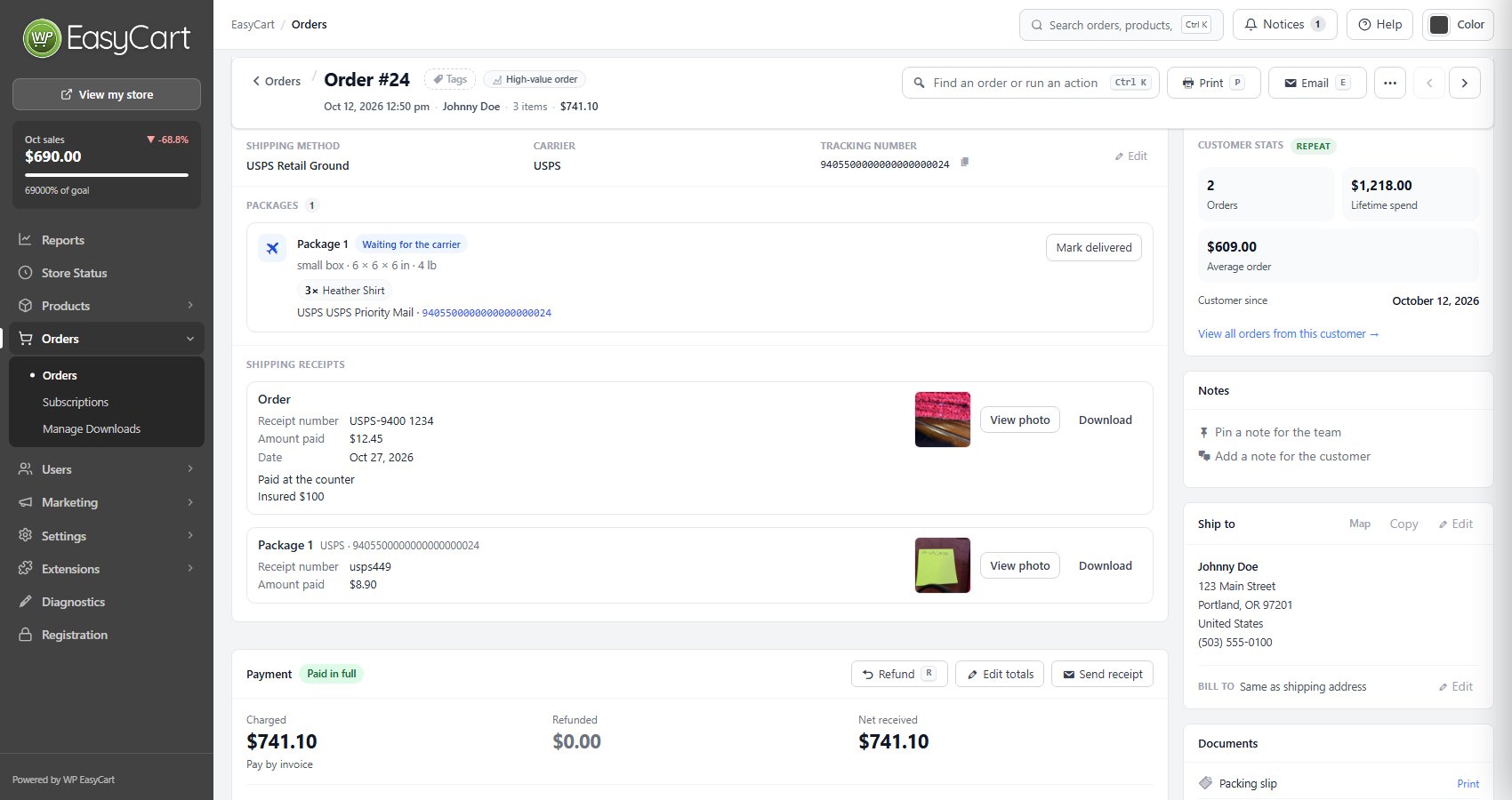
The Shipping receipts block, under Packages
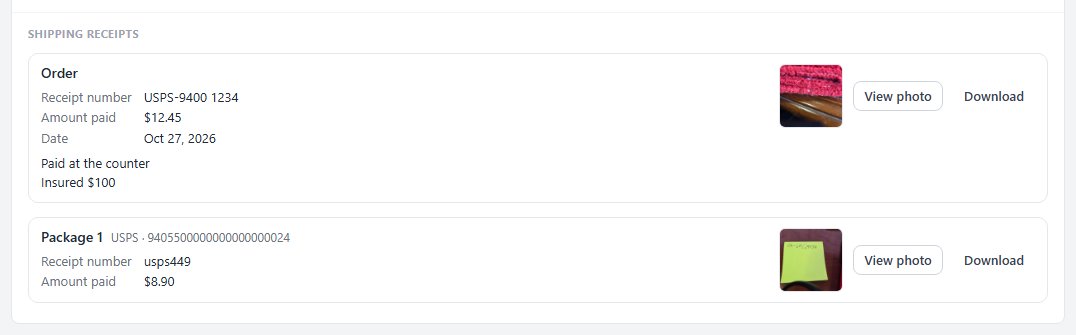
In your WordPress admin, open the order under EasyCart › Orders. Under Packages a Shipping receipts block lists every receipt the order has: Order for the whole order, and Package 1 and so on, each with its carrier and tracking number. Each shows the Receipt number, Amount paid, Date, Captured by and the note, with the photo’s thumbnail, View photo and Download.
The block is only there once a receipt has something saved, and it is read only: change a receipt in the app. Administrators, the WP EasyCart Store Manager role and staff with access to orders can see receipts and open their photos.
Use it
When a claim comes in
Chargebacks, lost package claims, and what to do when something does not save.
Use it in a chargeback
Proof that you paid to send the order, and when
When a customer disputes a payment saying the order never arrived, your payment provider asks you for evidence. Open the order and press Download on the receipt. The file is named with the order’s ID, such as order-1042-shipping-receipt.jpg, or order-1042-package-7-shipping-receipt.jpg for a package’s receipt, so it is easy to attach.
Send it with what the order screen already holds: the package’s carrier and tracking number next to the receipt, the ship-to address, and the shipped email in the order’s activity. The receipt’s number, amount and date show you paid to send that order on that day.
Use it for a lost package claim
A receipt per package, matched to its tracking number
A carrier claim is made per parcel, so give each package its own receipt when each had its own label. On the order screen, the Package row puts the receipt beside that package’s carrier and tracking number, so the claim has both in one place.
Use the note for what the claim form asks about, such as the insurance or extra cover you paid for. View photo opens the picture in a new tab to check it can be read before you send it.
If it does not work
What the app or the order screen tells you, and the fix
The app has no Shipping receipts card. Update WP EasyCart and WP EasyCart PRO on the store and let the database update finish, then open the order again. An older store does not offer receipts, so the app hides the card.
The receipt amount must be a number of 0 or more. Type the amount as a number, such as 12.45, with no currency sign.
The receipt date must look like 2026-10-27. Use year, month and day, or pick the date from the calendar.
The photo must be a JPEG or PNG image. or The photo is larger than 5 MB. Take the picture again with the app’s camera, which saves a JPEG of the right size.
The receipts folder could not be made. Your site cannot write to its wp-content folder. Ask your host to fix the folder permissions.
Nothing shows on the order screen. The block appears only when a receipt has a number, amount, date, note or photo saved. A duplicated order starts without the original’s receipt, which stays with the original.
Keep going
Related panels
The order screen, its packages and the activity log.
Phone Apps for iPhone and Android
Install the WP EasyCart app and sign in to your store.
Shipped emails and packing slips from an order.
WordPress Administrative User Roles
Which WordPress staff can open orders, and so see receipts.
Ready to run your store on WP EasyCart?
Everything in this guide works with the free plugin. PRO and Premium add subscriptions, memberships, wholesale pricing and more. Try every PRO feature free for 14 days.