
How-to › Fix common problems
How to Fix Payment Failed and Gateway Errors
Find out why a payment failed and fix it. You check Diagnostics, match test and live mode, read the log, tell declines from errors and check the Stripe webhook. 8 parts.
Quick links
Where to find it:WP Admin › EasyCart › Diagnostics
Before you start
Two kinds of failed payment
What a decline is, what an error is and the order to check.
Decline or error? Start here
What you need and the order to check things
no stored settingsWhat you need. Admin access to your store and to your payment gateway’s dashboard. Most of this guide uses Stripe, the gateway most stores run. The checks apply to every gateway.
Two different problems. A decline is the customer’s bank saying no: not enough money, a wrong security code, a card the bank does not like. Nothing is wrong with your store, and the customer tries another card. An error is something broken between your store and the gateway: wrong keys, a mode mismatch, a missing webhook, a page that cannot load the card form. Errors are yours to fix.
The order to check. First Diagnostics, which says whether the store is set up to take a payment at all. Then test and live mode, which explains most “it worked yesterday” problems. Then Log entries, where the gateway’s own words are. Then webhooks. Last, SSL and the card form.
Find the cause
Four checks
Diagnostics, test and live mode, the log, and the Stripe webhook.
Step 1. Check Diagnostics
Does the store think payment is set up?
no stored settingsOpen EasyCart › Diagnostics and read the Payment Status card. Passed checks are hidden by default, so press Show passed checks to see them. It says one of four things:
No method selected. Customers cannot complete checkout. Connect a gateway in Settings › Payment.
A method is selected but not finished. A red row names it. For Stripe or Square the row says exactly what is missing: no account connected, no test account connected, or no location chosen.
A method is running in test mode. An amber row reads “is in sandbox ( test ) mode, so its payments are not real”. Nothing is wrong. Real customers cannot pay.
Subscriptions without Stripe. Subscription products cannot be bought until Stripe is connected. A red row counts them.
The Checkout protection rows on the same card tell you if bot protection is off, watching only or under attack. The Store Status screen repeats the Payment readiness check.

Step 2. Match test and live mode
The most common cause of a payment that suddenly fails
no stored settingsTest mode and live mode are separate worlds. A test card only works in test mode. A real card only works in live mode. Keys, connections and webhooks are separate for each.
Open EasyCart › Settings › Payment. Each gateway card shows whether it is live, connected, or in test mode, and a banner names every gateway still in test mode with a control to turn it off.
Stripe connected through WP EasyCart. Live and sandbox are two connections. Connecting only the sandbox does not make the store ready. Diagnostics says “no Stripe account is connected” or “Stripe is set to test mode but no Stripe test account is connected”, and tells you which mode to connect or switch off.
Stripe with your own keys. Secret and publishable keys must come from the same mode. Test keys start sk_test and pk_test. Live keys start sk_live and pk_live. Never paste a key into a support request.
Currency. The currency in Settings › Store details is what is sent with every charge. If your gateway account does not take that currency, the payment is refused at checkout, not when you save the setting.
Finally check the mode in your gateway’s dashboard. In Stripe, the switch that shows test data or live data should match what you expect. A payment that seems to have vanished may be in the other mode.
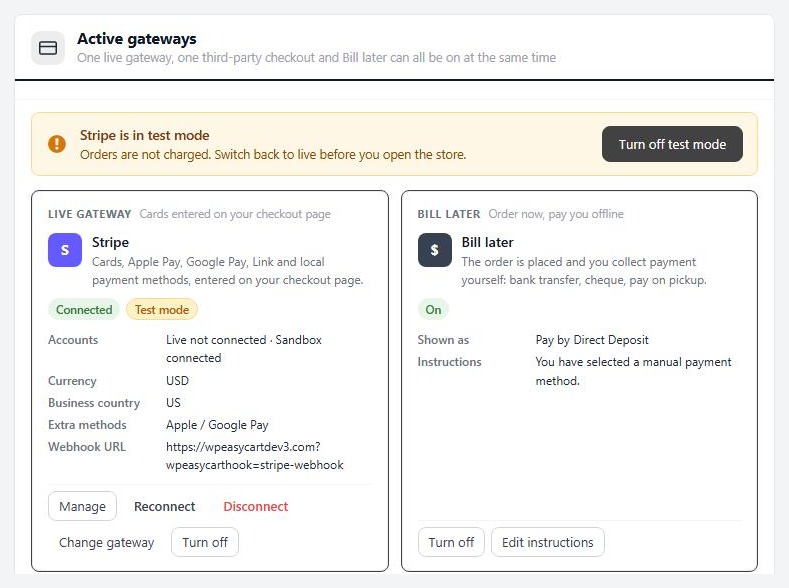
⚠️ Careful: Test mode takes no real money. Check Diagnostics and the banner on Settings › Payment say nothing is in test mode before you open the store.
Step 3. Read Log entries
The gateway’s own words, safe to share
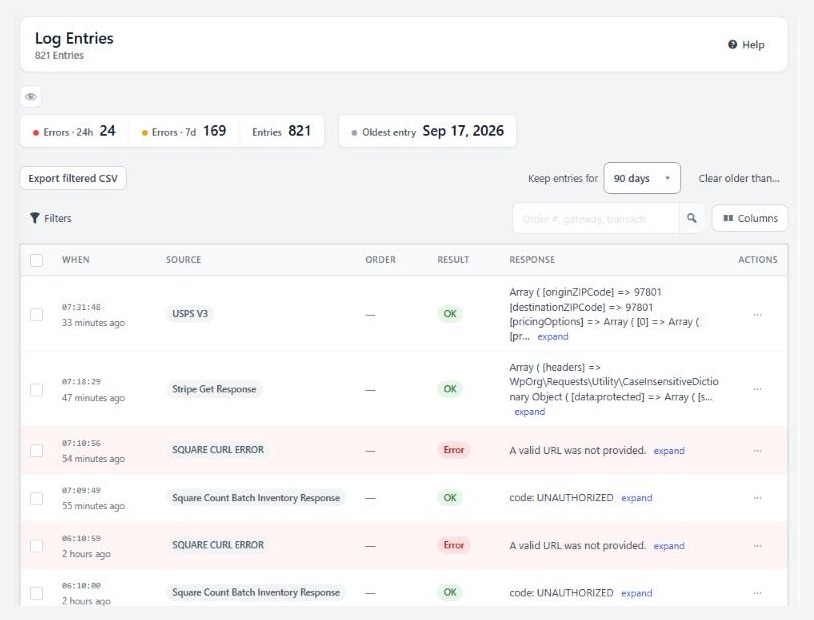
no stored settingsGo to EasyCart › Settings › Log entries. Every reply from a gateway, and every webhook from Stripe, is written here. If the screen is empty, check Log gateway and webhook responses in Settings › Admin, in the Diagnostics section. It is on by default. With it off, nothing is recorded.
Work like this:
1. Look at Errors · 24h. A jump means something changed today.
2. Press Errors only, or search for the order with #1234.
3. Read the Source and the Response. Sources name the gateway or the event, for example STRIPE Payment Failed.
4. Press expand for the full reply and Copy payload to paste it into a support request. Card numbers, security codes and keys are masked before they show, and again on export.
Entries are kept 90 days by default. If the problem is older, the log may not go back that far. The Oldest entry counter tells you.
💡 Note: The log is read-only, and masked before it shows. It is safe to copy a payload into a support request. Read it first anyway. Never share a key, even a masked one, in a public forum.
Declines versus errors
What to tell the customer, and what to fix
no stored settingsDeclines. The response names a bank or card reason, such as a declined card or a failed security-code check. Tell the customer to try another card or call the bank. There is nothing to fix on your store. A run of many declines from different cards in a short time is not a customer problem. It is card testing, covered in the card testing guide.
Errors. The response names a key, an account, a currency, a mode, a timeout or a permission. Those are yours. Fix the cause using the steps in this guide, then test again.
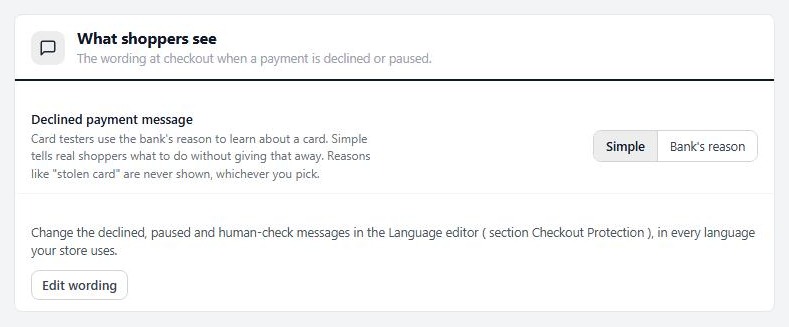
What shoppers see. By default a decline shows a simple message, and reasons such as a stolen card are never shown. You can choose to show the bank’s reason under Settings › Checkout protection › Declined payment message. Simple is the safer choice, because bots use the bank’s reason to learn about stolen cards.
Step 4. Check the Stripe webhook
How Stripe tells your store what happened
no stored settingsWhy it matters. A card payment usually finishes in the shopper’s browser. But refunds you make in Stripe, failed and renewed subscription payments, payments that finish later, and pay links all depend on Stripe telling your store. That message is the webhook. Without it the store never learns what happened. A subscriber’s card can fail and your store still shows Active.
The address. It is your site address followed by /?wpeasycarthook=stripe-webhook. The Stripe card in Settings › Payment shows it with a Copy Webhook to Clipboard link. In your Stripe dashboard, add it as a webhook endpoint for the same mode as your keys. Live and test modes each need their own endpoint. Choose these events: payment_intent.succeeded, payment_intent.payment_failed, charge.refunded, and for subscriptions invoice.payment_succeeded, invoice.payment_failed, customer.subscription.updated and customer.subscription.deleted.
The signing secret. The Secure Your Webhook field is optional. If you paste your endpoint’s signing secret, WP EasyCart accepts only events Stripe signed with it, and answers anything else with a 400 “Invalid Signature”. If you leave it blank, WP EasyCart takes only the event’s id and reads the event back from Stripe with your own keys. Either way a forged message cannot change an order. Every endpoint has its own secret, so the test one and the live one differ.
How to check it. In Stripe, open the endpoint and look at its recent deliveries. They should be answered with a success. In WP EasyCart, entries beginning with STRIPE appear in Log entries as events arrive. A 400 usually means the wrong signing secret, or the secret from the other mode. A timeout or a 403 usually means a security plugin or the host is blocking Stripe’s requests. Allow the address.
Stripe may send the same event more than once. WP EasyCart handles each event only once.
💡 Note: Your webhook address only works if your site is reachable from the internet. On a local or password-protected staging site Stripe cannot deliver events.
SSL and the card form
Your checkout must be secure
no stored settingsCard details must go over a secure connection. Stripe’s card fields expect your checkout page to load over https. Check that your site address starts with https:// and that the padlock shows on the cart page, with no mixed-content warning.
If your certificate works, Force HTTPS on every page in Settings › Checkout ( Cart page card, advanced ) redirects the whole site to https. Only turn it on once the certificate is installed and working, or the site becomes unreachable.
If the card form does not appear at all, the causes are usually a JavaScript error from another plugin, a cached checkout page, or a speed plugin delaying scripts. See the caching guide.
Good to know
If it still fails
Match the symptom to a fix.
If it does not work
Match what you see
no stored settingsEvery payment fails right after a change. Check the mode first. Then the keys. Then Log entries for the newest error.
The customer was charged but the order shows unpaid or on hold. Look in Stripe for the payment, then in Log entries for the order. An order flagged Payment on hold means the payment did not match the order, so WP EasyCart put it on hold and did not mark it paid. Read the staff note, then decide in the order. If the log shows the webhook never arrived, fix the webhook.
A refund made in Stripe does not show in the store. The webhook is missing or failing. Fix it. The order updates the next time Stripe sends the refund event, and you can resend an event from Stripe’s dashboard.
Payments work in test mode and fail in live mode. Live keys or a live connection are missing, or your gateway account is not yet approved for live payments. Ask your gateway.
Customers are paused or refused after a few tries. That is Checkout protection, not a gateway error. See the card testing guide.
Need us? Open a request in your account with the order number and a copied payload from Log entries.
Keep going
Related panels
Every gateway option on Settings › Payment.
Every filter and action on Log entries.
Every health check, with one-click repairs.
The switch that turns gateway logging on.
The four readiness checks, including payment.
Ready to run your store on WP EasyCart?
Everything in this guide works with the free plugin. PRO and Premium add subscriptions, memberships, wholesale pricing and more. Try every PRO feature free for 14 days.



