
What’s newFind any order, customer, product or setting with one admin search. See all features

How-to › Start here

How to Take Your First Payment

Connect Stripe, Square, PayPal or Bill later, test with test money and switch to live. 9 parts.

Quick links

Where to find it:WP Admin › EasyCart › Settings › Payment

Before you start

What you need

Which gateways are free, which need a license, and what each one requires.

What you need

An account with the gateway, and which options cost what

What you need. A WP EasyCart store with at least one product, and an account with the payment provider you choose. Stripe is the recommended path: it takes cards on your own checkout page, and adds Apple Pay, Google Pay and Link.

Free or PRO. On the free edition, Bill later, which shoppers see as Pay by bank transfer, is free. Stripe, Square and PayPal connect through EasyCart Connect and carry a 2% EasyCart fee on each sale, on top of the provider’s own fees. A PRO or Premium license removes that fee and unlocks 30+ more gateways, including Authorize.net, Braintree, Moneris and Intuit Payments. Amazon Pay is a PRO wallet. There is a 14-day free trial if you want to try PRO first.

Secure checkout. Stripe and Square need your site on https. PayPal does not.

The steps are: pick a gateway, connect it, test it with test money, then switch to live.

Set it up

Four steps to a first payment

Choose, connect, test with test money and go live.

Step 1. Choose how you will be paid

Card payments, checkout buttons, wallets and pay later

Open EasyCart › Settings › Payment. How customers pay has one line for each way a shopper can pay:

Card payments: cards entered on your checkout page. Stripe or Square.
Checkout buttons: shoppers finish paying on the provider’s site. PayPal.
Wallets: Amazon Pay, PRO only.
Pay later: Bill later, shown to shoppers as Pay by bank transfer. The order is placed now and you collect payment yourself.

A card gateway, checkout buttons and Bill later can all be on at the same time. Until a card gateway is connected, the card payments line says Shoppers can’t pay by card on your site yet.

An empty line suggests the recommended gateways:
Connect Stripe and Connect Square for card payments, Connect PayPal for checkout buttons. Every other gateway is under Add or change a gateway further down, which you can search by name or country, each labelled with the license it needs. Both follow your store country, set in Settings › Store details: the gateways that take payments there come first, and the rest are folded away.
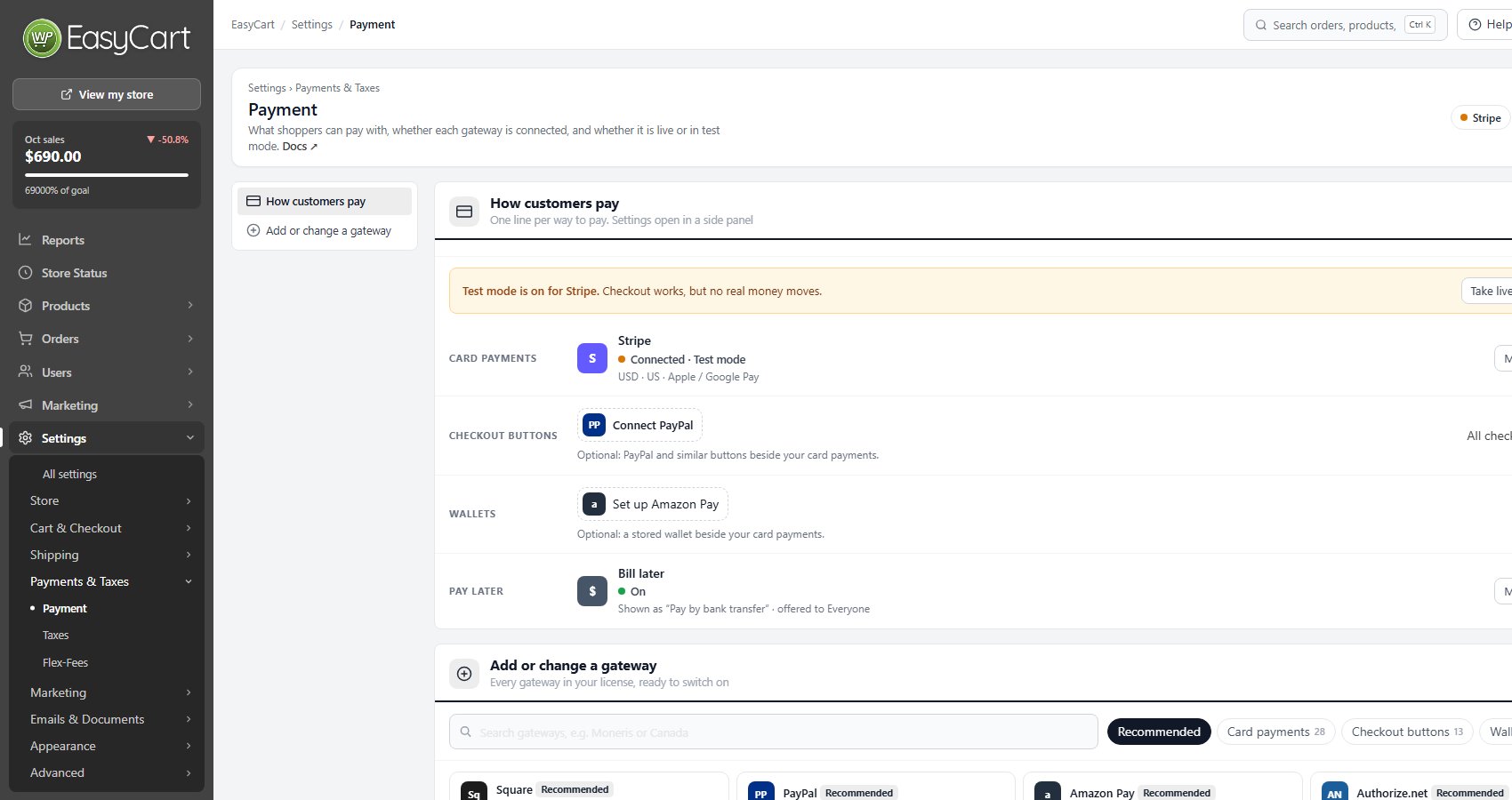
Settings › Payment: one line per way to pay, here with Stripe connected in test mode and Bill later on, shown to shoppers as Pay by bank transfer.

Step 2. Connect Stripe

The recommended path, sandbox first, then live

On the card payments line press Connect Stripe. The first time on the free edition, you are asked to accept the EasyCart Connect terms. Then Stripe’s own page opens, you sign in or create an account, authorise, and you come back connected. The setup wizard’s payment step connects Stripe the same way.

To start with a Stripe test account instead, press Try sandbox on Stripe under Add or change a gateway. Stripe keeps test and live accounts separate. Connect the sandbox first so you can test with no real money. When you are ready, Connect live account in the line’s … menu adds the real one, and Take live payments and Switch to test mode in the same menu move between them. The line says which is in use: Connected · Live or Connected · Test mode.

Once Stripe is connected, Manage opens its settings in a side panel, in tabs. There you pick your Currency, turn on extra payment methods such as Apple Pay and Google Pay, Link, Klarna, Affirm and Afterpay, and find the Webhook address Stripe should send events to, under Notifications from Stripe. Changes wait for the Save button at the foot of the panel.

PRO adds Stripe (API keys, v1), for stores that want to paste their own live and test keys instead of using Connect.

💡 Note: Stripe is also the only gateway that can bill subscriptions. Every option on the payment screen is explained in Settings › Payments & Taxes › Payment.

Or connect Square

Cards on your site, kept in step with your Square account

Press Connect Square on the card payments line, or Try sandbox on Square under Add or change a gateway to use a Square sandbox account, and finish the authorisation on Square’s side. Make sure you complete it, or the page reports that Square did not finish connecting. Connecting from the setup wizard works the same way.

Once connected, Square is your card gateway. Its line shows your merchant name, the location in use and whether digital wallets are on. A store that started in the sandbox connects its live account with Connect live account in the line’s … menu, then moves between the two with Take live payments and Switch to test mode.

Square is also the choice if you sell in person with Square. Products and inventory can be kept in step with your Square account, and Products › Import brings your Square items into your store.

Add PayPal

PayPal, Venmo and Pay Later buttons that shoppers already know

PayPal goes on the checkout buttons line, so it works alongside Stripe or Square. Press Connect PayPal, or Try sandbox on PayPal under Add or change a gateway for a PayPal sandbox account. No SSL certificate is required.

In PayPal’s settings you choose between PayPal Checkout buttons on your site and PayPal Standard ( redirect ). With Checkout buttons you can also offer Venmo, Card and Pay Later buttons, and the line lists them.

Choosing a different checkout button gateway replaces the current one, and you are asked to confirm first.

Or take orders and bill later

Pay by bank transfer, cheque, pay on pickup, no fees

Bill later needs no gateway. The customer completes the order and pays you offline, and you follow up yourself. It costs nothing, so it is also the fastest way to run a test order.

Press Set up ( or Manage ) on the Pay later line to open the Bill later wording:

Bill later option name: what the choice is called at checkout and on the receipt. It starts as Pay by bank transfer; change it if you take cheques or payment on pickup instead.
Instructions for the shopper: shown at checkout and on the receipt. Say when to pay, where to send a cheque or your pickup notes.
Bank details: your account in your country’s format, such as sort code and account number in the UK, IBAN and BIC in Europe, BSB in Australia or routing and account number in the US. They are listed under your instructions at checkout, on the order confirmation and in invoice emails, with the order number as the payment reference.

Press Save, or Save and turn on while it is off. The line then shows the name and who it is offered to.
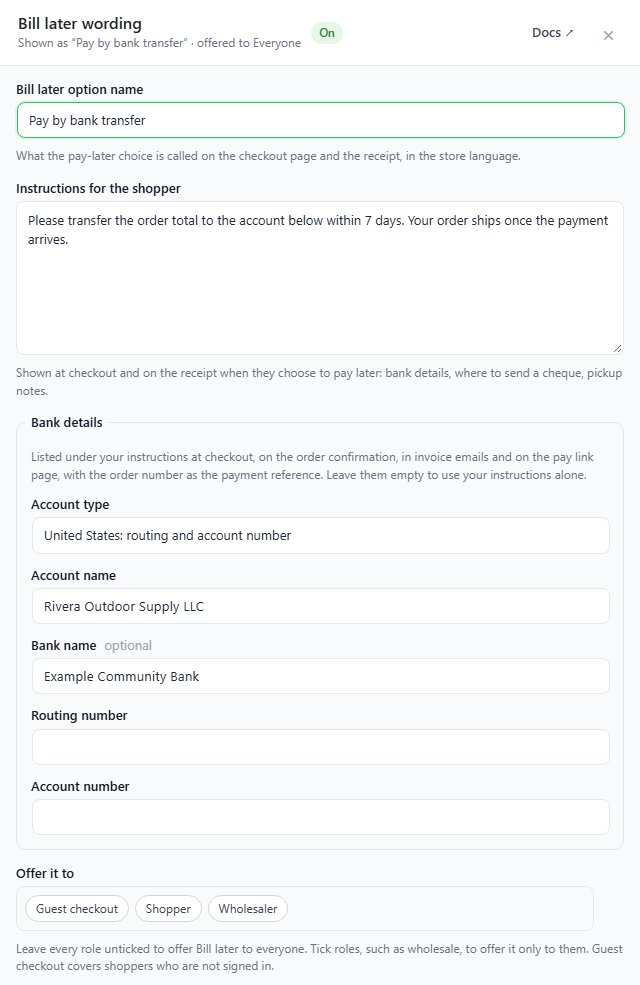
The Bill later wording panel: the option name Pay by bank transfer, the instructions, bank details ( example data ) and the roles it is offered to.

Step 3. Test it

Place an order with test money

While a gateway is in sandbox or test mode, orders are not charged. A line above the ways to pay says so, for example Test mode is on for Stripe. Checkout works, but no real money moves.

In a private window, so you are not logged in as an admin, buy a product from your store.

Stripe. Use the card Stripe publishes for tests, 4242 4242 4242 4242, with any future expiry date and any security code. To see a refusal, use 4000 0000 0000 0002, which Stripe declines.
Square. Use the sandbox test card numbers listed in Square’s developer documentation.
PayPal. Sign in at checkout with a sandbox buyer account from your PayPal developer dashboard.

Already live with Stripe? Switch one staff account to Stripe test-mode customer ( Users › User Accounts, the customer’s Tax & Preferences ) and it checks out with test cards while everyone else pays live.

Then open Orders › Orders. The order should be there with the right total. If it is not, see the last section.

⚠️ Careful: A gateway in test mode takes no money. Before you announce your store, check the Payment page shows nothing in test mode.

Step 4. Go live

Take live payments and place one real order

On Settings › Payment press Take live payments on the test-mode line. It switches every gateway that has a live account to live, after you confirm that real cards will be charged from now on.

A gateway without a connected live account stays in test mode, and the page names it. Press Connect live account in its … menu first.

Then place one real order for a small amount, confirm it appears in Orders, and refund it from your gateway dashboard. A gateway that authorises in sandbox can still fail live, for reasons a connection check cannot see, such as an account not yet approved for live processing.

⚠️ Careful: Taking live payments charges real cards from that moment on. Place one real order to confirm it works before you promote the store.

When it goes wrong

Troubleshooting

What to check when a payment fails or nothing is charged.

If it does not work

What to check when a payment fails

Shoppers cannot pay by card. The card payments line says shoppers can’t pay by card yet, and the pill beside the page title says No card payments. Connect Stripe or Square, or make sure the gateway you connected is live and not only sandbox.

Payments succeed but nothing is charged. A gateway is still in test mode. Look for the test-mode line on Settings › Payment and press Take live payments.

A line says a license is needed. A gateway that is still selected but needs an active license to process payments is not taking orders. Renew or choose a free gateway.

Stripe or Square will not load on the checkout. Both need your site on https. Check that your certificate works.

Refunds or subscription events do not reach your store. Check the webhook. Stripe must send events to the Webhook address shown under Notifications from Stripe in Stripe’s settings.

A card was refused and you cannot see why. Open Settings › Log entries. It records the reply your gateway sent back, marked OK or Error, with the order it belongs to.

Store Status. EasyCart › Store Status fails its Payment check when no payment method is set up at all.

Still stuck? Open a ticket at wpeasycart.com/my-account.
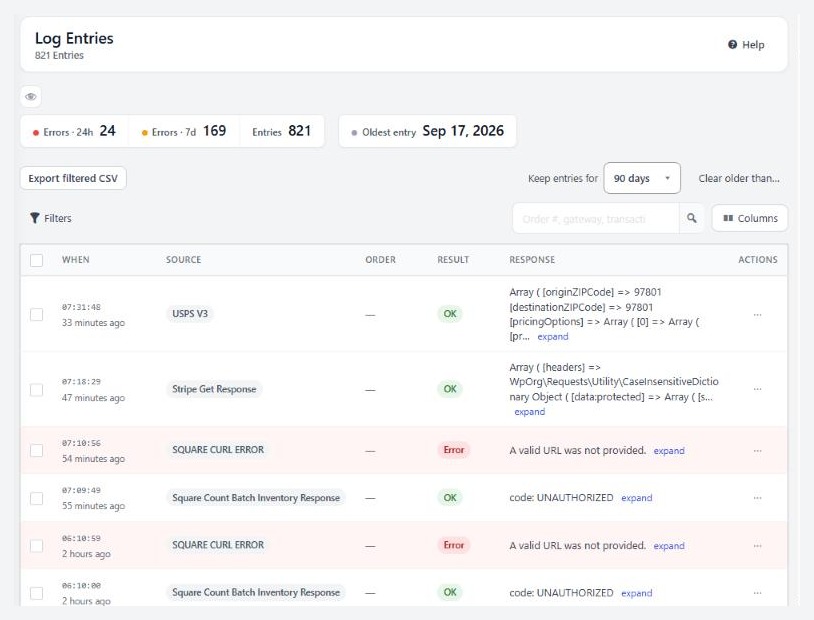
Settings › Log entries, where gateway replies are recorded.

💡 Note: What each log entry means is covered in Settings › Advanced › Log entries, and the readiness checks in Store Status.

Keep going

Related panels

Payment

Every gateway, slot and test mode switch on the Payment page.

Checkout

Guest checkout and the rest of the checkout settings.

Log entries

The gateway replies your store recorded.

Store Status

Licence state and the four readiness checks.

Ready to run your store on WP EasyCart?

Everything in this guide works with the free plugin. PRO and Premium add subscriptions, memberships, wholesale pricing and more. Try every PRO feature free for 14 days.

The WP EasyCart admin: orders and offers
Updated on October 19, 2026