
What’s newFind any order, customer, product or setting with one admin search. See all features

How-to › Checkout, orders and customers

How to Take a Deposit and Collect the Balance

Record a deposit the customer paid outside the store, show what is still due everywhere they look, and mark the order paid when the rest arrives. 8 parts.

Quick links

Where to find it:WP Admin › EasyCart › Orders › Orders › open an order

Before you start

How it works

What you need, and what an order does while it waits for the rest.

How a deposit works

What you need, and what the order does meanwhile

What you need. WP EasyCart PRO or Premium. Recording part of what an order owes is a PRO feature; without it the Record payment button shows locked, and you can only record the whole amount. Taking the rest online with a pay link needs Stripe, Square or PayPal.

What a deposit is. Money a customer paid you outside the store, by bank transfer, cash or cheque, that is less than the order owes, on an order that is not paid yet. You record it on the order. The order keeps its status and its stock until the rest is paid, and everyone can see what is still due: you on the order screen, the customer on the receipt, the invoice and My Account.

The steps: have the order ready, record the deposit, check what the customer sees, then collect the balance.

Do it

Four steps

Have the order ready, record the deposit, check what the customer sees and collect the balance.

Step 1. Have an order that is not paid yet

Placed by the customer, or built by you

A deposit goes on an order whose status does not count as paid. Two common ways to get one:

The customer orders and pays by bank transfer. The order arrives waiting for the transfer.
You build it. With New order on the Orders page, save it as Awaiting Payment, or send its invoice. A draft takes no payment until its invoice goes out. See How to Take a Phone Order and Send a Pay Link.

Open the order. Its Payment card shows the total and what is due, and Record payment sits under it. The button is not offered on an order that is already paid, refunded or cancelled, on a draft, or while a payment is still processing.

Step 2. Record the deposit

Payment card › Record payment

Press Record payment. The form says what it is for: a deposit or a payment you took outside the store. Less than the amount due is recorded as a deposit, and the order keeps its status until the rest is paid.

Amount received starts at the full amount due. Change it to the deposit. The line under it tells you what will happen before you save, for example Records a $200.00 deposit. $300.00 stays due, and the order keeps its status.
Reference ( optional ): the bank transfer reference or cheque number.
Email the customer a receipt: tick it to send the receipt, which shows the deposit and the balance.

Press Record payment. The order says Deposit recorded. Its header and the Payment card’s chip now read Deposit paid, the card shows the Deposit, and the totals list Deposit received against the order total.

From the status instead. If you pick a status that counts as paid, such as Bank Transfer Received, on an order that still owes, EasyCart asks How much did the customer pay? Enter less than is due and the button reads Record a … deposit: the deposit is recorded and the order keeps the status it had.
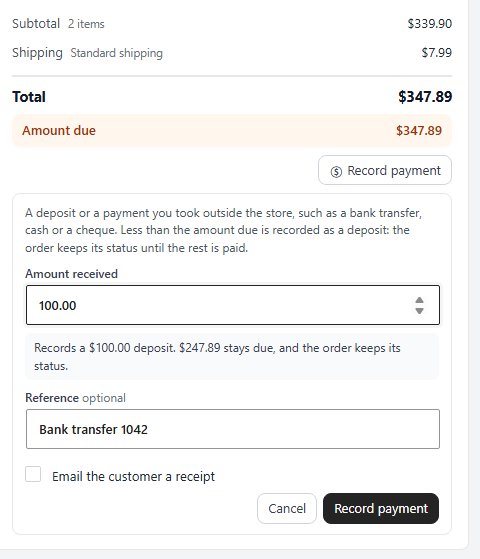
Record payment on an order not paid yet, with a deposit typed in and the line saying what will stay due.

💡 Note: A deposit never changes the order’s status. Stock is taken, and connected services are told, only once the order is paid in full.

Step 3. Check what the customer sees

Receipt, invoice, pay page and My Account

Everywhere the customer reads about the order, the deposit is named and the rest is shown as due:

The receipt email: under the order total, a Deposit paid line and a Balance due line.
The invoice PDF: the same two lines.
The pay page: the order’s pay link lists Deposit paid and asks only for what is still due.
My Account: the order says We received your deposit. Balance due: with the amount, and, when your store uses pay links, the way to pay it online.

The words are yours to change in Settings › Appearance › Language: search for Deposit paid or We received your deposit.
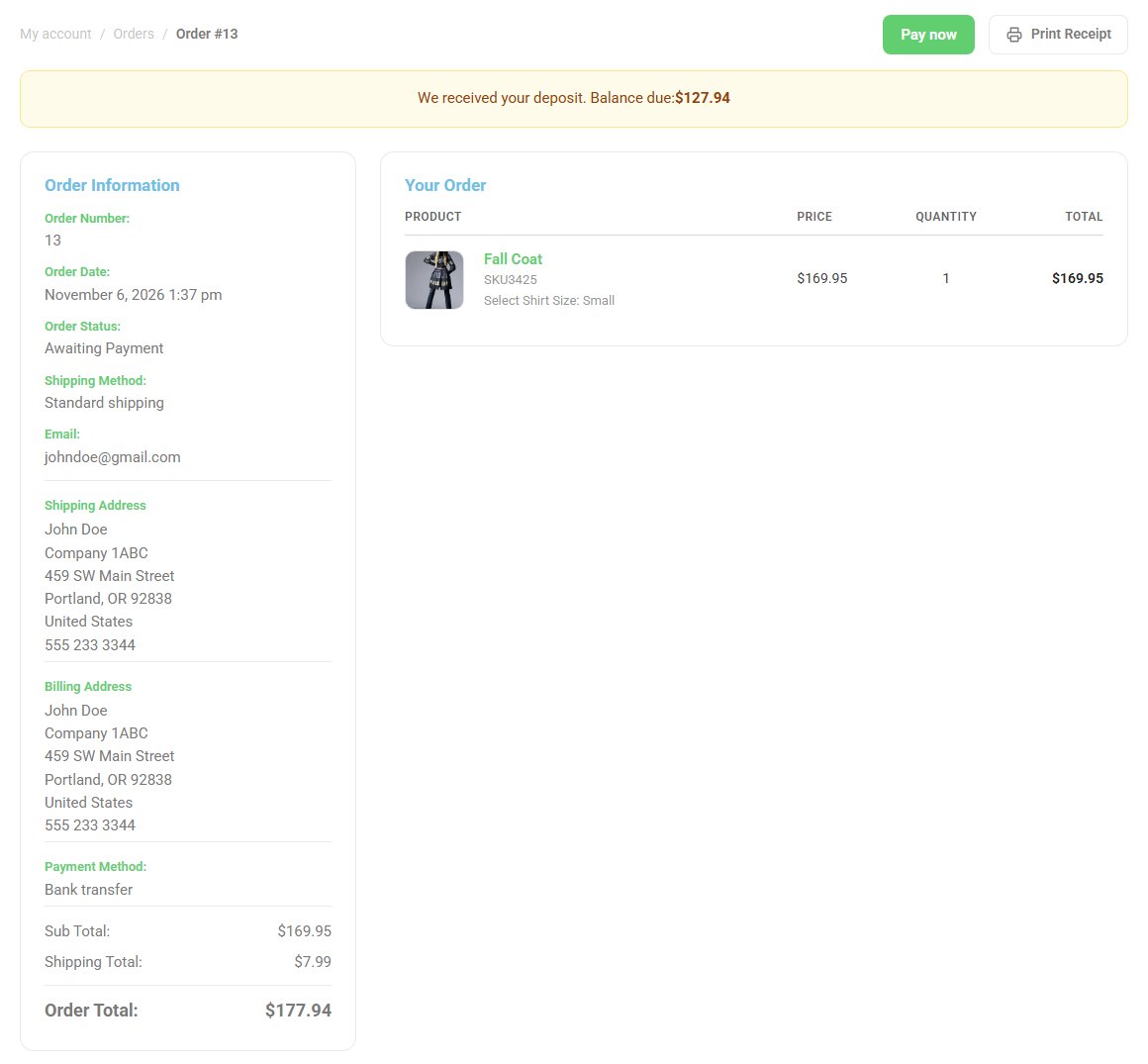
The order in My Account after a deposit: the balance still due.

Step 4. Collect the balance

Three ways, and the order completes itself

When the rest is due, use whichever suits the customer:

They pay online. Send the pay link from the order’s Invoice & PO card. It charges only what is still due.
You record it. Press Record payment again. With the full amount due in Amount received the line reads Marks the order paid in full. Choose the status in Then set the status to ( Bank Transfer Received is picked for you ) and save. The order says Payment recorded. The order is paid.
You set a paid status. EasyCart asks: This order still owes …; a … deposit was received before. How much did the customer pay now? Enter the rest and press Record … and mark paid.

Either way the order now counts as paid: its stock is taken, the payment goes on the order’s timeline, connected services hear it was paid, and the customer gets a receipt if you ticked the box.
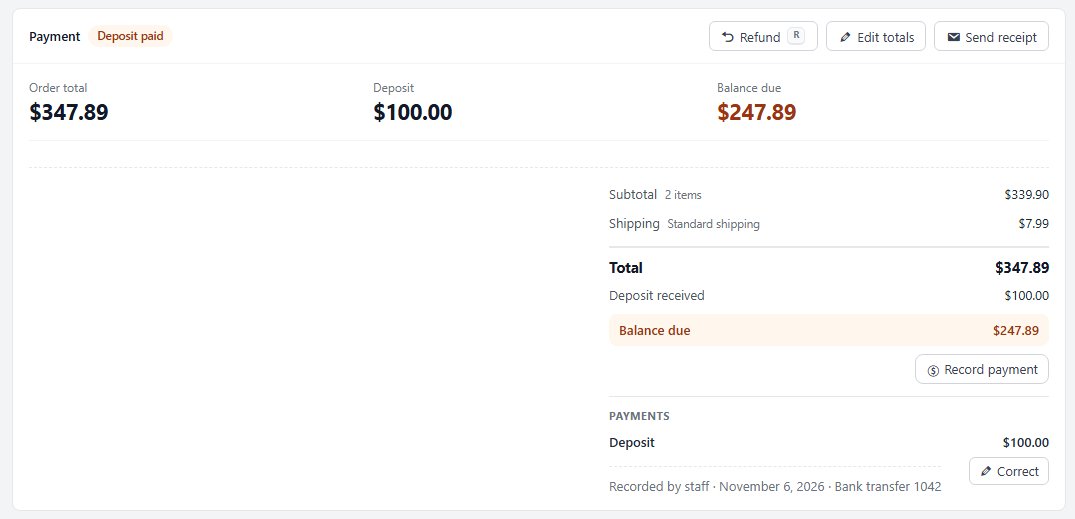
The Payment card of an order with a deposit: Deposit paid, the deposit and the balance due.

Keep it running

Fixes and tests

Correcting a payment, testing, and the usual problems.

Recorded the wrong amount?

Correct or remove a payment

The Payment card lists each payment under Payments, with Correct beside one you recorded. Correct this payment takes what The payment should be and an optional reason, shown in the activity, and says what the order will owe. Remove this … payment takes it off. Nothing is charged or sent back: to give a customer money back, use Refund. Removing a payment works on every store; changing its amount needs PRO.

⚠️ Careful: Correct changes only what the order records. If the customer should get money back, use Refund.

Test it

On an order of your own

1. Build an order for yourself with New order and save it as Awaiting Payment.
2. Record a deposit of part of the total, with Email the customer a receipt ticked.
3. Check the order reads Deposit paid, and the receipt shows Deposit paid and Balance due.
4. Record the rest. Check the order is paid and its stock went down.

Cancel or delete the test order afterwards.

If it does not work

The usual reasons

There is no Record payment button. The order is already paid, refunded or cancelled, is a draft whose invoice has not gone out, or has a payment still processing. An order made outside WP EasyCart, or a very old one edited after it was paid, has no record of what was paid and takes no deposit.

Record payment shows a PRO pill. Deposits need WP EasyCart PRO. Without it you can still set a paid status and record the whole amount.

It says Recording part of the amount due needs WP EasyCart PRO. You entered less than the order owes on a store without PRO. Record the whole amount, or leave the status as it is.

The order went paid when I meant a deposit. The amount was the whole amount due. Use Correct on the payment to set the right figure.

Keep going

Related panels

Order Management

The order screen, its Payment card and refunds.

Documents

Pay links, the invoice email and invoice numbers.

Sending Order Documents

Sending the receipt and invoice from an order.

Language

Change the Deposit paid and Balance due wording.

Ready to run your store on WP EasyCart?

Everything in this guide works with the free plugin. PRO and Premium add subscriptions, memberships, wholesale pricing and more. Try every PRO feature free for 14 days.
The WP EasyCart admin: orders and offers
Updated on November 6, 2026