
How-to › Marketing and growth

How to Plan a Black Friday Promotion

Run a big sale without losing your margin or your stock. You build scheduled offers, add a free shipping threshold and a buy one get one, promote them, line up email and check stock and shipping. 12 parts.

Quick links

Where to find it:WP Admin › EasyCart › Marketing › Offers

Before you start

What you are building

What you need, and how the pieces of a sale fit together.

How to plan the promotion

What you need, and how the pieces fit

no stored settings

What you need. WP EasyCart PRO or Premium for Offers, abandoned cart recovery and the code tools. Cart links are in the free plugin, with the extras in PRO. You can try PRO with the free trial, but do that weeks before the sale, not the week of it.

The plan. One clear offer beats five confusing ones. Pick a headline a customer can repeat in a sentence, build it as an offer with start and end dates, protect your margin, promote it, then check stock and shipping before the rush.

The steps: choose the offers, build and schedule them, add a free shipping threshold and a buy one get one, protect your margin, promote it, share links and codes, line up email, then check stock and shipping and test. A timeline is at the end.

Set it up

Nine steps

Choose the offers, schedule them, add free shipping and a BOGO, protect your margin, promote the sale, share links, line up email and check stock and shipping.

Step 1. Choose the offers

What WP EasyCart can run, and when to use each

no stored settings

Go to EasyCart › Marketing › Offers and press Create Offer. These are the starting points that suit a big sale:

Percent-Off Sale: an automatic percent off, storewide. It is the simplest headline.
Free Shipping Over…: free shipping past a spend. It pulls carts upward.
BOGO: buy one, get one free or a percent off. Good for clearing stock.
Coupon Code: for email subscribers, VIP early access or a partner.
Tiered Pricing: bigger discounts as quantity or spend rises.
Free Gift: a free product on carts over an amount.

A strong plan is one storewide percent off, one free shipping threshold, and one code for your best customers. The steps below cover each.

The coupons and automatic discounts guide covers every setting on the offer editor. This guide covers how to use them for a sale.

Step 2. Build it early and schedule it

Draft, dates, then Live

no stored settings

Build every offer days ahead so you can test it. In the create panel, set Starts and Ends, and untick Activate immediately if you want the offer to stay a draft while you work. The panel takes whole days, a start at midnight and an end at 11:59 pm.

For the exact minute, open the offer and set Starts and Ends under section 3, in your WordPress time zone. Check that time zone in Settings › General in WordPress first. A sale that starts at midnight in the wrong zone starts hours early or late.

When you are happy, set the offer to Live and press Save Changes. An offer that is live with a start date in the future waits for that date, and one with an end date stops on its own. The Offers overview lists what is running, what is scheduled and what is ending soon.

To run the sale on certain days only, such as a weekend, use the day pills under Only on these days.
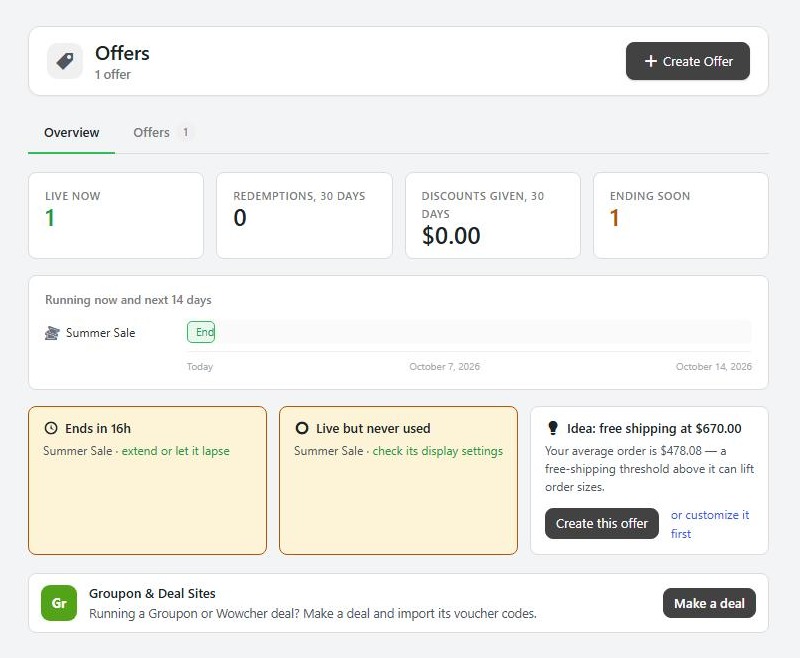
Marketing › Offers, the Overview tab, where live and scheduled offers are listed.

⚠️ Careful: Check your WordPress time zone before you set a start time. It decides when a sale begins and ends, and the wrong one shifts it by hours.

Step 3. Add a free shipping threshold

Free Shipping Over…

no stored settings

Choose Free Shipping Over…, name it, and enter the amount. Set the amount a little above what a typical customer spends now, so it pushes them to add one more item. Give it the same start and end dates as the sale.

It starts with Show progress messaging on. In the cart, the shopper sees how close they are, such as a prompt to spend a little more to get free shipping. That message is the most effective part of the offer.

In the editor, the Shipping deal card can limit the offer to certain shipping rates or zones, and can also waive the handling fee and per-product shipping fees. Without that, those are still charged.
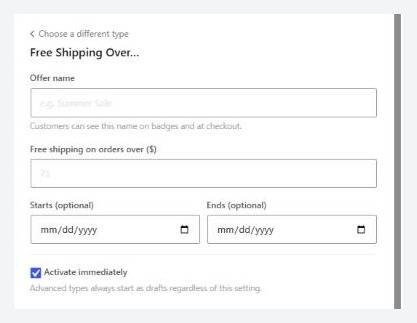
Marketing › Offers › Create Offer, with Free Shipping Over… chosen.

Step 4. Add a buy one get one

BOGO, on the products you want to move

no stored settings

Choose BOGO. Set whether the second item is Free or A percentage off. The cheapest matching item gets the discount, and it applies storewide until you narrow it.

Open the offer and use section 2. What it applies to to add only the products or categories you want in the deal. A storewide BOGO gives away your cheapest item on every order. In the Buy X get Y card you can make it repeat for every multiple, or use Apply at most in the advanced settings to limit how many times it applies in one order.

Step 5. Protect your margin

Caps, sale items and stacking

no stored settings

Before you go live, open Advanced discount behavior on each offer.

Also apply to items already on sale: decide it on purpose. Untick it if your sale prices are already thin.
Discount is based on: regular price or current price after sales.
Cap the total discount at: the most one order can receive.

Then set Total redemptions, Per customer and the stacking choice in section 5. Decide whether the free shipping threshold may stack with the percent off. Open Check how this offer stacks with other live offers and read every verdict. Save first, because it reads saved settings.

⚠️ Careful: Stacking is where discounting goes wrong. A storewide percent off that stacks with a code and applies to sale items can take a cart below cost. Set a cap and read the stacking check.

Step 6. Promote it in your store

Badges, callouts and countdowns, and what does not exist

no stored settings

In section 6. How it looks in the store of each automatic offer:

Show a badge on product images: for example 30% OFF, with your colour and shape.
Product page callout: a line on qualifying product pages.
Show a countdown when the offer is ending soon.

A banner. WP EasyCart does not have a site-wide announcement bar. Put a banner at the top of your site with your theme or page builder, and link it to your sale page or a cart link.

A sign-up popup. To grow your list before the sale, turn on Show the newsletter sign-up popup in Settings › Design under Newsletter popup. Sign-ups appear under Users › Subscribers.

The code box. If you use codes, check Coupon code box is on in Settings › Checkout, under Cart page.

💡 Note: Offer badges and callouts show for automatic offers. A code offer is promoted wherever you share the code.

Step 8. Line up email and text

The pieces that carry the sale to your customers

no stored settings

Newsletters. WP EasyCart does not send newsletters. Connect your email service, so your subscribers stay in step, then send the campaign from it. The email marketing guide covers the connection.

Abandoned carts. Turn on the recovery sequence before the sale. Black Friday carts are the ones most worth recovering. Decide whether step 2 or 3 carries a code.

Text updates. With PRO and the Text Messaging cloud service, customers can get a text when their order changes status, which cuts “where is my order” email in a busy week. Write and test the messages first, in Settings › Checkout under Order text notifications. The text messaging guide covers it.

Step 9. Check stock and shipping

Low stock alerts, the Inventory screen and shipping promises

no stored settings

Stock. Open Settings › Checkout and the Stock alerts card. Set Low stock threshold, and turn on Email me when stock runs low and Email me when a product sells out. Then open EasyCart › Products › Inventory and look at your hero products. A sale on an item you cannot ship is a refund.

Shipping. Check Settings › Shipping rates for every region you sell to. In Settings › Search & AI the Shipping card holds Handling time and Order cut-off time. Raise the handling time for the busy days, so what Google and AI assistants read about your delivery is honest.

Payments. Place a real order at your usual gateway a few days ahead, to be sure checkout works and the emails arrive.
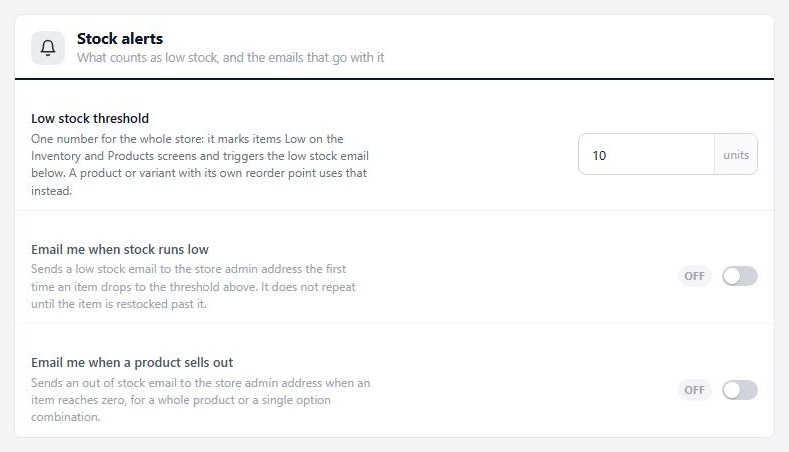
Settings › Checkout › Stock alerts.

Keep it running

The timeline and the fixes

What to do and when, and what to check when a sale misbehaves.

The timeline

What to do, and when

no stored settings

Six weeks before. Choose the offers and margins. Check PRO is installed and licensed. Turn on the newsletter popup.
Four weeks before. Build the offers as drafts with dates. Make your cart links. Write the emails.
Two weeks before. Test every offer with the simulator, the stacking check and a real order. Turn on the abandoned cart sequence. Check stock alerts.
One week before. Set the offers Live, so they wait for their start dates. Load codes into your email service. Check shipping and handling time.
The day before. Place one last test order. Schedule the email. Put your banner up with your theme or page builder.
During the sale. Watch the Offers overview and the Inventory screen. Pause any offer that is costing more than it should.
After. Look at each offer’s Performance panel. Archive what is finished, and keep the notes for next year.

If it does not work

The usual reasons a sale misbehaves

no stored settings

The sale did not start. Check the offer is Live and saved, and the start time in your WordPress time zone. A draft or a paused offer never starts.

A discount stacked that should not. Open the stacking check on the offers. Set one to This offer wins alone, or use Custom.

Free shipping did not apply. The cart may be under the threshold, or the shipping rate may not be among the rates the offer is limited to. Use the simulator with a shipping cost.

The sale ended at the wrong time. The panel ends at 11:59 pm on the date you pick. Set a minute in section 3 for anything else.

Support. If something on your store is broken during the sale, contact us at wpeasycart.com/my-account.

Keep going

Related panels

Offers

Every setting in the Offers editor.

Cart Links

Links that fill a cart, with an optional code.

Abandoned Carts

Recovery emails for the carts a sale leaves behind.

Inventory Report

The Inventory report and low stock.

Ready to run your store on WP EasyCart?

Everything in this guide works with the free plugin. PRO and Premium add subscriptions, memberships, wholesale pricing and more. Try every PRO feature free for 14 days.

The WP EasyCart admin: orders and offers
Updated on September 30, 2026