
How-to › Design your store › Choose a method
Which Design Method Should I Use?
Blocks, shortcodes, Elementor, Divi or your theme. Pick the right one for each page and know what each can and cannot do. 9 parts.
Quick links
Where to find it:WP Admin › EasyCart › Settings
Before you start
The short answer
What you need and the quickest way to choose.
The short answer
Pick by how you like to build, then mix where it helps
no stored settingsWhat you need. WP EasyCart, free. Blocks, shortcodes and the Design settings are all in the free plugin. The Elementor widgets are free too and need Elementor, whose free version is enough. PRO adds a few Elementor extras, listed below.
If you use the block editor, use the Gutenberg blocks.
If you use Elementor, use the EasyCart widgets and templates. This is the only method that lets you design the product page itself. See Elementor: Build a Product Page Template.
If you use Divi or another builder, use shortcodes. See How to Use WP EasyCart with Divi and Design Your Store with Shortcodes.
If you only want a new look, skip the page building. Colors, fonts, columns and wording are settings. See How to Customize Your Store’s Look.
All of these can live on one site. The rest of this guide says what each one can and cannot do.
💡 Note: Not sure? Start with the Design settings and the three pages made when you installed. You can add a builder later without losing anything.
Compare them
Five methods
What blocks, shortcodes, Elementor, other builders and the theme layer can and cannot do.
Gutenberg blocks
Fast, no extra plugin, no product page
no stored settingsThe WP EasyCart block, Store by Category and WP EasyCart Search add EasyCart content to any page in the block editor. Each block saves a shortcode, so there is no live preview: you update the page and look at it.
Can do: the store page, a store limited to a category, menu, manufacturer or one product, category grids, a single product tile, an Add to Cart button, a product table, the cart, the account page and search.
Cannot do: design the product page layout, or restyle the cart and checkout. Blocks place EasyCart’s own layouts. Look and feel come from the Design settings.
Shortcodes
Works anywhere text works
no stored settingsA shortcode is a line of text in square brackets, such as [ec_store]. It works in the classic editor, the Shortcode block, a widget area and any builder module that runs shortcodes. It is the method every other one is built on, and the one to use when nothing else fits.
Can do: everything the blocks do, plus a cart count and a cart icon, and a set of product pieces (title, price, images, Add to Cart and more) that you can lay out yourself.
Cannot do: give you a visual editor. You type the attributes, and a mistyped one is ignored rather than reported.
Elementor
The only method that designs the product page
no stored settingsWP EasyCart adds widget groups to Elementor: Shop, Cart & Checkout, Account and a Product group. It also adds templates. Settings › Elementor lets you pick one Elementor layout for every product page and one for every category page.
Can do: product pages, category pages, the cart, the checkout, the order confirmation, a menu cart, and the account pages with their own widgets, all with drag and drop.
PRO adds: a different layout for one product or one category, extra Checkout layout sections, hidden shipping or tax lines in the cart totals, and a Side Cart that slides in when a shopper adds a product. These need an active PRO license.
Cannot do: work without Elementor. The widgets do not appear if it is not active.
💡 Note: Elementor Pro is not required. The free version of Elementor runs the EasyCart widgets and templates. The PRO extras above are WP EasyCart PRO, not Elementor Pro.
Divi and other page builders
Shortcodes in a code or text module
no stored settingsWP EasyCart has no Divi modules and no modules for other builders. The plugin registers widgets only for Elementor. In any other builder, put a shortcode in a module that runs shortcodes.
Can do: the store, cart and account pages, product lists, buttons and tables.
Cannot do: build the product page with drag and drop. The product page is drawn by EasyCart’s own layout. If your builder can restyle it, you do that with CSS. See How to Use WP EasyCart with Divi for the Divi steps.
Theme templates and Design settings
The layer under everything else
no stored settingsWhatever you build on top, the Design settings sit underneath. Settings › Design sets colors, the store font, product card style and columns per screen size. Custom CSS goes in the same place.
Two theme facts matter. A product page is drawn as a page, and it takes the page template chosen on your Store page, if that template is a file in your theme. And a switch called Use the theme’s post template for products hands product pages to your theme’s single-post template instead. Developers can also replace EasyCart’s PHP templates from a folder under wp-easycart-data/design/layout, chosen under Design › Template system.
Good to know
Choose and combine
Which method for which page, how to mix them, and what goes wrong when you do.
Which method for which page
Product, category, cart, checkout and account pages
no stored settingsProduct pages. Elementor product template, or the standard layout with Design settings. Blocks and shortcodes can drop a product into another page, and a store block filtered to one product shows that product’s page inside your own.
Category pages. The standard category page, an Elementor category template, or a page with a store block or an ec_store shortcode limited to one category.
Cart and checkout. One shortcode, ec_cart, runs the whole flow, so any method can host it. Only Elementor lets you restyle the pieces with Cart, Checkout, Order Summary and Order Confirmation widgets. Two-column or stacked layout is a Design setting.
Account. One shortcode, ec_account, or the Account widgets in Elementor. Separate login, forgot password and register shortcodes place just those forms.
When to mix methods
Common, and fine, with one rule
no stored settingsMixing is normal. A block-editor site can use the blocks for the store page, an Elementor template for product pages, and a shortcode for a cart icon in a header built by a theme.
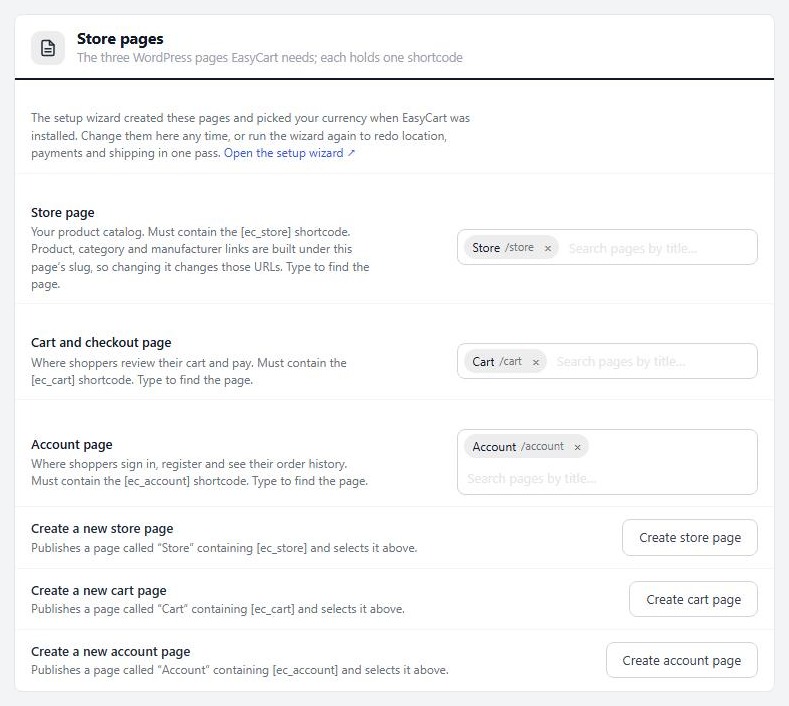
The rule: use one method per page, and one cart. Two cart shortcodes or a cart block plus an Elementor Cart widget on the same page will fight. The store, cart and account pages named under Settings › Store details must each hold the right content, whichever method put it there.
If it does not work
Symptoms that come from mixing methods
no stored settingsProducts ignore my Elementor template. The template is a draft or not chosen. See the Elementor guide.
A shortcode prints as plain text. The module or block does not run shortcodes, or the quotes were turned curly. Use straight quotes and a module that runs shortcodes.
A block shows settings, not my store. Blocks do not draw a preview. Open the page.
The cart is blank or doubled. Keep exactly one cart on the cart page, and check the page set under Settings › Store details.
Keep going
Related panels
Where the store, cart and account pages are chosen.
The store design settings.
Settings that change how store pages behave.
Create the categories your pages show.
Ready to run your store on WP EasyCart?
Everything in this guide works with the free plugin. PRO and Premium add subscriptions, memberships, wholesale pricing and more. Try every PRO feature free for 14 days.
