
How-to › Checkout, orders and customers
The Order Confirmation Page
What shoppers see right after they order: the thank-you card, the order, how to pay a bank transfer, and the settings that change it. 11 parts.
Quick links
Where to find it:Your store › Cart page › After an order
Before you start
What the page is
When it shows and what is on it.
How the confirmation page works
The page right after an order
What you need. Nothing to switch on. Every store, free or PRO, shows this page on the cart page once an order is placed, with either checkout.
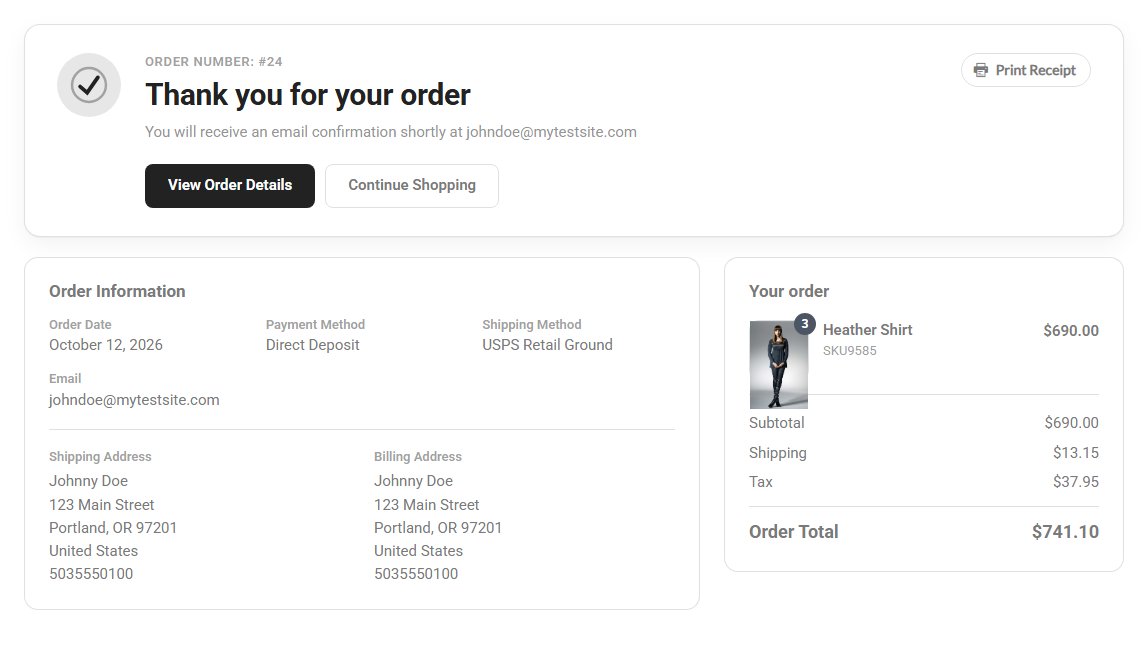
What it shows. A thank-you card at the top, then the order itself: the items and totals beside the order’s details and addresses, how to pay a bank transfer order, and whatever your other features add. While it loads, shoppers see Loading your order….
The page adapts to its own width: the card spreads across the page from about 600px, and the order sits beside its details from about 760px. On a phone everything stacks.
What it shows
Part by part
The thank-you card, the order, its details, how to pay, the notices and what other features add.
The thank-you card
The order number and what to do next
A check mark drawn in your store’s main colour, Order Number: #1024, Thank you for your order and You will receive an email confirmation shortly at with the shopper’s email. A subscription shows Thank You for Subscribing! instead.
The next steps show as buttons: View Downloads for an order with downloads, Click Here to View Your Membership Content when a product has a Membership URL, View Order Details (a guest’s private order link, or the order in My Account) or View Subscription Details, and Continue Shopping.
Print Receipt sits in the card’s corner. Turn it off with Print receipt link on the order confirmation page in Settings › Documents › Customer downloads.
💡 Note: Guests keep their way back: View Order Details is the same private link as in the receipt email, and Find your order in My Account emails it again.
Your order
Items with pictures, and the totals
Each item shows its picture with the quantity on it, the title, the SKU, the choices with their prices, a gift card’s message, sender and recipient, and the line total, as My Account lists them.
The totals follow in the receipt’s wording: subtotal, tip, shipping, tax, a row for each offer with its code, discount, duty, VAT with its rate, GST, PST or HST, fees, any refund, and the Order Total.
Order Information
The details and the addresses
The order date, the payment method with the card’s last four digits, the shipping method when something ships, the email, and when they apply the coupon code, the gift card, the VAT number and the order notes.
Then the addresses: the shipping address when something ships, and the billing address when any of it was filled in.
How to pay a bank transfer order
Your instructions and a Pay now link
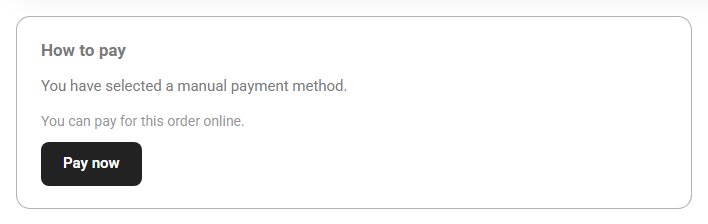
When a shopper chooses your Bill later method and the order is not paid yet, a How to pay card shows your Instructions for the shopper, the text you set for Bill later in Settings › Payment.
With Let customers pay unpaid orders from a link on (Settings › Documents › Pay links, on by default) and Stripe, Square or PayPal connected, it adds You can pay for this order online. and a Pay now button, which opens the order’s pay page.
Notices above the card
Pending, failed, refunded and pickup
An order that is not approved yet shows Your payment is still processing and has not yet been approved. Turn that off with Payment pending notice in Settings › Email › Order emails when buyers pay later, such as by bank transfer, invoice or on pickup. The same switch covers the receipt email and the order in My Account.
Whatever that switch says, a failed payment and a refunded order always have their own notice, and preorder and restaurant orders show their pickup time, with the pickup location when you use locations.

What your other features add
Under the order information
Product notes. Each product’s Order confirmation page note, in the product editor’s After purchase section, prints once per product.
Checkout answers (PRO checkout fields): answers to your own questions set to show on the Thank-you page, and a short form for any question asked after payment.
Gift details (PRO gift orders) and the EU withdrawal button while the order can still be withdrawn from.
Order Updates (PRO, with Send text notifications on in Settings › Checkout): a box where shoppers sign up for text updates, as Text Messaging Cloud Service explains.
Purchase tracking: the GA4 purchase event, the Meta pixel’s Purchase and the Google Ads conversion fire here when you have them set up. See GA4 purchase tracking and Google Ads and Meta conversions.
💡 Note: The product notes are covered in After Purchase.
Good to know
Elementor, template copies and fixes
How the Elementor widget and older template copies change the page, a test and the usual problems.
With the Elementor Order Confirmation widget
The widget draws its own order
When your cart page holds the Elementor Order Confirmation widget, the page leaves out its own items, totals and addresses, and the widget shows its parts as you set them: message, check mark, order number, links, Print receipt, How to pay, products, totals, addresses and the account prompt. The widget’s style controls win over the page’s look. See Elementor: Design the Cart and Checkout.
Stores with their own template copy
A copy keeps its older look
WP EasyCart reads ec_cart_success.php from the wp-easycart-data plugin folder first, when your store keeps a copy there. Such a copy draws the page as it always did: the new look and the order summary only appear once the copy is updated from WP EasyCart’s current template, or deleted.
Test it
Place two orders
In a private window, place a test order paid by card with your gateway in test mode, then one with Bill later. Check the thank-you card, the items and totals, the details and addresses, and on the second order the How to pay card and Pay now. Press Print Receipt and View Order Details on each.
If something looks wrong
The usual reasons
The page looks old and has no order summary. Your store keeps its own copy of the template, or the cart page uses the Elementor Order Confirmation widget, which draws its own.
No How to pay card. The order was not paid with Bill later, it is already paid, or Bill later has no instructions and pay links are off.
A bank transfer order says the payment is processing. Turn off Payment pending notice in Settings › Email.
No Print Receipt. Its switch is off in Settings › Documents, or a document rule hides it for that order.
Keep going
Related panels
The print receipt switch and pay links.
The Payment pending notice and the receipt email.
What Customers See in My Account
Where customers find the order afterwards.
How to Set Up the One-Page Checkout
The checkout before this page.
Ready to run your store on WP EasyCart?
Everything in this guide works with the free plugin. PRO and Premium add subscriptions, memberships, wholesale pricing and more. Try every PRO feature free for 14 days.



