How-to › Fix common problems

How to Fix 404 Errors on Cart Pages

Fix “page not found” on your store, cart, account or product pages. You save your permalinks, check the store pages, look for clashes and rebuild the links. 8 parts.

Quick links

Where to find it:WP Admin › EasyCart › Diagnostics

Before you start

What a 404 means here

What your store pages are and what WordPress is looking for.

What a 404 on a cart page means

What you need and what is being looked up

no stored settings

What you need. Admin access to WordPress and WP EasyCart. Any edition.

What is being looked up. Your store runs on three ordinary WordPress pages: a store page with the [ec_store] shortcode, a cart page with [ec_cart] and an account page with [ec_account]. Every product, category and manufacturer address is built under the store page’s slug. A store page at /shop/ gives you addresses like /shop/blue-shirt/.

A 404, “page not found”, means WordPress could not match the address to a page or a product. There are two families of cause. The page itself is missing, unpublished or has lost its shortcode, or WordPress’s address rules are out of date. Fix them in the order below. The first steps are quick and fix most cases.

Fix it in order

Four steps

Save permalinks, check the store pages, check the slug and rebuild the links.

Step 2. Check your store pages

Published, and holding the right shortcode

no stored settings

Open EasyCart › Settings › Store details and look at the Store pages card. It has three pickers: Store page, Cart and checkout page and Account page.

If a page is missing, unpublished or does not hold its shortcode, a red banner appears at the top of the screen and a red note under the row says which one. Pages built with the block editor or Elementor count too, because the check recognises the EasyCart block and widgets as well as the shortcode.

Fix what the note says. Pick the right page, add the shortcode to it, or publish it. If you have no page at all, press Create a new store page ( or cart page, or account page ). EasyCart publishes a page with the shortcode and selects it for you.

Saving the store page rebuilds the product address rules straight away.
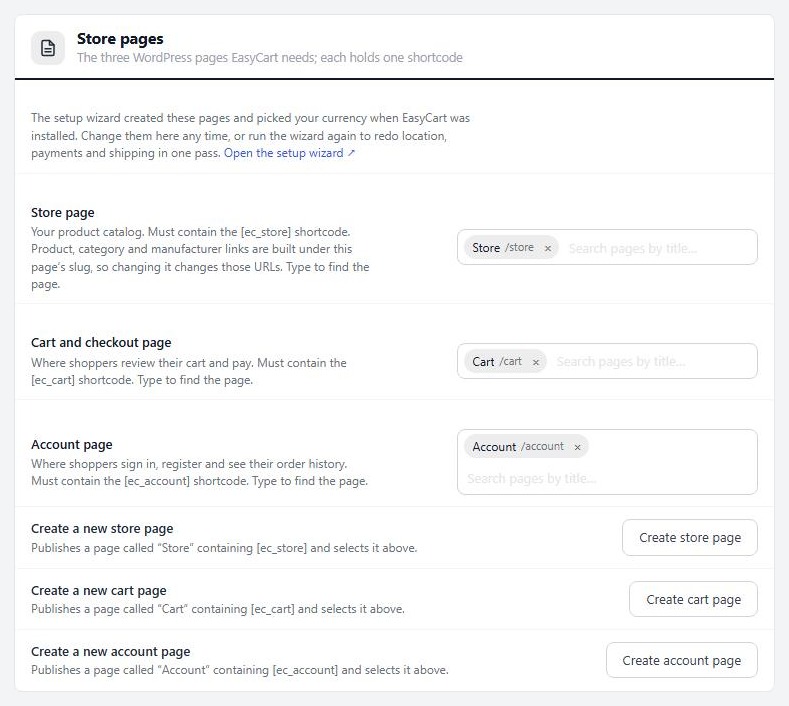
Settings › Store details › Store pages.

Step 3. Check the slug and look for duplicates

Letters, numbers and dashes, and one owner per address

no stored settings

Keep slugs clean. A slug is the last part of an address. Use only lowercase letters, numbers and dashes, such as shop or blue-shirt. Check the store page’s slug in WordPress, and each product’s slug on its SEO & Marketing tab.

Look for a second page with the same slug. Open WordPress › Pages and search the store slug. Check Drafts and Trash as well. WordPress will not give two pages the same address. If an old page still owns /shop/, the store page quietly gets /shop-2/ and your links point at the wrong place. Delete the old page for good, or rename its slug.

Look for a real folder. If your web server has an actual folder called shop in the site’s root, the server opens that folder instead of asking WordPress. Rename or remove the folder, or give the store page a different slug.

Do not rename a live store page casually. Changing the store page’s slug changes every product address, so search engines and shoppers with saved links land on a 404. Plan redirects first.

💡 Note: Product, category and manufacturer addresses all live under the store page’s slug. That is why a changed slug moves everything at once.

Step 4. Rebuild the store links

The repair tools on Diagnostics

no stored settings

Go to EasyCart › Diagnostics and find the Miscellaneous card. Under “If you are having problems with store links” are five repair tools. Try them in this order:

rebuild permalinks: makes a store page for any product, category or manufacturer that has none. It leaves the ones that work alone, so it is the safe first try.
Fix Product Permalink Issues and Fix Category Permalink Issues: repair only that kind of link. Use them when only products, or only categories, return a 404.
reset permalinks: deletes every store page EasyCart created and builds them all again. It is the heavy option, for when links were never created or are badly broken.
Fix Post Tags: rebuilds the tags on your store items from their categories.

The tools run in steps with a progress bar, so a big store does not time out. If the run is interrupted, a closed tab or a dropped connection, reload Diagnostics in the same browser and press Resume. Afterward, save your permalinks again ( step 1 ) and test.

Diagnostics › Miscellaneous, with the store link repair tools.

⚠️ Careful: Reset permalinks deletes every store page EasyCart made and builds them again. Try rebuild permalinks first. Take a backup before you reset on a large store.

💡 Note: The red bar only appears for administrators and store managers, so a shopper who hits the same 404 sees your normal not-found page. Test in a private window as well.

Good to know

Other causes

Server rules, plugins, and matching a symptom to a fix.

Other things that cause 404s

Server rules, plugins and caches

no stored settings

Server rules. On Apache or LiteSpeed WordPress needs its .htaccess rules and the file must be readable by the server. On nginx there is no .htaccess, so the host must add WordPress’s rewrite rule to the server configuration. If every page except the front page returns a 404, this is the cause. Ask your host.

SEO and redirect plugins. A plugin that controls slugs, redirects or sitemaps can take over addresses under the store page. To test, deactivate it, run step 4, test and switch it back on.

Caches. A cache can keep a 404 it stored earlier. Clear every cache after you fix a link.

For cache settings see the caching guide.

If it does not work

Match the symptom

no stored settings

Only the cart or account page gives a 404. That page is missing, unpublished, in the Trash or has a duplicate slug. Go back to steps 2 and 3.

Only products give a 404. Run rebuild permalinks and Fix Product Permalink Issues, then save your permalinks.

Every store address broke after a move or a restore. Save your permalinks, check the Store pages card for a red banner and run step 4. If the whole site is 404 apart from the front page, the server rules did not move with it.

Every product broke after you changed the store page. Product addresses follow the store page’s slug. Set the slug back, or redirect the old addresses to the new ones.

Still stuck? Open a request in your account and include the address that returns the 404.

Keep going

Related panels

Store details

Choose the store, cart and account pages.

Diagnostics

The repair tools and every health check.

SEO & Marketing

Lock a product slug so it stops changing.

Categories

Category slugs and links.

Ready to run your store on WP EasyCart?

Everything in this guide works with the free plugin. PRO and Premium add subscriptions, memberships, wholesale pricing and more. Try every PRO feature free for 14 days.

The WP EasyCart admin: orders and offers
Updated on September 30, 2026