
What’s newFind any order, customer, product or setting with one admin search. See all features

How-to › Selling special products

Sell Usage-Based Plans with a Pricing Table

Let customers pick how much they need, such as 10 seats or 25,000 subscribers, see each plan’s price for that amount, and move up or down later in My Account. 12 parts.

Quick links

Where to find it:WP Admin › EasyCart › Products › Subscription Plans

Before you start

What you are building

What usage-based pricing is, the two ways to price it, and what you need.

What usage-based pricing is

Customers choose how much they need, and you need PRO and Stripe

The idea. Your plans cost more the more a customer uses: an email tool by subscribers, an app by seats, a service by tasks a month. A bar on your pricing table asks How many subscribers do you need? The customer moves it, and every tier shows its price for that amount. They buy at the amount they chose and can change it later in My Account.

Two ways to price it.
A price for each level: fixed amounts, such as 1,000, 10,000 and 25,000 subscribers, each at its own price. Each level bills its own Stripe price.
A price per unit: such as $5 a seat. The customer picks how many and pays the price per unit times that number, billed as the quantity in Stripe.

The customer chooses the amount in advance. This is not metered billing: nothing is counted after the fact.

What you need. WP EasyCart PRO or Premium, because the usage bar is part of the pricing table, and Stripe, because subscriptions bill through Stripe. There is a free trial if you want to try it first. New to subscriptions? Read How to Sell Subscriptions on WordPress first for Stripe and the webhook.

💡 Note: Selling licenses where each purchase is its own subscription? That is Customers can buy more than one, in the Billing card, not the usage bar.

Set it up

Five steps

Make the table, switch on the usage bar, add the amounts, price each tier and decide what customers may change.

Step 1. Make the pricing table

Products › Subscription Plans › Add plan

The usage bar lives inside a pricing table. Go to EasyCart › Products › Subscription Plans, press Add plan, choose Pricing table, name it and press Create & add tiers. In the Billing card, tick Monthly, Yearly or both.

Then add your tiers, such as Starter, Growth and Pro, with a name for each. Leave their prices for Step 4: with the usage bar on, a tier is priced per level or per unit instead. Everything else about the table, from features to the look, is in How to Sell Plans from a Pricing Table.
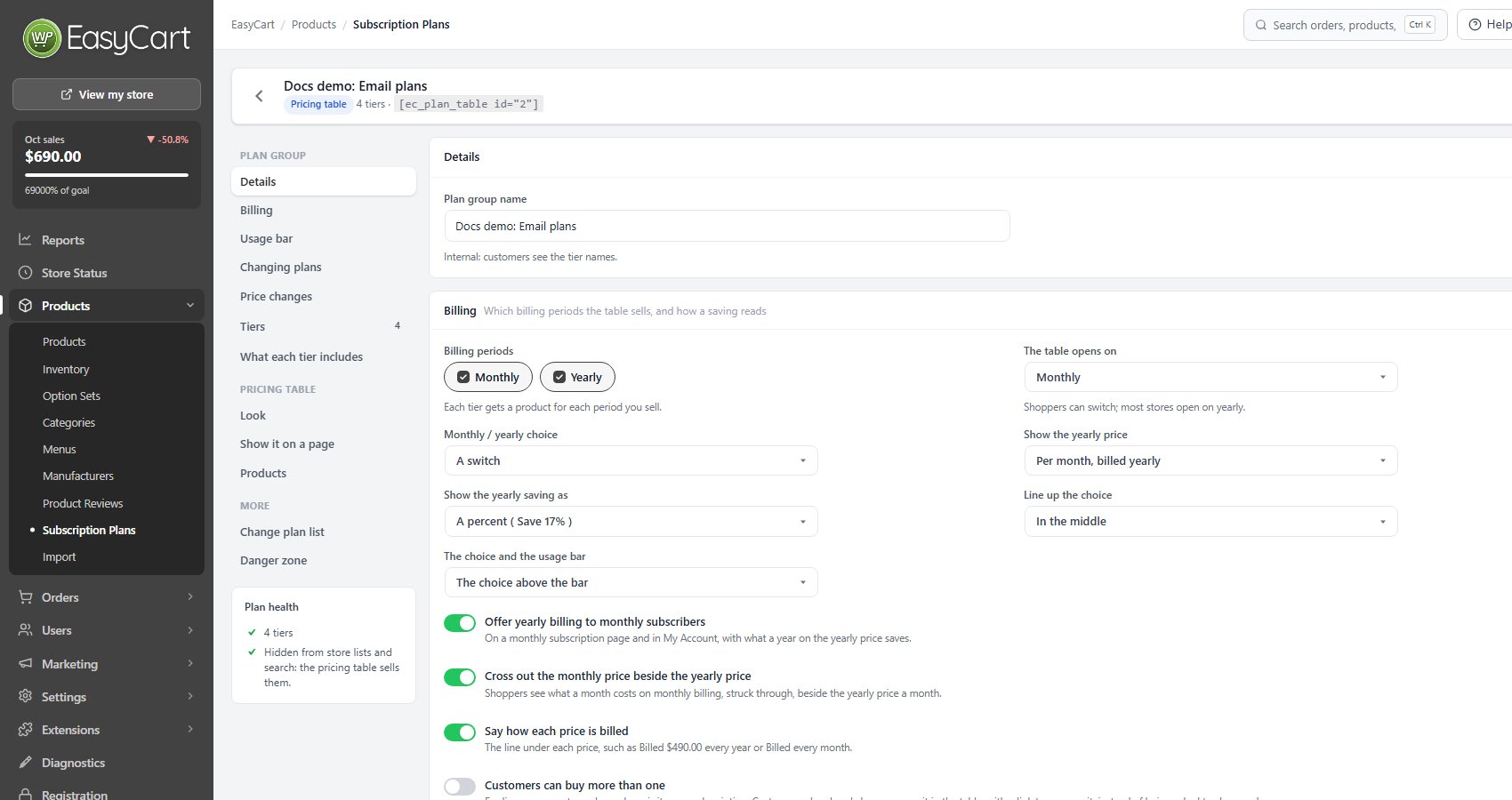
A pricing table in its editor: Details and Billing, with The choice and the usage bar.

Step 2. Switch on the usage bar

The Usage bar card: what it counts and how it is priced

Open the Usage bar card ( Price each tier by how much a customer needs: subscribers, seats, visits ) and switch on Price by usage. Then fill in:

How usage is priced: A price for each level or A price per unit.
Unit, one and Unit, more than one, such as subscriber and subscribers, or seat and seats. The plural is required: the table uses it in the question and in every label.
Question above the bar, optional. [unit] becomes the unit’s name. Left empty, the bar asks How many [unit] do you need?

Two more choices set the look.
Labels under the bar shows Short labels ( 100, 2K, 1M ) or None; on a small screen, labels that would run into each other are left out. Where the bar sits gives One bar above the cards or A bar in each card. The compare table always has one bar above it.

Selling monthly and yearly with one bar above the cards? The Billing card then also asks The choice and the usage bar: the monthly / yearly choice above or below the bar.
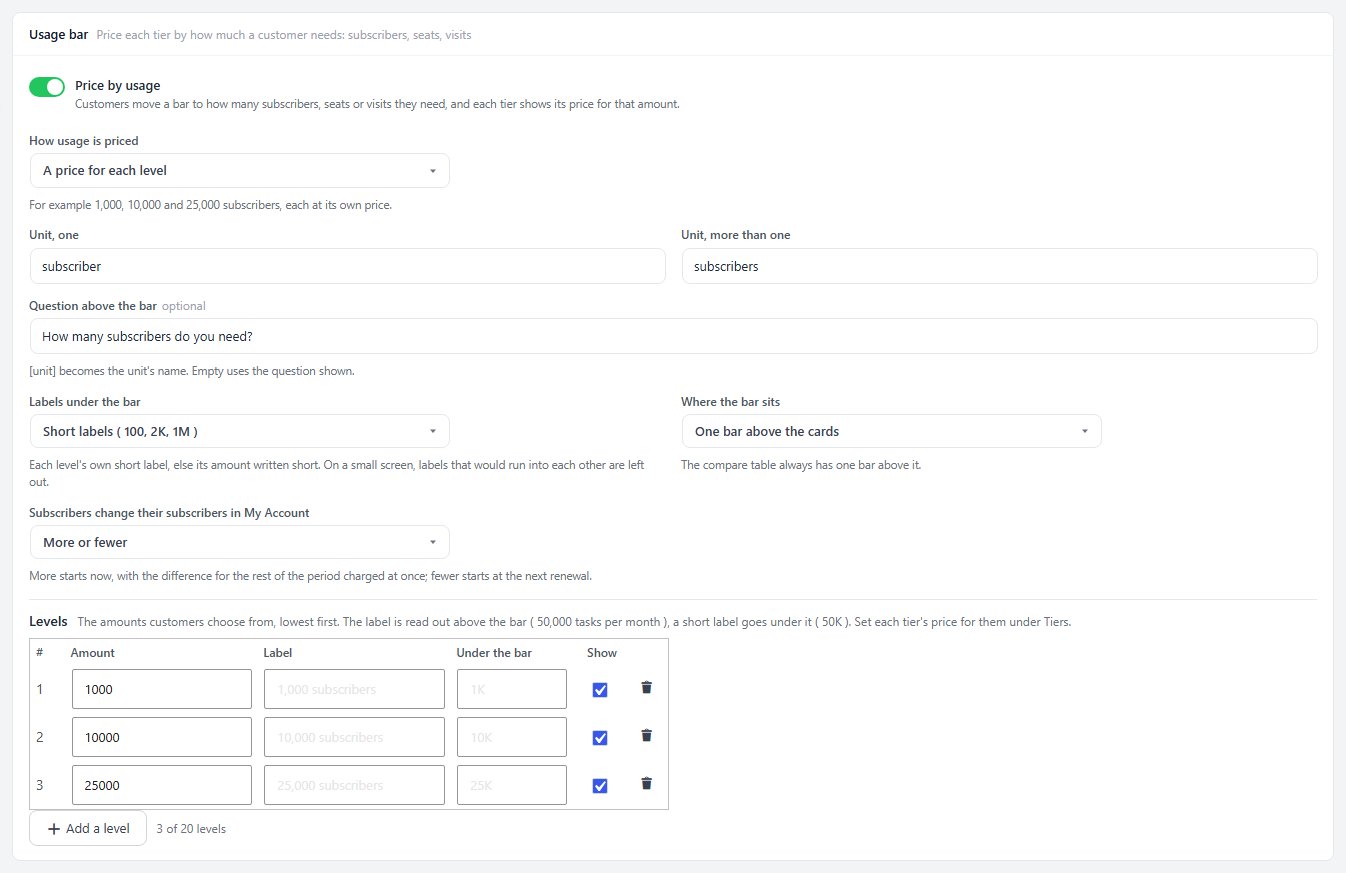
The Usage bar card: a price for each level, the unit, the question and three levels.

Step 3. Add the amounts customers choose from

Levels, or the fewest, the most and the steps

With a price for each level. Under Levels, press Add a level for each amount, up to 20, lowest first. Each level has an Amount, such as 25000, and an optional Label read out above the bar, such as 25,000 subscribers per month. Left empty, the label is the amount and the unit. With labels under the bar on, each level also takes a short label for Under the bar ( empty writes the amount short, such as 25K ) and a Show tick to leave one out while keeping its step.

With a price per unit. Set Fewest, Most and In steps of, such as 1 to 100 seats in steps of 1. The bar runs between them, and checkout refuses a number outside them.

Step 4. Price each tier

Prices by level, or a price per unit

Levels. Each tier in the Tiers card gets a Prices by level grid: one row per level, one column per billing period. Leave a level empty when the tier does not sell it, so Starter can stop at 10,000 and Pro start at 25,000. Every tier needs a price for at least one level in each period it sells.

Two buttons save typing. Enter a price in Fill from a price per subscriber, such as 0.01, and press Fill monthly. Press Yearly = monthly × 10 to set every yearly price to ten monthly payments.

Per unit. Each tier asks for a Monthly price per seat and a Yearly price per seat ( named for your unit ), in place of its usual prices.

Free trials, sign-up fees and the rest of each tier work as they do on any pricing table. Press Save: WP EasyCart makes the products, as it does for any table.
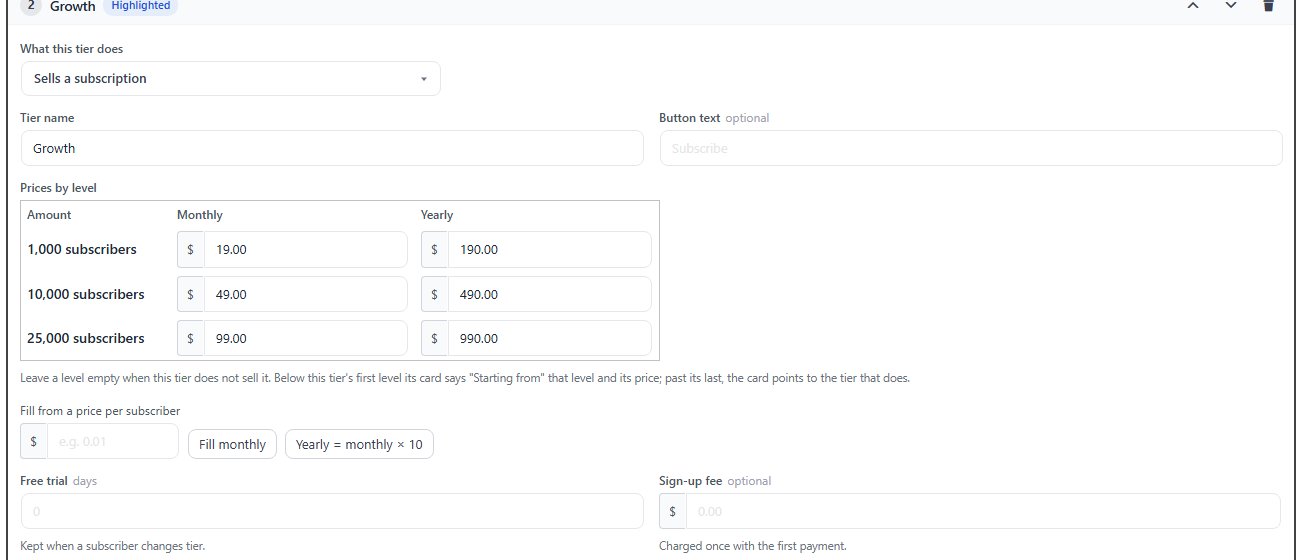
A tier’s Prices by level grid, monthly and yearly, with the fill buttons.

💡 Note: Each tier product keeps the price of its lowest level as its own price, so anywhere the product shows on its own, it shows the cheapest amount.

Step 5. Decide what customers may change

Subscribers change their amount in My Account

In the Usage bar card, Subscribers change their subscribers in My Account ( it names your unit ) offers:

More or fewer: more starts now, with the difference for the rest of the period charged at once; fewer starts at the next renewal.
Only more: customers can move up, never down.
Not in My Account: the amount stays as bought unless you change it.

This applies to levels. With a price per unit, customers change the number as a quantity in My Account. Moving to another tier keeps their amount, or the nearest level the new tier sells, and follows the table’s Changing plans card.

Keep it running

After it goes live

What shoppers see, checkout, My Account, your admin, testing and the usual problems.

What shoppers see

The bar, each tier’s price and what happens at the edges

Put the table on a page as any pricing table: the [ec_plan_table id="3"] shortcode, the WP EasyCart block set to Pricing table, or the Elementor Pricing Table widget. The bar opens on the first level, or the fewest units.

As the customer moves the bar, every card shows its price for that amount. A tier priced per unit shows its price per seat and a line with the total, such as $50.00 a month for 10 seats.

Below a tier’s first level, its card reads Starting from 2,000 tasks for $103.50/month and its button buys that level. Past a tier’s last level the card is greyed, says Starter goes up to 10,000 subscribers. and points to the tier that sells the amount: For 25,000 subscribers, choose Pro. When only a link tier goes that high, such as Enterprise, the card says For …, see Enterprise. with that tier’s button.

A signed-in subscriber sees Your plan on their tier at their own amount, and Change to 25,000 subscribers on it at another level, which opens My Account with that level chosen. Without scripts, the bar is a list with a Show prices button.
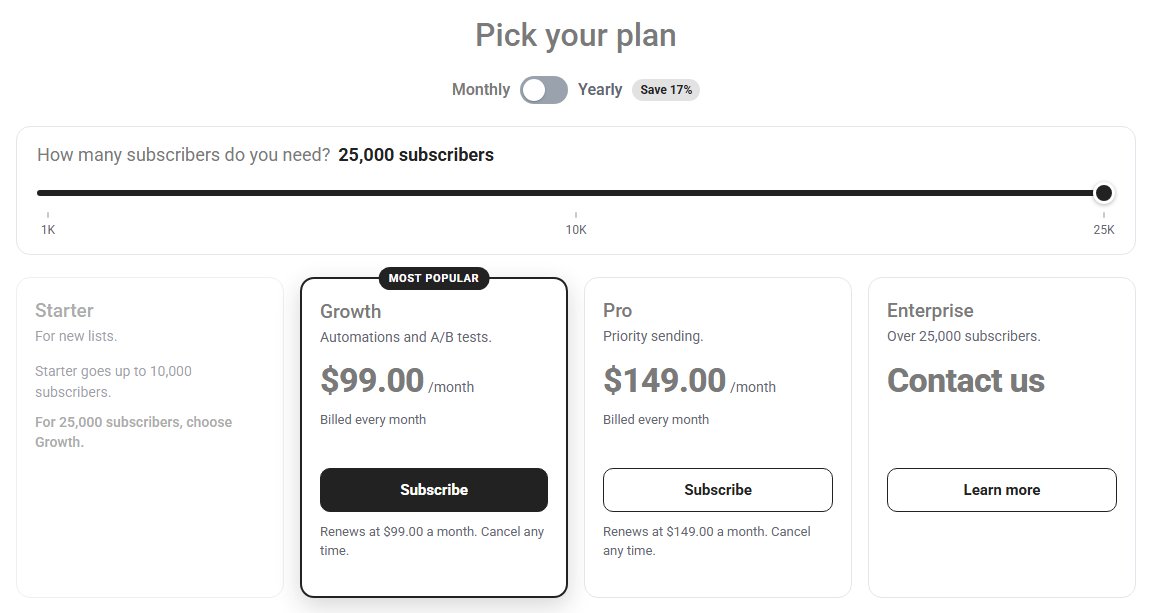
The table on a page with the bar on 25,000 subscribers: Starter points to Growth.

Checkout and the order

The amount follows the customer to payment

Levels. The order summary shows the tier, such as Growth, with the amount under it, such as 25,000 subscribers, and a Change link that lists every level with its price, so the customer can still change it before paying. The order and the subscription carry the name with the amount, such as Growth – Monthly · 25,000 subscribers, and the subscription records the level. Stripe bills the level’s own price, made the first time that level sells.

Per unit. The number chosen is the quantity: the item shows it with its quantity box, and Stripe bills the price per unit times the quantity. A number outside your fewest and most is refused with Choose an amount this plan includes.
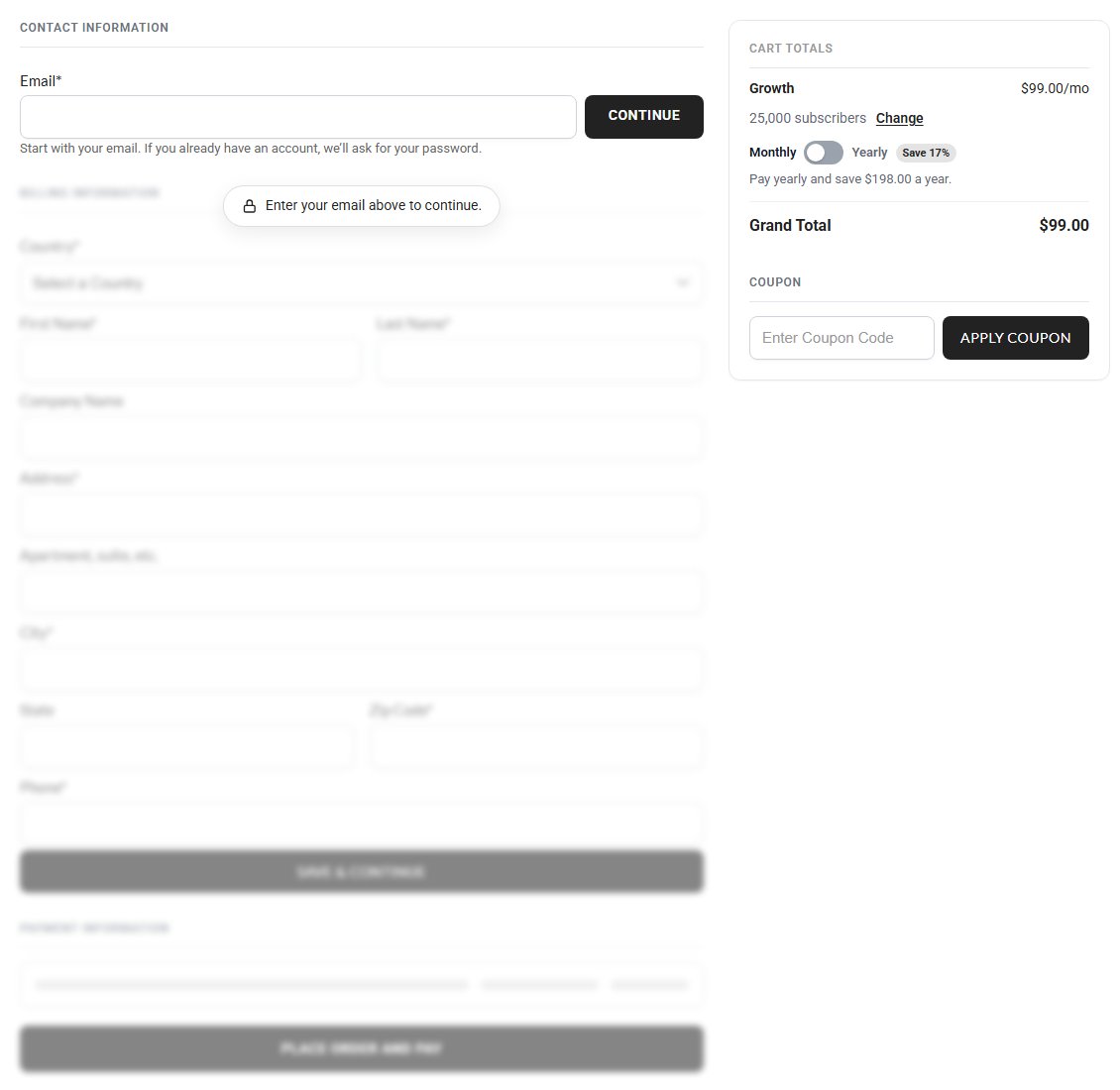
Checkout for Growth: 25,000 subscribers with Change, under the item.

Changing an amount yourself

Orders › Subscriptions › Change product

Open the subscription in EasyCart › Orders › Subscriptions and press Change product…. For a product sold by level, the window adds a list named for your unit, such as Subscribers, starting on the subscriber’s level or the nearest one. Pick a product, a level or both: the window asks Stripe for the proration before you confirm.

Test it

Stripe test mode and a private window

Switch Stripe to test mode and add the webhook in Stripe’s test mode. Then, in a private window:

1. Open the page with the table. Move the bar and check each tier’s price, the Starting from line and the tier that takes over past the last level.
2. Pick an amount, press a tier’s button and check the amount under the item. Pay with Stripe’s test card 4242 4242 4242 4242.
3. In My Account, open the subscription, press Change subscribers ( your unit ), choose a higher amount, review and confirm.
4. Choose a lower amount and check it waits for the renewal date.
5. In your admin, check the subscription in Orders › Subscriptions.

Turn test mode off when it all works.

If it does not work

The messages you may see, and what they mean

Price by usage is greyed out. The card says to update WP EasyCart: update the free plugin to the version that matches your PRO.

Name what the usage bar counts, for example subscribers or seats. Fill in Unit, more than one.

Add the levels customers choose from on the usage bar. A price for each level needs at least one level.

Give each level an amount above 0. or Two levels have the same amount. Fix the Amount column.

Starter needs a monthly price for at least one level. Every selling tier needs a price in its grid for each period the table sells.

No Change subscribers button in My Account. The usage bar is set to Not in My Account, the customer is on the highest level with Only more, or the subscription cannot be changed ( not Active or trialing, or Let shoppers manage their subscriptions is off ).

Still stuck? Open a ticket at wpeasycart.com/my-account.

Keep going

Related panels

Subscription Plans

Subscription Plans and the pricing table editor.

Subscriptions

The subscriptions your table sells, and changing one yourself.

Payment

Connecting Stripe.

What Customers See in My Account

What customers see in My Account.

Ready to run your store on WP EasyCart?

Everything in this guide works with the free plugin. PRO and Premium add subscriptions, memberships, wholesale pricing and more. Try every PRO feature free for 14 days.

The WP EasyCart admin: orders and offers
Updated on October 19, 2026