
What’s newFind any order, customer, product or setting with one admin search. See all features

How-to › Start here

How to Move to WP EasyCart from WooCommerce

Bring your WooCommerce catalog into WP EasyCart with Products › Import: try ten products, import the rest, read the report and keep your old addresses working. 13 parts.

Quick links

Where to find it:WP Admin › EasyCart › Products › Import

Before you start

What moves and what does not

What you need, and what the importer does and does not carry over.

What you need

Your WooCommerce products and WP EasyCart on the same WordPress site

What you need. WP EasyCart installed on the WordPress site where your WooCommerce store is. The importer reads WooCommerce’s own tables on this site, so WooCommerce can be active or already switched off, as long as its products are still in the database. It cannot import from a different site.

Free or PRO. The importer is in the free plugin. Selling downloads is a PRO feature, so if your WooCommerce store sells downloads you need PRO or Premium to sell them here, and there is a free trial.

Safe to try. You import ten products first and look at them. Every import can be removed again with one click, and nothing is emailed, charged or taken from stock while products come in.

The steps: prepare, open Products › Import, choose what comes across, try ten, import the rest, check the report, then keep your addresses working and switch WooCommerce off.

💡 Note: Back up before you import, even with the one-click undo. It is a big write to your database, and a backup is the only way back from anything else that goes wrong on the day.

What comes across, and what does not

The catalog, with its variations, pictures, stock and reviews

What comes across.
Categories, with their tree of parents and children, their description and picture. Tags can become categories too.
Brands, from WooCommerce’s own brands, Perfect Brands or YITH, become manufacturers.
Products: the title, descriptions, SKU, price, stock, weight and size, whether it is taxed and whether it ships, the product cost, and the search description from Yoast or Rank Math. A sale running now becomes the price, with the regular price as the list price.
Variations: the attributes a product varies by become its own option sets, at most five, and every variation keeps its price, sale, SKU, stock, weight, picture and on or off. Combinations WooCommerce does not sell come in switched off. Other attributes become the product’s specifications.
Pictures stay the same Media Library images, so nothing is copied twice.
Grouped and external products: a group’s products come across, and the group can become a category. A product sold on another site comes in with a button to that site.
Downloads: the first download file, copied from this server, with its download limit and expiry.
Reviews, with the reviewer, the rating and the verified buyer mark, and cross-sells and upsells as related products.

What does not come across. Customers, orders and coupons are listed as coming in the next update. WooCommerce subscriptions, Product Add-Ons, a sale scheduled for later, a sixth variation attribute and every download file after the first stay behind, and the importer tells you about each one. Your shipping zones, tax rates, payment settings and WooCommerce pages are not part of the import.

Do the move

Eight steps

Prepare, open the importer, choose, try ten, import, check, keep your addresses and switch over.

Step 1. Prepare

Back up, install WP EasyCart, check the currency

1. Back up your database and your uploads folder.
2. Install and activate WP EasyCart. Follow How to Build Your First Store with WP EasyCart to run the setup wizard. WooCommerce can stay active.
3. Do not build your catalog by hand. You are about to import it.

Prices are copied as they are, without conversion, so your store should sell in the same currency as WooCommerce. The importer checks it for you and warns you when they differ.

When the setup wizard finishes on a site with WooCommerce, it shows Import from WooCommerce with Open importer. A new store with no orders and at most three products also gets a launch checklist item, Import your products from WooCommerce, which opens the same page.

Step 2. Open Products › Import

The WooCommerce card

Go to EasyCart › Products › Import. You can also use Import › From WooCommerce or Square on the products list. The page asks Where are your products now? and the WooCommerce card says what it found, such as Found on this site with the number of products, categories and reviews. If WooCommerce is switched off it says its products are still on this site, which is fine.

Press Start on the WooCommerce card.
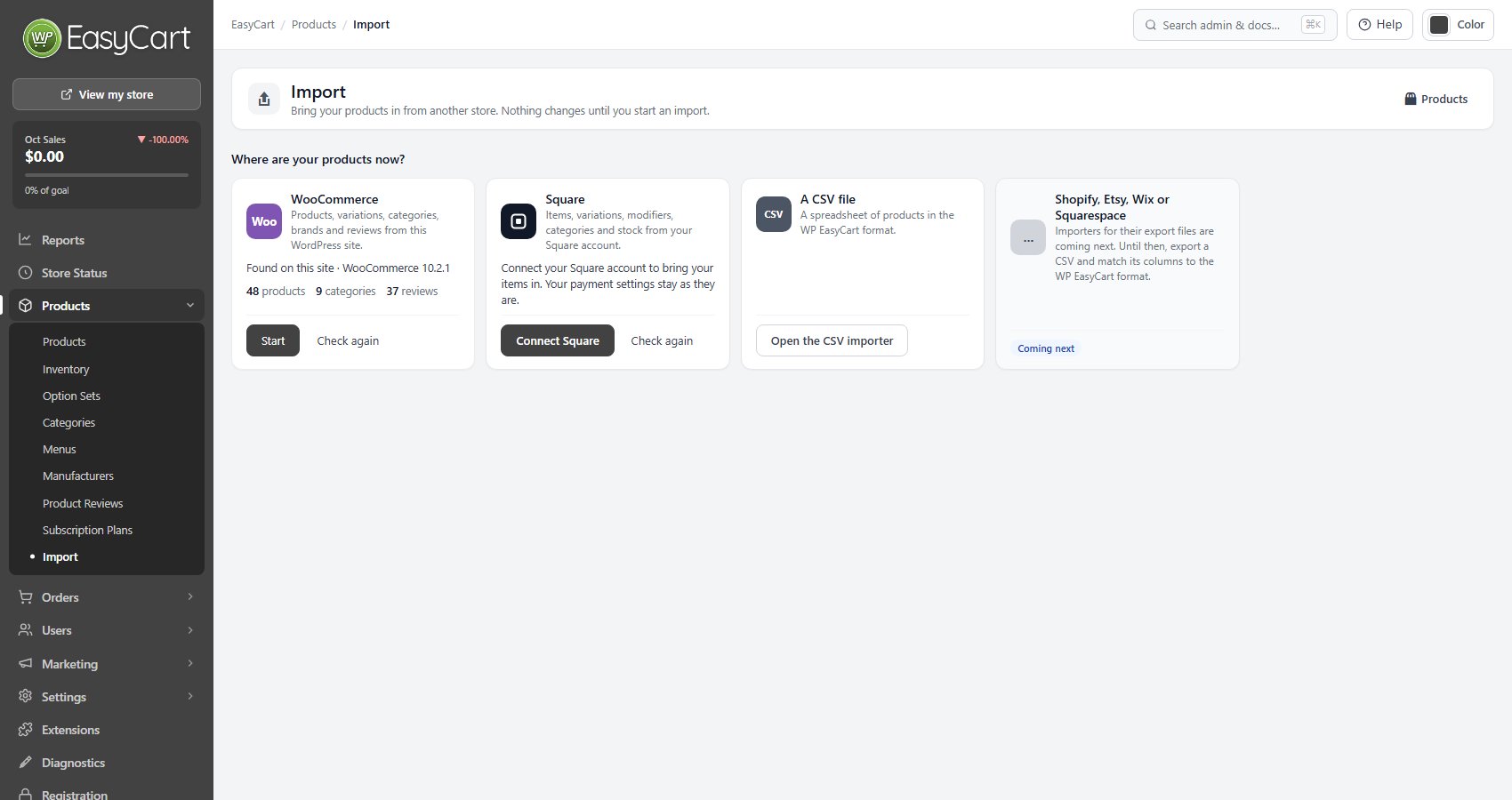
EasyCart › Products › Import, with the WooCommerce card ready to start.

Step 3. Choose what comes across

What we found, what to bring, and the options

What we found comes first. Read it: it tells you about a different currency, prices that include tax, weight units that differ, grouped and external products, bundles and other extension types that come in as simple products, Product Add-Ons, subscriptions, and products imported before.

Under What should come across? leave Products and Reviews ticked. Then set the Options:

Products already in your store: Leave them as they are the first time. A product counts as already there when it was imported before or has the same SKU.
Drafts, private and hidden products: Bring them in switched off, or leave drafts out. Published products that are visible in the catalog come across switched on.
Product tags: leave them out, or make them categories.
Brands: make them manufacturers. Products without a brand get your store’s first manufacturer.
Grouped products and External products: keep a group as a category, and keep external products with a button to the other site, or leave either out.
Weights, shown when the units differ: convert them to your store’s unit.
Send old WooCommerce addresses to the new pages: leave it on.
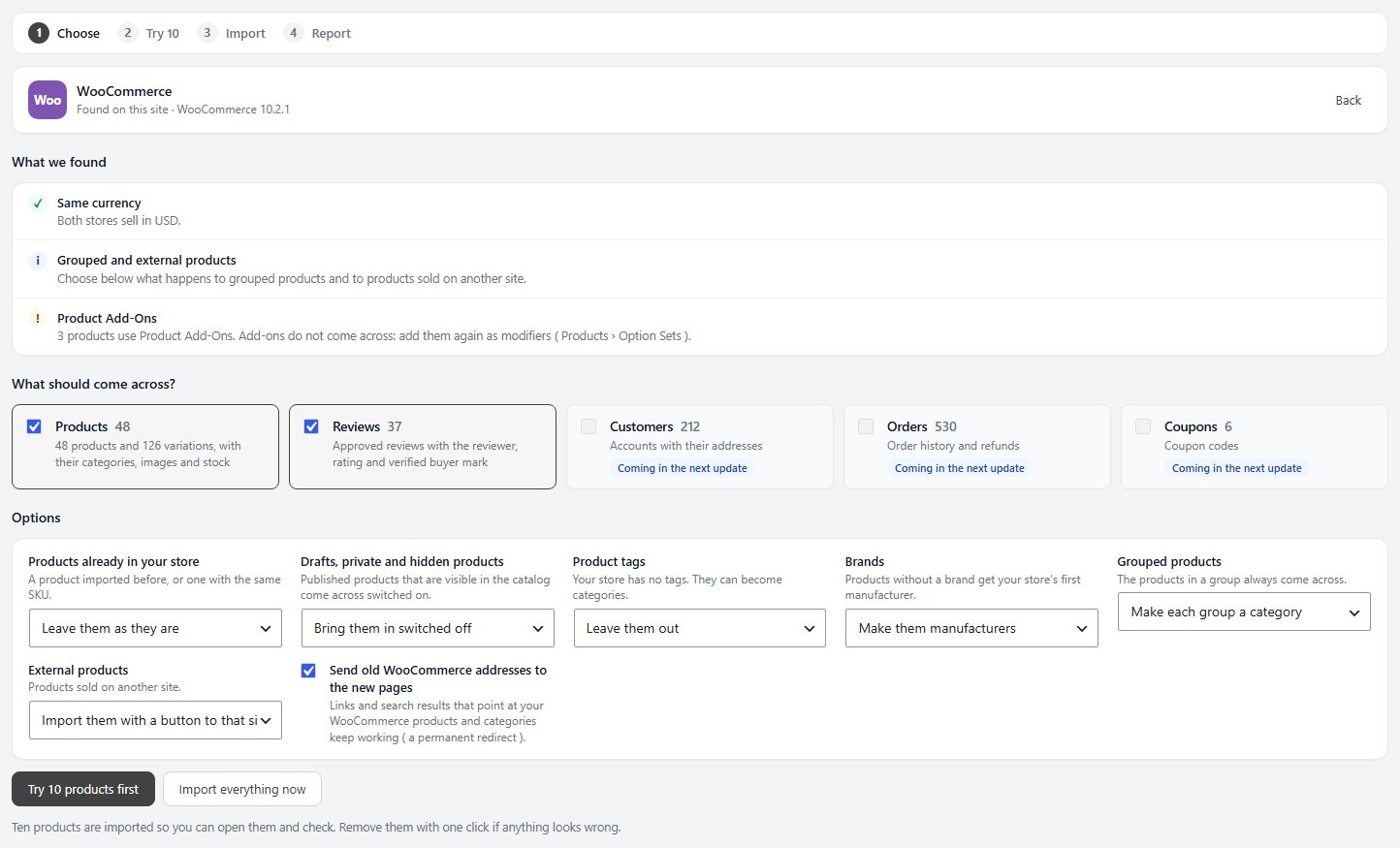
The Choose step: what was found, what comes across and the options.

💡 Note: Every choice on this screen is covered in Product Importer, with the Square options and the CSV importer.

Step 4. Try ten products first

A real import you can take back

Press Try 10 products first. Your categories, and the manufacturers if you chose them, come in first, then ten products, listed under Ten products, as they will look, each linked to its new page. Reviews and related products wait for the full import.

Open a few, including one with variations. Check the price and the list price, the choices and their prices, the pictures, the stock and the categories, and look at one on your store.

If something needs a different choice, press Remove these and change the options. The ten are taken out and you are back at the choices. If they look right, press Looks good: import everything.

Step 5. Import everything

Progress, pausing and closing the page

A bar for each part, such as categories, products, related products and reviews, counts what has come across, with Imported, Updated, Skipped and Failed underneath. Nothing is emailed, charged or taken from stock while products come in.

You can close the page. The import keeps going and picks up where it stopped. Pause and Resume do what they say, and Stop ends it: what came across so far stays, and you can remove it from the report.

Step 6. Read the report and check

Notes, a test order, and undo if you need it

Your import is done counts the products imported, updated and skipped, the categories, the reviews and the notes. Open Notes and problems. Each note names the product and says what to do, for example a sale that starts later and was not kept, a SKU another product already used so this one was renamed, a sixth attribute left out, a download file that is not on this server, or a product with no price imported at 0. Download the report ( CSV ) keeps a copy.

Then work through Before you switch over: open a few products and check their prices, choices and pictures, connect your payment gateway and place a test order. See How to Take Your First Payment.

If the import is not what you wanted, Remove everything this import added takes out its products, categories, manufacturers and reviews. Products that were already in your store stay. Fix the options and import again.

⚠️ Careful: Remove takes out what the import made even after you have edited it. Decide before you spend time on the imported products.

Step 7. Keep your addresses working

Old product and category links go to the new pages

Your old WooCommerce addresses are in search results, links and customers’ bookmarks. With Old WooCommerce addresses go to the new pages on in the report, which it is unless you turned it off, a visitor or a search engine that asks for an old product or product category address is sent to its new page with a permanent redirect. It keeps working after WooCommerce is switched off.

Prefer to keep redirects in a plugin? Download the redirects ( CSV ) gives you every old address with its new page, for Redirection, Yoast or Rank Math.

Step 8. Rebuild the rest and switch WooCommerce off

Shipping, tax, payment, coupons and add-ons

Shipping. Build your rates. See Set Up Shipping That Does Not Lose Money.
Tax. WooCommerce prices that include tax are copied as they are, so check how your store adds tax. See Set Up Sales Tax and VAT.
Payment. Connect a gateway if you have not already.
Coupons. Recreate them as offers, a PRO feature. See How to Create Coupons and Automatic Discounts.
Add-ons. Products that used Product Add-Ons get them again as modifiers, from Products › Option Sets.

When the test order works, switch WooCommerce off. Your products and their addresses keep working. Take WooCommerce’s shop, cart, checkout and account pages out of your menu and put your WP EasyCart Store, Cart and Account pages in their place.

💡 Note: Products are edited in Products, option sets in Option Set Manager and categories in Categories.

Good to know

Beyond the catalog

Customers and orders, the CSV route, and what to check when it does not work.

Customers and orders

Not part of the import yet

Customers, orders and coupons show on the Choose step as coming in the next update, so they stay in WooCommerce for now. Before you remove WooCommerce, export your orders and customers with WooCommerce’s own tools and keep the files for your records. Customers can create an account on your store, or you can add them under Users › User Accounts.

Another way in: a CSV file

For products that are not in WooCommerce on this site

If your products are on a different site, use the CSV importer: Import › From a CSV file on the products list, or the CSV card on Products › Import. It takes a CSV in WP EasyCart’s own columns, so do not upload a WooCommerce export as it is.

Export your WP EasyCart products, or download the sample file, and paste your data in. The importer shows a preview with the number of new products and updates, and the problem rows, before anything is written. See How to Import Products from a CSV.

If it does not work

The messages you may see, and what to do

No WooCommerce products on this site. The importer only reads this WordPress site. Your WooCommerce products have to be in this site’s database.

Finish the WP EasyCart database update first. Open Store Status, finish the update, then come back.

An import is already running. Let it finish, or stop it, before you start another.

Nothing new to try. The first ten products are in your store already. Import everything to pick up the rest, or set Products already in your store to update them.

Products are missing from the store page. They were drafts, private or hidden in WooCommerce and came in switched off. Switch them on in Products.

A product’s SKU changed. Another product already used it, so the new one was given a different SKU. The report names both.

A download has no file. The file was not on this server or could not be copied. Add it to the product again.

Still stuck? Open a ticket at wpeasycart.com/my-account.

Keep going

Related panels

Product Importer

Products › Import and the CSV importer in full.

Products

Edit and check your imported products.

Option Set Manager

The option sets made from your attributes.

Categories

The categories made from your product categories.

Store details

Your Store, Cart and Account pages.

Ready to run your store on WP EasyCart?

Everything in this guide works with the free plugin. PRO and Premium add subscriptions, memberships, wholesale pricing and more. Try every PRO feature free for 14 days.

The WP EasyCart admin: orders and offers
Updated on October 12, 2026