How-to › Selling special products
How to Sell Plans from a Pricing Table
Sell up to four plans, monthly and yearly, from a pricing table on any page, with the yearly saving, free trials and plan changes your subscribers can make themselves. 12 parts.
Quick links
Where to find it:WP Admin › EasyCart › Products › Subscription Plans
Before you start
What you are building
What a pricing table does, and what you need.
What a pricing table does
What you need, and what WP EasyCart makes for you
What you need. WP EasyCart PRO or Premium, and Stripe, because subscriptions bill through Stripe. There is a free trial if you want to try it first. If you have not sold a subscription yet, read How to Sell Subscriptions on WordPress for Stripe and the webhook.
What you get. Up to four plans, such as Starter, Pro and Business, each sold monthly, yearly or both, on any page: as cards or as a compare table, with a monthly / yearly switch, the yearly saving, a list of what each plan includes and any free trial. You set the tiers and prices on one screen and WP EasyCart makes and keeps the subscription products, one for each tier and billing period.
The steps: create the pricing table, set billing, add the tiers, list what each includes, decide how plan changes work, put it on a page and test it.
💡 Note: Reports › Subscriptions ( PRO ) shows your pricing tables by tier and billing period and how many subscribers pay yearly.
Set it up
Six steps
Create the table, set billing, add tiers and features, decide how changes work, and put it on a page.
Step 1. Create the pricing table
Products › Subscription Plans › Add plan
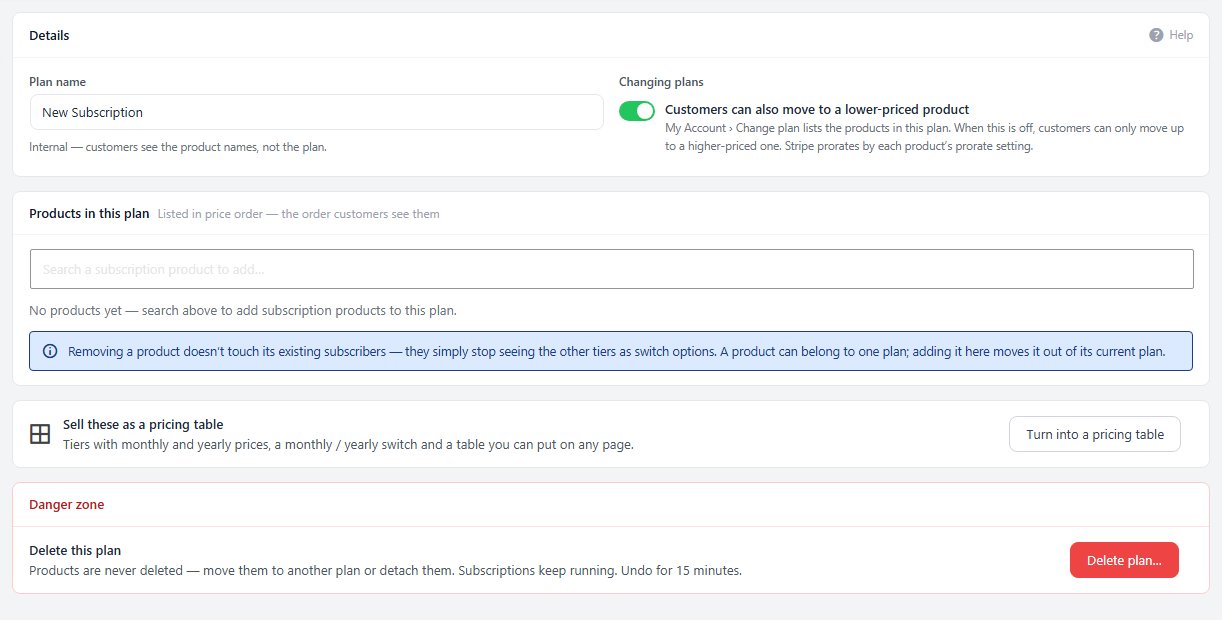
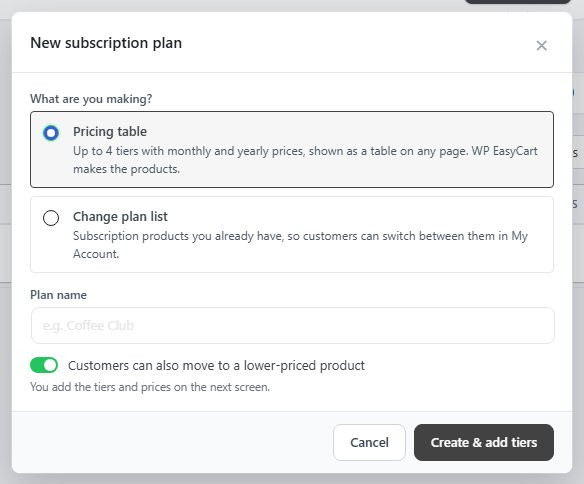
Go to EasyCart › Products › Subscription Plans and press Add plan. Under What are you making? choose Pricing table: up to 4 tiers with monthly and yearly prices, shown as a table on any page. Give it a Plan name, which only you see, and press Create & add tiers.
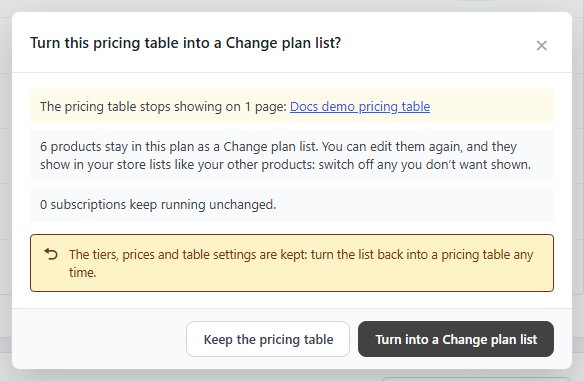
Already sell subscription products in a Change plan list? Open that plan and press Turn into a pricing table. Each tier can then take over one of its products: it is renamed for the tier and takes the tier’s price, and its subscribers keep what they pay now.
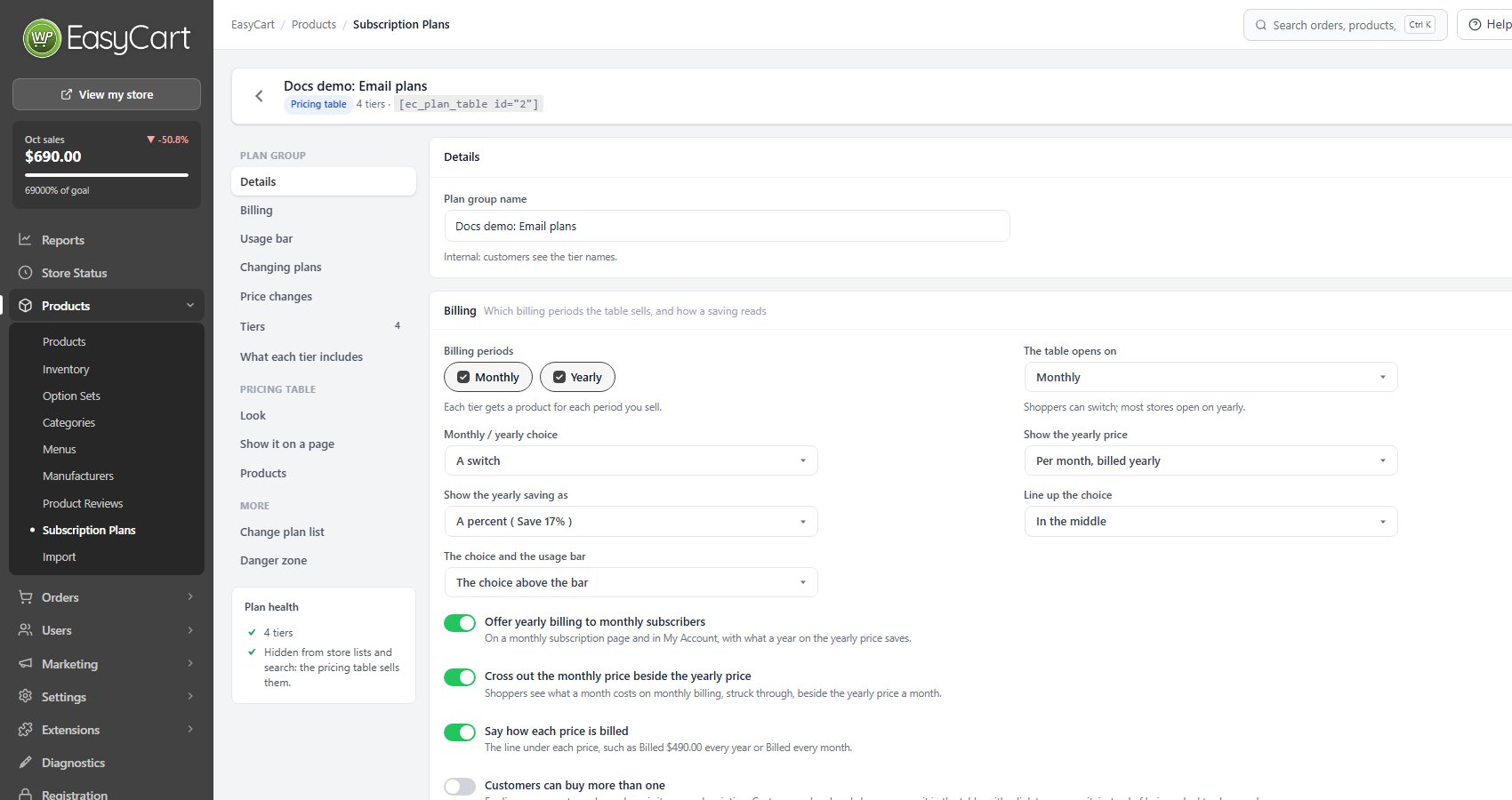
The editor’s header shows the shortcode, such as [ec_plan_table id="3"], and its side panel shows Plan health. Nothing is sold until you save.
Step 2. Set billing
Monthly, yearly, the switch and the saving
The Billing card sets which billing periods the table sells. Tick Monthly, Yearly or both under Billing periods: each tier gets a product for each period. Selling both adds:
The table opens on: yearly or monthly. Shoppers can switch; most stores open on yearly.
Monthly / yearly choice: a switch, two tabs, or no choice, which shows both prices on each card.
Show the yearly price: per month, billed yearly, or per year.
Show the yearly saving as: a percent ( Save 17% ) or months free ( 2 months free ).
Offer yearly billing to monthly subscribers: on a monthly subscription page and in My Account, a monthly subscriber is offered the yearly plan with what a year on the yearly price saves.
Customers can buy more than one is for licenses or seats: each purchase is its own subscription. Customers who already have one see it in the table, with a link to manage it, instead of being asked to change plan.
Step 3. Add the tiers
Up to four, in the order the table shows them
In Tiers, press Add a tier for each plan, up to 4. For each one:
Tier name, such as Starter, and an optional Button text.
Monthly price and Yearly price. 10 × monthly sets the yearly price to ten monthly payments, two months free, and the card tells you the saving against paying monthly, or warns you when the yearly price saves nothing.
Free trial, in days. It is kept when a subscriber changes tier, and the card shows it as a chip with a Start free trial button.
Sign-up fee, charged once with the first payment.
Description, one line on who this tier is for.
Highlight as most popular, for one tier at most: its card gets a badge and a filled button.
Move tiers up and down to set their order. Removing a tier stops its products selling when you save; nothing is deleted.
Step 4. Show what each tier includes
Features, the look and a Contact us card
What each tier includes is a grid: one row per feature, such as Priority support, and a tick for each tier that has it, with a short note when it helps, such as 10 projects.
Look sets an optional Heading, Intro and Footnote, and the Layout: Cards, or a Compare table with one column per tier and one row per feature, easiest to compare when tiers share many features. On cards, Feature lists shows what each tier adds ( Everything in Starter, plus … ) or everything each tier includes. These plans ship something makes checkout ask for a shipping address.
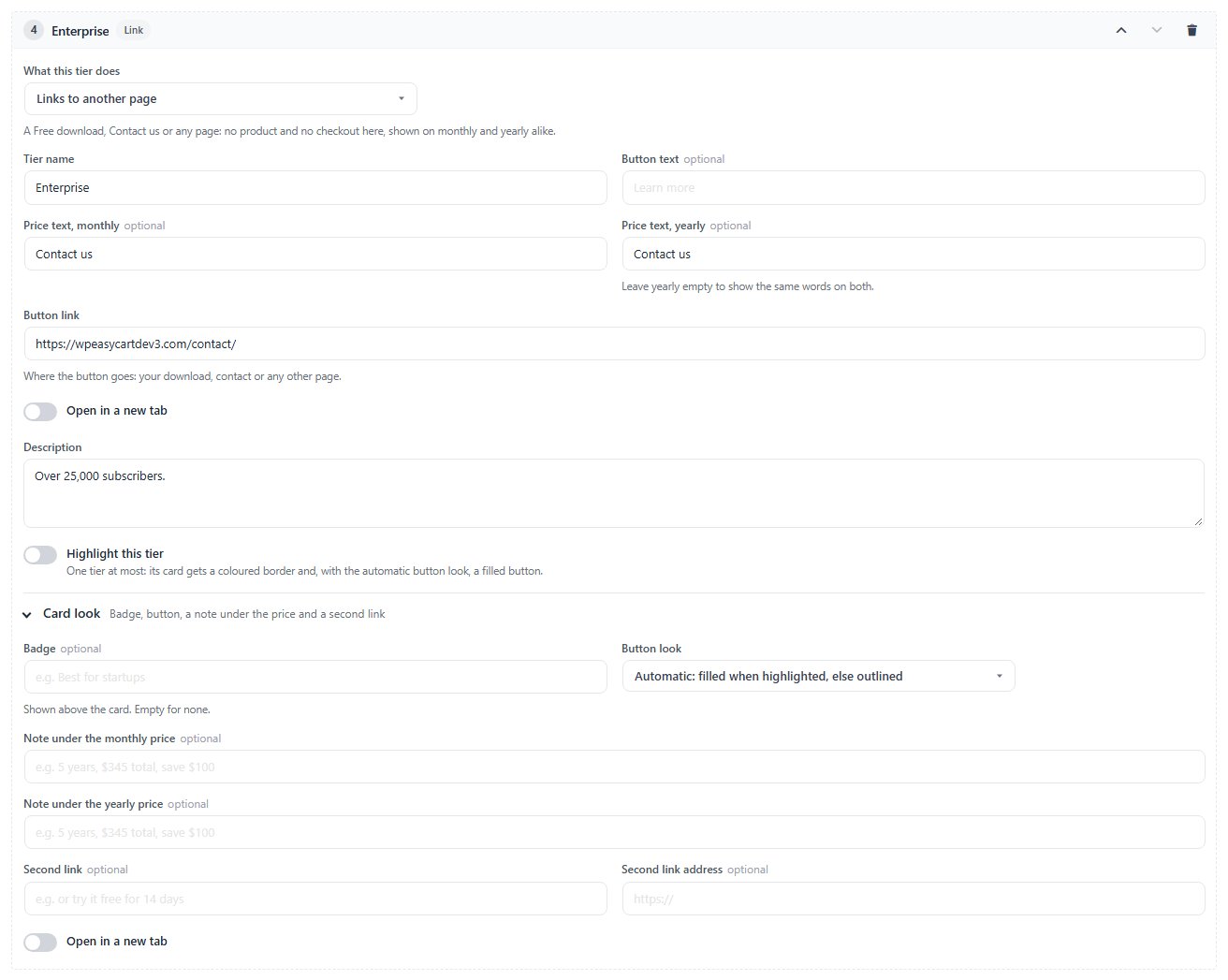
Contact us card adds an optional last card for a plan you price by hand, such as Enterprise, with a name, price text, description, button and link.
Step 5. Decide how plan changes work
Now or at renewal, and what a trial does
A subscriber changes plan in My Account and sees the amount and the date before they confirm. The Changing plans card decides when each kind of change happens:
Moving to a higher tier: now, charging the difference, or at renewal. The new plan applies once the difference is paid.
Moving to a lower tier: at renewal, which is usual, now with the difference credited, or not allowed.
Monthly to yearly: now, crediting the unused month, or at renewal. Yearly to monthly: at renewal, or not allowed.
Change during a free trial: keep the trial’s end date, or end the trial and charge now.
Higher tiers open lower tiers’ members content: a page for members of one tier also opens for subscribers to every tier above it.
A move that is higher on one count and lower on the other, such as a higher tier billed monthly instead of yearly, happens at renewal. A change waiting for renewal shows in My Account with its date, and the subscriber can cancel it.
Step 6. Put it on a page
Shortcode, block or Elementor widget
Press Save. WP EasyCart makes the products and the Show it on a page card gives you three ways to show the table:
Shortcode: Copy the code, such as [ec_plan_table id="3"], and paste it on any page, post or template. Add interval="m" to open it on monthly in one place.
Block editor: add the WP EasyCart block, choose Pricing table, then the plan group.
Elementor: the Pricing Table widget, with Plan group, Opens on, Layout and Heading and intro, plus colours, spacing, corners and type. Any other builder takes a Shortcode element with the code.
The tier products are hidden from store lists and search: the table sells them. Their own pages still work.
Keep it running
After it goes live
What shoppers see, changing a price, the products it makes, testing and the usual problems.
What shoppers see
The table, the buttons and the yearly offer
Each card shows the tier’s name, description, price and what it includes. With both periods sold, the Monthly / Yearly choice carries the saving, such as Save 17%, and a yearly price can read per month, billed every year. The button reads Start free trial for a tier with a trial, otherwise your button text or Subscribe, with a line such as Then $29 a month. Cancel any time. A sign-up fee is named under it.
A signed-in subscriber sees Your plan on their own tier and Change plan on the others, which opens My Account with the amount shown before they confirm. When customers can buy more than one, every button stays a purchase, reading Buy another on the tier they have, and a line above the cards says what they already have, with Manage my subscription.
With the yearly offer on, a monthly subscriber is offered Switch to yearly with the saving on the monthly plan’s subscription page and in My Account.
Changing a price later
Price changes: move subscribers with notice
Changing a tier’s price makes a new Stripe price: new subscribers pay it, and current subscribers keep theirs until you move them. Save price edits first. The Price changes card then lists, per tier and billing period, how many subscribers pay an older price.
Press Move to the new price, choose the Notice ( 7 to 90 days; 30 covers California and New York ) and press Email with the number of subscribers. Each one is emailed the old price, the new price and the date, and pays the new price from their first renewal after the notice. Nothing is charged before then, and anyone can cancel in My Account. Subscribers who are cancelling or already have a change waiting are left out. Stop moving keeps the old price for those not moved yet.
⚠️ Careful: The law in some places asks for notice before a subscription price goes up. Pick the notice before you press Email: the emails go out at once.
The products it makes
One per tier and billing period
The Products card lists each tier’s products, such as Starter – Monthly, with their subscribers and whether each is Selling. Each product’s name, price and billing follow this screen; the rest, such as images, description, tax and search details, is edited on the product.
A period you stop selling, or a tier you remove, switches its products off when you save. They are never deleted, so their subscribers keep running. Deleting the whole plan group stops the table showing and switches its products off, with 15 minutes to undo.
Test it
Stripe test mode and a private window
Switch Stripe to test mode and add the webhook in Stripe’s test mode. Then, in a private window:
1. Open the page with the table. Flip Monthly and Yearly and check the prices and the saving.
2. Press a tier’s button, create an account and pay with Stripe’s test card 4242 4242 4242 4242.
3. Open the table again. Your tier should read Your plan, and the others Change plan.
4. Press Change plan on a higher tier, read the amount and date, and confirm.
5. In your admin, check Orders › Subscriptions, and Reports › Subscriptions for the tier.
Turn test mode off when it all works.
If it does not work
The usual reasons a table does not show or sell
The table does not show. Save the plan group first: the products are made on save. While a group has nothing to sell, only store managers see a note in its place.
Plan health says subscriptions need Stripe. Connect Stripe in Settings › Payment.
A tier needs a price. Every tier needs a price for each period the table sells.
Saved, but Stripe did not answer for some prices. They are made when the plan is first sold.
The tier products are missing from the store. That is on purpose: the table sells them.
A customer cannot move down. Moving to a lower tier, or yearly to monthly, is set to Not allowed under Changing plans.
Still stuck? Open a ticket at wpeasycart.com/my-account.
Keep going
Related panels
Subscription Plans in full.
The subscriptions your tables sell.
Subscriptions by tier and billing period.
Connecting Stripe.
Ready to run your store on WP EasyCart?
Everything in this guide works with the free plugin. PRO and Premium add subscriptions, memberships, wholesale pricing and more. Try every PRO feature free for 14 days.