How-to › Start here
How to Connect an AI Assistant to Your Store
Let Claude, ChatGPT or Gemini help set up and run your store from a chat, with every change previewed and approved by you. 9 parts.
Quick links
Where to find it:WP Admin › EasyCart › Settings › Advanced › AI assistants
Before you start
What an assistant can do
What you need, and what always stays with you.
What an assistant can do for your store
What you need, and what stays with you
Your own AI assistant, such as Claude, ChatGPT or Gemini, can work on your store from a chat: set up tax and shipping, change settings, make products as drafts with their options, stock and photos, draft your policy pages, give your site its look, list orders to ship, prepare returns, and read your sales and reports. Every change is shown to you as a preview first, runs only once you approve it, and is listed in Recent changes with Undo. Payment connections, refunds and deletes always stay with you.
What you need. WP EasyCart ( the connection is free ), WordPress 6.9 or newer, the MCP Adapter plugin from wordpress.org, HTTPS, pretty permalinks and application passwords switched on. Then an account with the assistant: any Claude plan ( the Free plan allows one custom connector ), ChatGPT Business or Enterprise / Edu ( ChatGPT Pro can only read the store ), or a personal Google account for Gemini in the US, in English. With PRO the assistant can do more, such as offers and phone orders.
💡 Note: Every setting on the page is explained in AI Assistants.
Connect it
Six steps
Get your site ready, choose what assistants may do, then connect the assistant you use.
Step 1. Get your site ready
Settings › Advanced › AI assistants
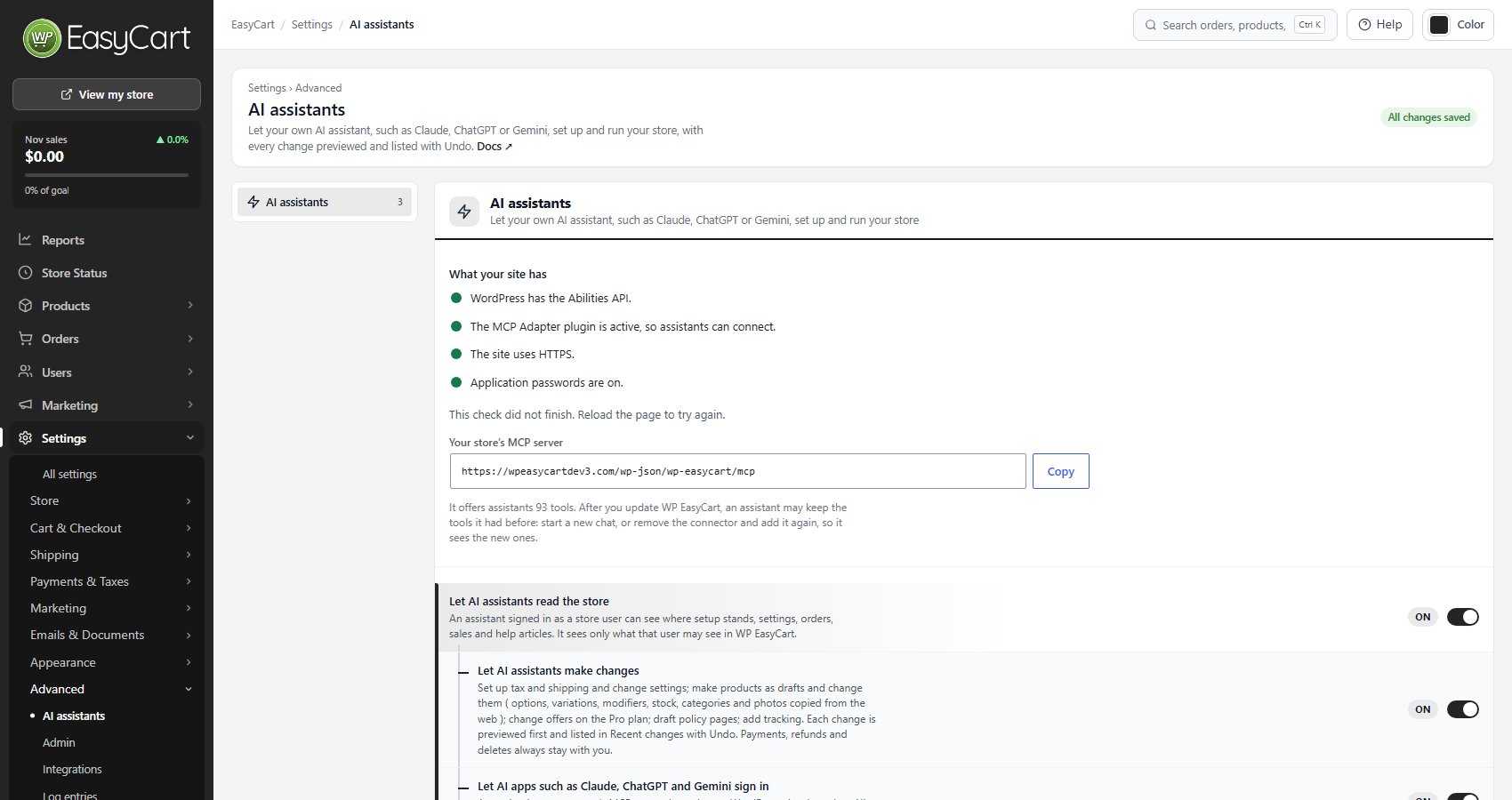
Open EasyCart › Settings and choose AI assistants under Advanced. What your site has checks the four things an assistant needs, with a green dot for each one in place. If the MCP Adapter plugin is missing, press Install it from wordpress.org; if it is installed but off, Activate it.
Copy Your store’s MCP server with Copy. It looks like https://yourstore.com/wp-json/wp-easycart/mcp, and every assistant asks for it.
Step 2. Choose what assistants may do
Read the store, make changes, sign in from an app
Let AI assistants read the store and Let AI apps such as Claude, ChatGPT and Gemini sign in start on. With them alone an assistant can look but not touch: where setup stands, settings, orders, sales and help articles.
Turn on Let AI assistants make changes when you want it to do the work. Each change is still previewed and waits for your yes.
An assistant acts as the WordPress user it signs in as and sees only what that user may see in WP EasyCart. For less access, sign in with a store manager account instead of your administrator account.
⚠️ Careful: An assistant signed in as an administrator can do what you can do in WP EasyCart, always with your approval for each change. Refunds, payment connections and deletes are never offered to it.
Step 3. Connect Claude
claude.ai, the Claude desktop and phone apps
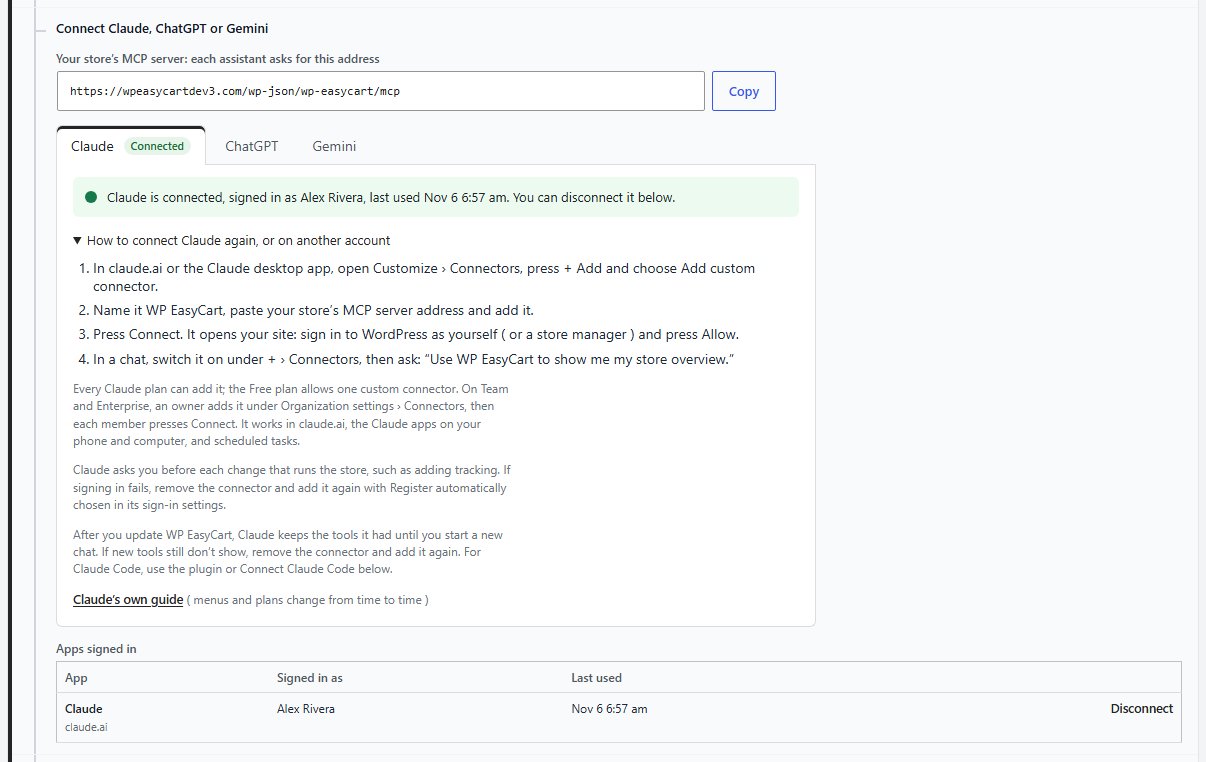
1. In claude.ai or the Claude desktop app, open Customize › Connectors, press + Add and choose Add custom connector.
2. Name it WP EasyCart, paste your store’s MCP server address and add it.
3. Press Connect. Your site opens: sign in to WordPress as yourself ( or a store manager ) and press Allow.
4. In a chat, switch it on under + › Connectors.
On a Team or Enterprise plan, an owner adds the connector under Organization settings › Connectors, then each member presses Connect. Once added it works in claude.ai, the Claude apps on your phone and computer, and scheduled tasks. Claude asks you before each change.
Step 4. Or connect ChatGPT
chatgpt.com in a browser
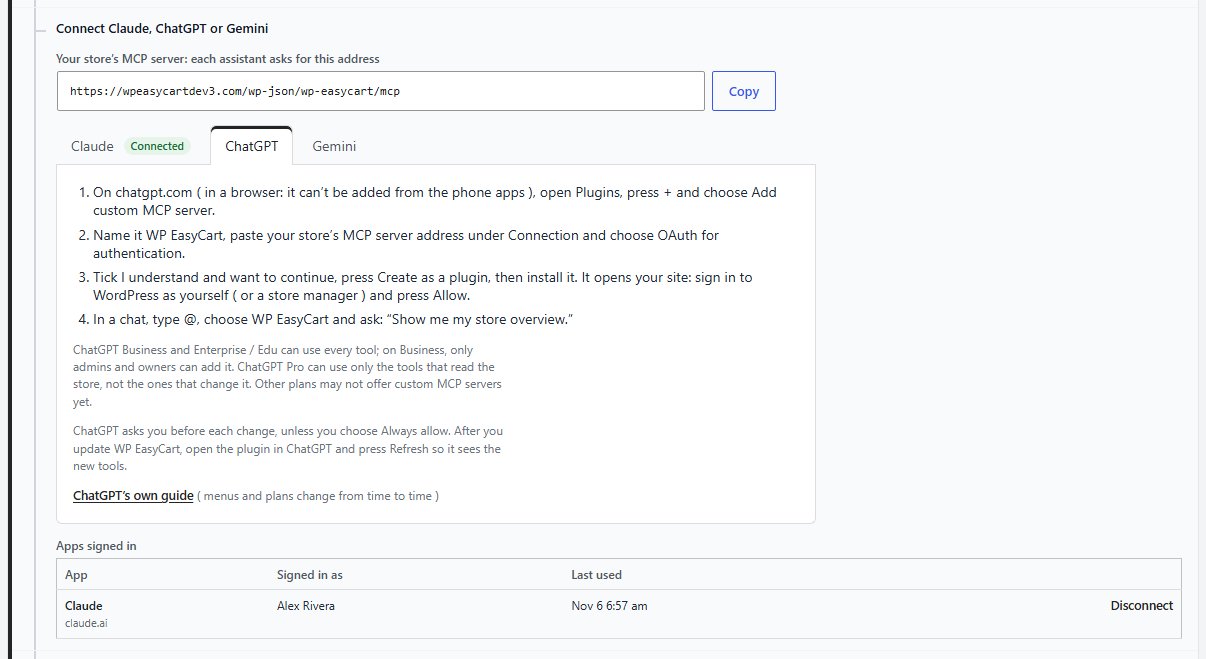
1. On chatgpt.com, in a browser ( it cannot be added from the phone apps ), open Plugins, press + and choose Add custom MCP server.
2. Name it WP EasyCart, paste your store’s MCP server address under Connection and choose OAuth for authentication.
3. Tick I understand and want to continue, press Create as a plugin, then install it. Sign in to WordPress and press Allow.
4. In a chat, type @ and choose WP EasyCart.
On ChatGPT Business only admins and owners can add it. ChatGPT asks you before each change, unless you choose Always allow.
Step 5. Or connect Gemini
gemini.google.com, Gemini CLI or Gemini Enterprise
1. On gemini.google.com, in a browser, open Settings › Connected Apps and choose Add a custom app.
2. Paste your store’s MCP server address and press Next. Sign in to WordPress, press Allow, then press Connect.
3. In a chat, type @ and choose WP EasyCart. It works in the Gemini phone app too once added.
Gemini CLI: the Gemini tab gives the command that adds your store; then run /mcp auth wp-easycart to sign in. Gemini Enterprise ( work and school accounts ) asks for a client ID and secret: make them under Apps that need a client ID and secret on the same page.
Step 6 (optional). Use Claude Code
The WP EasyCart for Claude plugin
In Claude Code, the Install WP EasyCart for Claude row gives each command to copy: tell Claude Code where your store is, add the marketplace with claude plugin marketplace add wpeasycart/wp-easycart-claude, install with claude plugin install wp-easycart@wp-easycart, then run /mcp, choose wp-easycart and sign in. The plugin adds skills to set up the store, ship orders, handle returns and run a weekly marketing check.
Where apps cannot sign in, Connect Claude Code makes an application password and shows the lines for Claude Code or Claude Desktop. The password is shown only once.
Keep it running
Test it, and when something goes wrong
Your first request, where changes are listed, and the usual sign-in problems.
Test it
Ask for your store overview
In a new chat ask: “Use WP EasyCart to show me my store overview.” The assistant answers with where setup stands and your recent sales.
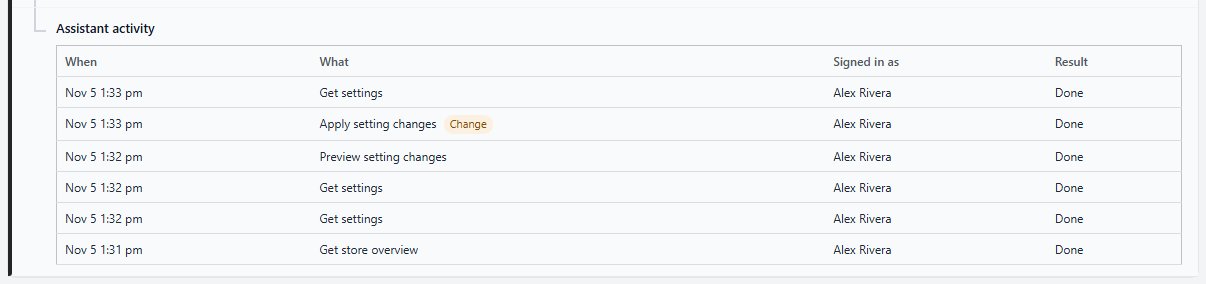
Then ask for a small change, such as turning on the newsletter popup. You get a preview of exactly what will change and approve it. Back in WordPress the change is in Recent changes on Settings › All settings with Undo, and Assistant activity at the bottom of the AI assistants page lists every call for 30 days, marked Change where something changed.
To cut an app off, press Disconnect next to it under Apps signed in.
If it does not work
Sign-in and missing tools
The assistant cannot sign in. The AI assistants page names the reason: HTTPS ( Claude, ChatGPT and Gemini sign in to HTTPS sites only ), pretty permalinks ( choose anything but Plain in Settings › Permalinks ), the MCP Adapter plugin not active, or the sign-in switch off. If it says the host drops the Authorization header, ask your host to pass it on, or add the line it shows to your .htaccess file above the WordPress rules. If application passwords are switched off, a security plugin such as Wordfence may be the cause.
Claude’s sign-in fails. Remove the connector and add it again with Register automatically chosen in its sign-in settings.
New tools do not show after an update. Claude keeps the tools it had until you start a new chat; if they still do not show, remove the connector and add it again. In ChatGPT, open the plugin and press Refresh.
It can read but not change anything. Turn on Let AI assistants make changes, and check the WordPress user it signed in as may make that change.
Still stuck? Open a ticket from your account at wpeasycart.com/my-account.
Keep going
Related panels
Amazon S3, DecoNetwork and the Premium extensions.
User accounts, for a store manager login.
Log entries.
Other Advanced settings.
Ready to run your store on WP EasyCart?
Everything in this guide works with the free plugin. PRO and Premium add subscriptions, memberships, wholesale pricing and more. Try every PRO feature free for 14 days.