
What’s newFind any order, customer, product or setting with one admin search. See all features

How-to › Checkout, orders and customers

How to Add Notes for Buyers to Orders

Write one note for every order, shown once on the order confirmation page, the receipt and My Account: on every order, or only on orders with a download, a members-only page or something to ship. 7 parts.

Quick links

Where to find it:WP Admin › EasyCart › Settings › Emails & Documents › Documents › Notes for buyers

Before you start

How it works

What a note for buyers is, and where customers read it.

What notes for buyers do

One note, written once, on every order that needs it

What you need. Any WP EasyCart store: notes for buyers are on every plan, free included.

A note for buyers is text you want every customer to read after they buy: where to find their downloads, how to open their members area, when to expect delivery, who to contact. You write it once for the whole store, and WP EasyCart prints it once an order, however many products the order has, in up to three places:
The order confirmation page, the page customers see right after they place an order.
The order receipt email, in the customer’s receipt and in your store’s copy.
The order’s page in My Account, under Your order, where customers come back later.

Each place has its own note, so the email can say something different from the page. And each can show on every order, or only on orders with a download, orders that open a members-only page, or orders that ship.

A product can still have its own notes for buyers, in the product editor. The store-wide note prints first, above each product’s own note.

💡 Note: Every switch on the receipt and the other documents is covered in Settings › Emails & Documents › Documents. What the confirmation page shows around the note is in The Order Confirmation Page.

Do it

Four steps

Open the box, write the notes, choose which orders show them, and test.

Step 1. Open Notes for buyers

Settings › Emails & Documents › Documents

Open EasyCart › Settings, then Documents under Emails & Documents. Find the Notes for buyers card: it says None until you write one, then how many places carry a note. Press Write a note ( Edit once there is one ). The Notes for buyers box opens under the page.

The same box is linked from Settings › Emails & Documents › Email, under All settings, and from each product’s own Notes for buyers in the product editor.
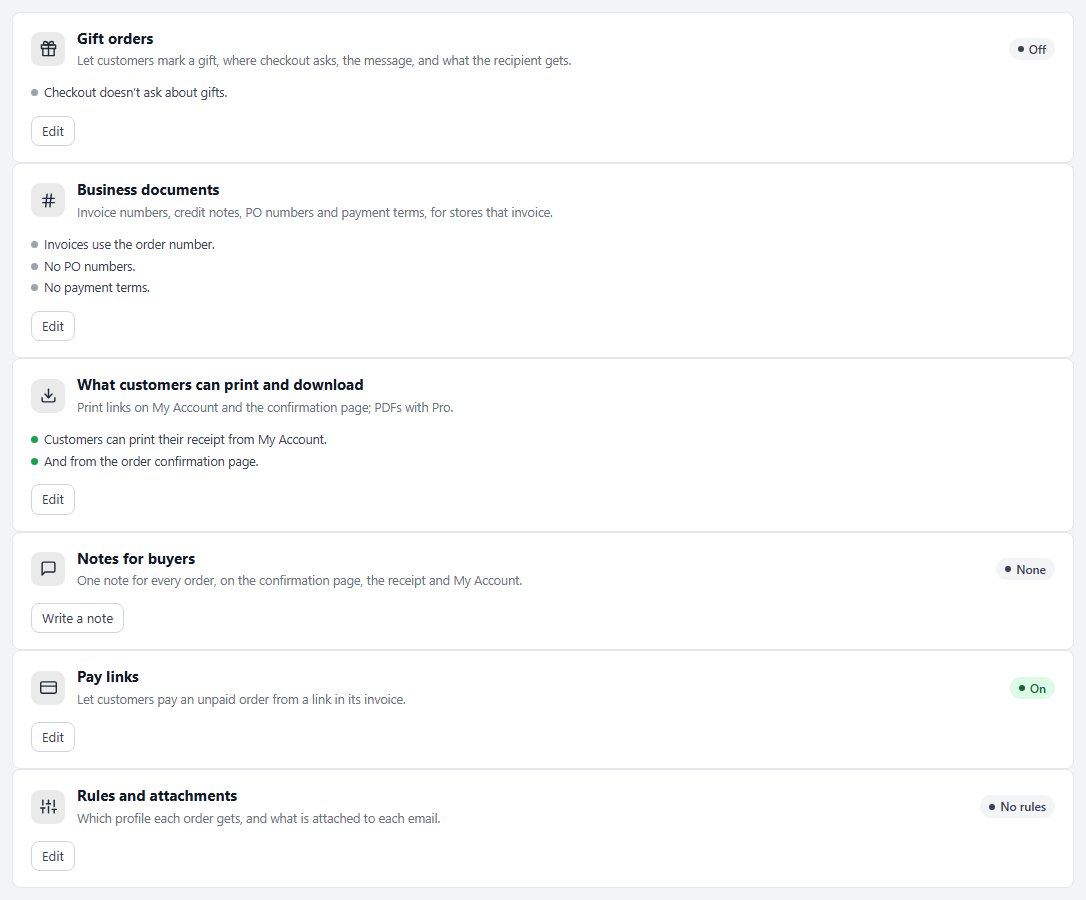
The Notes for buyers card on Settings › Documents, among the other parts of the page.

Step 2. Write the notes

One box per place, HTML and shortcodes allowed

The box has three notes, each with the orders it shows on:

Order confirmation page: shown once on the confirmation page, after the gift details, checkout answers, the withdrawal button and any pages the order opens.
Order receipt email: in the receipt customers get when they pay, and in your store’s copy, before each product’s own email note.
Order page in My Account: on each order’s page in My Account, under Your order, before each product’s own note.

Leave a box empty and that place shows nothing. HTML works, so you can add a link or bold a line, and so do shortcodes. A store page shortcode such as [ec_account] shows as a link to My Account, never the page itself, so “Your downloads are in [ec_account]” becomes a working link.

Write each one for where it is read. The confirmation page is read once, straight after paying. The email is kept, searched and forwarded. My Account is where customers come back later, so put lasting help there, such as how to download again.
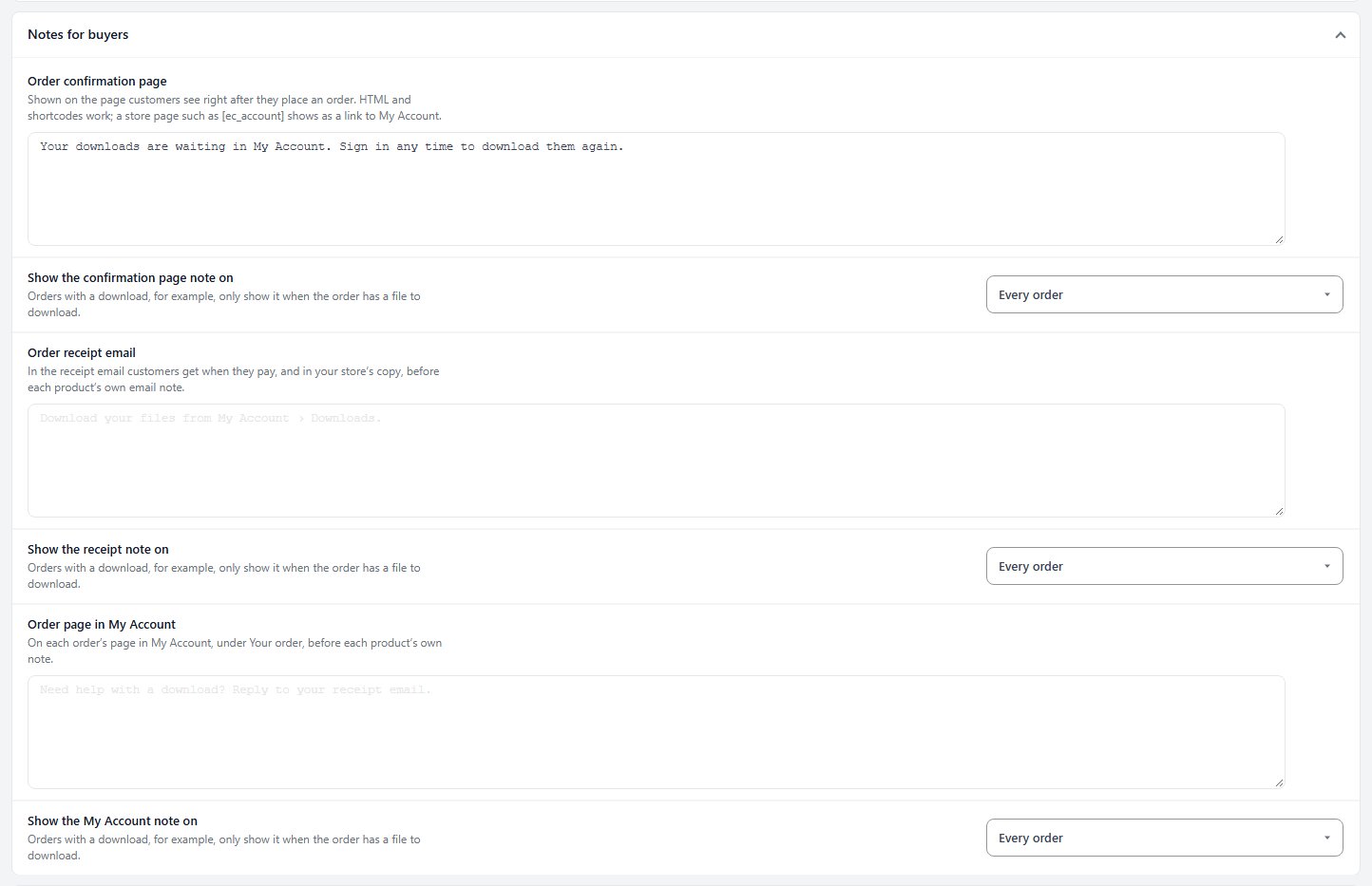
The Notes for buyers box with a note typed for the order confirmation page and each note on Every order.

⚠️ Careful: The receipt note goes in your store’s copy too, so keep it to text you are happy to read on every order email.

Step 3. Choose which orders show each note

Every order, or only the orders it is about

Under each note, Show the confirmation page note on, Show the receipt note on and Show the My Account note on each offer four choices:

Every order ( the default ).
Orders with a download: the order has at least one product with a file to download.
Orders that open a members-only page: one of the order’s products unlocks a members-only page, or the order’s subscription has a membership page.
Orders that ship: shipping is on in your store and the order has at least one product that ships.

So a store that sells both prints and downloads can say “Your downloads are waiting in My Account” on download orders only, and nothing extra on the rest. Each change is listed under Recent changes here, with Undo.

Step 4. Test it

Check all three places on a real order

Place a test order that matches the choice you made, such as an order with a download, using your payment provider’s test mode or a manual payment method. Then check each place:

The confirmation page: the note shows once, under the order details.
The receipt: open the receipt email. On Settings › Emails & Documents › Email, Send a test receipt sends a receipt for your latest order the way real ones are sent, to the address you type.
My Account: sign in as the customer and open the order. The note sits under Your order.

Then try an order that does not match, such as an order with nothing to download, to see that the note stays away.
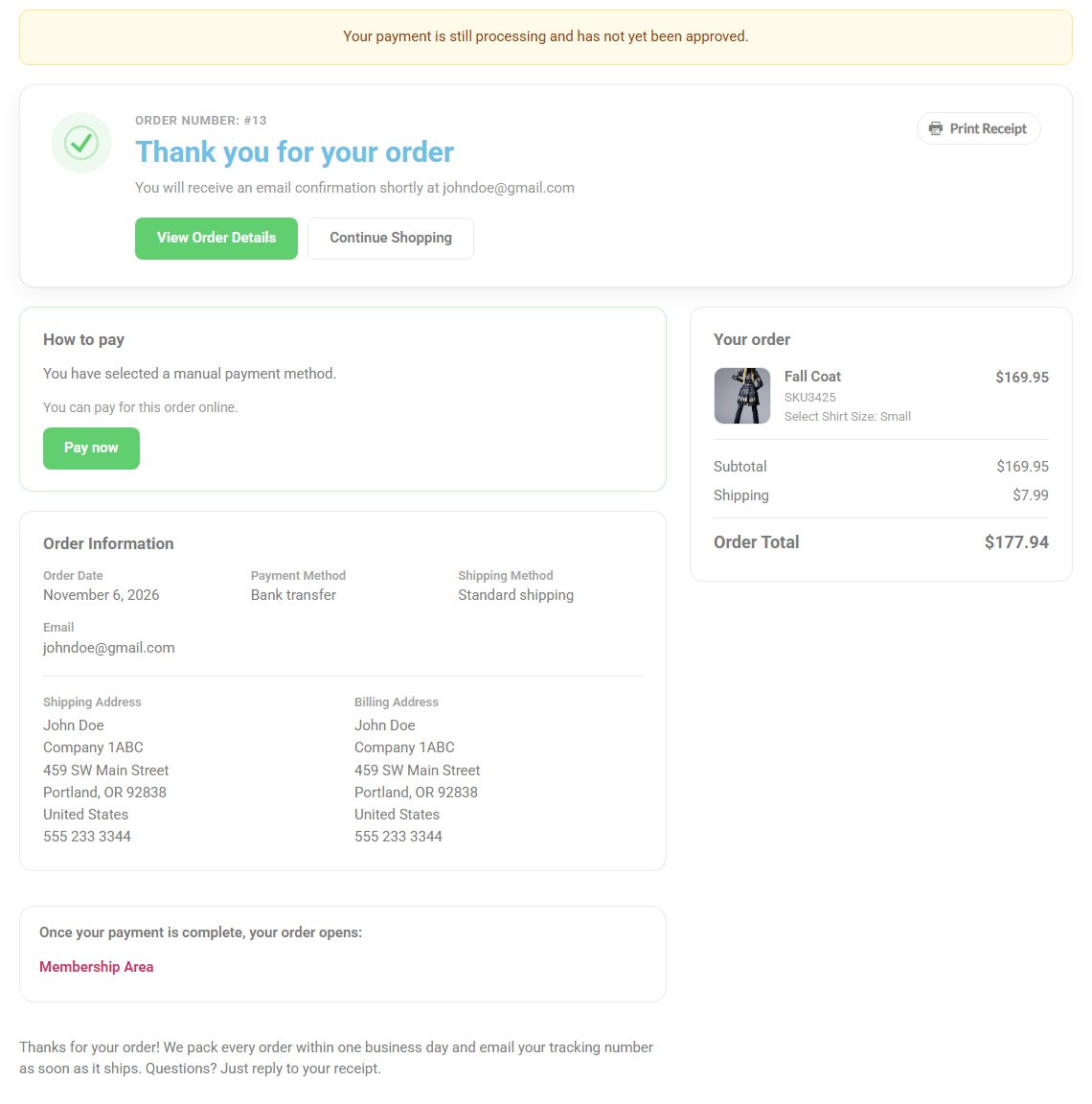
The order confirmation page with the store-wide note under the order details.

Good to know

Product notes and fixes

How the store-wide note sits with each product’s own notes, and why a note might not show.

Store notes and product notes together

When to write which

Each product’s editor has its own Notes for buyers, shown to customers who bought that product, in the same three places: Order confirmation page note, Order email note and Order details note. Use those for what only that product needs, such as how to assemble it or a link to its course.

If you were typing the same note into every product, move it to the store-wide note. A product note that several products in one order share shows once, but the store-wide note is simpler to keep up to date, and it prints above the product notes.

If a note does not show

The usual reasons

The order does not match the choice. Orders that ship needs shipping switched on in your store and a product that ships in the order. Orders with a download needs a product with a download. Set the choice to Every order to rule this out.
The box for that place is empty. Each place has its own note; writing the confirmation page note does not fill the email.
A shortcode shows as a link. That is intended for store pages such as [ec_account]: the note links to the page instead of drawing it inside the order.
You use your own copy of the receipt or account templates. The note still shows there, once, through the hooks those templates already run.

Still stuck? Contact us at wpeasycart.com/my-account.

Keep going

Related panels

Documents

Notes for buyers and every other document setting.

Email

Send a test receipt and check your emails arrive.

After Purchase

A product’s own notes for buyers.

The Order Confirmation Page

Everything on the order confirmation page.

What Customers See in My Account

What customers see in My Account.

Ready to run your store on WP EasyCart?

Everything in this guide works with the free plugin. PRO and Premium add subscriptions, memberships, wholesale pricing and more. Try every PRO feature free for 14 days.
The WP EasyCart admin: orders and offers
Updated on November 6, 2026