
How-to › Checkout, orders and customers
How to Add the EU Withdrawal Button
Give EU shoppers the “Withdraw from contract here” button the law asks for: a short form, a confirm step and a receipt by email, with the order flagged for you. 12 parts.
Quick links
Where to find it:WP Admin › EasyCart › Settings › Checkout › Withdrawal button ( EU )
Before you start
What the law asks for
The withdrawal button in plain words, who gets it and what you need.
What EU law asks for
The withdrawal button in plain words, and what you need
The rule. Since 19 June 2026, a shop that sells online to consumers in the EU must let them withdraw from a contract online, through a button labelled “Withdraw from contract here” or something as clear. The shopper gives or confirms their name, the order and an email address for the receipt, then confirms with a separate button. The shop then emails a receipt with what was sent and when it arrived. A withdrawal sent before the period ends counts as in time, and the period is at least 14 days.
What WP EasyCart does. It adds the button, the form, the confirm step and both emails, and flags the order for you. It never changes the order’s status, stock or money by itself: you arrange the return and pay the refund.
What you need. Nothing extra: the withdrawal button is in the free plugin. With PRO the flag on the order also has a Refund button. A store whose country is in the EU or the EEA starts with the button on; every other store starts with it off.
Who gets it. By default, orders whose billing or shipping country is one of the 27 EU countries, Iceland, Liechtenstein or Norway. Orders that never went through or are closed never get it: drafts, Order Started, Card Denied, Third Party Error, refunded and cancelled orders, and subscription renewals ( the subscription’s first order does count ).
The steps: switch it on and set the period, give the form a page, choose who hears about it, mark the products the law exempts, then test.
⚠️ Careful: Nothing on an order changes when a shopper withdraws. Watch for the store email or the Withdrawals tile on the orders list, arrange the return, refund what is due, then mark the withdrawal handled.
Set it up
Four steps and a test
Switch it on, give the form a page, choose who hears about it, mark exempt products and test.
Step 1. Switch it on and set the period
Settings › Checkout › Withdrawal button ( EU )
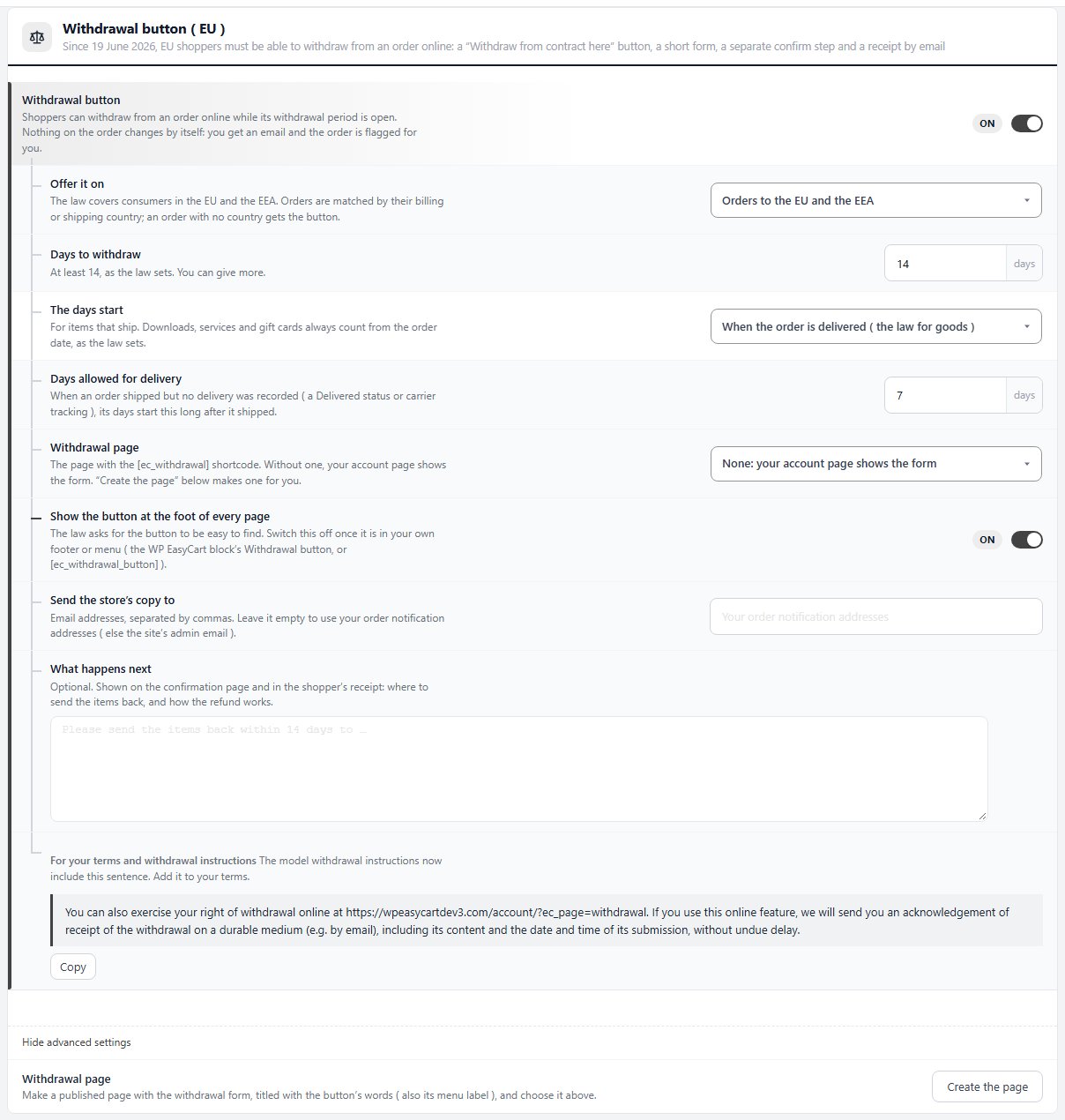
Open EasyCart › Settings › Checkout and go to the Withdrawal button ( EU ) section. Switch Withdrawal button on, then check the rows under it:
Offer it on: Orders to the EU and the EEA, or Every order if you give the same right everywhere. An order with no country at all gets the button too.
Days to withdraw: 14 at the least, as the law sets, and up to 365.
The days start: When the order is delivered ( the law for goods ), When the order ships or On the order date. This is for items that ship: downloads, services and gift cards always count from the order date.
Days allowed for delivery ( behind Show advanced settings ): with the delivery choice, an order that shipped but never had a delivery recorded starts its days this long after it shipped. The default is 7.
Delivery is read from your shipments’ tracking, or from the order reaching Delivered or Order Picked Up. With delivery or shipping chosen, an item that has not shipped yet has no deadline, so the button stays open for it. A period runs to the end of its last day in your WordPress time zone, and one that would end on a Saturday or a Sunday runs on to the Monday.
If your store is in the EU or the EEA, EasyCart screens show a notice, The EU withdrawal button is on, with Review the settings and Got it. Saving the switch clears it too.
Step 2. Give the form a page and make the button easy to find
Withdrawal page, the footer button, the block and the shortcodes
The page. Without a page of its own, the form shows on your account page. Press Create the page at the bottom of the section. It makes a published page titled with the button’s words, “Withdraw from contract here” in English, holding [ec_withdrawal], and chooses it as the Withdrawal page. Add that page to your menu or footer: its title is also its menu label. To use a page of your own instead, put the shortcode on it and choose it in the list, where pages that hold the shortcode show a tick.
The footer. Show the button at the foot of every page is on to start with, which is the simplest way to meet the law’s “easy to find” rule. It is left off the withdrawal page itself. Once the button is in your own footer or menu, switch it off so it does not show twice.
Placing it yourself. The WP EasyCart block has three choices in its WP EasyCart Shortcode list: Withdrawal page ( EU ), Withdrawal button ( EU ) and Find your order ( guests ). Or use the shortcodes: [ec_withdrawal] for the form ( heading="1" adds its heading ), [ec_withdrawal_button] for the button alone, linking to the withdrawal page, and [ec_order_lookup] for the guest order lookup. There is no Elementor widget for it, so on an Elementor page put the shortcode in Elementor’s Shortcode widget.
Your terms. The section shows a sentence For your terms and withdrawal instructions, with your withdrawal page’s address in it, and a Copy button. The EU’s model withdrawal instructions include that sentence, so add it to your terms.
💡 Note: Every label shoppers see, including the button’s words, is in the store’s language. In each language file the button and the confirm button carry the official wording of that language’s version of the law.
Step 3. Choose who hears about it and what comes next
The store’s copy, What happens next and the email switches
Send the store’s copy to: the addresses that get the store’s email, separated by commas. Left empty, it goes to your store notification addresses from Settings › Email, or the WordPress admin email.
What happens next: optional text shown on the page the shopper sees after confirming and in their emailed receipt. Say where to send the items back and how and when the refund is paid.
While an order can still be withdrawn from, the customer’s receipt and shipped emails carry a line, “Changed your mind? You can withdraw from this order online until [date], without giving a reason.”, and the button. Each has its own switch, Withdrawal button ( EU ), on the Order receipt and Shipping confirmation under Settings › Documents. Both start on. The store’s copy of an email never carries the button.
Step 4. Mark products with no right of withdrawal
Product editor › Type settings › Purchase rules
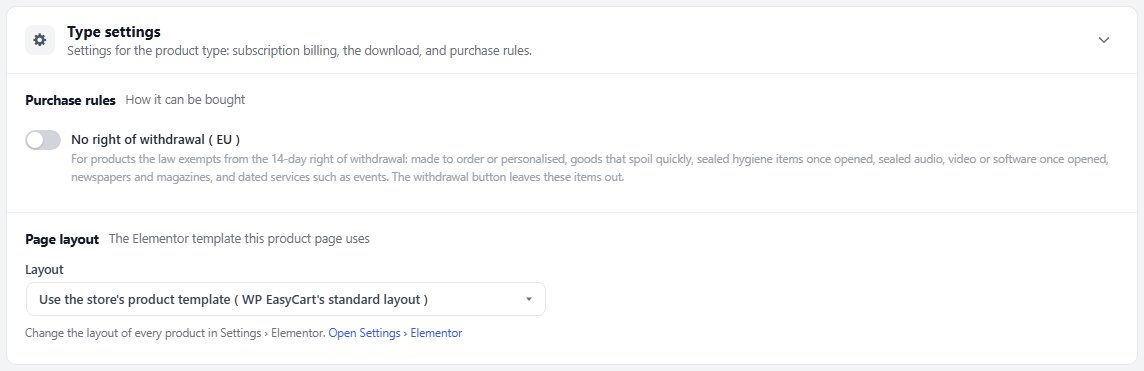
The law leaves some goods out: made to order or personalised items, goods that spoil quickly, sealed hygiene items once opened, sealed audio, video or software once opened, newspapers and magazines, and dated services such as events. Check with your adviser which of your products qualify.
Open the product in EasyCart › Products, go to Type settings, and under Purchase rules switch on No right of withdrawal ( EU ). Press Save. On the form those items show “No right of withdrawal” and cannot be ticked, and an order made only of them gets no button.
The switch is read when the shopper withdraws, not when they ordered, so changing it changes orders already placed too. WP EasyCart does not add a box at checkout where a buyer gives up the right on a download, so a download is treated like any other item unless its product has this switch on.
Test it
One order, start to finish
1. If your own address is not in the EU, set Offer it on to Every order for the test.
2. Place a test order with your gateway in test mode. The order confirmation page shows the Withdraw from contract here button, with the date it is open until, or a line saying the period starts when you receive the order.
3. Press it. The form for that order opens with every item ticked. Untick one, press Continue, read the check step and press Confirm withdrawal.
4. Check your inbox for the receipt, and the store’s copy at the address you set.
5. Open the order under EasyCart › Orders. The yellow Withdrawal received notice is at the top. Press Mark as handled.
6. Sign out, open your account page and use Ordered without an account? Find your order with the order number and email.
7. Set Offer it on back, and turn test mode off.
How it runs
What shoppers do, and what you do next
The button, the form and the confirm step, the two emails, the flagged order and guest orders.
Where shoppers find the button
Confirmation page, My Account, emails, menu and footer
While an order can be withdrawn from, its button shows on the order confirmation page, with a line under it: “You can withdraw from this order until [date].”, or, while the period has not started, “Your 14-day withdrawal period starts when you receive your order. You can also withdraw before then.” It also shows on the order in My Account and in the guest order view, and in the receipt and shipped emails.
The account menu has a link to the form, and so does the foot of every page while that switch is on. Those two lead to the withdrawal page, which lists a signed-in customer’s orders under Your orders, each with its own button, and always has a form to withdraw from an order by its number and email.
The button is drawn in your store’s main colour, outlined, so it stays easy to see on any theme.

The short form and the confirm step
Choose, check, confirm
From an order’s button. The form opens on Withdraw from order [number], with the order date and how long it is open. Items you are withdrawing from lists every item, all ticked to start with, and a quantity choice where there is more than one. Items that cannot be chosen say why: No right of withdrawal, Already withdrawn, Withdrawal period ended on [date] or Already refunded. Your name and Email for your receipt come filled in from the order and can be changed, and Reason (optional) is just that.
The confirm step. Continue opens Check your withdrawal: “This is what we will receive. Nothing is sent until you confirm.” The shopper presses Confirm withdrawal, or Change something to go back. After confirming they see Withdrawal received, with the date and time, what they sent and your What happens next text.
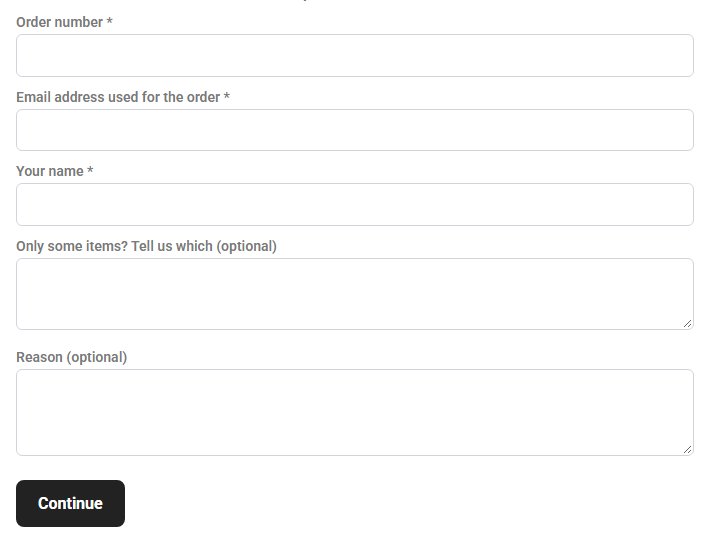
Without the order’s link. The withdrawal page asks for the Order number, the Email address used for the order and the shopper’s name, with Only some items? Tell us which (optional) and a reason. It goes through the same check and confirm steps and covers the whole order, with the note telling you which items. To choose items first, a link on the page leads to Find your order.
The receipt and the store email
Both go out the moment the shopper confirms
The shopper’s receipt. Subject “We received your withdrawal (order [number])”. It lists the order, the items, the name and email, any reason and the date and time it was received, then your What happens next text. It ends by saying it confirms that the withdrawal arrived, not yet that it is valid: you check it and reply.
The store email. Subject “Withdrawal received for order [number]”, to the addresses you set. It says whether the withdrawal came within the period as the order stands, repeats what the shopper sent and has an Open the order button. Nothing on the order has changed.
A withdrawal typed on the page whose order number and email match no order is kept all the same, usually it is a typing mistake, and both emails still go out. The store email is then headed “Withdrawal statement that matched no order”. Find the order and use Attach, or Dismiss, under Statements that matched no order in the settings section.
The flagged order
What you do once a withdrawal arrives
Open the order under EasyCart › Orders. A yellow Withdrawal received notice at the top gives the date and time, The whole order or how many items, whether it came within the withdrawal period, who sent it, and any items, reason or note. It ends: “Nothing on the order changed: arrange the return and refund what is due, then mark it handled.”
Its buttons are Mark as handled, Refund with PRO, which opens the refund window, and Open the subscription when the order belongs to one. With PRO the order’s timeline also records Withdrawal received and Withdrawal marked handled.
On the orders list, a Withdrawals tile shows while any wait, and the Withdrawals filter shows Waiting or Any.
Guests finding their order
Order number and email, and a link by email
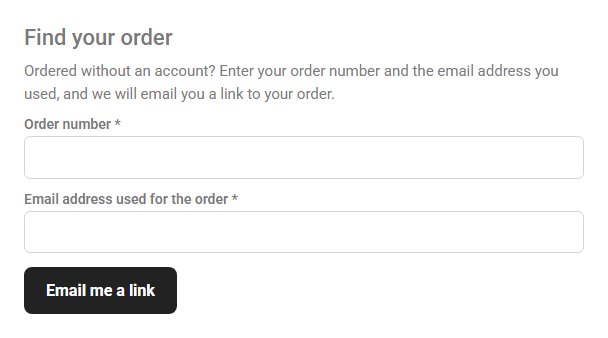
A shopper who ordered without an account can still reach their order. Under the account sign-in form there is a link, Ordered without an account? Find your order. The form asks for the Order number and the Email address used for the order, and Email me a link sends the order’s own link to the email address on the order. From that link the shopper sees the order, prints the receipt and, while the period is open, withdraws from it.
The page always answers “If that matches an order, we have emailed a link to it.”, so it never says whether an order exists, and one order gets at most 3 of these emails a day. The lookup works whether or not the withdrawal button is on. Put it anywhere with [ec_order_lookup] or the block’s Find your order ( guests ) choice.
If it does not work
The usual reasons the button is missing or a form refuses
No button anywhere. Check the switch is on. If EasyCart › Store Status says the withdrawal button needs a database update, reload that page to run it.
No button on one order. The order’s billing and shipping countries are outside the EU and the EEA while Offer it on is set to those orders; or the order is refunded, cancelled, unfinished or a subscription renewal; or its period has ended; or every item has no right of withdrawal, or was already withdrawn or refunded.
Not in the emails. The Withdrawal button ( EU ) switch is off on the Order receipt or Shipping confirmation under Settings › Documents. Only the customer’s copy ever carries it.
The button shows twice. You added it to your footer or menu: switch off Show the button at the foot of every page.
“That link no longer works.” The link’s order key does not match. The page then offers the form by order number and email instead.
“Too many tries.” The forms without a link allow 5 tries in 15 minutes and 20 a day from one address, and one email address gets at most 3 receipts a day. When Checkout protection has a human check set up, it is asked for after 2 tries.
Personal data. Withdrawals are part of a customer’s personal data export in WordPress. The eraser leaves them, as it leaves orders, because they are your record of a legal request.
Keep going
Related panels
Every setting in the Withdrawal button section.
The Withdrawal button switch on the receipt and shipped emails.
The orders list and the order screen where withdrawals are flagged.
Type settings, where a product is marked as having no right of withdrawal.
What Customers See in My Account
What customers see in My Account, where the button also shows.
Ready to run your store on WP EasyCart?
Everything in this guide works with the free plugin. PRO and Premium add subscriptions, memberships, wholesale pricing and more. Try every PRO feature free for 14 days.



