
Cloud services › Text messaging
Text Messaging Cloud Service
Text customers when their order changes: a welcome when they sign up, then status, tracking and order updates as you make them. 8 parts.
Quick links
Where to find it:WP Admin › EasyCart › Settings › Checkout › Order text notifications
Getting started
Connect the service
What you need, buying and connecting the service, and the switch that turns texting on.
Before you start
What you need, buying the service and connecting it to this site
no stored settingsWhat you need. A WP EasyCart PRO or Premium license registered on this site, and the Text Messaging cloud service, bought separately from wpeasycart.com. Texts go out through WP EasyCart’s own cloud service, so there is no texting account of your own to set up. Your plan sets how many texts you can send each month.
1. Buy the service. Until it is connected, Order text notifications shows an Add Text Notifications button instead of the message builder. It opens the Text Messaging page on wpeasycart.com, where you choose a plan.
2. Connect it to this site. Sign in to your account at wpeasycart.com/my-account. Next to your text messaging subscription, choose this store from the list and update. Visit Your Account, under Already Purchased?, goes to the same place.
3. Write your messages. Reload Settings › Checkout. Order text notifications now shows the message builder. Add your messages, then turn on Send text notifications.
💡 Note: Your messages are kept on the cloud service against your license and this site’s address, not in WordPress. A staging copy of the store shows the Add Text Notifications button and sends nothing.
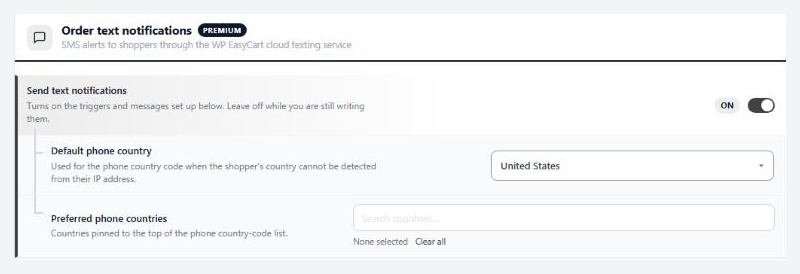
Order text notifications
SMS alerts to shoppers through the WP EasyCart cloud texting service
3 settingsSend text notifications
Turns texting on for the store. While it is off, no message sends, shoppers are not offered text updates after checkout, and orders hide their Text Notifications box and text log. The message builder sits below this switch and works either way, so write your messages first, then turn this on.
Default phone country
The country the phone box on the order confirmation page starts on when the shopper’s own country cannot be worked out from their internet address. Set it to where most of your customers are.
Preferred phone countries
Countries pinned to the top of the dial-code list in that phone box, so shoppers do not scroll through every country to find theirs. Pick the few you sell to most.
Your messages
Write the texts
The message builder, the ten triggers and the order details a text can carry.
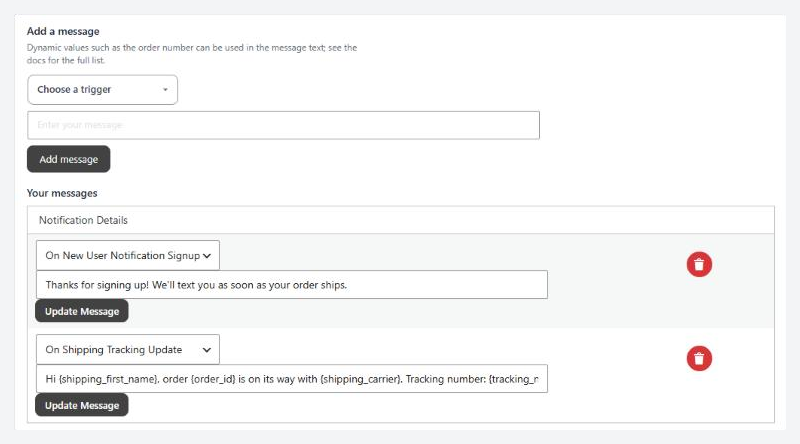
Add a message
Write a text for each change you want customers told about
no stored settingsBelow the switch, Add a message builds one text at a time. Choose a trigger, the change that sends it. For On Order Status Update a second list appears: leave it on Trigger on all order statuses or pick the one status that should send it, such as Shipped. Type the message, with dynamic values such as {order_id} for the order’s details, and press Add message.
Your messages lists every text set up for this site. Change a row’s trigger, status or wording and press Update Message on that row. The red bin deletes a message straight away, without asking. Messages are saved to the cloud service the moment you press the button, not with the page’s Save button.
Keep them short. A message is one line of plain text. For example Thanks for your order {order_id}! We will text you when it ships. on On New User Notification Signup, and Order {order_id} is on its way with {shipping_carrier}, tracking {tracking_number}. on On Shipping Tracking Update.
Triggers
The change that sends each message
no stored settingsA trigger fires each time that change is saved, and the message goes to every number subscribed to that order. Change a status five times and five texts go out.
On New User Notification Signup: a number is subscribed to the order, by the shopper on the order confirmation page or by you on the order screen. Use it as your welcome text.
On Subscriber Removed: you unsubscribe a number on the order screen. It fires before the number is removed.
On Order Status Update: the order’s status changes, whether you change it or a payment or shipment does. Pick a status to send only on that one.
On Shipping Tracking Update: a carrier or tracking number is saved on the order, including when a package gets its tracking.
On Order Notes Update: you save the order’s customer notes.
On Shipping Address Update: you correct the shipping address on the order screen.
On Billing Address Update: you correct the billing address on the order screen.
On Order Line Item Updated: you change an item on the order.
On Order Line Item Added: you add an item to the order.
On Order Line Item Deleted: you remove an item from the order.
💡 Note: Shoppers subscribe after the order is placed, so a status text sent at checkout has no one to go to. Welcome them with On New User Notification Signup instead.
Dynamic values
Order details a message can carry
no stored settingsType a value in curly brackets and the text carries that detail of the order. {order_id}, the order number, works in every message. The rest fill in only on the trigger that sends them.
On Order Status Update: {order_date} {grand_total} {pickup_date} {pickup_time} {restaurant_date} {restaurant_time}
On Shipping Tracking Update: {shipping_method} {shipping_carrier} {tracking_number}
On Order Notes Update: {order_customer_notes}
On Shipping Address Update: {shipping_first_name} {shipping_last_name} {shipping_company_name} {shipping_address_line_1} {shipping_address_line_2} {shipping_city} {shipping_state} {shipping_country} {shipping_zip} {shipping_phone}
On Billing Address Update: {billing_first_name} {billing_last_name} {billing_company_name} {billing_address_line_1} {billing_address_line_2} {billing_city} {billing_state} {billing_country} {billing_zip} {billing_phone}
The line item triggers: {title} {model_number} {quantity} {unit_price} {total_price} {giftcard_id} {gift_card_email} {gift_card_from_name} {gift_card_to_name} {gift_card_message} and {optionitem_name_1} to {optionitem_name_5}
The subscriber triggers: {phone_number}
{grand_total} carries your currency sign; {unit_price} and {total_price} are plain numbers. {pickup_date} and {pickup_time} fill in on orders with a pickup time, {restaurant_date} and {restaurant_time} on restaurant orders. On other orders they are empty, so leave them out of a message every order gets.
Day to day
Shoppers and orders
How shoppers sign up, what each order shows, and what to check when texts do not arrive.
What shoppers see
Signing up for texts on the order confirmation page
no stored settingsWith Send text notifications on, the order confirmation page shows an Order Updates box, on the Elementor confirmation page too. The shopper picks their country, types their mobile number and presses Get Shipping Updates by Text. A number that is not valid for that country is turned back with Your phone number is invalid before anything is sent.
The country list starts on the shopper’s own country, or on your Default phone country when theirs cannot be found, with your Preferred phone countries at the top.
A number is subscribed to that one order, not to the customer, so a returning customer signs up again on their next order. Every word in the box can be changed under Settings › Email › Receipt wording, in the phrases starting Text updates.
💡 Note: To find the shopper’s country, the phone box asks ipinfo.io from the shopper’s browser. Mention it in your privacy policy.
On the order screen
Subscribers and the text log on each order
no stored settingsWith the switch on and the service connected, each order has a Text Notifications box. It lists the numbers subscribed to the order and how long ago each signed up, with an unsubscribe link under each one.
To add a number yourself, type it in Add New Subscriber with its country code, such as 1 for the US, and press Subscribe Number. Only the digits are kept. Adding a number sends your On New User Notification Signup text, so ask the customer first.
The text log. Every text sent for the order shows in its history with a phone icon, filed with the emails: the message and the number it went to, then Text notification accepted once the carrier took it, Text notification delivered once it arrived, or Text notification failed with the reason, such as a number no longer in use, a number that blocked you or a carrier spam filter.
When texts do not arrive
Connection, your monthly limit and carrier filters
no stored settingsThe builder shows Add Text Notifications. The cloud service does not recognise this site. Check the subscription is connected to this store at wpeasycart.com/my-account. www. and https do not matter, but a staging copy or a new domain counts as another site. The button also shows when your server cannot reach the cloud service.
Send text notifications turned itself off. When an order or the Store Status page finds the service is no longer connected to this site, or the subscription has ended, the switch is turned off. Reconnect or renew, then turn it back on.
Your monthly limit. EasyCart › Store Status shows the texts sent this month against your plan and the day the count resets. Increase Your Quota opens your subscription on wpeasycart.com. Past the limit, texts stop until the reset and the order history marks each one Message not sent.
Nothing arrives while testing. Carriers filter a number that gets the same text again and again, which is easy to do testing on your own phone. Filtered texts still count toward your limit. Test with short, plain messages and vary the wording.
Keep going
Related panels
The rest of Settings › Checkout.
Where each order’s subscribers and text log live.
Receipt wording, including the sign-up box’s phrases.
Texts sent this month against your plan.
Try the PRO features free for 14 days
Anything marked PRO comes with WP EasyCart PRO or Premium. Take the whole thing for a run on your own store before you decide.