
Extensions › Phone apps
Phone Apps for iPhone and Android
Manage the orders of every WP EasyCart store from your phone, and get an alert the moment one comes in. 7 parts.
Quick links
Where to find it:Your phone › WP EasyCart app
Getting started
Connect your store
What you need, getting the app, and adding your first store.
Before you start
A Premium license, WP EasyCart PRO and an admin account
no stored settingsWhat you need. A Premium license on the store. The app checks the license when you open a store, and a site without Premium shows Premium license required with links to upgrade or to your account. Premium and Elite licenses, including AutoPay, include the app.
WP EasyCart PRO. The app talks to your store through WP EasyCart PRO, so it must be installed and active on the site.
An admin account. You sign in with the email and password of a WP EasyCart account that is an admin, or whose user role has admin access. Each person who uses the app can sign in with their own account.
💡 Note: The app only changes what an admin can already change in WordPress, and only for the stores you add to it.
Get the app
One free app for Android and iPhone
no stored settingsThe same app runs on both kinds of phone and is free to download:
Android: WP EasyCart on Google Play, Android 8.0 or later.
iPhone: WP EasyCart on the App Store, iOS 16 or later.
If you used the older iPhone app, update it from the App Store and add your stores again: version 6.1 is the new app, with the same look and features as on Android.
Add a store
Your site address and admin login
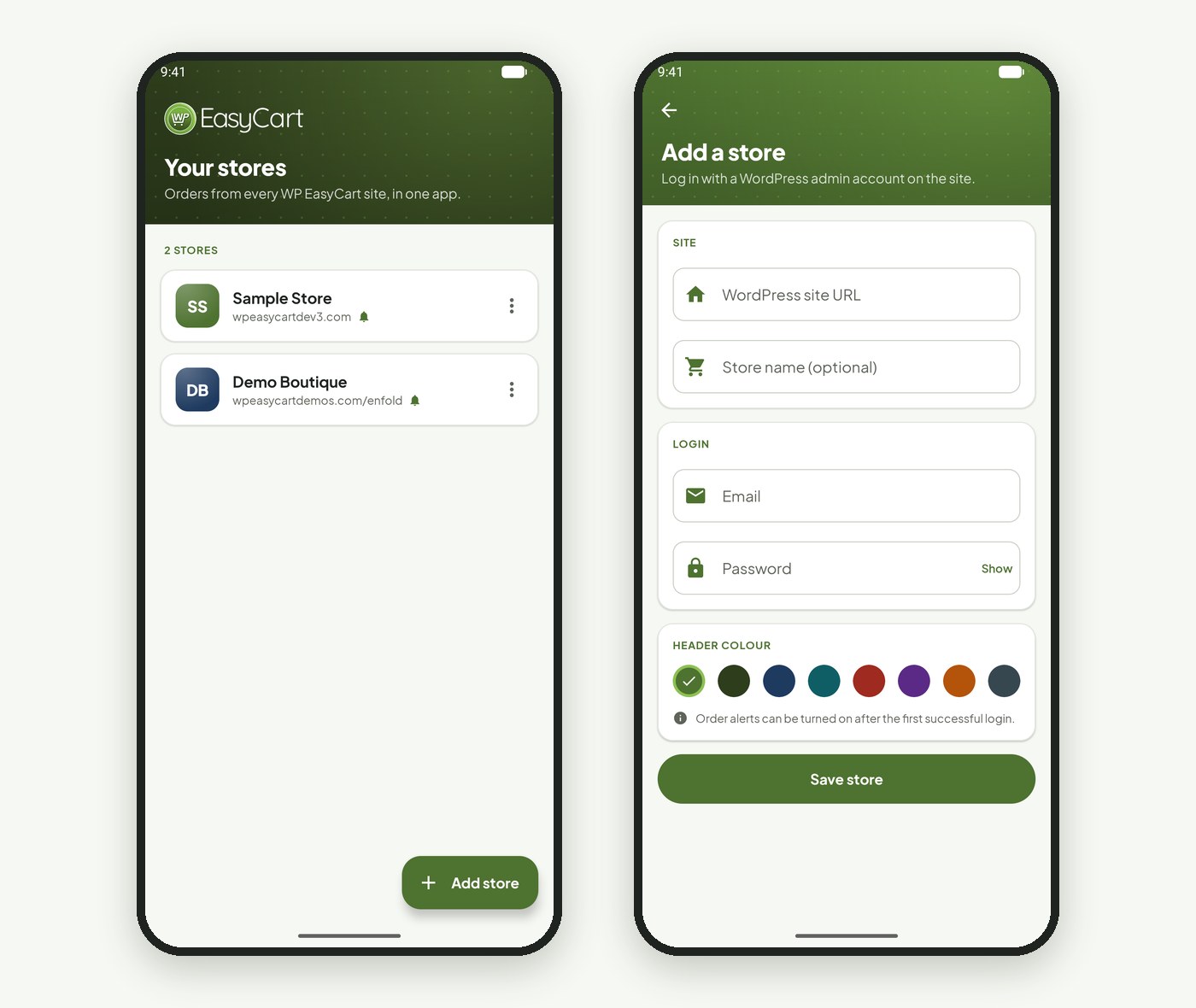
no stored settingsTap Add a store ( or Add store once you have one ) and fill in:
WordPress site URL: the address of the site, starting with https://. Include the folder if WordPress lives in one, for example https://example.com/shop.
Store name: optional. Left empty, the app uses the site’s address.
Email and Password: your WP EasyCart admin login.
Header color: the color of the store’s screens, so you always know which store you are in.
Save, then tap the store to sign in and load its orders. Add every store you run the same way; each gets its own icon with its initials. Use the ⋮ menu on a store to edit or remove it. Removing a store only takes it off this phone. Logins are kept on the device, in the iPhone Keychain on iPhone.
Everyday
Orders on your phone
The orders list, working on an order, and alerts for new ones.
The orders list
The latest orders, unread first to catch your eye
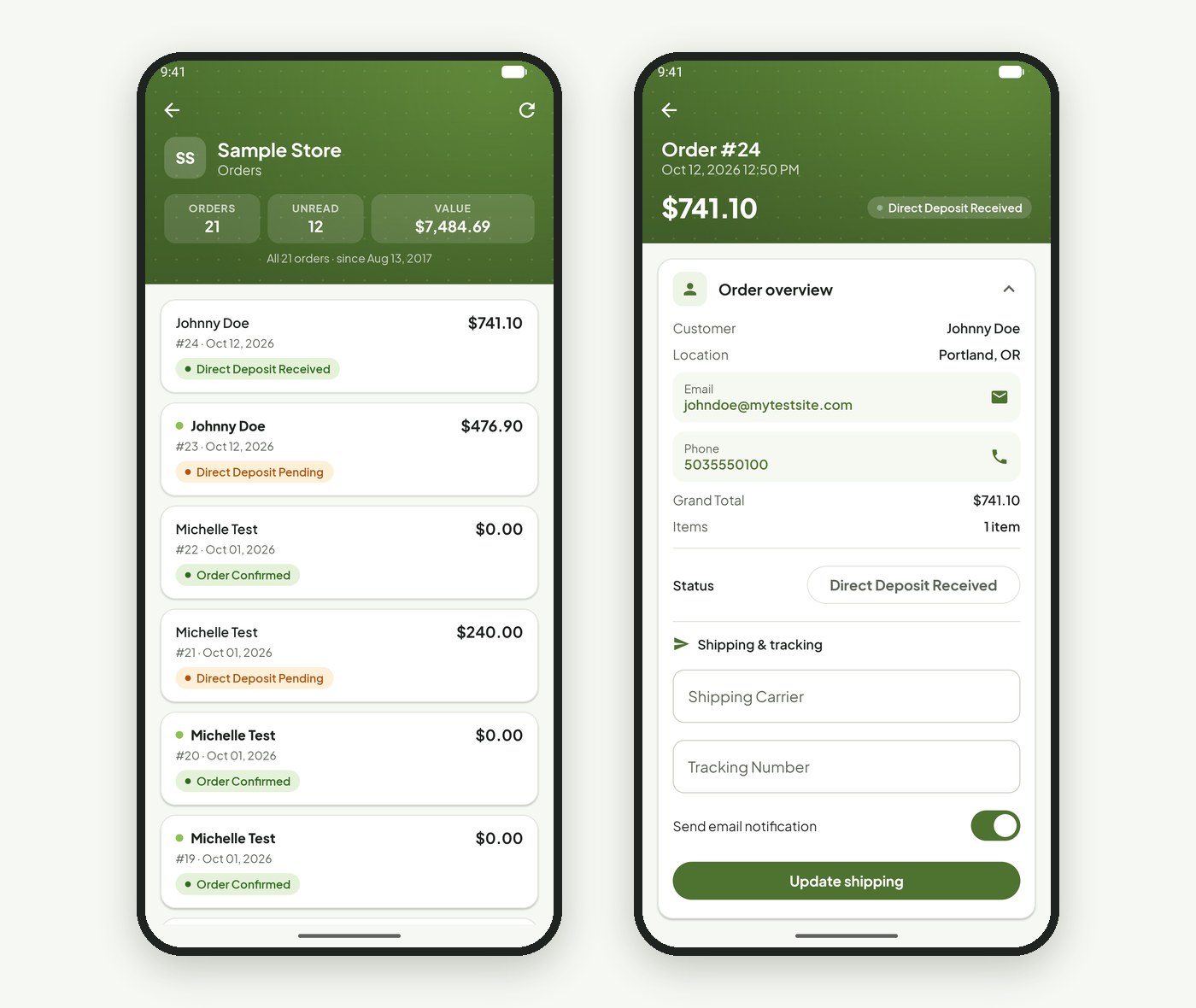
no stored settingsTapping a store opens its orders, newest first. Each row shows the customer, the order number and date, the total and the status. A green dot and bold name mark an order nobody has opened yet, in the app or in WordPress.
Along the top, Orders, Unread and Value count the orders loaded, which are the latest 50, and the line under them says the date they go back to. Pull down, or tap the refresh arrow, to check for new orders. The back arrow returns to your stores.
Managing an order
Status, tracking, items, totals, addresses and notes
no stored settingsTap an order to open it. Opening it marks it read. The top shows the order number, when it was placed, the total and the status. Each section below opens and closes with a tap:
Order overview: the customer, where they are, and their email and phone. Tap the email or phone to write to or call the customer. Change the Status from the list of your store’s order statuses. Under Shipping & tracking, enter the carrier and tracking number and press Update shipping. With Send email notification on, the customer gets the tracking by email.
Items: each product with its SKU, options, quantity and price. The pencil edits the quantity and unit price.
Totals: the grand total, tax, shipping, discounts, VAT and duty.
Billing address and Shipping address: edit and save either one.
Notes: the order notes.
More actions: delete the order, after a confirmation.
Refunds are not in the app. Issue them from the order in WordPress.
New order alerts
A notification the moment an order is placed
no stored settingsAfter you have signed in to a store once, edit it and turn on New order alerts. The phone then gets a notification, with the order number and total, each time that store takes an order. Turn alerts on for as many stores as you like, up to ten per phone, and allow notifications for the app when the phone asks.
Alerts also need the store side switched on: Push a notification for each new order in Settings › Advanced › Admin, under Mobile apps. It is on by default. Each order sends one alert, even if its status changes again later.
💡 Note: No alerts? Check three things: New order alerts is on for the store in the app, the phone allows notifications for WP EasyCart, and Push a notification for each new order is on in Settings › Advanced › Admin.
Help
When something is off
The usual reasons a store will not sign in.
If you cannot sign in
The usual causes, and what fixes each one
no stored settingsPremium license required: the site has no current Premium license. Log in to your account to check it, or upgrade.
Invalid email or password: the account is not a WP EasyCart admin, its role has no admin access, or the password changed. Edit the store and enter the password again.
An error page or no answer: check the site URL, including https:// and any folder, and that WP EasyCart PRO is active. A security plugin or firewall that blocks requests to wp-content/plugins can stop the app too.
Signed in, then asked again: some shared hosts lose PHP sessions between requests. Ask the host to give PHP a working session folder.
The app signs in to older WP EasyCart versions too. Legacy app sign-in in Settings › Advanced › Admin is only for the old iPhone app from before 6.1. Once every phone has the new app it can be turned off.
Keep going
Related panels
The Mobile apps switches: order notifications and legacy sign-in.
The same orders in WordPress, including refunds.
Which roles have admin access, and so can sign in to the app.
Your license, which the app checks for Premium.
Ready to run your store on WP EasyCart?
Everything in this guide works with the free plugin. PRO and Premium add subscriptions, memberships, wholesale pricing and more. Try every PRO feature free for 14 days.


