
What’s newFind any order, customer, product or setting with one admin search. See all features

How-to › Selling special products

How to Sell and Accept Square Gift Cards

Let shoppers pay online with the Square gift cards you sell at your register, and make the gift cards you sell online real Square gift cards. Two switches, a product and a test. 9 parts.

Quick links

Where to find it:WP Admin › EasyCart › Settings › Payments › Square › Gift cards

Before you start

What you are building

What you need, the two directions, and the Square permission that makes them work.

What you need and how it works

One gift card, at the register and online

What you need. WP EasyCart PRO or Premium with an active license, and WP EasyCart 6.0.4 or newer. Square must be connected. To take Square gift cards at checkout, Square must also be your payment gateway. Selling Square gift cards works with any gateway. New to Square on your store? Start with How to sell online with Square. PRO comes with a free trial.

Your Square connection must allow gift cards. Square has to give your store permission to read and make gift cards. A store connected before 6.0.4 does not have it yet, because Square never widens an existing connection. You reconnect once, as described in Step 1.

Two directions, two switches.
Customers pay with Square gift cards: a shopper types the number of a card you sold at your register into your store’s gift card box, and it pays what it holds.
Gift cards you sell are Square gift cards: a gift card bought on your site is made in your Square account, so it works at your register too.

Use one or both. With both on, one card works everywhere you sell.

Set it up

Five steps

Open the Gift cards tab, take Square cards at checkout, sell Square cards, set up the product and test.

Step 1. Open the Gift cards tab

Settings › Payments › Square › Gift cards

Go to EasyCart › Settings › Payments. Under the Square card, Steps for Square lists Do you sell Square gift cards?. Press Gift card settings there, or press Settings on the Square card and choose the Gift cards tab. The drawer’s other tabs are Payments, Sync with Square and Checkout.

If it asks you to connect again. The tab says Square needs your approval before your store can use gift cards. Connect Square again and allow gift cards when Square asks. Press Connect Square again, sign in to Square and approve. The note goes away once Square has given the permission.

The tab shows Update WP EasyCart to 6.0.4 or newer to use Square gift cards. when the free plugin is older. Without PRO, Square’s settings show Square gift cards as a locked feature.

Steps for Square under the Square card, with Do you sell Square gift cards? and its Gift card settings button.

💡 Note: All of Square’s settings, including the other tabs, are explained in Square Payment Settings.

Step 2. Take Square gift cards at checkout

Customers pay with Square gift cards

On the Gift cards tab, turn on Customers pay with Square gift cards, then press Save at the foot of the panel. Its description reads They type the card number in the gift card box. It pays what it holds; while it is in the cart, only card payments through Square are offered for the rest.

If Square is connected but is not your payment gateway, the description says Needs Square as your payment gateway: the rest of the order is paid by card through Square. The switch does nothing until Square takes your card payments.

Your store’s own gift card box must be on too. It is Gift card box in Settings › Checkout, on by default. Your own WP EasyCart gift cards keep working in the same box.
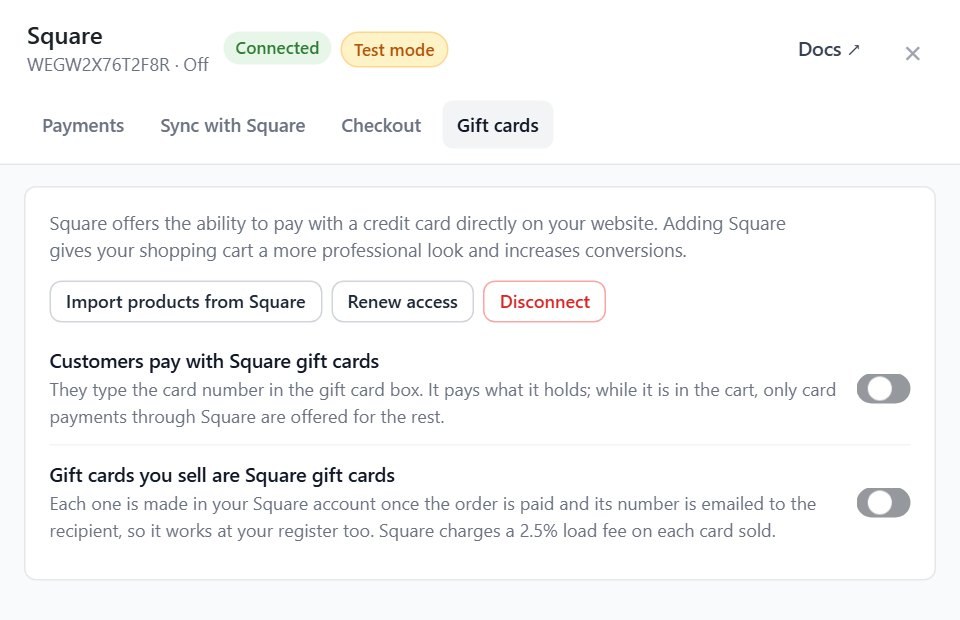
The Gift cards tab in Square’s settings, with Customers pay with Square gift cards and Gift cards you sell are Square gift cards.

What the shopper does

The gift card box, the balance and the card payment

1. Enter the number. The shopper types the card’s 16-digit number into the gift card box on the cart or checkout. Spaces and dashes are fine. There is no PIN.
2. See the balance. The store asks Square for the balance and shows a line such as Square gift card ending in 1234: $40.00 available. The card pays what it holds, up to what the order costs. Only the last four digits are shown or kept.
3. Pay the rest by card. While a Square gift card is in the cart, only card payments through Square are offered. Bill later, third-party payments and the PayPal and Stripe buttons are hidden. Anyone who tries another method is told A Square gift card can only be combined with a card payment. Choose to pay by card, or remove the gift card.
4. Place the order. The balance is read again first, in case the card was used at your register meanwhile. If it changed, the shopper sees Your gift card balance has changed. Check your new total, then place your order again.

Hold, then take. When a card payment pays the rest, the gift card’s share is held first. It is taken once the card payment goes through, and the hold is cancelled if the card is declined. When the gift card pays the whole order, it is charged at once.

The order shows the card as Square and its last four digits, and its timeline reads Paid with a Square gift card with the Square payment.

💡 Note: The balance is kept for two minutes while the shopper checks out, and read again from Square when the order is placed, so a card spent at your register cannot pay twice.

Step 3. Make the cards you sell Square gift cards

Gift cards you sell are Square gift cards

On the same tab, turn on Gift cards you sell are Square gift cards and press Save. Its description: Each one is made in your Square account once the order is paid and its number is emailed to the recipient, so it works at your register too.

What happens on each sale. The order is placed with no gift card number on the line yet. As soon as the order counts as paid, the store makes a digital Square gift card loaded with the line’s value, puts its number on the order and sends the usual gift card email to the recipient. The order timeline reads Square gift card made. Until then, the receipt has no print link and Resend Gift Card Email has nothing to send.

Square’s load fee. When your Square currency is US, Canadian or Australian dollars, the description adds Square charges a 2.5% load fee on each card sold. Square charges it to you, not to the buyer.

This switch works whichever gateway takes the payment.

⚠️ Careful: Turn this on only if you want every gift card sold online to be a Square card. While it is on, the store makes no WP EasyCart gift card codes for new sales.

Step 4. Set up the gift card product

An ordinary WP EasyCart gift card product

A Square gift card is sold through a normal Gift card product: the amounts, the recipient fields and the email are all the same. If you do not have one yet, follow How to sell gift cards. The switch decides who makes the card, not how the product looks.

Gift card items from Square. Importing from Square brings a Square gift card item in as a gift card product that does not ship. Until the sell switch is on, the import notes A Square gift card item: it sells WP EasyCart gift cards, which your Square register cannot take. Turn on Gift cards you sell are Square gift cards to sell Square gift cards instead. A variation priced at the register comes in at 0, so give it a price.

Step 5. Test it

Square’s sandbox, both directions

Connect a Square sandbox account ( or connect a sandbox account on the Square card ) and switch Square to test mode. Turn on both switches. Then, in a private window:

1. Buy your gift card product with one of Square’s sandbox test cards. Use an email address you can read as the recipient.
2. Open the order in your admin. The timeline shows Square gift card made, and the recipient gets the gift card email with its number.
3. In a new cart with a normal product, type that number into the gift card box. The balance line appears and the total drops.
4. Pay the rest with a sandbox test card. The order timeline shows Paid with a Square gift card.
5. Refund that order. The amount goes back onto the gift card.

When it works, switch Square back to live.

Keep it running

After the sale

Refunds and cancels, and what to check when it does not work.

Refunds and cancelled orders

Value goes back where it came from

An order paid with a Square gift card. Refund or cancel it from the order screen as usual. What the gift card paid goes back onto that card in Square. Reopen a cancelled order and the card is charged again, up to its balance.

An order that sold a Square gift card. A refunded or cancelled gift card line takes what is still unspent off the card it made. If some was already spent at your register or online, only what was left comes off, and a staff note on the order says how much had already been used. The timeline reads Square gift card balance taken off.

If it does not work

The usual reasons, from the code

The switches are on but nothing happens. Open the Gift cards tab. If it asks you to Connect Square again, the switches stand down until you do. Meanwhile gift cards you sell are WP EasyCart gift cards with a working code, and checkout does not take Square gift card numbers.

The number says it is not valid. The card must be active in Square and in the same currency as your Square account. Check the number in Square’s dashboard. A card spent to zero says This gift card has already been used up. instead. Check too that Square is your payment gateway, and that the card is from the same mode: a live card does not work in the sandbox.

The shopper cannot choose another payment method. That is by design. A Square gift card only pays alongside a card payment through Square.

The recipient got no number. The card is made once the order is paid. If Square could not make it, the order gets a note and it is tried again every ten minutes, up to five times. After that, make the card in Square and send its number yourself, or fix the connection and change the order status to try again.

A gift card payment was held but not taken. If Square did not answer at checkout, the store tries again in the background on WP-Cron. If it still cannot, the order gets a note asking you to check the payment in Square.

Your license lapsed. Taking and selling Square gift cards stop until it is active again: checkout stops taking Square numbers and new gift cards sold are WP EasyCart gift cards. Refunds, cancels, held payments and cards you already sold keep working. Need help? Open a ticket from your account.

Keep going

Related panels

Payments

Settings › Payments, where Square is connected and its Gift cards tab lives.

Gift Cards

Marketing › Gift Cards, for your WP EasyCart gift cards.

Checkout

The Gift card box and the other checkout settings.

Product Importer

Bring your Square items, gift cards included, into your store.

Ready to run your store on WP EasyCart?

Everything in this guide works with the free plugin. PRO and Premium add subscriptions, memberships, wholesale pricing and more. Try every PRO feature free for 14 days.
The WP EasyCart admin: orders and offers
Updated on November 12, 2026