
How-to › Fix common problems

Caching and WP EasyCart: What to Exclude and Why

Stop empty carts, other shoppers’ items and stale prices. You leave one setting on, exclude a few pages from your cache and test it. 7 parts.

Quick links

Where to find it:WP Admin › EasyCart › Settings › Checkout

Before you start

What caching does to a store

Why a cache breaks a cart, and the signs to look for.

Why caching breaks a store

What you need and what goes wrong

no stored settings

What you need. Any edition of WP EasyCart, and access to the settings of whatever caches your site: a cache plugin, your host’s control panel or a CDN.

The problem. Page caching saves a finished copy of a page and hands that copy to the next visitor. That is perfect for a blog post. It is wrong for a cart, a checkout or an account page, because those pages are different for every shopper. Cache one and the next shopper can see an empty cart, someone else’s items or a login that never sticks.

Where caching comes from. Your host ( often Varnish or a similar server cache ), a WordPress cache or speed plugin, your theme, or a CDN that stores whole pages. You may have more than one at once.

The signs. Items added to the cart do not show. The cart shows items you did not add. Logging in reloads the login page. A price or title you changed does not change on the site. Any of these means a cache is serving a stale page.

WP EasyCart does most of the work for you. This guide covers what it does, what you still have to set, and how to prove it works.

💡 Note: The most common cause of a cart that behaves strangely is not WP EasyCart at all. It is a page cache the site owner did not know was running, often on the host.

Set it up

Four steps

Leave the EasyCart setting on, exclude the right pages, bypass on the cart cookie and test.

Step 1. Leave “Load the cart dynamically” on

The one EasyCart setting that matters

no stored settings

Go to EasyCart › Settings › Checkout, press Show advanced settings and find Load the cart dynamically in the Cart page card. It is on by default. This is the setting older guides called Prevent Cart Caching Problems.

With it on, the cart, checkout and account pages arrive as an empty frame and fill themselves in with JavaScript once the page has loaded, using the shopper’s own cookie. A cached copy of the frame holds nobody’s cart, so it cannot show the wrong one. The one-page checkout always loads this way, whatever the switch says.

With it off, the page is built on the server, and EasyCart tells caches not to store it. It sets the standard do-not-cache flags ( DONOTCACHEPAGE and DONOTCDN ) and sends no-cache headers. Most page-cache plugins obey the flags, but a host or CDN cache may not, so leave the setting on.
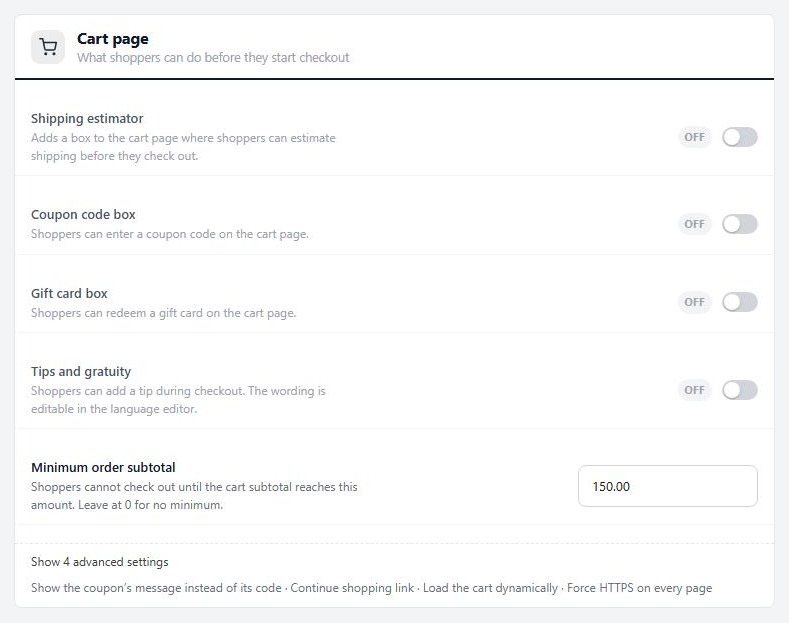
Settings › Checkout › Cart page, with advanced settings shown.

Step 2. Exclude these pages from every cache

Cart, account, members pages and pay links

no stored settings

Even with the setting on, tell your cache to skip the pages below. Find their addresses in EasyCart › Settings › Store details, in the Store pages card.

Your cart and checkout page. One page does both. Its steps and the order confirmation use addresses such as ?ec_page=checkout_payment, so exclude the page with everything after it. A pay link uses ?ec_page=invoice.
Your account page and any page that holds a login or register form.
Members pages. Any page with a WP EasyCart Limit Access lock, or the membership shortcodes. The lock runs when WordPress builds the page, so a cached copy skips it and shows members content to everyone.
Your store and product pages. EasyCart already marks the store shortcode and the product details shortcodes as not cacheable. Exclude them too if your cache ignores that flag, or price and stock changes will lag.

Also keep admin-ajax.php out of every cache. The dynamic cart, cart badges and checkout all talk to it.

How you add an exclusion depends on the tool. Cache plugins have a “never cache these pages” list. Server caches such as Varnish need a rule on the address, and many managed hosts add it if you ask their support. On a CDN that stores whole pages, add a bypass rule for the same addresses.
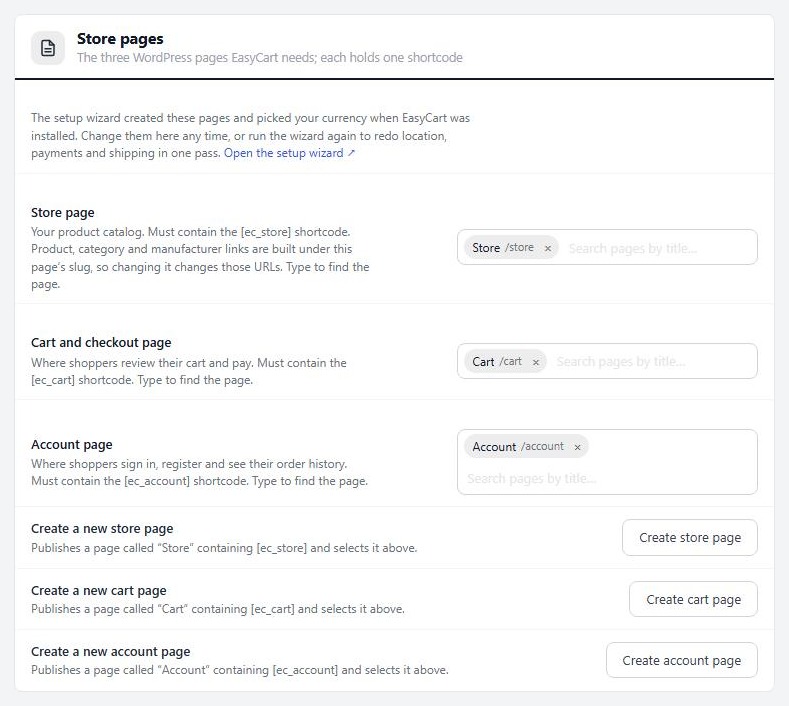
Settings › Store details › Store pages, where the addresses of your store, cart and account pages come from.

⚠️ Careful: Never cache the cart, checkout or account pages. A cached copy can show one shopper another shopper’s details. Clearing the cache after you fix it protects the next visitor.

Plugins, optimizers and CDNs

Keep one cache, and keep it away from the cart

no stored settings

One cache plugin. Two page-cache plugins fight over the same pages. Keep one and switch the others off.

Speed features. Options that combine, defer or delay JavaScript can stop the cart and checkout scripts from starting. If the cart shows a spinner that never ends, or buttons do nothing, turn those options off for the cart, checkout and account pages and test again.

Host and server caches. Varnish and similar systems sit in front of WordPress, so no plugin can override them. Ask your host to exclude your cart, account and store pages and the ec_cart_id cookie, or to switch server caching off for the site.

CDNs. Serving images, scripts and styles from a CDN is fine. Caching the HTML of your cart, checkout and account pages there is not.

Step 4. Test it

Two browsers, one cart each

no stored settings

Clear every cache first: your cache plugin, your host’s cache and your CDN. Then, in a private window that is not logged in as an admin:

1. Add a product to the cart and open the cart page. Your item should show.
2. Open a second browser, or a different profile, and open the cart page. It should be empty. If it shows your item, the page is being cached.
3. Log in on the account page, go to another page and come back. You should stay logged in.
4. Change a product price in the admin, then reload that product in the private window. The new price should appear at once.
5. Reload the cart page twice and look at it. It should never show a blank cart.

Do the test again after any change to your caching, your theme or your host.

Good to know

If something goes wrong

Symptoms and the layer that usually causes them.

If it does not work

Symptoms and the usual cause

no stored settings

The cart is blank, or blank after a day. With the cart loading dynamically, the page carries a one-time security token that expires within a day. If the cart page itself is cached longer than that, the token is stale, the cart request is refused and the cart stays empty. Exclude the cart page from caching, then clear the cache.

A shopper sees someone else’s items. A cache is storing a cart or checkout page. Find which layer: switch plugin, host and CDN caching off one at a time until it stops. Then exclude the pages in that layer.

Login reloads the page or forgets you. Exclude the account page and check that the ec_cart_id cookie is not being stripped by the host or CDN.

Product changes do not show. Purge the cache after you edit. If that fixes it once and it comes back, your cache is ignoring the do-not-cache flag on product pages. Add an exclusion for the store page.

Members content shows to the wrong people. Exclude every locked page and every page with a membership shortcode. See the membership guide.

You cannot tell which layer is caching. Deactivate every plugin except WP EasyCart and test. If it works, switch plugins back on one at a time. If not, switch your theme to a default WordPress theme and test again. If it still fails, ask your host to turn off server caching for the site. Need us? Open a request in your account.

Keep going

Related panels

Checkout

Every option in Settings › Checkout.

Store details

Where the store, cart and account pages are chosen.

Accounts

Account page and login settings.

Diagnostics

Health checks for the store and your server.

Ready to run your store on WP EasyCart?

Everything in this guide works with the free plugin. PRO and Premium add subscriptions, memberships, wholesale pricing and more. Try every PRO feature free for 14 days.

The WP EasyCart admin: orders and offers
Updated on September 30, 2026