What’s newFind any order, customer, product or setting with one admin search. See all features

How-to › Start here

Set Up VAT or GST for Your Country

Charge VAT or GST the way your country expects: the recommended settings, reduced and zero rates, EU One-Stop Shop rates, checked VAT numbers and invoices that carry your details. 10 parts.

Quick links

Where to find it:WP Admin › EasyCart › Settings › Taxes

Before you start

What you need

Your registration, your country, and VAT or GST.

What you need

Your country set, and your registration in hand

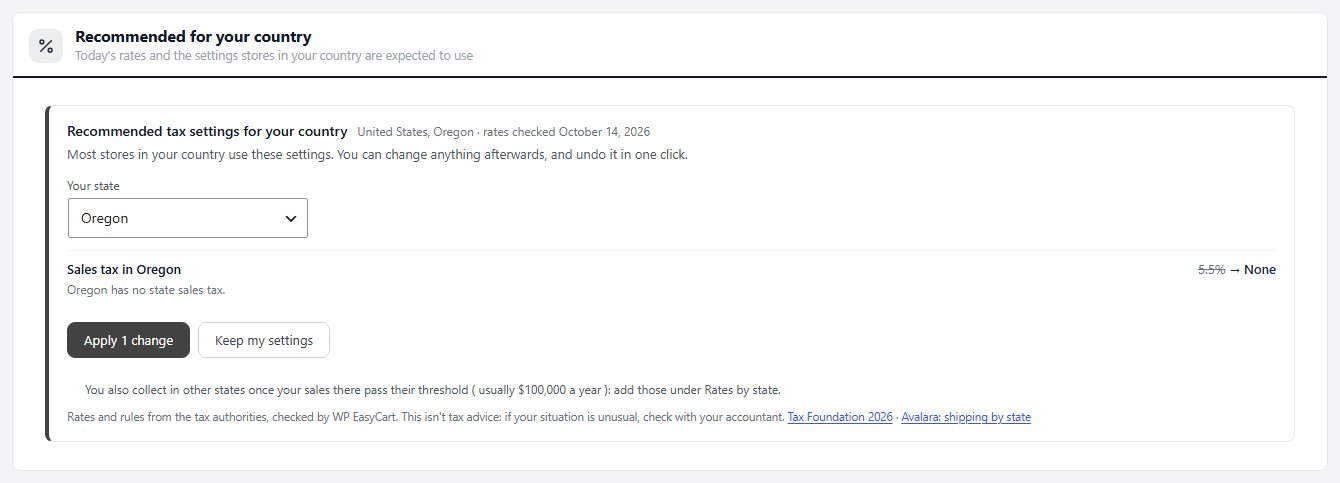
What you need. Your VAT or GST registration, and your store’s country set in Settings › Store details ( the setup wizard sets it too ). The recommended tax settings follow that country. WP EasyCart charges the tax you set; it cannot tell you what you owe.

Free or PRO. VAT and GST, reduced and zero rates, the EU rates and the VIES and HMRC number checks are all in the free plugin. The invoice PDF attached to order emails is a PRO feature.

VAT or GST. They work the same way in WP EasyCart. Only the name changes: stores in Australia, New Zealand, Singapore, Malaysia and India see GST, everyone else VAT. Where this guide says VAT, read GST if that is yours.

Selling in the United States or Canada instead? See Set Up Sales Tax and VAT.

⚠️ Careful: Charge VAT or GST only once you are registered for it. Confirm your obligations with your accountant or tax authority before you sell.

Set it up

Five steps to the right VAT

Recommended settings, name and prices, reduced rates, EU selling and business customers.

Step 2. Check the name and how prices show

VAT or GST, and prices with or without it

Open EasyCart › Settings › Taxes. For a store outside the US and Canada, the VAT section comes right after Where you collect. Check:

Tax name: Automatic picks GST or VAT from your country. Pick VAT or GST to choose yourself. With GST, Settings, the product editor, checkout, receipts and invoices all say GST.
Prices include VAT: on, the prices you enter include VAT and checkout shows the VAT inside them, as consumer prices in the UK, the EU, Australia and New Zealand usually do. Off adds VAT on top at checkout.
Exempt shipping from VAT: leave it off to charge VAT on shipping, as the recommendation does.

To show a price both with and without VAT, turn on Show prices both with and without VAT in Settings › Products. It needs Prices include VAT on, or both figures come out the same.
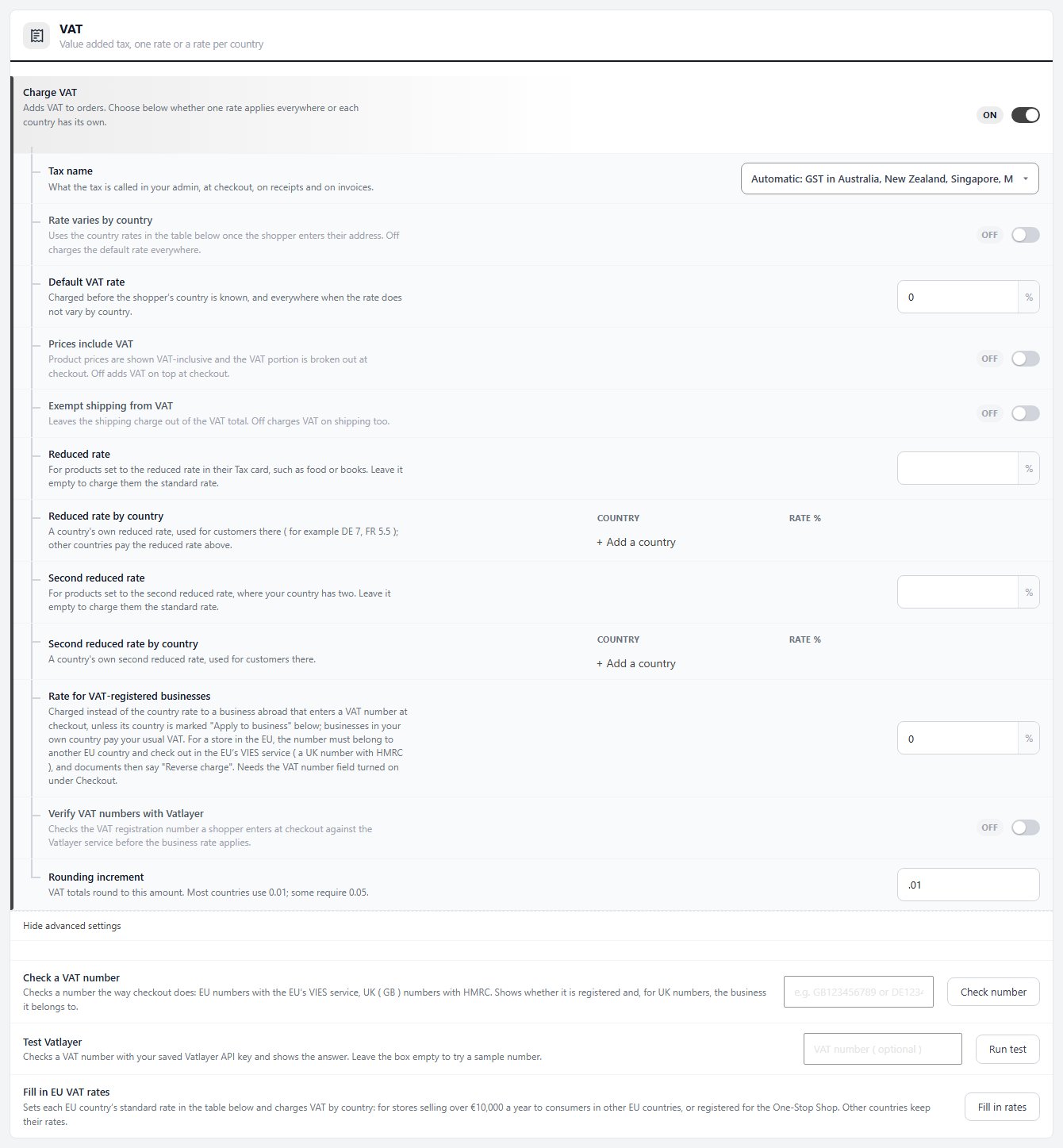
The VAT section switched on, with the tax name, rates, the business rate and the VAT number check.

Step 3. Reduced and zero rates

Food, books, children’s clothes: a rate per product

Every product pays your standard rate unless you give it another. First set the rates in the VAT section:

Reduced rate: for example 5 or 7 percent. Leave it empty and products set to it pay the standard rate.
Second reduced rate: where your country has two.
Reduced rate by country and Second reduced rate by country ( advanced settings ): a country’s own rate, for customers there. Press Add a country, type the two-letter code and the rate ( DE 7, FR 5.5 ). Other countries pay the rate above.

Then open each product and go to its Tax section. With Charge VAT on, VAT rate offers Standard rate, Reduced rate, Second reduced rate and Zero rate, each with its rate. For a zero-rated item, keep Charge VAT on and choose Zero rate: switching VAT off makes the item tax-free, which only suits items the law exempts.

When an order mixes rates, receipts, invoices, the order confirmation and My Account list the VAT rate by rate, one line per rate.
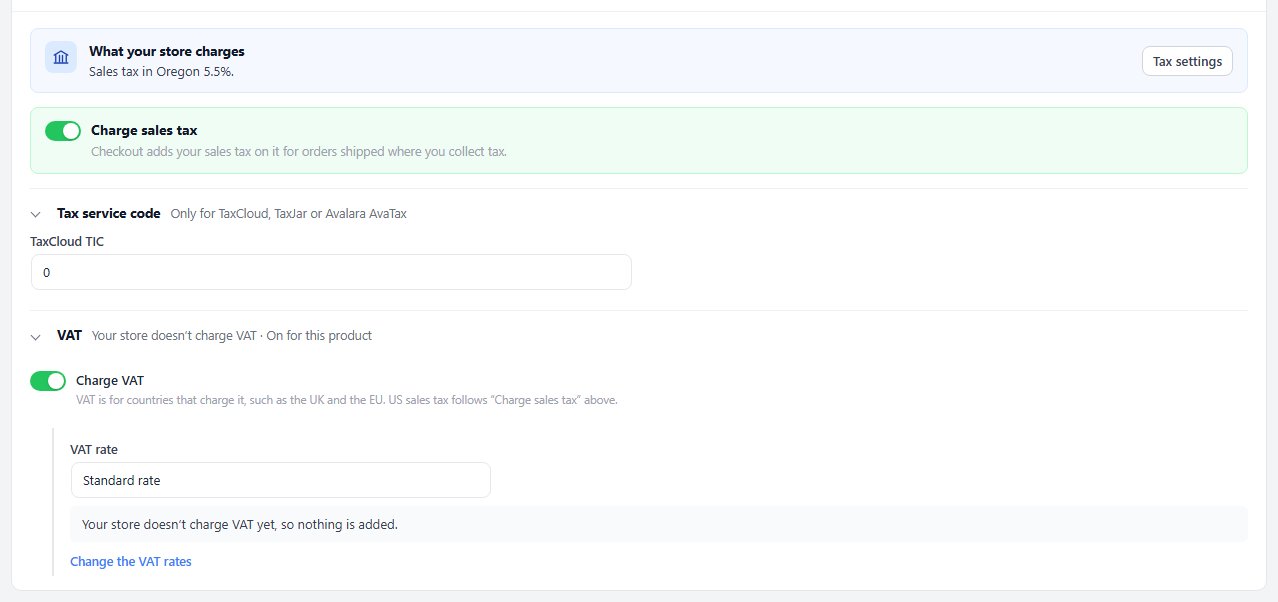
A product’s Tax section on a US store: VAT is folded below sales tax, with Charge VAT on and the VAT rate select.

💡 Note: The rest of a product’s price settings are in Pricing and Tax.

Step 4. Selling to other EU countries

Under €10,000 a year, or the One-Stop Shop

A store in the EU charges consumers in other EU countries one of two ways:

Under €10,000 a year of sales to consumers in other EU countries: your own country’s VAT, for every EU customer.
Over €10,000, or registered for the One-Stop Shop ( OSS ): each customer’s own country’s VAT.

Choose it on the recommendation card ( Consumers in other EU countries ) or in the wizard, and apply. The rates go into the country table of the VAT section. To fill them in later, press Fill in EU VAT rates in the VAT section: all 27 EU countries get their standard rate, Rate varies by country is switched on, and other countries keep theirs.

Either way, customers outside the EU pay no VAT, and EU businesses with a valid VAT number pay none ( reverse charge, below ). Under the One-Stop Shop, add each country’s reduced rate under Reduced rate by country.

Step 5. Business customers and VAT numbers

The reverse charge, checked with VIES or HMRC

Turn on VAT registration number in Settings › Checkout so business customers can enter their number. The recommended settings do not switch it on for you.

Rate for VAT-registered businesses ( advanced settings ) is charged instead of the country rate to a business abroad that enters a number. The recommendation sets it to 0. A business in your own country always pays your usual VAT. A country marked Apply to business in the country table charges businesses its normal rate.

How numbers are checked. For a store in the EU, the number must belong to another EU country ( the delivery or billing country ) and check out in the EU’s VIES service. A UK ( GB ) number is checked with HMRC. If the service does not answer, the business pays VAT, and it can claim it back. Orders charged no VAT this way say Reverse charge on their documents. A store outside the EU gives the business rate to any business abroad that enters a number.

To try a number yourself, type it into Check a VAT number in the VAT section and press Check number. It checks the way checkout does and, for a UK number, names the business. Verify VAT numbers with Vatlayer adds an optional second check with a Vatlayer key; a number it rejects stops the checkout.

💡 Note: The VAT registration number field is in Settings › Cart & Checkout › Checkout.

Before you sell

What shoppers and invoices show

Sale prices, the order button, your business details, a test and fixes.

Step 6. Sale prices and the order button

What EU and UK pricing rules expect shoppers to see

The lowest price of the last 30 days. EU rules ask for it wherever a price reduction is announced. With Show the lowest price of the last 30 days under a reduced price on ( Settings › Products › Pricing display ), product pages and store lists show Lowest price in the last 30 days under a struck-through price or an offer. It is on by default for stores in the EU and the EEA. A reduction that began before WP EasyCart kept price history has no earlier price on record: the product editor’s Pricing section then lets you enter the lowest price charged in the 30 days before it.

The order button. The button that places the order says payment is owed: PLACE ORDER AND PAY, as EU and UK consumer law requires. If you change its wording in the language editor ( Cart – Payment Information, the Submit Order Button phrase ), keep that meaning.

Step 7. Your business details on receipts

Registered name, address and VAT number

EU and UK invoices must show the seller’s registered name, address and VAT number, and Australian tax invoices the ABN. Fill in the Business details card in Settings › Store details:

Registered business name: the legal name.
Registered address: one line each.
The tax number: labelled for your country, such as VAT number, ABN or GST number.
What the number is called ( advanced settings ): leave it empty to use your country’s name for it.

They print in the footer of the order emails whose document profile shows business details, and on the PRO invoice and credit note PDFs unless those have business details of their own. A store in Australia gets its PRO invoice PDF titled Tax invoice while the invoice title is unchanged.

💡 Note: Which emails show business details is set in Settings › Emails & Documents › Email and Document Profiles.

Test it

Place orders as a consumer and as a business

Test as a customer, in a private window:

1. Add a standard-rate product and a reduced-rate product to the cart and go to checkout with an address in your own country. The VAT should match your rates.
2. Change the address to another EU country ( if you sell in the EU ) and to a country outside it. Check the VAT follows your choice in Step 4, and is gone outside.
3. Enter a business VAT number from another country. Check it first with Check a VAT number; a valid one should take the business rate.
4. Place an order with Pay by bank transfer ( the Bill later card in Settings › Payments ) or a gateway in test mode.

Then open the order in Orders and its receipt email. Check the VAT line per rate, your business details, and Reverse charge on the business order.

If it does not work

Why VAT is missing, doubled or wrong

No VAT on an order. The product’s Charge VAT is off, or the shipping country has no rate in the VAT section’s country table ( countries not listed pay no VAT ).

Tax charged twice. A flat rate or a rate by country is still on beside VAT. Apply the recommended settings, which remove them, or switch them off in Where you collect and Rates by country.

A reduced-rate product pays the standard rate. Reduced rate is empty, so the product falls back to the standard rate. Set it in the VAT section.

A business pays VAT. The VAT number field is off in Settings › Checkout, the business is in your own country, its country is marked Apply to business, or the number did not check out ( or VIES or HMRC did not answer ). Try the number with Check a VAT number.

The tax is called VAT, not GST. Set Tax name to GST, or check your store’s country in Settings › Store details.

Still stuck? Open a ticket at wpeasycart.com/my-account.

Keep going

Related panels

Taxes

Every option on the Taxes page.

Pricing and Tax

Prices and sale prices on a product.

Checkout

The VAT registration number field.

Products

The lowest price of the last 30 days, and prices with and without VAT.

Store details

Your country and your business details.

Email

The order emails your business details print on.

Ready to run your store on WP EasyCart?

Everything in this guide works with the free plugin. PRO and Premium add subscriptions, memberships, wholesale pricing and more. Try every PRO feature free for 14 days.

The WP EasyCart admin: orders and offers
Updated on October 19, 2026